
LINE Rent Payment Notifications: Tenant Setup Guide and Automatic Rent Reminders
Do you chase every tenant one by one each month for rent? Get busy for a few days and you lose track of who has paid and who hasn't. You finally send the message, the tenant replies "Sorry, I forgot, I'll do it later", and the next day you have to ask all over again.
It gets harder when the tenant has no Email address and does not want to install another App, leaving you with no reliable way to reach them.
RentPackage's LINE rent payment notification hands the whole job to the system. The tenant links their account once, and from then on every bill is delivered straight to the LINE app they already open every day. The landlord ticks [Remind Tenant] once on the contract and never has to track due dates again. Here is how tenants link their LINE account.
Quick links
- 1. What LINE notifications can do
- 2. Who can link an account
- 3. Setup steps for tenants with a RentPackage account
- 4. How tenants without a RentPackage account link theirs
- 5. Linking and adding as a friend are two different things
- 6. Checking the status and changing the linked account
- 7. How landlords switch on payment notifications for a tenant
- 8. Linked, but no notifications arriving
- Frequently asked questions
1. What LINE notifications can do
Once LINE is linked, every payment notification the system generates goes straight to LINE. There is no inbox to open, no need to sign in, and nothing else to install. The message goes out automatically on the due date, with the amount, the billing period and the payment deadline all laid out in one place.
The system sends the notifications on its own, so landlords and agents no longer send reminder messages by hand every month. Because the reminder lands in LINE, which tenants open daily, it is far less likely to be missed. Each tenant is set up once and the reminders keep going out every month after that.
The RentPackage official account is used only to send payment notifications. Adding it as a friend will not bring you any promotional messages.
2. Who can link an account
As long as the landlord or agent is on a paid RentPackage plan, the tenants on their contracts can link LINE and receive payment notifications. It makes no difference whether the tenant has a RentPackage account of their own.
Any tenant with a LINE account can use this, in any country or region.
3. Setup steps for tenants with a RentPackage account
Step 1: Open the LINE notification settings
After signing in, click the gear icon in the top right corner, choose [Notification Settings], switch to the [Personal Notification Settings] tab, then click [LINE Notification]. If nothing is linked yet, click the green [Link now] button to start.
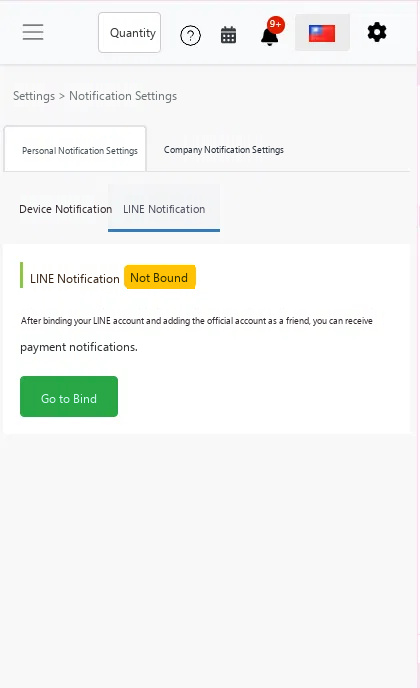
Step 2: Authorise in LINE
You will be taken to LINE's authorisation page, which shows RentPackage Login. Confirm that the provider is RentPackage, then tap Allow at the bottom. The system only receives the identifier it needs to send you messages; it cannot read your chats or your friend list.
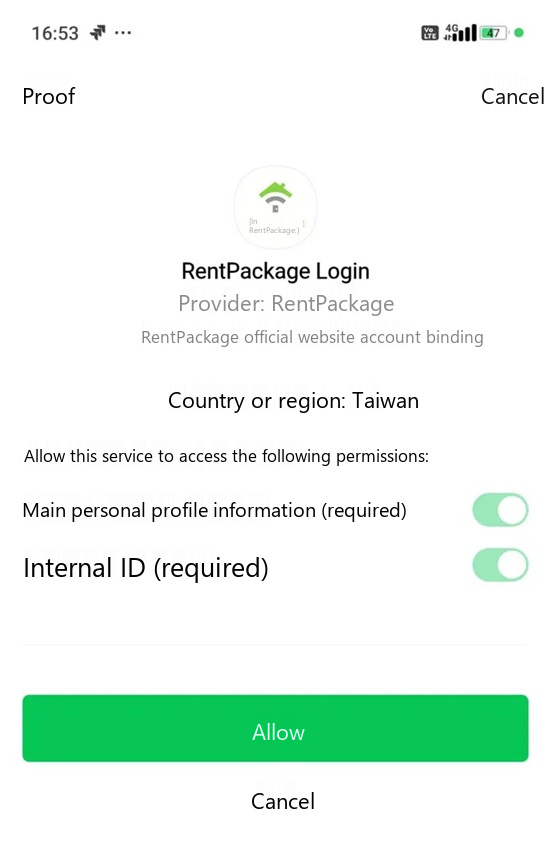
Step 3: Add the official account as a friend
During authorisation you will be asked whether to add the RentPackage official account as a friend. Please accept, and you will then see the completion screen. This step cannot be skipped: LINE only delivers messages to accounts that have added the sender as a friend. If you block or remove the friend later, notifications stop.
Step 4: Check the status back in the system
Return to [Settings] > [Notification Settings] > [Personal Notification Settings] > [LINE Notification]. A status of linked means you are done, and payment notifications will go to this LINE account from now on. If it shows that the friend has not been added, the authorisation succeeded but the friend request did not go through, so click [Add friend] to finish it.
4. How tenants without a RentPackage account link theirs
There are three ways to do this, depending on how you sign the contract with your tenant. Any one of them is enough.
Option 1: The tenant signs online through a signing link
After signing, the tenant sees a [Link LINE account] button on the completion page. Tapping it takes them to the LINE linking page, where they approve the authorisation and add the friend to finish. The landlord does not need to do anything at all, which makes this the quickest route.

Option 2: Signing in person or moving in directly
After the landlord completes an in-person signing or a direct move-in, a LINE linking window appears if that tenant is not linked yet. If the tenant is there with you, ask them to scan the QR Code on screen with their phone. If they are not, click [Copy binding link] and send them the copied link instead.
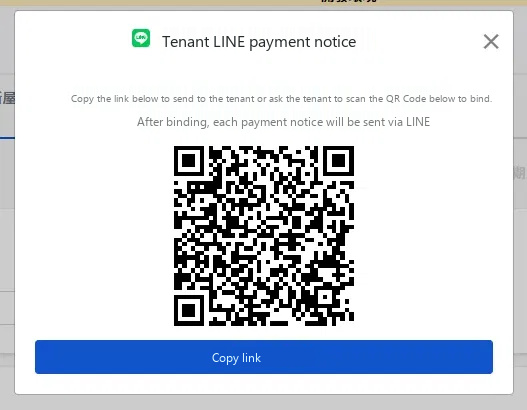
Option 3: Not linked during signing, so link it any time after the contract is created
Go to [Edit tenant] > [Advanced Settings] > [LINE Binding]. What this section shows depends on the tenant's current status. Each tenant has their own link, and links cannot be shared between tenants.
- Friend not added: the tenant has not added the official account as a friend yet, and no notifications can reach them in this state. Copy the add-friend link on screen and send it to them, or ask them to scan the QR Code. Notifications start arriving once they have added it.
- Linked: the tenant has added the friend and notifications will be delivered normally. You still need to make sure the contract has tenant notifications switched on under [View/Edit Contract] > [Rent payment reminders], otherwise nothing is sent. The link on screen expires, so pass it on promptly after copying.
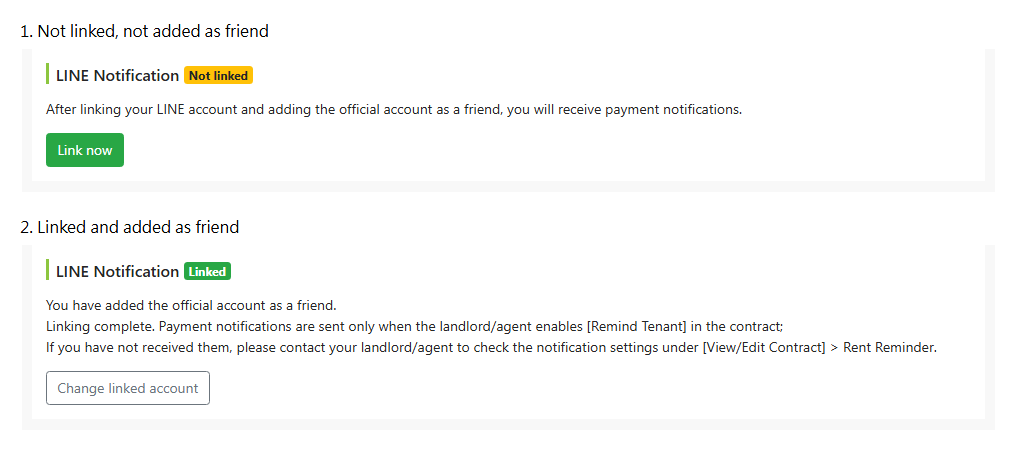
Once it is done, [Edit tenant] > [Advanced Settings] > [LINE Binding] shows that tenant's LINE status, so you can see at a glance who is still not linked without asking them one by one.
5. Linking and adding as a friend are two different things
Authorising the account is not enough on its own; the official account also has to be added as a friend before any message can go out. A tenant may finish the authorisation without adding the friend, or add it and later block it, and in either state notifications cannot be delivered. The system flags this in the linking status.
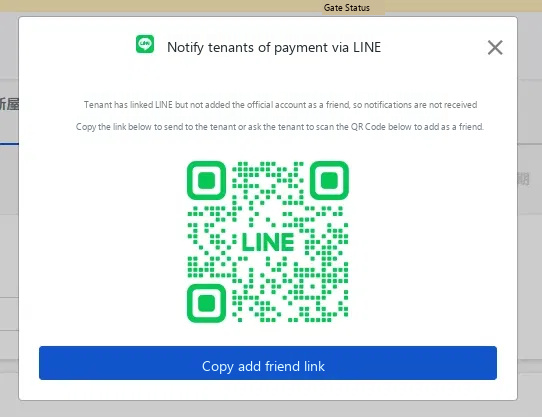
If a tenant did not add the friend while linking, make sure they do so through the QR Code or the add-friend link. Payment notifications can only reach them afterwards.
6. Checking the status and changing the linked account
Checking the current status
Tenants who are RentPackage members can check their own status under [Settings] > [Notification Settings] > [Personal Notification Settings] > [LINE Notification]. Agents and landlords can check a tenant's status under [Edit tenant] > [Advanced Settings] > [LINE Binding].
There are three possible states:
- Not linked: no LINE account has been connected yet.
- Friend not added: a LINE account is connected, but the official account has not been added as a friend, and no notifications can be received in this state. Simply adding the friend is enough; there is no need to link again.
- Linked: the account is connected and the friend has been added, so notifications will be delivered normally.
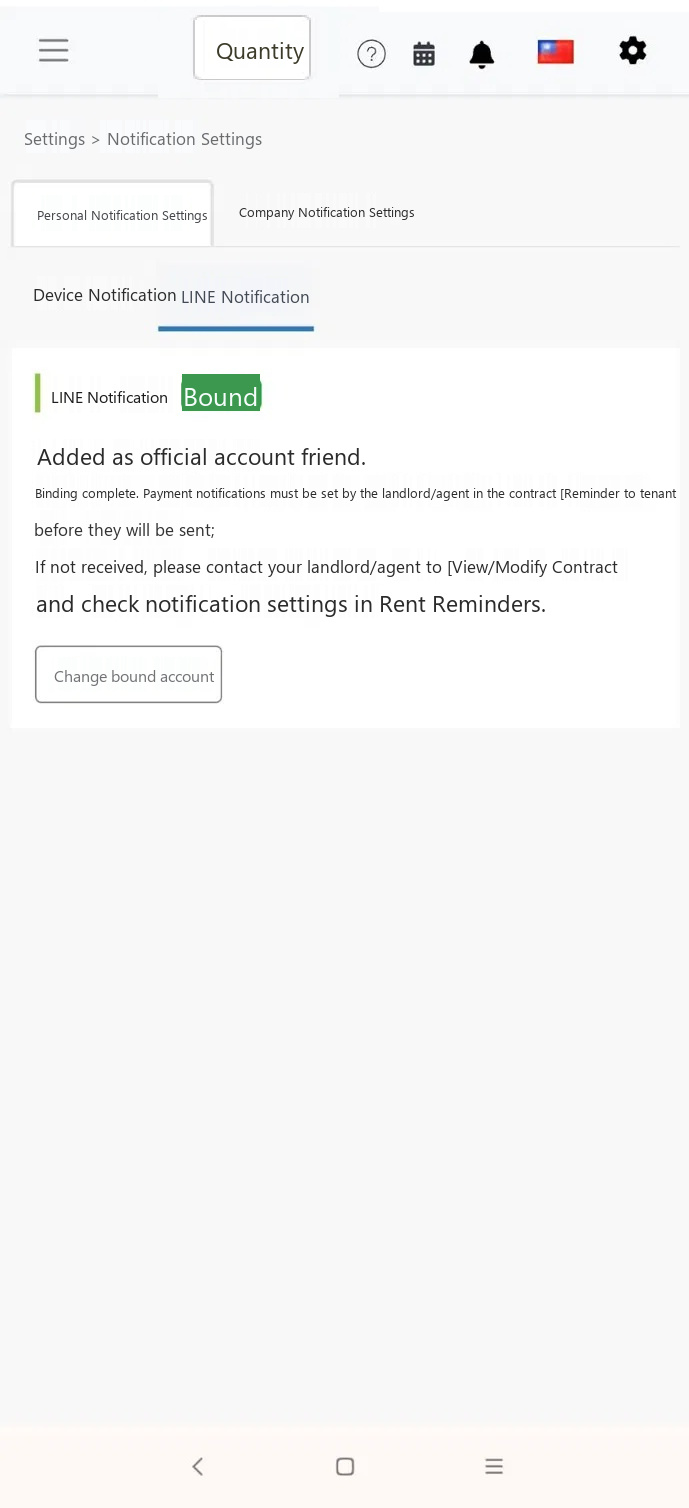
Changing the linked LINE account
To switch to a different LINE account, click [Change linked account] and go through the authorisation once more. The old link is dropped automatically, so notifications are never sent to two accounts at once.
Stopping notifications
Blocking or deleting the RentPackage official account in LINE stops the notifications. To start receiving them again later, simply add the friend back.
The RentPackage official account is used only to send payment notifications. Adding it as a friend will not bring you any promotional messages.
7. How landlords switch on payment notifications for a tenant
Linking LINE only opens the channel; whether a payment notification is actually sent is decided by the rent reminder settings on the contract. Go to [View/Edit Contract] > [Rent payment reminders] and tick [Remind Tenant]. Every bill from then on will send a payment notification to the tenant automatically, according to those settings.
8. Linked, but no notifications arriving
Work through the four checks below in order. In most cases it is one of the first two.
- Check that the settings page shows the account as linked. Neither the not-linked state nor the friend-not-added state can receive notifications, so use the button on screen to complete whichever step is missing.
- Check that the RentPackage official account has not been blocked in LINE. Blocking it turns the status back to friend not added.
- Ask the landlord or agent to confirm that [Remind Tenant] is ticked under [Rent payment reminders] on the contract. Nothing is sent while it is unticked.
- Check that the bill for the period has been generated. Notifications go out together with the bill, so no bill means no message.
Frequently asked questions
Q1: Can a tenant receive notifications without an Email address?
Yes. A LINE account is all a tenant needs. No Email address and no RentPackage membership are required.
Q2: Does the tenant need to install an App after linking?
No. Notifications are delivered straight to LINE, so nothing beyond LINE itself needs to be installed.
Q3: Does the account need to be linked again when a contract is renewed?
No. The link belongs to the tenant, so notifications carry on automatically after a renewal.
Q4: Can one LINE account receive notifications for several properties at once?
Yes. Once the same LINE account is linked under different contracts, every notification arrives in that one LINE account, and each message states which room the payment notification is for.
Q5: Will Email notifications still be sent after LINE is linked?
Yes. The two channels work independently, so anyone with an Email address on file receives both. Having two reminders makes it far less likely that either is missed.
Q6: Why did no LINE linking screen appear during signing?
If tenant notifications were not switched on when the contract was created, the linking screen does not appear during signing. You can still link at any time through [Edit tenant] > [Advanced Settings] > [LINE Binding]. Note that even after linking, you still need to go to [View/Edit Contract] > [Rent payment reminders] and tick [Remind Tenant] before the system will send payment notifications.
Related articles
Payment notifications are one part of collecting rent. Here is what else is worth knowing:
- Tenant Ledger Actions: Payment Reconciliation, Partial Payments, Meter Reading, and Deposits. All routine rent collection in one place.:Notifications go out with the bill, so start with how bills are generated.
- Custom rental notifications: rent reminders, lease expiration, sent to the right person at the right time:Set your own notification conditions and customise the message.
- How to activate Stripe online rent collection in RentPackage:Let tenants pay online the moment they get the notification, and skip the reconciliation work.