
RentPackage Employee Management: Team Collaboration for Rental Agents and Property Managers, Split by Property and Role
Contents
Agency and property management staff spend much of their day out on viewings and repairs, while the records sit in Excel or paper files at the office, so every client question means a call back to the office. RentPackage employee management puts the whole team in one system: after you add employees in [Settings] > [Employee Management], each employee sees only the properties they are responsible for and can use only the features their role allows.
Why use employee management
- Simpler workflow, more productive staff
Each employee sees only their own properties, and their role opens only the features they need, so there is less searching through data and fewer mistakes. - A virtual mobile office
Everything is in the cloud. Employees log in on a phone or computer to check bills and contracts without going back to the office for paper files or Excel. - Keep a mobile team connected
Agents out on viewings and accountants in the office work from the same data. When the person in charge of a maintenance request changes, employees watching that property are notified. - Answer clients any time, build trust
When a client reports a repair or asks a question in the evening, the employee in charge can look up the property, lease and bills on their phone and reply right away.
1. What employee management does
What an employee can do is decided by two settings:
- [Watch Property]: which properties the employee can manage.
- [Role]: which features the employee can use, such as billing, contracts and reports.
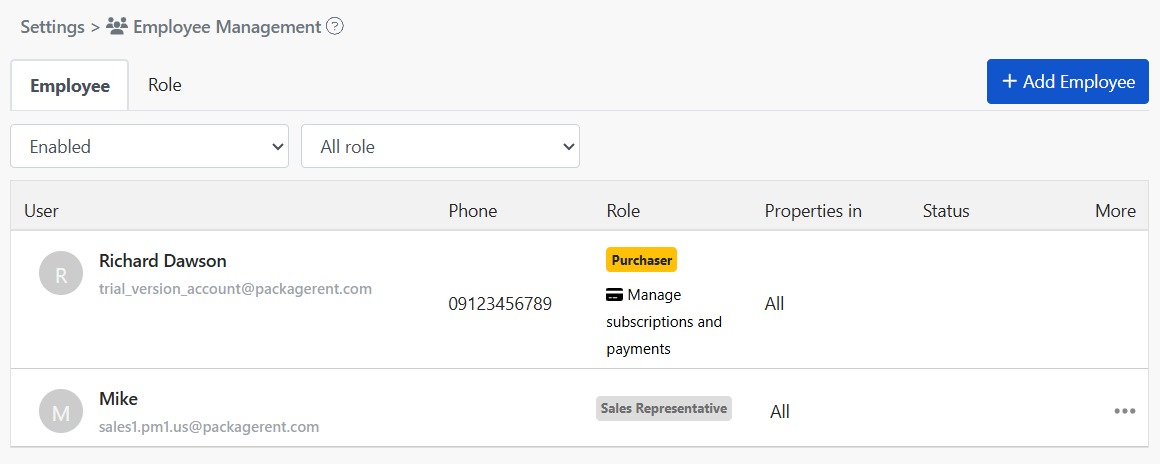
The page has two tabs at the top: [Employee] lists each employee's role, number of properties in charge and status; [Role] lists the roles your company has created and how many people use each one.
2. Add an employee
Step 1: Enter the employee's email
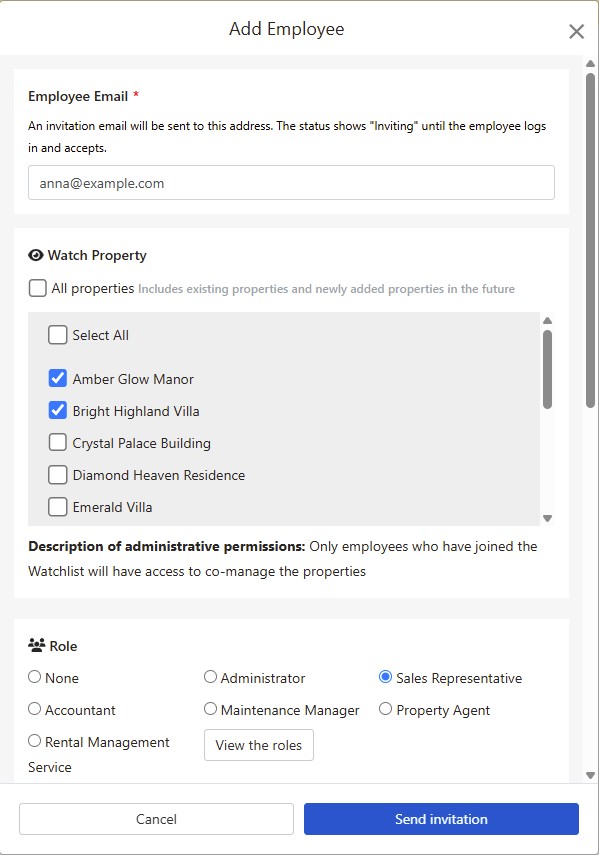
Click [Add Employee] in the top right and enter the employee's email. An invitation email will be sent to this address.
Step 2: Choose watched properties
Tick the properties this employee will be responsible for. If you tick [All properties], both existing properties and properties added later are included automatically.
Step 3: Choose a role
Choose the employee's role. The features available to that role are listed below it. If there is no suitable role yet, click [View the roles] to add one on the [Role] tab.
Step 4: Send the invitation
Click [Send invitation]. The employee appears in the employee list right away with the status [Inviting]. Once they log in from the invitation email and accept, the status changes to [Enabled].
When the employee logs in for the first time, tutorial videos matching their role are shown to help them get started quickly.
3. Watched properties
Only employees who have a property on their watch list can co-manage that property. Employees cannot see properties they are not watching.
If you have many properties, split them by area or by team. Employees then see only the properties they handle, which helps avoid mistakes.
4. Roles and permissions
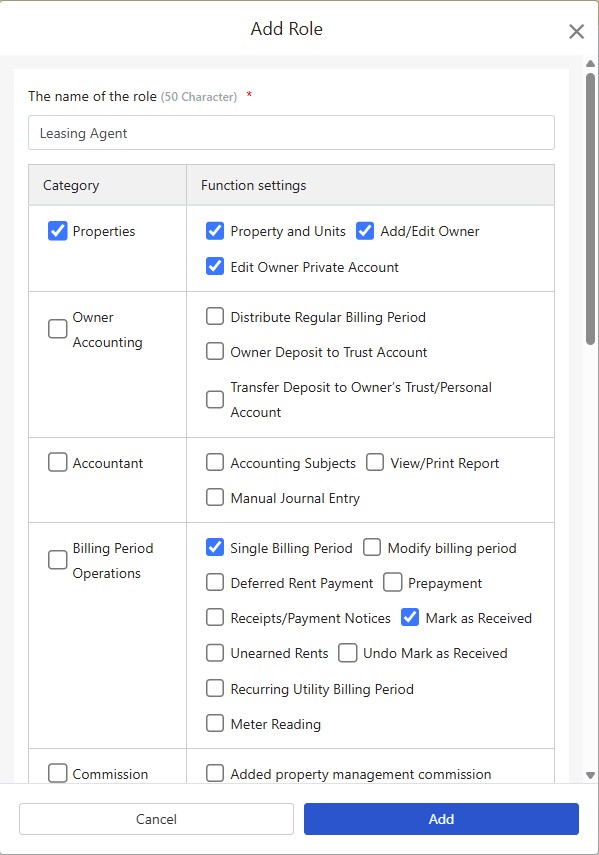
On the [Role] tab, click [Add Role], enter the [The name of the role], then tick the features this role can use. For example, create roles such as "Sales", "Accounting" and "Maintenance Supervisor", and give each employee one role.
Besides the roles you create, there are two more options:
- [Administrator]: can use all features.
- [None]: no role is applied; the employee can use only basic features that need no permission.
To change what a role can do, click "⋯" > [Edit Permission] for that role. Every employee with this role gets the new settings.
A role that is still assigned to employees cannot be deleted. Move those employees to another role first.
5. Edit an employee
In the employee list, click "⋯" > [Modify the role] for the employee to change their watched properties and role.
The permissions of the [Purchaser] (the account that bought the plan) cannot be changed.
6. Delete an employee
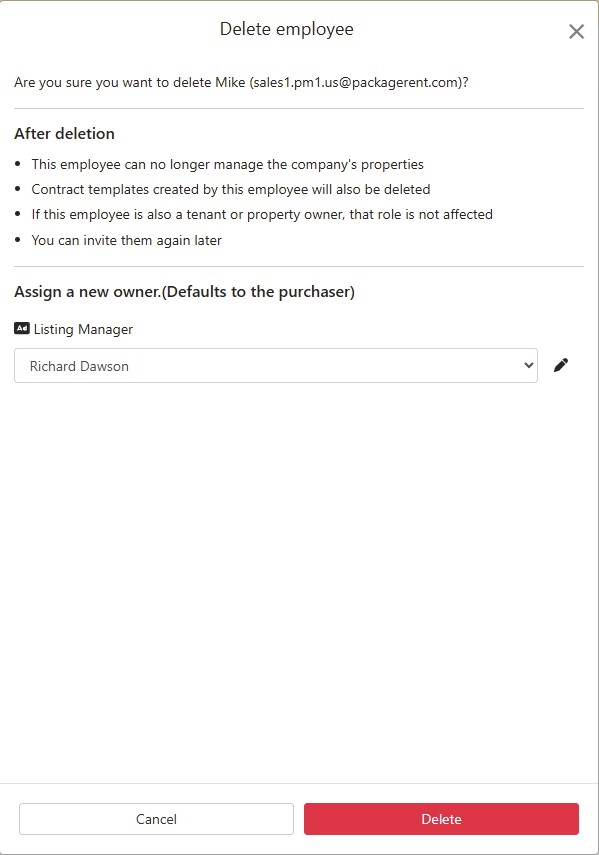
In the employee list, click "⋯" > [Delete] for the employee. The window first lists what happens after deletion:
- The employee can no longer manage the company's properties.
- Contract templates created by this employee are deleted as well.
- If this employee is also a tenant or an owner, that role is not affected.
- You can invite them again later.
If the employee is in charge of ads or maintenance requests, choose a new person in charge before deleting. The default is the [Purchaser]. After the maintenance person in charge changes, a notification and an email are sent to employees watching that property.
An employee who still has booked or in-progress contracts that have not ended cannot be deleted. Delete them after those contracts are completed.
7. Employee status
Employees in the list have one of three statuses:
- [Inviting]: the invitation has been sent, but the employee has not logged in to accept it yet.
- [Enabled]: the employee has joined and can start managing properties.
- [Deleted]: the employee has been deleted.
Use the filter above the list to show [Enabled] or [Deleted] employees. Employees in [Inviting] status are listed under [Enabled]. You can also filter by role.
8. FAQ
What if the employee did not receive the invitation email?
Ask the employee to check their spam folder first. If it is not there, click "⋯" > [Resend Invitation] for that employee in the list.
I see "This email owner is already an employee or has been invited." after entering the email?
This email is already in the employee list. If the person has not accepted the invitation yet, use [Resend Invitation] to send it again.
Can a deleted employee be added back?
Yes. Add the employee again with the same email.
Can the same person be both an employee and a tenant?
Yes. Deleting the employee does not affect their tenant or owner role.
Summary
If you keep doing things the current way, next month your team will still have to call the office to look things up while showing properties or handling repairs, and who handles which property will still depend on word of mouth. Once employees, watched properties, and roles are set up in RentPackage, every team member can check their own properties, contracts, and billing periods on their phone, and adding a new hire takes just one invitation.
Invite one colleague and assign them one property to try it.
Try RentPackage for freeRelated articles
- RentPackage Commission Split: Calculate Commissions, Tax, and Agent Bonuses in One Place After Every Rental Deal:Once employees have joined, you can set each person's commission bonus when a property is rented out.
- RentPackage Add Managed Property: Complete property setup, owner details, opening balance, and online signing in one go.:Add your properties first so you can pick them when adding an employee.
- RentPackage Tenant Billing Periods: Payment Reconciliation, Partial Payments, Meter Reading, and Deposits. All routine rent collection in one place.:Employees collect rent and reconcile payments every day on the billing period page.