
How to use Calendar to schedule tenant notifications: Power outage example
Quick Links
What is Calendar?
Suppose the power company notifies you of a power outage for line maintenance 15 days from now. You are busy at the moment and might forget to remind tenants. With the calendar, just create a schedule when notified, set the date, and the system will notify the tenants automatically when it's time. No need to remember or call/message them individually. This method also works for water shutdowns, fire inspections, move-out checks, etc.
How to Open the Calendar
Click the calendar icon at the top right corner of the screen (as highlighted in the red box below) to access the calendar page.
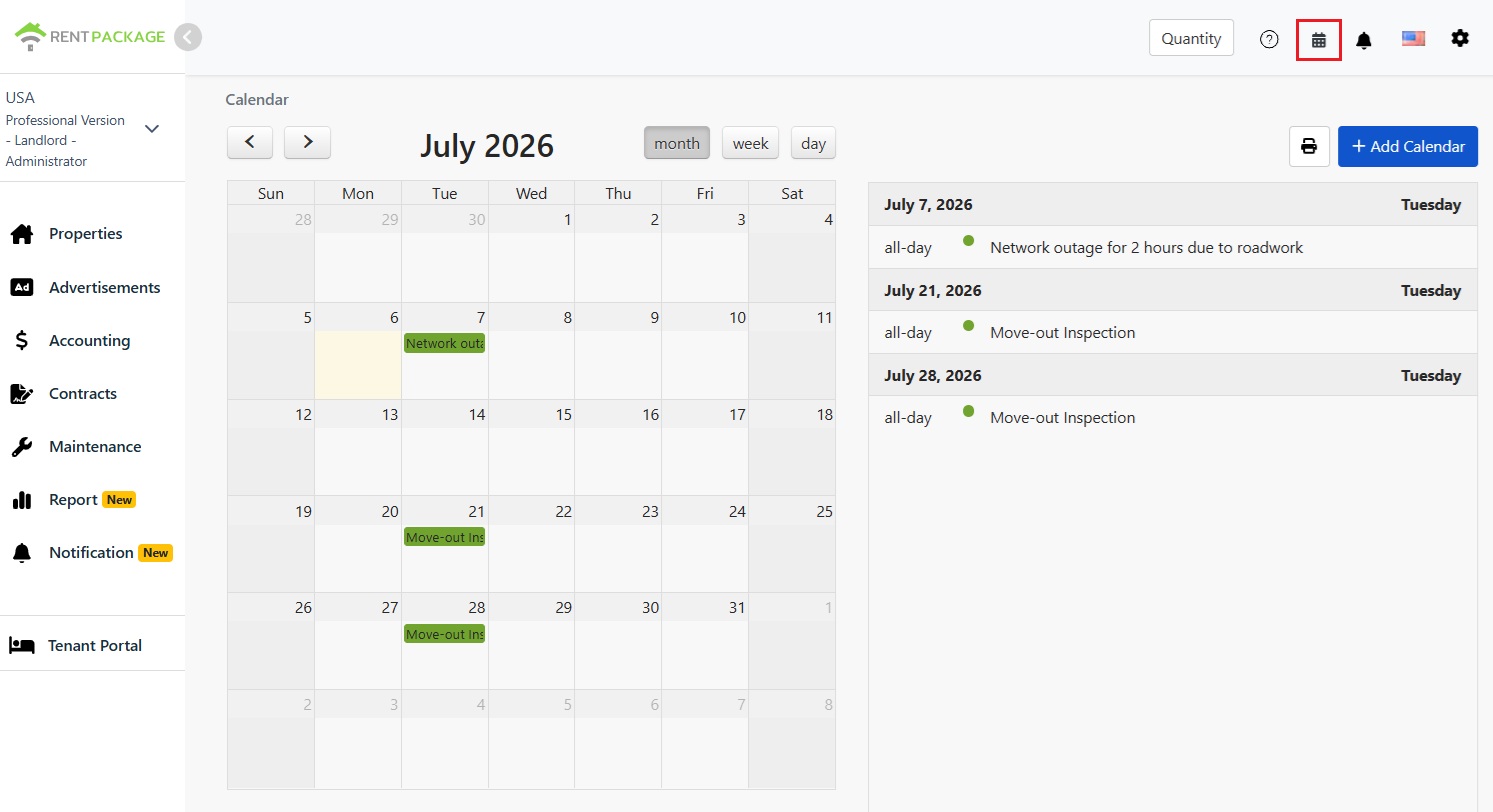
The calendar can switch between month, week, and day views, with arrows to navigate months. The right side lists all schedules for the month by date, allowing you to quickly grasp upcoming tasks.
How to Add a Schedule
Click the 'Add Calendar' button at the top right, or click a date on the calendar to open the add window (as shown below).
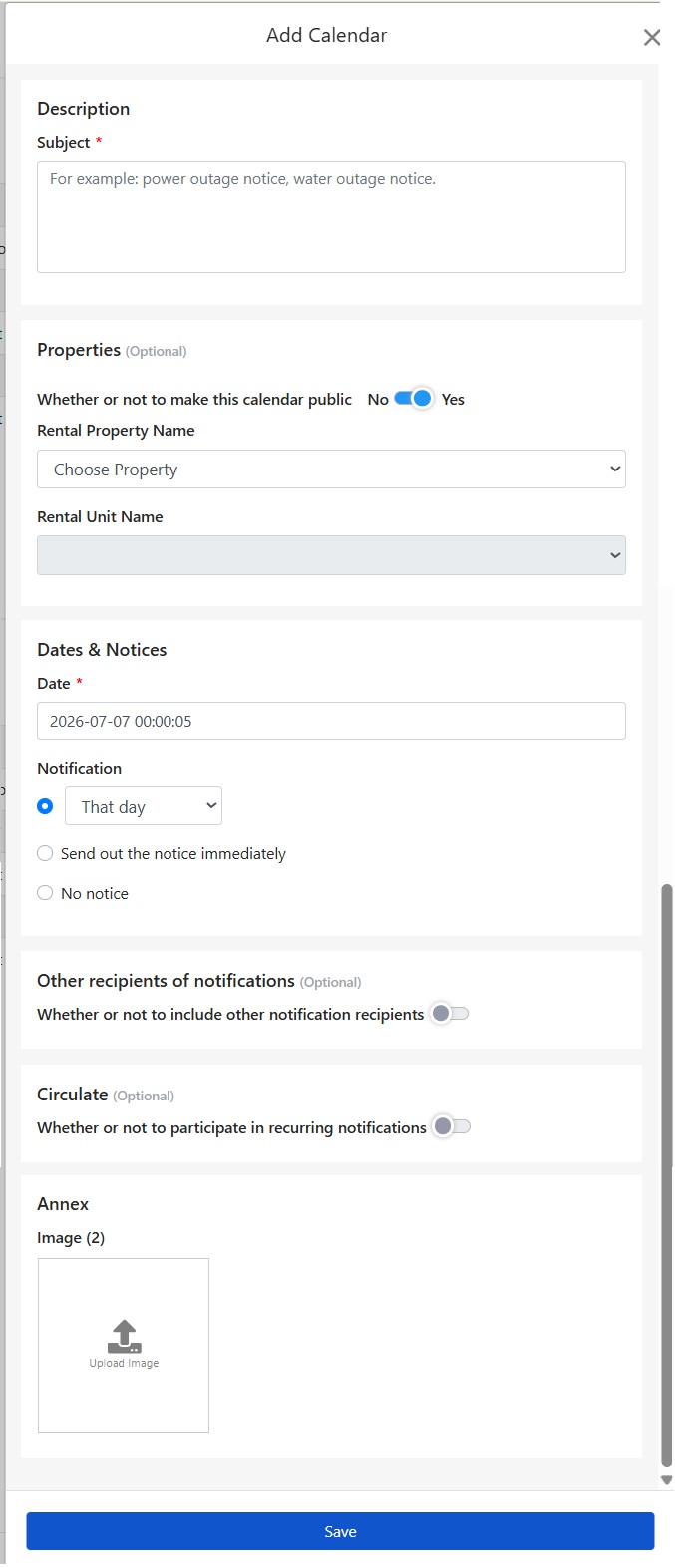
Subject is a required field. Enter the schedule content, e.g., "Line maintenance power outage on 7/22 from 9 AM to 12 PM." The subject appears on the calendar and is sent as the notification content to tenants. It's recommended to clearly state the time and reason so tenants understand without needing to ask you.
Publicize this schedule to tenants?
In the property section, you can decide whether to make this schedule public:
- Public: Tenants of selected properties (or rooms) can see this event on the tenant portal and receive notifications. For matters like power outage notifications that tenants need to be aware of, choose Public, and the system will notify all affected tenants on your behalf.
- Private: Visible only to the management, suitable for internal tasks such as scheduling contractors or internal audits.
Then, select the property and room associated with this event. For a power outage, the whole building is usually affected, so just select the property; if it's specific to a room (like plumbing repair in one room), select the room to notify only the tenants of that room.
Set Date and Notification Method
Date is a required field. Choose the date and time when the event will occur. For a power outage notification, schedule the outage date 15 days in advance.
There are three notification methods. The system will automatically send them based on your selection, so you don't need to remember it after setting it up:
- Scheduled Notification: Choose the notification timing from the dropdown menu (e.g., on the day). The system sends automatically when due. For a power outage, set it on the day of the outage for maximum tenant recall without too early notice.
- Send Now: Once saved, the system sends the notification immediately, ideal for informing tenants well in advance, like notifying about a power outage 15 days ahead.
- No Notification: Record on calendar only, no notifications sent.
Notify Other Recipients
If the event needs to notify someone other than tenants and management (e.g., owner, repair vendors), enable additional recipients to include them in the notification list, ensuring all relevant parties receive the message simultaneously without forwarding.
Recurring Notifications
If this event occurs regularly (e.g., monthly fire inspections, quarterly water tank cleaning), enable recurring notifications to have the system auto-remind on schedule without recreating the event each time.
Upload Attachment Images
You can upload images (up to 2) in the attachment section. For instance, upload a photo of the power outage notice to ensure tenants see the original announcement, saving time retyping. Click save to add once setup is complete.
View & Print Calendar
Completed events appear in the calendar and the schedule list on the right. Click to view or edit. To post a physical notice (e.g., on a building bulletin board), click the print button to print the current calendar view.