
Tenant Move-in & Lease Signing: Set rental period, deposit, utilities, and billing cycle in one go.
Quick Links
- What can this process do for you?
- Step 1: Select room and enter tenant details
- Step 2: Set lease terms
- Step 3: Rent, Deposit, and Utilities
- Step 4: Owner Billing (Commission & Management Fees)
- Step 5: Property Inspection & Attachments
- Online tenant contract signing
- After completion: Billing cycles are automatically generated, no further input needed.
- View/Modify Contract: Rent, payment cycle, deposit, and recurring charges adjustable anytime
- FAQs
What can this process do for you?
When a tenant moves in, click Move-In/Sign Lease on the unit. Complete the entire setup in one process: tenant info, lease type and term, payment cycle and reminders, deposit, utilities, and advance payments. The system auto-generates the entire tenant billing schedule, no manual entries needed.
In management mode, there's an extra step for owner billing: commission and management fees auto-generate based on settings. Deductions occur automatically upon rent receipt. Finally, proceed to online tenant leasing, with contract details auto-filled, up to contract dispatch.
Steps
Step 1: Select room and enter tenant details
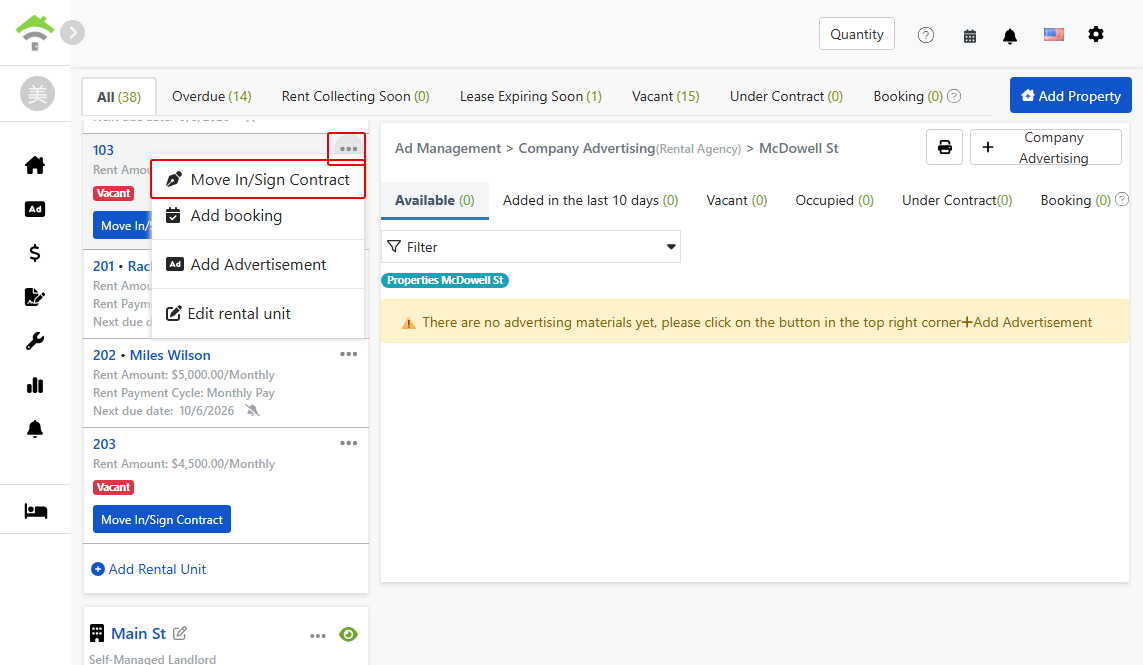
Find the room unit in the property list on the left. Click the more options menu (three dots icon) for the room and select Move-In/Sign Lease.
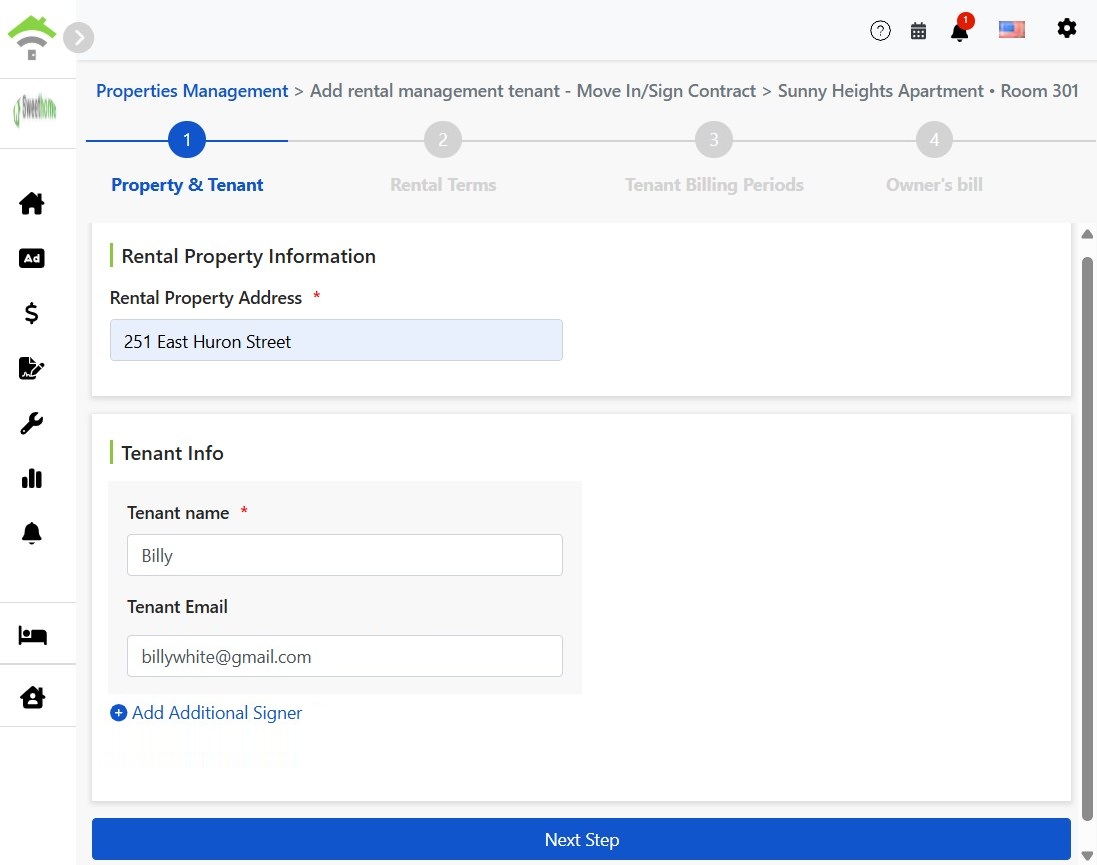
Property address auto-fills. Enter tenant's name and email. Add additional signers (e.g., guarantor) if needed, or skip.
Step 2: Set lease terms
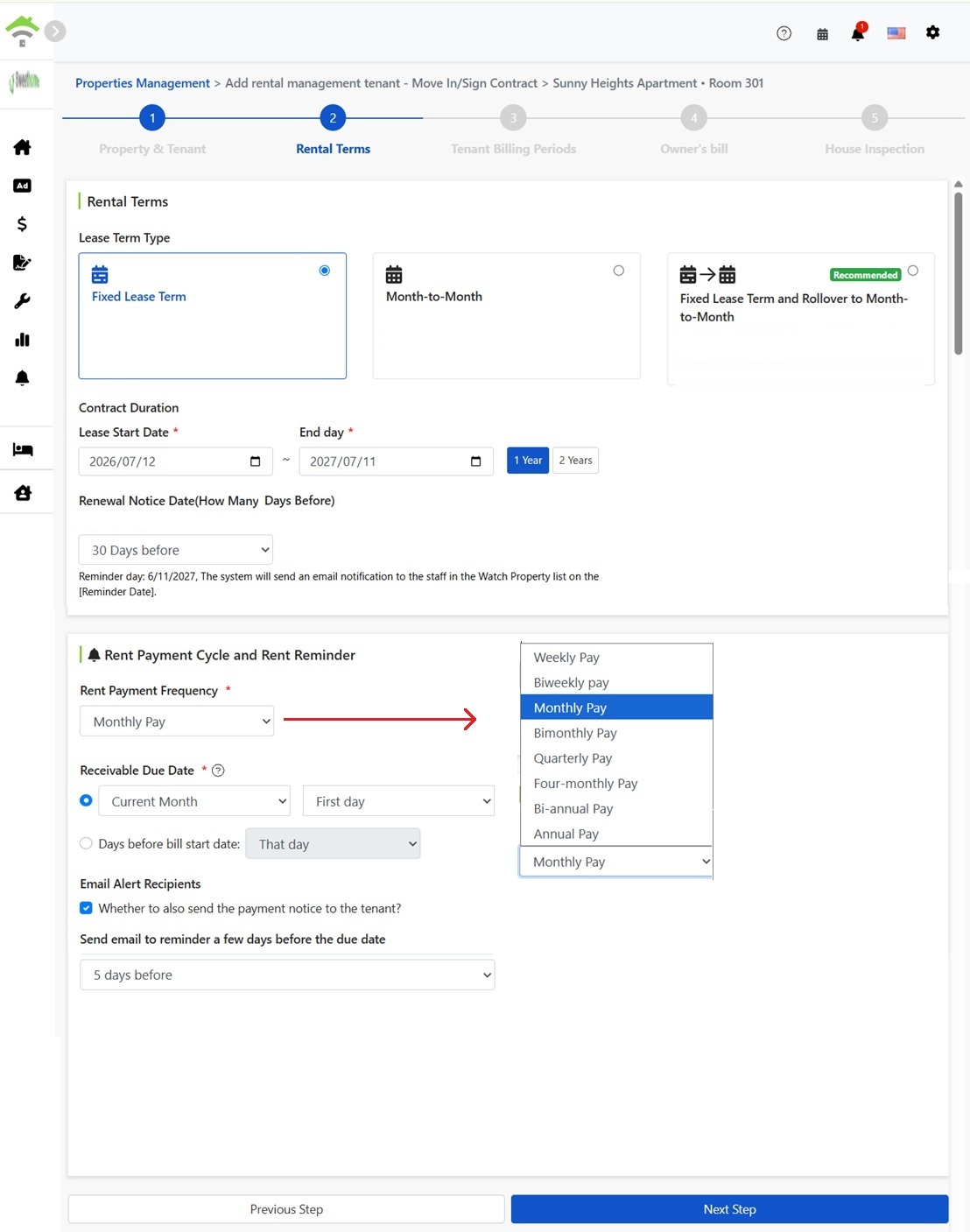
Lease type (choose one of three)
- Fixed-term lease: Standard lease with a defined start and end date. Dates can be manually selected or quickly set to 1 or 2 years.
- Month-to-month lease: Flexible lease with no end date. The system continues generating billing periods based on the original payment cycle until either party gives notice.
- Fixed term, converting to month-to-month upon expiration (recommended): No need to re-sign after expiration; the system auto-generates billing periods. Ideal if the tenant is expected to stay, preventing missed invoices due to forgotten renewals.
Lease and renewal reminders
After setting lease start and end dates, set a renewal notification date (e.g., 30 days before expiry): The system sends an email to stakeholders, ensuring timely renewal or re-letting to avoid vacancies.
Payment cycle and due date
Eight payment frequencies: Weekly, Bi-weekly, Monthly, Bi-monthly, Quarterly, Every Four Months, Semi-annually, Annually. The system generates billing periods accordingly.
Choose one of two due date rules: a specific day of the month (e.g., the 1st of the month) or a number of days before the billing period starts. This date serves as the basis for reminder and overdue assessment.
Payment Reminder Email
Option to send payment notices to tenants, with a setting for how many days in advance (e.g., 5 days before due). Metered billing notices aren't sent until readings are completed; the system sends a reminder 5 days in advance to ensure readings are done before notice.
Step 3: Rent, Deposit, and Utilities
Rent and Deposit
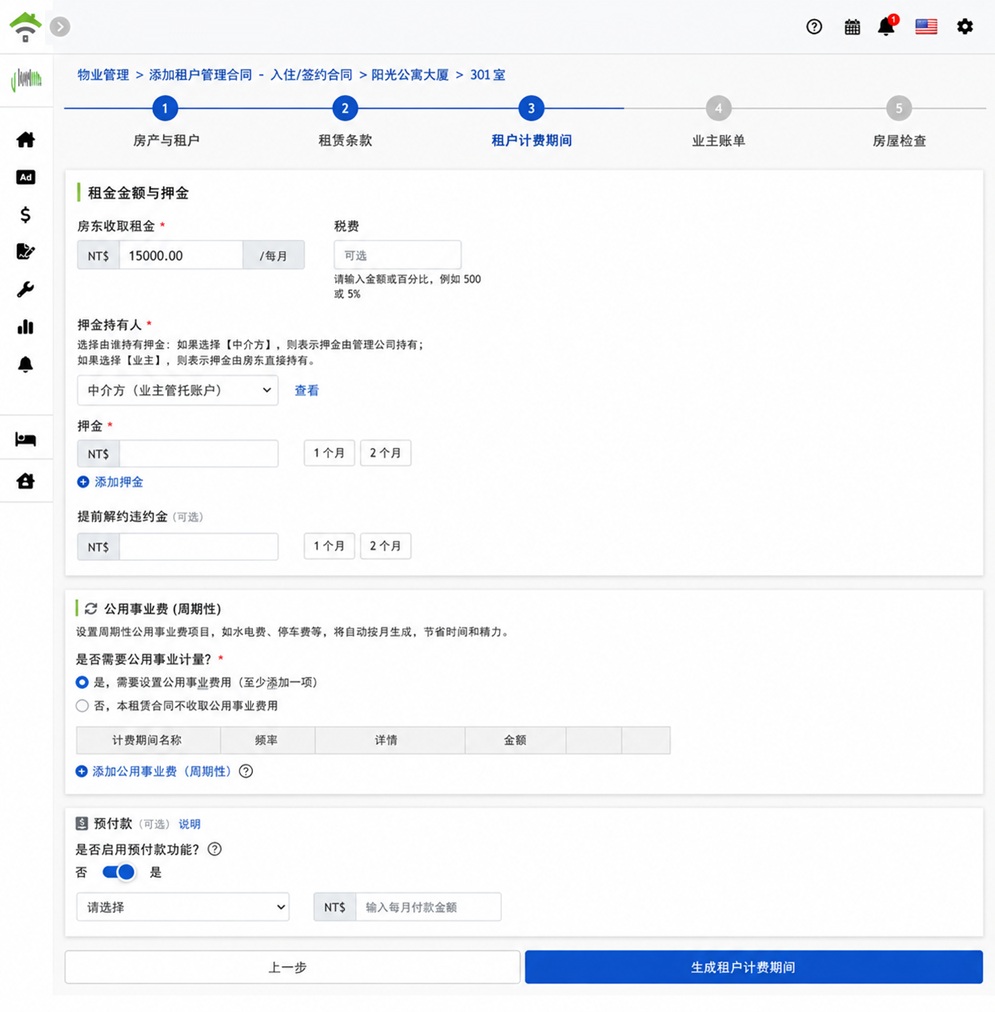
Enter rent amount. Tax is optional (fixed amount or percentage, e.g., 500 or 5%). Select deposit months (quick fill options for 1 or 2 months), add multiple entries; early termination penalty is optional.
Deposit Holder: choose one of two options—Management Company, where the deposit is recorded on the company's account; or Owner, where the system records the deposit in the owner’s trust account. The trust account is a virtual account created by the system for each owner, logging any received funds as if it were the owner’s bank account.
Recurring Utilities
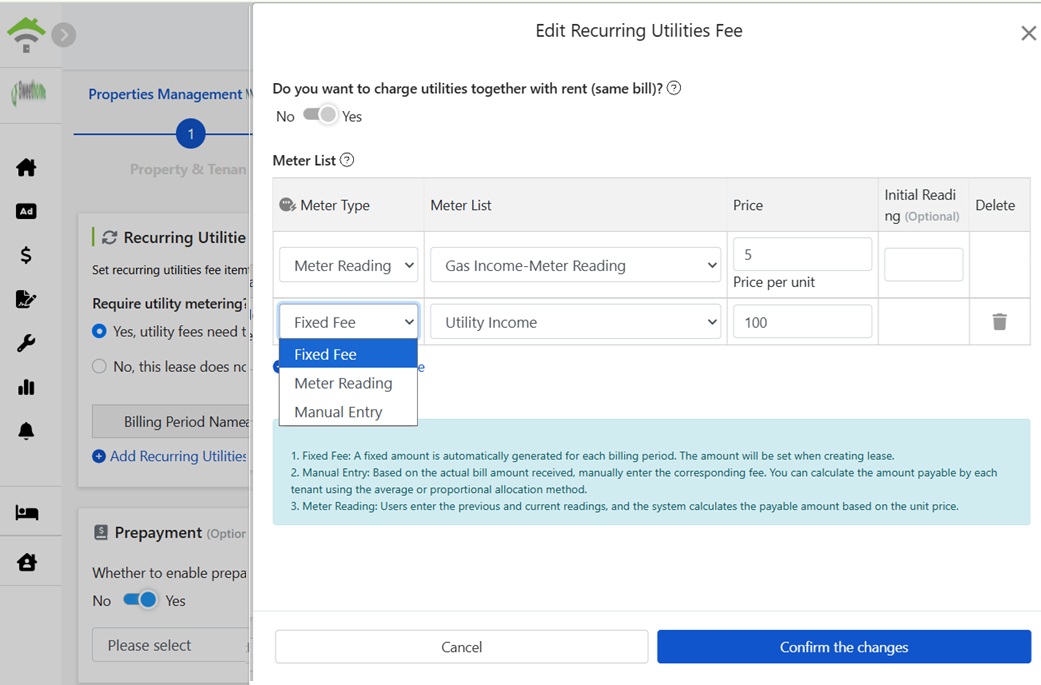
Set up periodic non-rent charges (utilities, parking, internet, etc.) here for automatic generation each cycle. Three billing methods:
- Flat Fee: Automatically generate a fixed amount per period, e.g., $100 monthly for water fees, elevator fees, internet fees.
- Metered Billing: Set unit price (e.g., $5 per unit) and initial reading (optional, can be added later). Enter readings each period; the system calculates the amount based on usage.
- Manual Input: Enter actual bill amounts received each period, e.g., monthly gas bill. Split shared expenses among tenants using average or proportional allocation.
The switch at the top of the dialog determines the billing cycle assignment for this expense, affecting utility billing: Switching on merges it into the rent billing cycle and collects it on the same invoice. Switching off generates an independent utility billing cycle, separate from rent.
Prepaid (Optional)
To avoid advancing utility fees for tenants each period, enable Prepaid: Select an account and set a prepaid amount per period (e.g., collect $500 monthly for electricity). Actual costs are offset against the prepaid amount, settling the meter periodically. Prepaids are tenant liabilities on the account, recognized as income upon offset, and any remaining balance is refunded at lease termination. Disable if not needed.
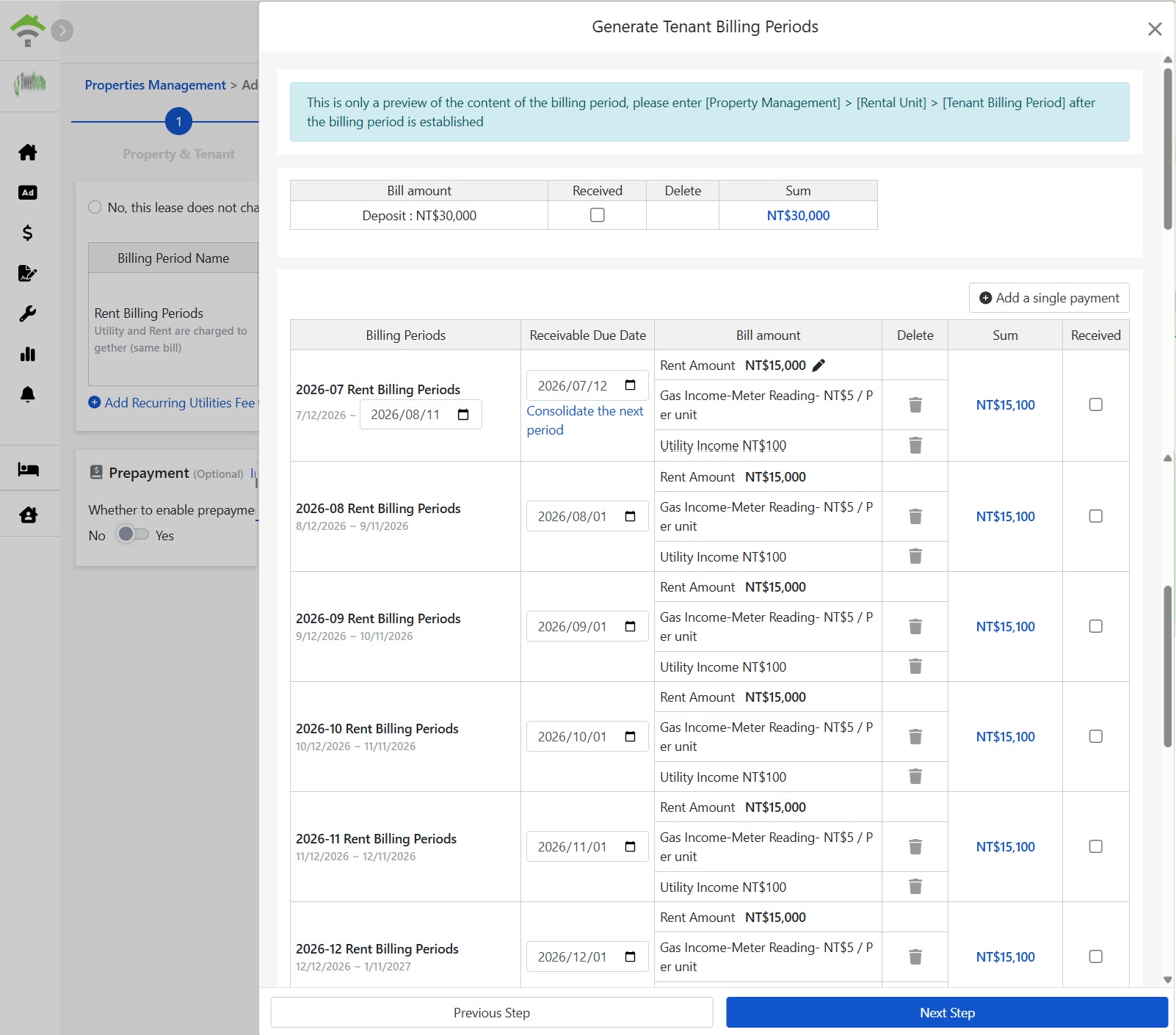
Generate Tenant Billing Period
Click Generate Tenant Billing Period to preview the full account setup: the deposit account (check if received), periodic rent billing plus utility items. Adjust due dates, delete expenses, merge periods, or add one-time payments in the preview.
Step 4: Owner Billing (Commission & Management Fees)
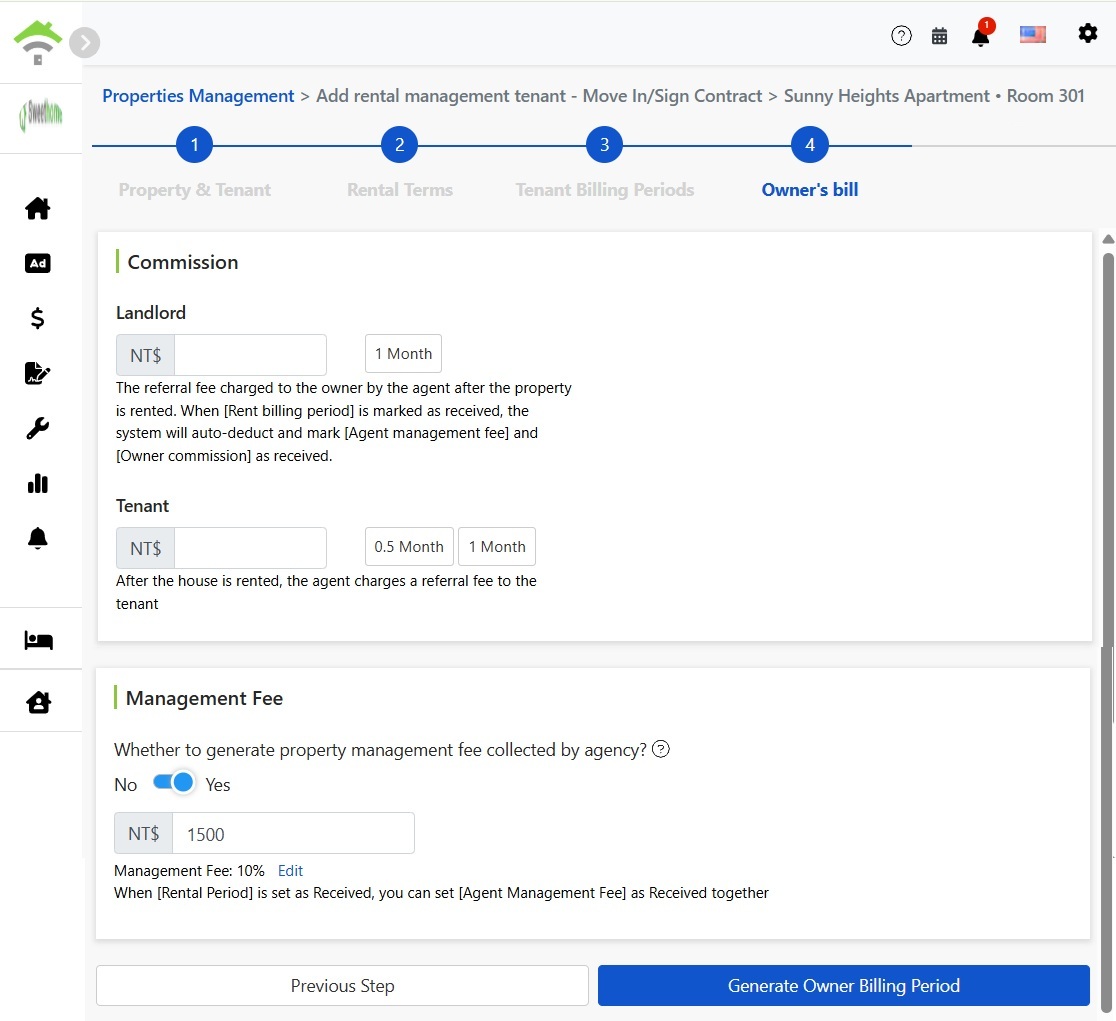
Commission
Introduction fee charged to both parties after renting: Commission to owner (click for quick one-month entry) and commission to tenant (click for quick half-month or one-month entry). Amounts are editable.
Management Fee
Toggle management fee generation. The system calculates each period's fee based on property settings (e.g., rent $15,000, 10% fee leads to $1,500). Edit amounts and percentages by clicking. Confirm to generate owner billing.
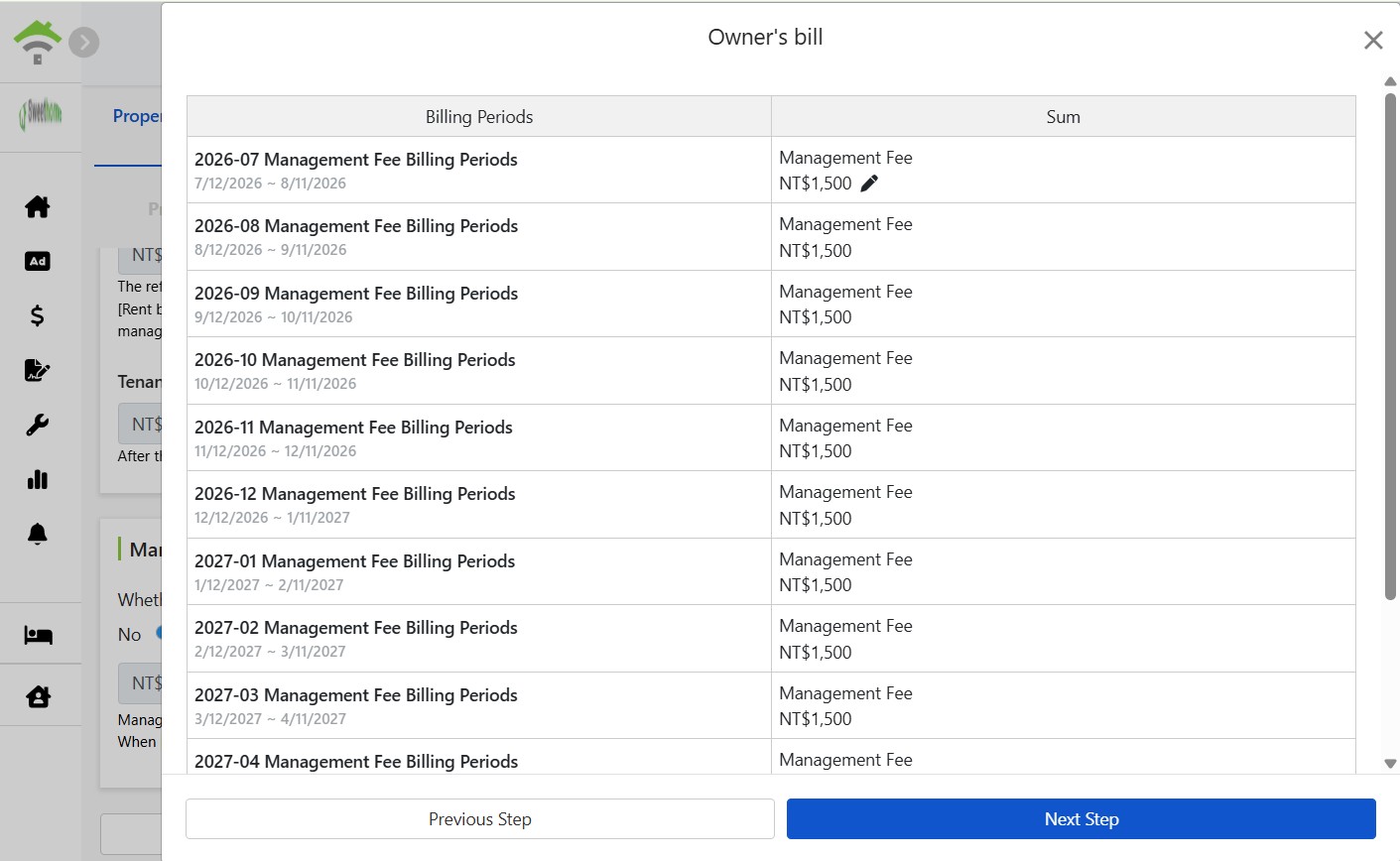
After generation, view the full owner billing list. Edit each period's management fee individually by clicking the pencil icon.
Step 5: Property Inspection & Attachments
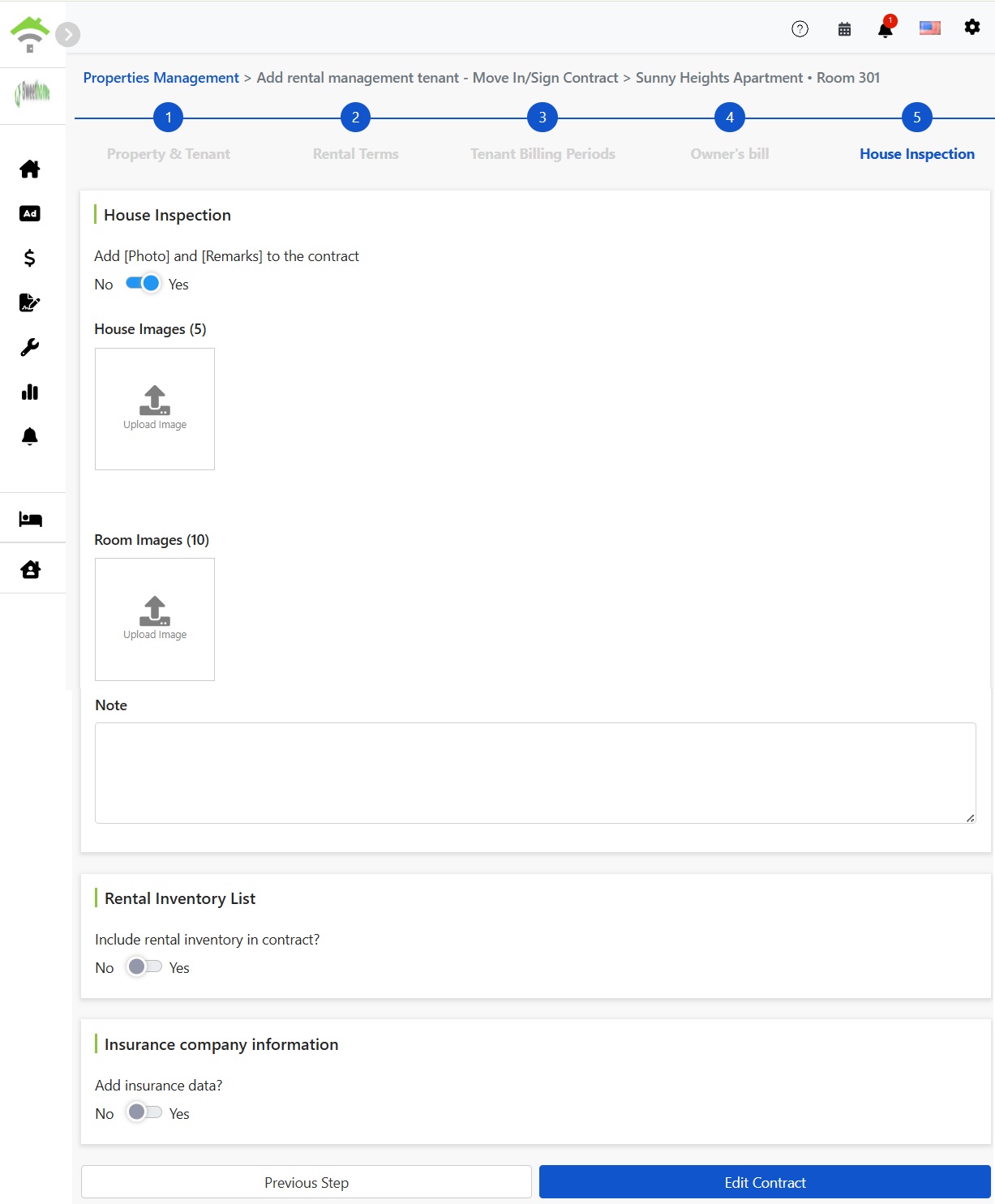
Document property condition before check-in for verified return at move-out:
- Property and room photos, notes: Upload property photos (max 5) and room photos (max 10), fill in notes. Toggle the switch to include photos and notes in the contract. These will be attached as property condition evidence.
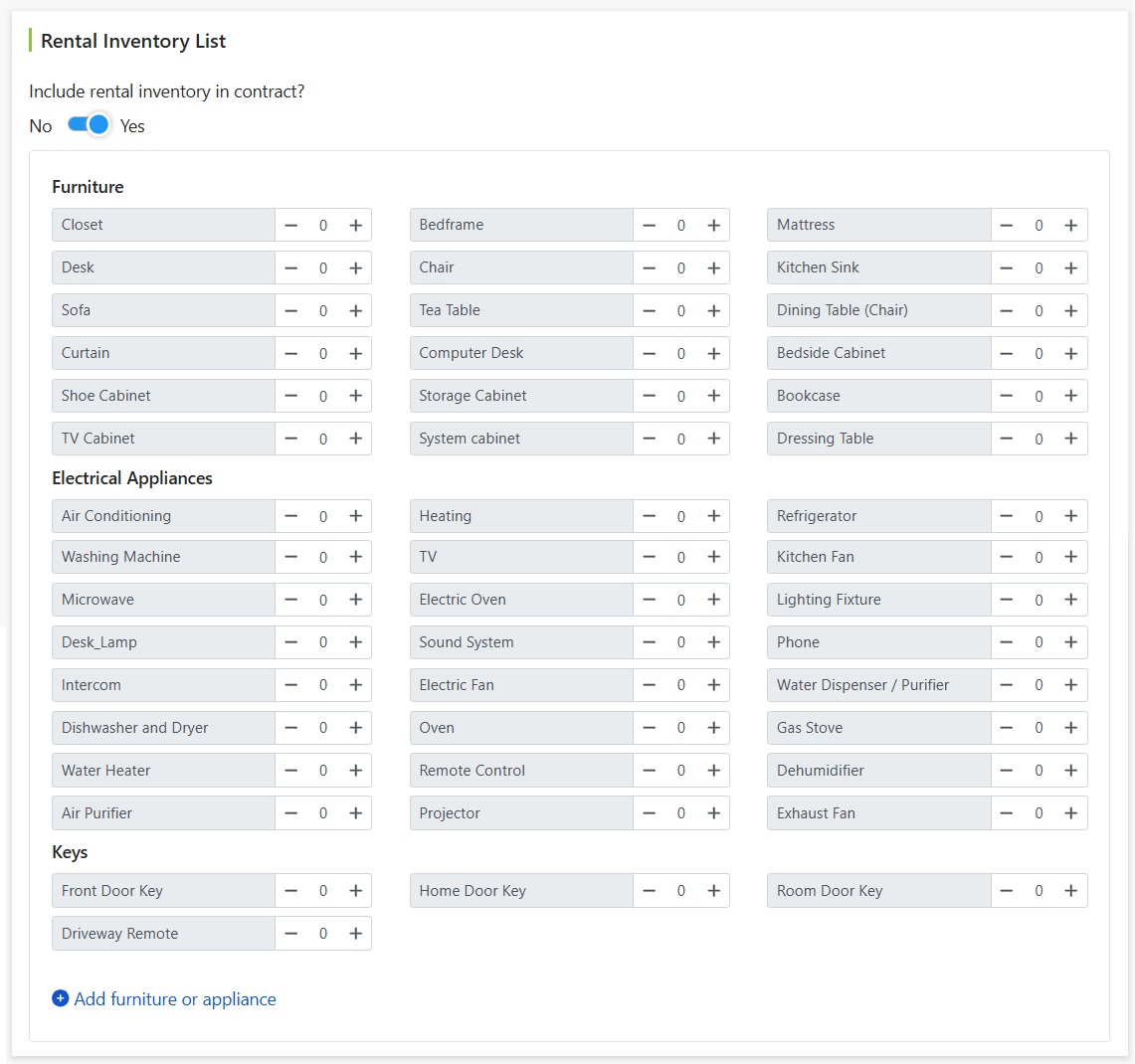
- Rental inventory list: Toggle to include in contract, then select quantities: furniture (bed frame, wardrobe, desk, etc.), appliances (AC, washer, fridge, etc.), keys (main door, room, remote). Add any additional items manually. Verify each item at handover, everything is recorded.
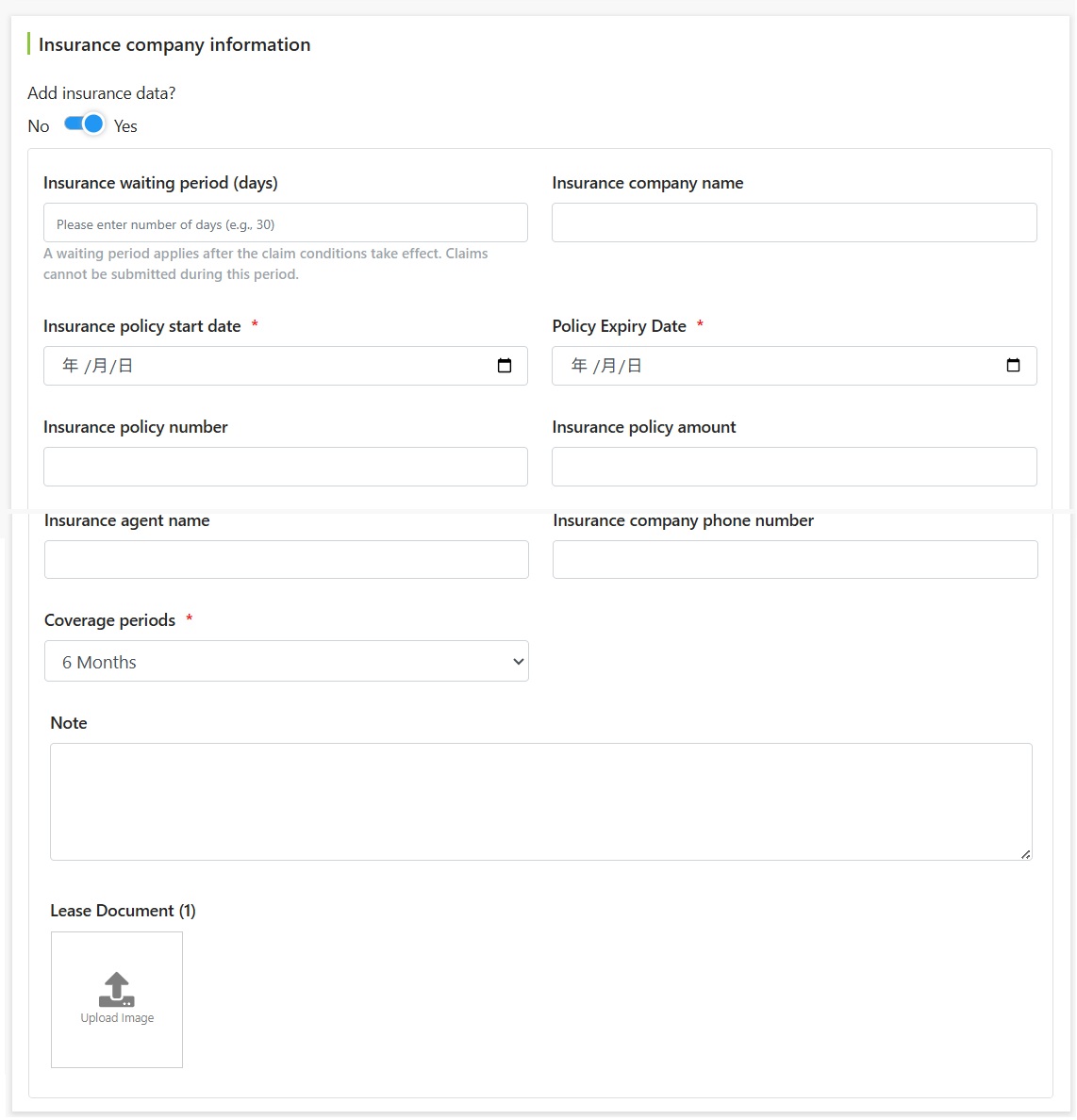
- Insurance provider information: If this lease includes rent insurance, toggle to Yes, and enter waiting period, insurer, policy start/end dates, coverage amount, and protection period. Insurance status will be available with the lease. See details in: Rent insurance feature description
Online tenant contract signing
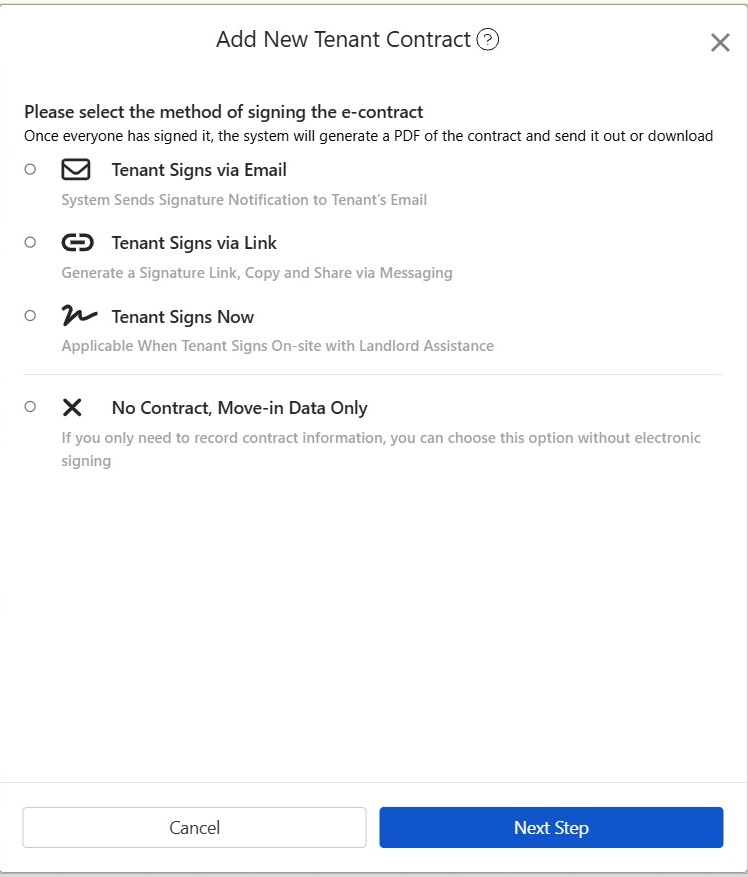
Click 'Edit Contract' to choose an e-contract signing method. Once all parties sign, the system generates a contract PDF for sending or download. Four options:
- Tenant signs via Email: System sends a signing notification to the tenant's email, allowing them to sign online.
- Tenant signs via Link: System generates a signing link. Copy and send to the tenant via messaging app.
- Tenant signs In-Person: Use this when the tenant is present. Assist them in signing directly on your device.
- No Contract, Record Move-In Only: Select when only recording contract details without needing e-signatures, such as when a paper contract is already signed.
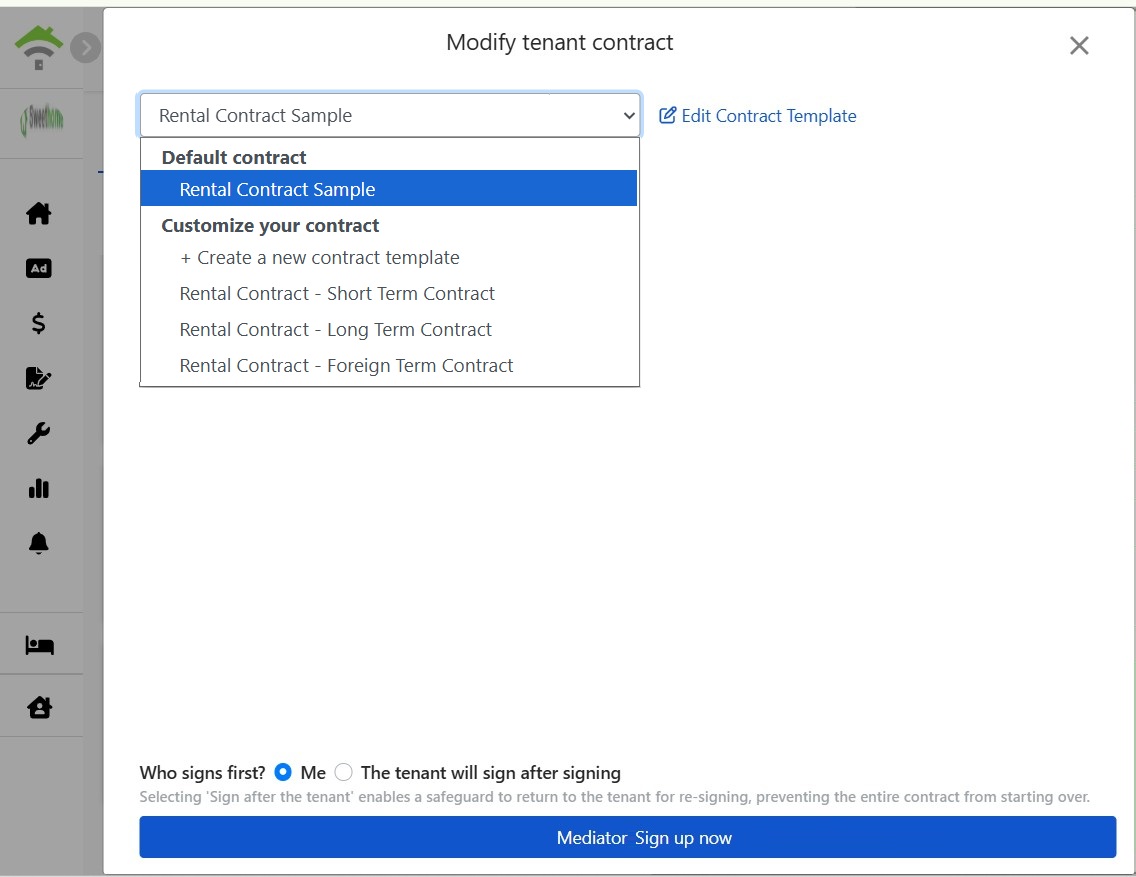
Select Contract Template
Choose a template from the dropdown: System default lease templates or your custom templates (e.g., short-term, long-term, foreign tenant leases). You can also create new templates or click 'Edit Contract Template' to adjust terms.
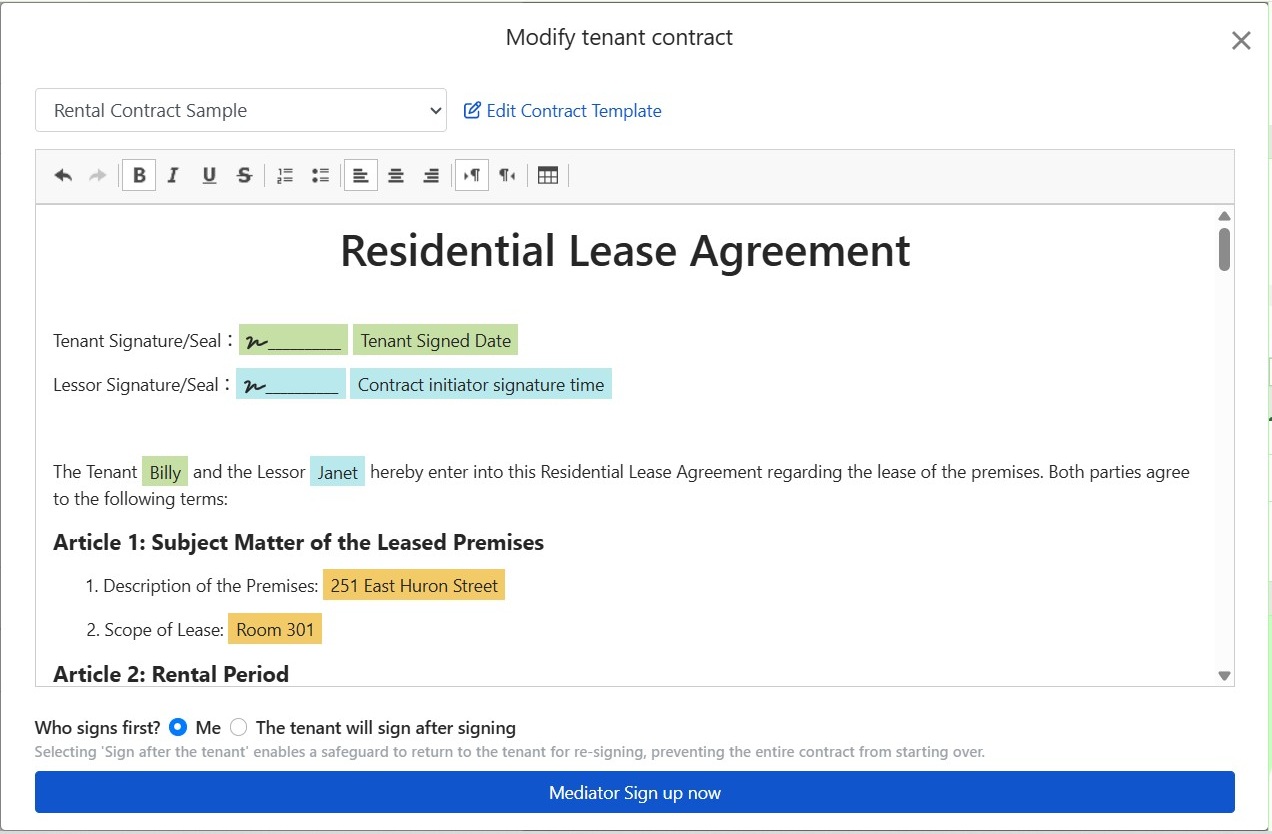
After selecting a template, data from previous steps auto-populates contract variables: tenant and landlord names, addresses, room, signature fields, and signing date. No need to re-enter for each contract; tenant's personal details to be filled in by tenant upon signing.
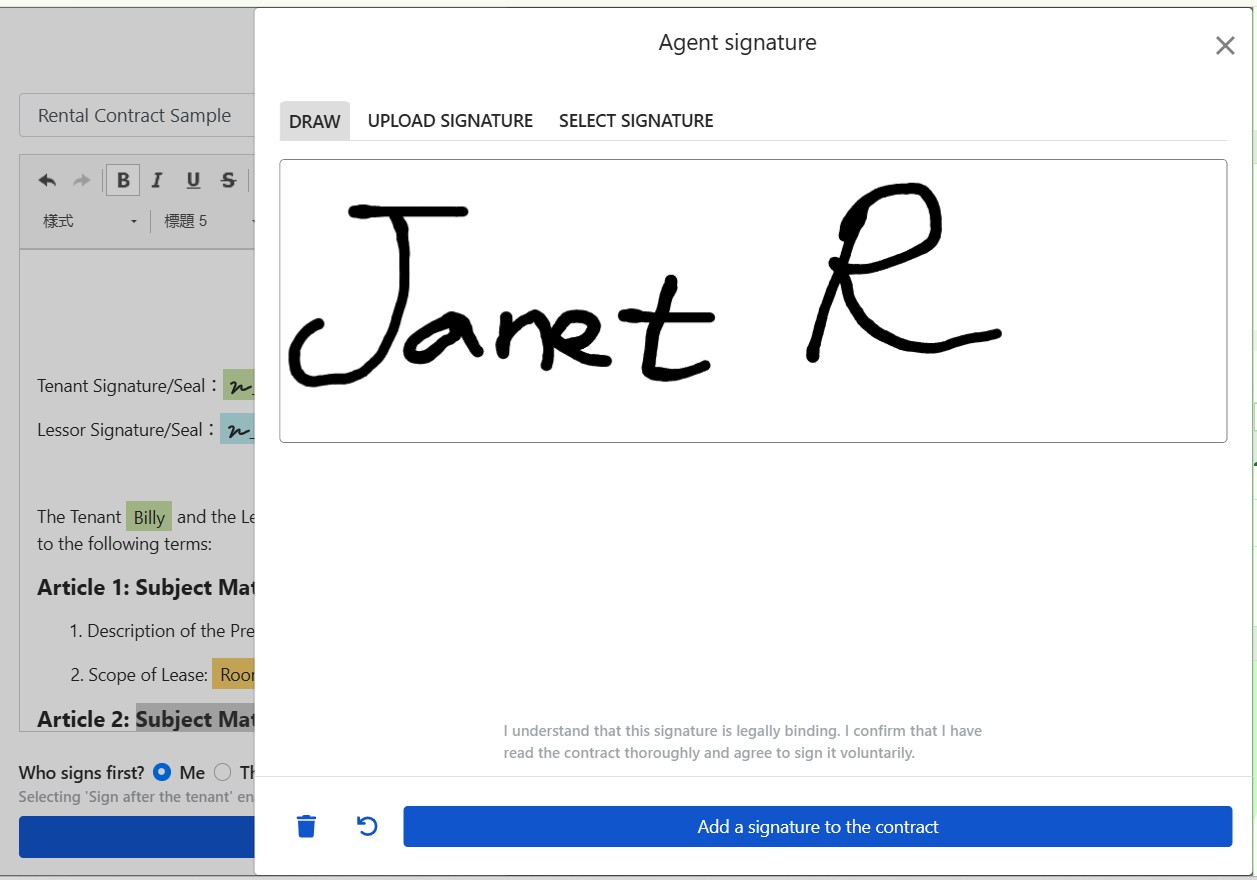
When it's your turn to sign, draw, upload an image, or select a stored signature. Confirm contract review and willingness to sign before adding signature to the contract.
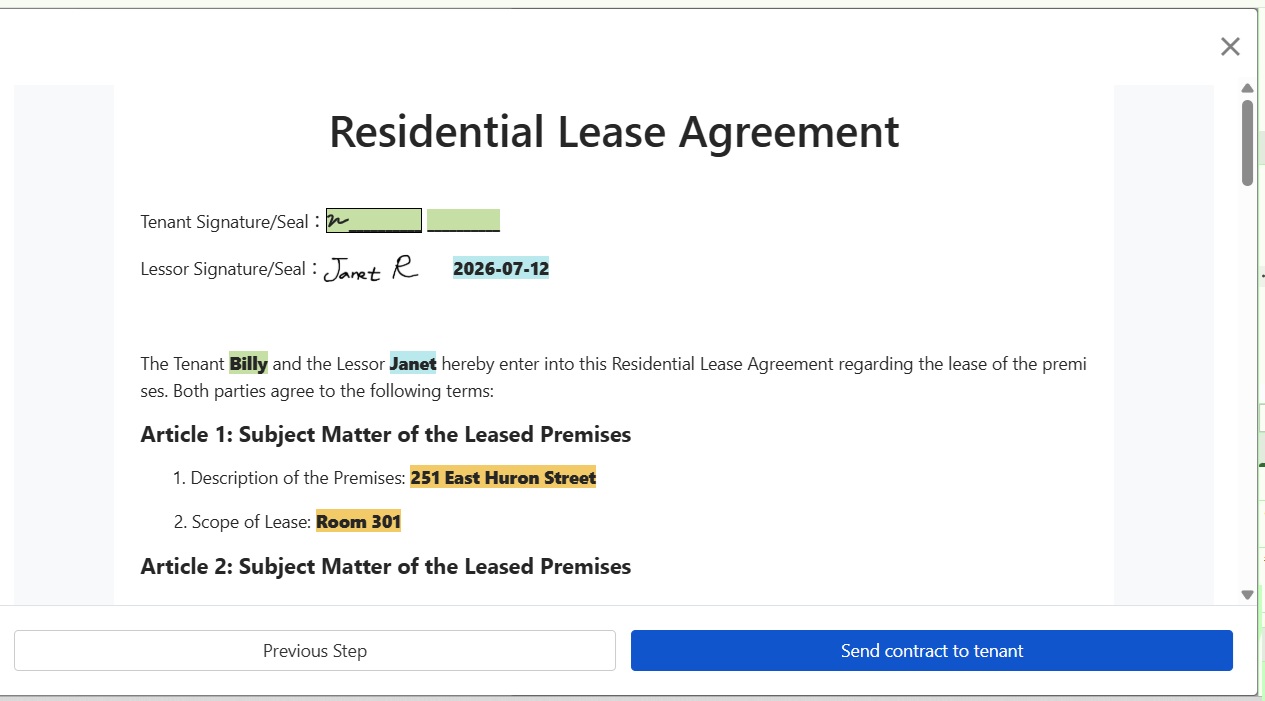
After previewing and confirming the contract, click to send it to the tenant. Once the tenant signs, the system generates a complete contract PDF for both parties.
After completion: Billing cycles are automatically generated, no further input needed.
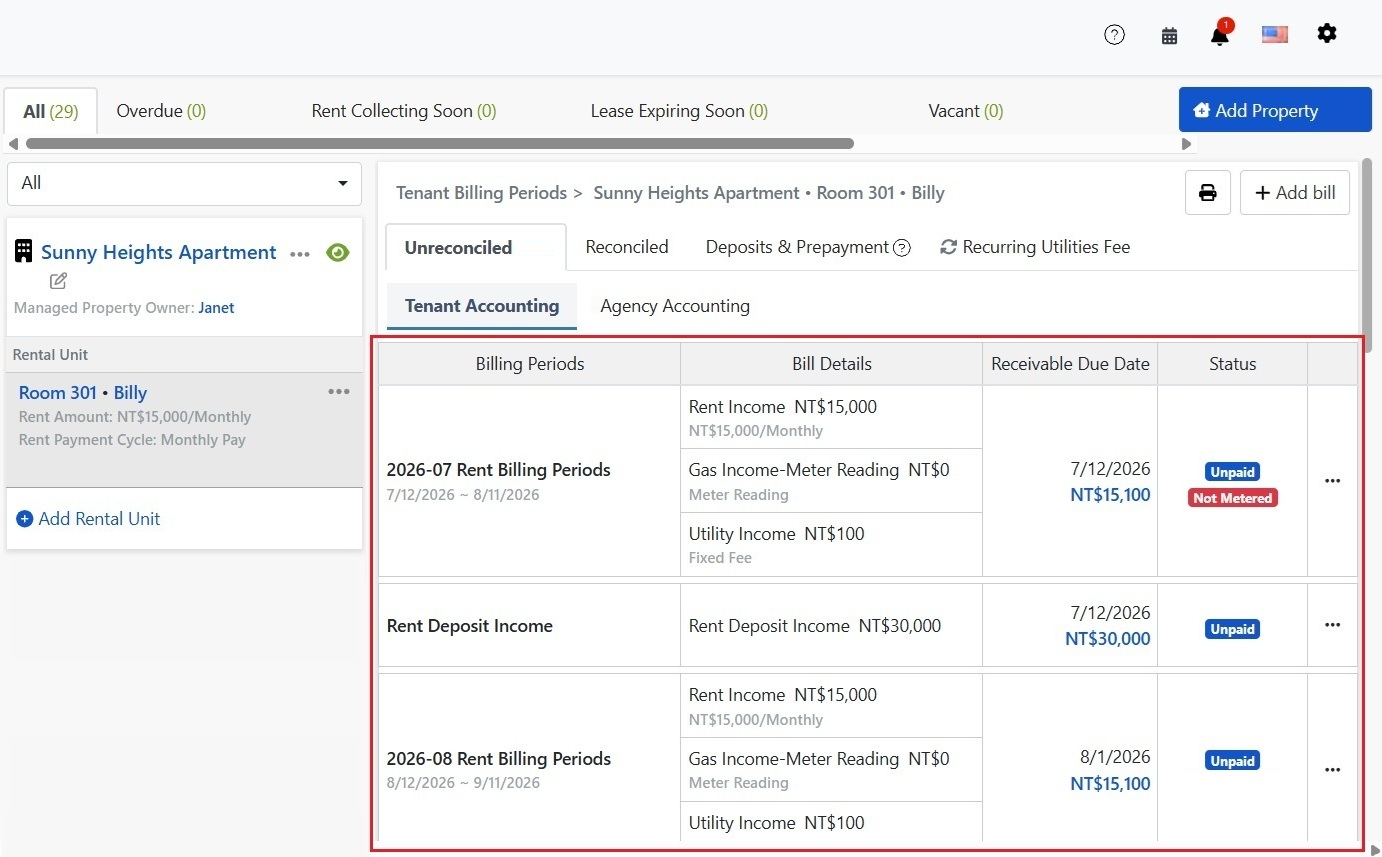
After move-in, check the Tenant Billing interface under Property Management to view all billing cycles auto-generated for the tenant: rent cycles (per lease period, including combined utilities) and utility cycles (on different terms than rent). Post-metering cycle status will show 'Unmetered' until metered and amounts are auto-added to the bill.
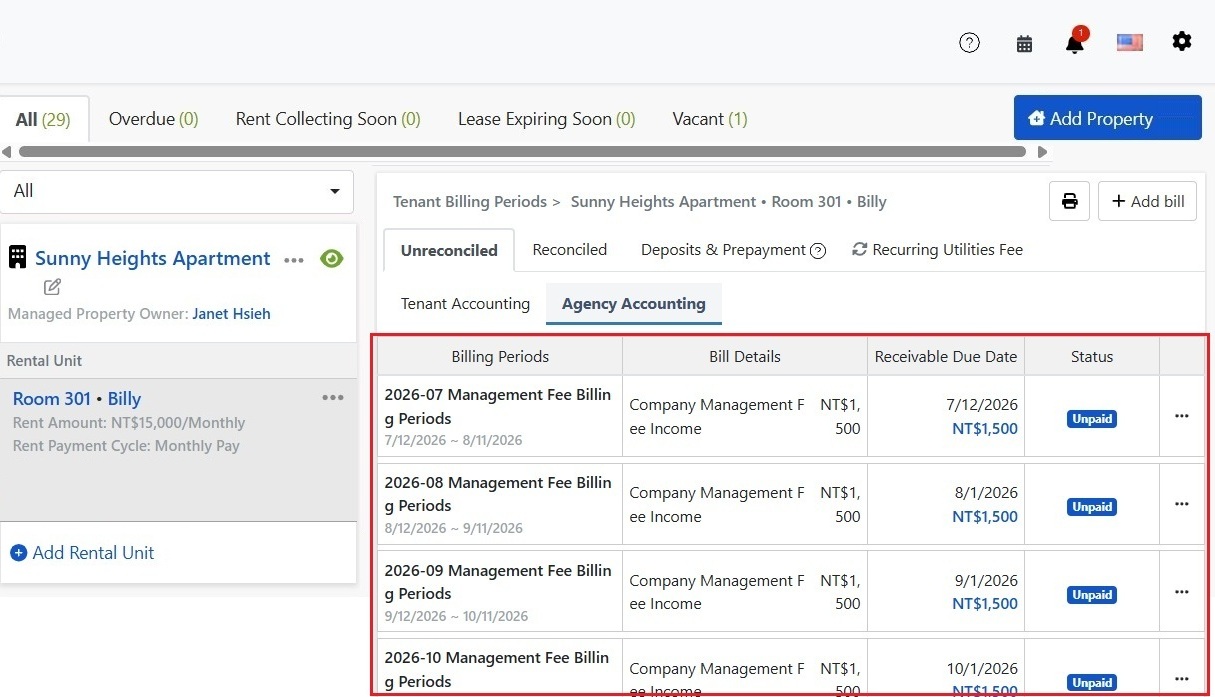
Switch to the Brokerage Billing tab to view the management fee cycles created for this contract, with amounts and due dates already set. These also auto-continue, just receive payments and reconcile.
View/Modify Contract: Rent, payment cycle, deposit, and recurring charges adjustable anytime
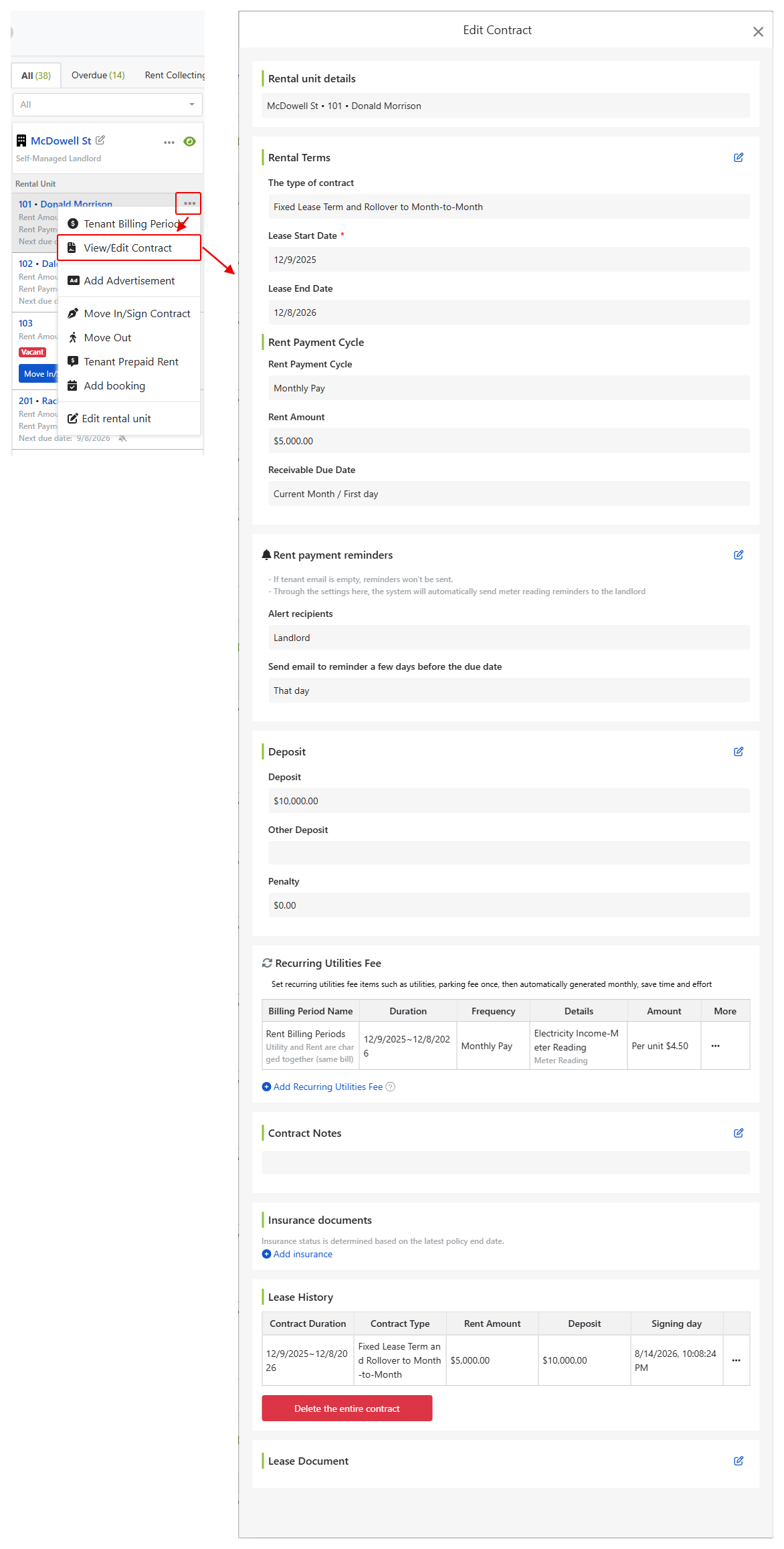
Post-contract adjustments to rent, payment cycle, deposit, or recurring charges can be made via the room unit's more menu (three dots icon). Select View Contract to directly modify lease terms, billing cycle, deposit, and recurring utility charges. No need to recreate a contract. Note: Unsigned electronic contracts are temporarily locked from modification until signing is completed.
FAQs
How to choose between the three lease types?
For a lease with definite start and end dates and further action post-expiry, choose a fixed-term lease. For completely flexible terms with termination upon notice, select a monthly lease. If expecting tenants to stay post-expiry, opt for fixed-term converting to monthly (system recommended): no re-signing after expiry, seamless billing cycle continuation, preventing missed billing.
Is tenant email mandatory?
Highly recommended. Without it, tenants won't receive rent payment notifications, and email alerts for online signing cannot be sent. If no email is available, signing can be done via a link or in-person.
What's the difference between deposit held by management company or owner?
Difference lies in whose account the money is recorded. Choose Owner, and the deposit goes into the owner's trust account (virtual account for each owner recording all collected funds); settled upon owner's payout. Choose Management Company to record it in the company account. Choose based on your contract with the owner.
What is prepaid collection? Is it the same as a deposit?
Different. A deposit is a performance guarantee, generally refunded in full upon move-out; an advance payment is pre-collecting money to offset actual expenses periodically, like a prepaid $500 electricity bill deducted from actual usage, sparing the landlord from fronting costs monthly and settling balances upon move-out. Both are liabilities to tenants on the books, not income.
Can the billing period be modified after generation?
Yes. The initial screen is just a preview, allowing immediate adjustments to due dates, deletion of specific charges, merging with the next period, or adding single payments; post-establishment, modifications can be made in the property's unit management under the tenant's billing page.
When are the owner commission and management fees marked as received?
Synchronized with rent. Once a rental billing period is marked as paid, the system automatically offsets and marks that period's escrow management fee and owner commission as received, eliminating manual reconciliation.
Is online signing mandatory?
No. The final option for signing is "No Contract," merely recording move-in details, suitable for cases with already signed paper contracts, unaffected by billing and management functions.