📄 Interface Environment Overview: Understand the main screen in five minutes, knowing where to handle everything. 📄 How to Use the Property Overview in RentPackage to Quickly Grasp the Status of the Entire Building 📄 Add Managed Property: Complete property setup, owner details, account opening, and online signing in one go. 📄 Tenant Move-in & Lease Signing: Set rental period, deposit, utilities, and billing cycle in one go. 📄 Tenant Ledger Actions: Payment Reconciliation, Partial Payments, Meter Reading, and Deposits. All routine rent collection in one place. 📄 Owner transfer feature guide 📄 Custom rental notifications: rent reminders, lease expiration, sent to the right person at the right time 📄 How to Quickly Estimate Next Month and Year’s Rental Income with Forecast Receipts in RentPackage 📄 Compliance assistance and responsibility statement 📄 Contract templates overview 📄 Sublandlord feature guide 📄 Partial payment feature guide 📄 Advance Receipts feature guide 📄 Rent billing periods feature guide 📄 Start billing feature guide 📄 Recurring billing periods feature guide 📄 Booking feature overview 📄 E-contract setup guide 📄 Management fee setup guide for property management companies 📄 Why are deposits and advance receipts liability accounts in accounting? 📄 RentPackage General Edition overview 📄 Commission split setup guide 📄 why do all landlords and agents need tenant management automation software? 📄 How to handle exchange rates for Euro-denominated rent? 📄 US Tax Filing - Schedule E Instructions 📄 UK Tax Filing - SA105 Instructions 📄 How to Enable Stripe Online Rent Payments in RentPackage 📄 How to use Calendar to schedule tenant notifications: Power outage example 📄 How to set the agency logo to display your brand on Email notifications and contract PDFs 📄 What is Rent Insurance? Compensation for unpaid rent; policy managed with the lease 📄 How to Use the German Rental Income Tax Statement (Anlage V) in RentPackage 📄 T776 Canada Rental Income Tax Report User Guide 📄 PIT-28 Polish Rental Income Tax Report User Guide 📄 How to Generate an Australian Rental Schedule in RentPackage, Auto-Match Income and Expenses to ATO Categories 📄 How to Use the Romanian Rental Income Tax Report (Declarația Unică 212) in RentPackage 📄 How to generate Hungarian SZJA rental income report data in RentPackage and compile eSZJA entry numbers with one click. 📄 Profit and Loss Statement: Auto-calculates income per property, per owner 📄 Balance Sheet: How much of the bank balance is tenant's? View deposits and prepayments at a glance. 📄 Cash Flow Statement: How much did actual cash increase during the rent period? 📄 How to generate a General Ledger in RentPackage, automatically summarizing rent and property accounts 📄 Enter manual journal entries: repairs, insurance, depreciation. Record transactions outside of the billing period. 📄 Custom rental notifications: rent reminders, lease expiration, sent to the right person at the right time 📄 Why can property management software dramatically save time and cost?

Tenant Ledger Actions: Payment Reconciliation, Partial Payments, Meter Reading, and Deposits. All routine rent collection in one place.

Quick Links

What is the Tenant Ledger?

After move-in/signing, the system automatically generates all ledgers for the tenant (rent, deposit, utility charges). The Tenant Ledger page serves as the operation hub for these bills: reconcile payments, read meters, handle partial payments, and check balances of deposits and prepayments here.

Rent collection now involves just two steps: money received, mark as paid; for meter reading, input the readings. The system automatically handles bill creation, amount calculation, overdue marking, and notification sending.

Interface Overview: Four tabs and a function menu

Click any room from the property list on the left to access it. The four tabs above categorize bill statuses and types: Unreconciled (bills not yet paid, daily work area), Reconciled (payment history), Deposits and Prepayments, Recurring Charges. In management mode, you can switch between tenant accounts and agency accounts.

The more menu (three-dot icon) on the right of each bill is the entry for all actions: mark as paid, waive, meter reading, add/edit, defer rent collection, payment notifications, etc. This section explains a few common ones.
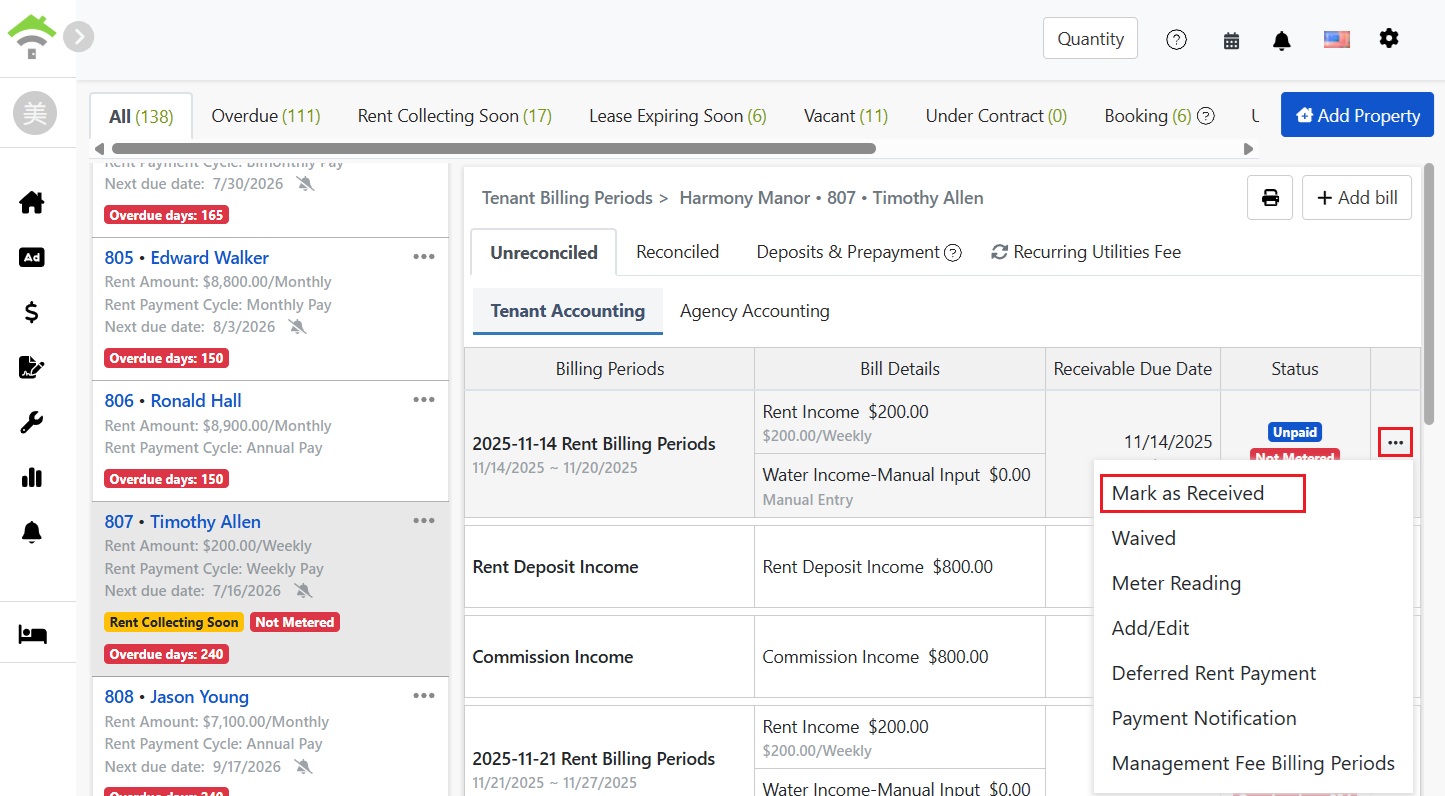
Tenant billing page: Four tabs and a function menu on the right of the bill

Common Actions

Payment Verification: Mark as Paid

After the tenant pays, locate the bill in the unreconciled tab, click mark as paid in the more menu. The window will display the receipt date, payment method (cash, transfer, etc.), and amount, with the default amount being the total due.
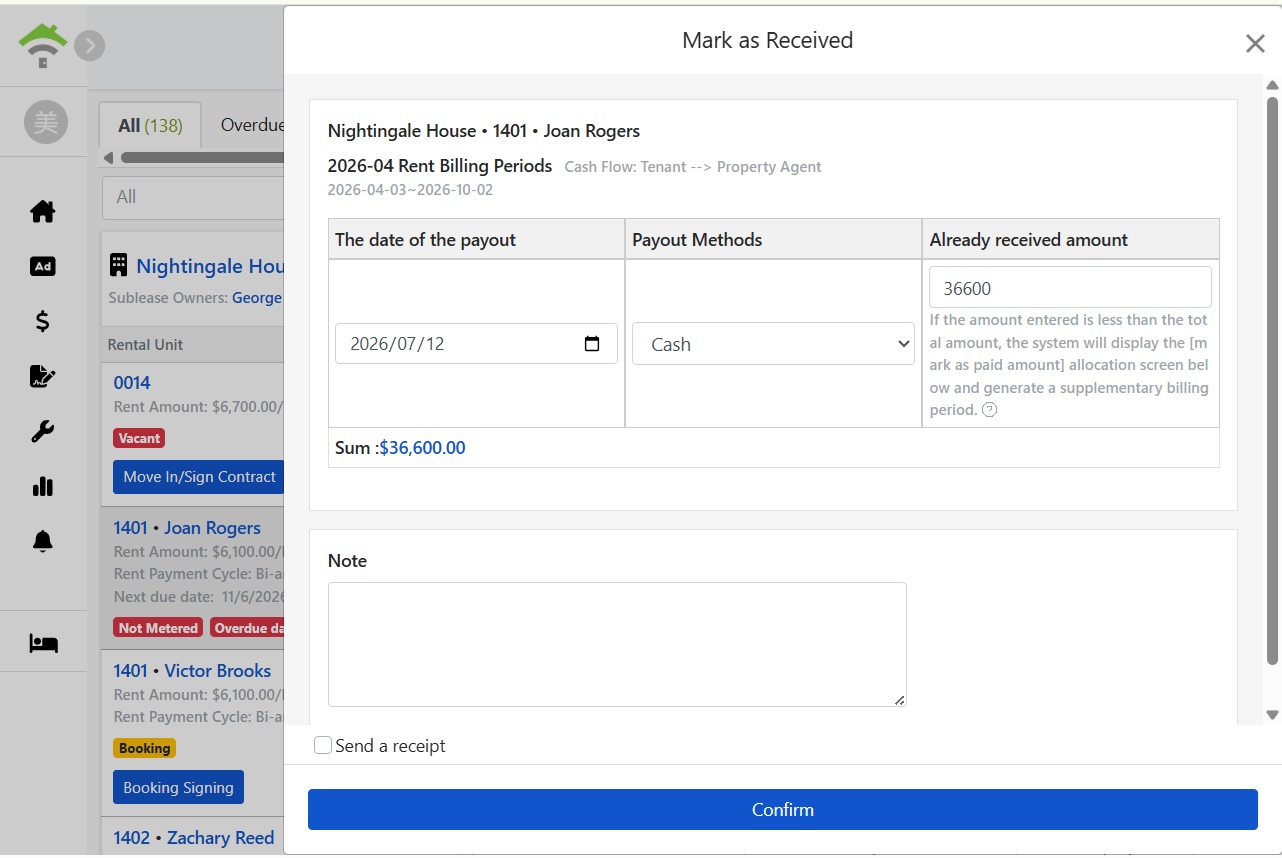
Mark as Paid window: Receipt date, payment method, and amount

After confirming the amount is correct, optionally add a note or check to send a receipt to the tenant, then click confirm to complete the verification. The bill moves to the reconciled tab, the overdue marking disappears, and in management mode, the management fees and commissions for that period are also marked as paid.
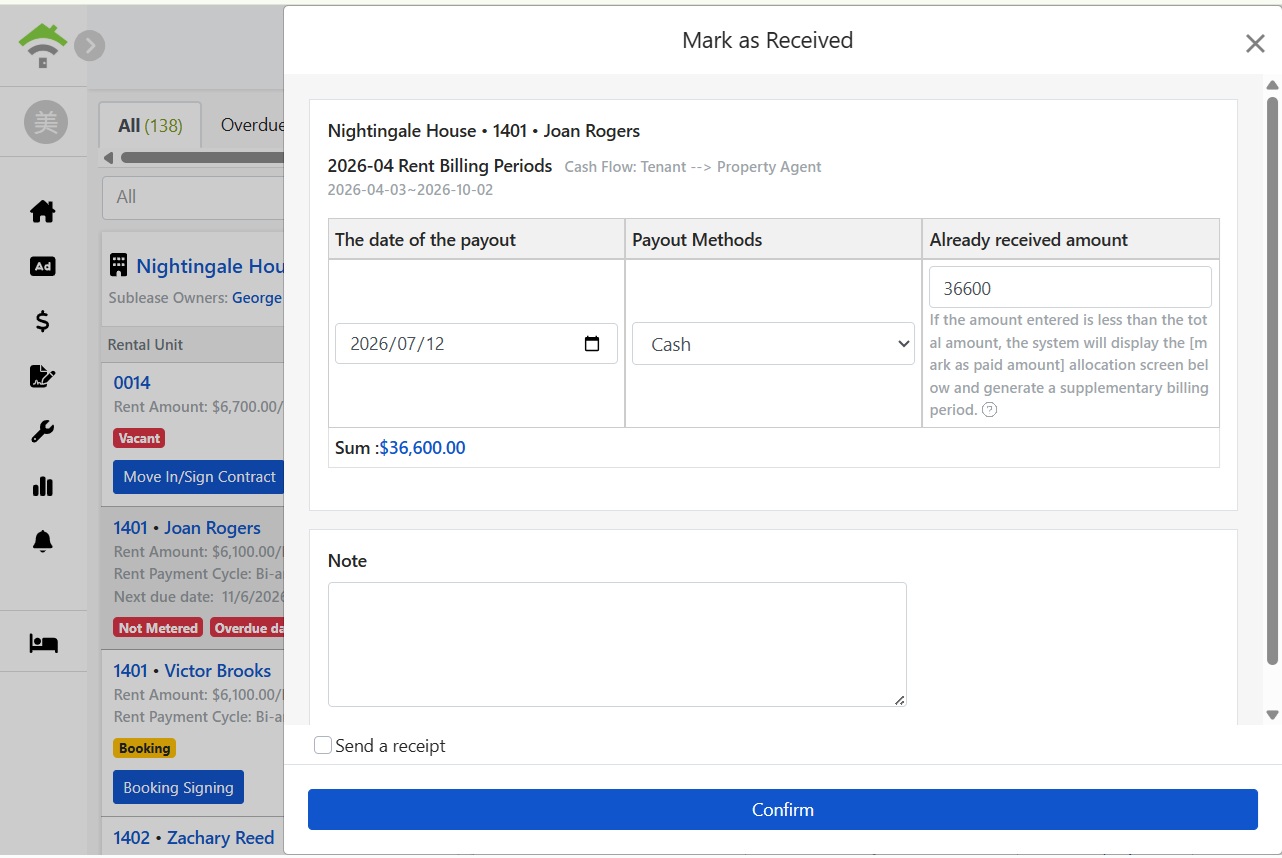
Confirm payment amount and optional receipt sending
Tenant made a partial payment: Partial Payment and Balance Billing

In the Mark Payment Received window, if the entered amount is less than the total receivable, the system will expand the allocation screen: allocate the received amount to each charge item, automatically generate a new billing cycle for the remaining balance, and set the due date for the additional payment. You can choose to send a receipt and the additional bill to the tenant upon submission.
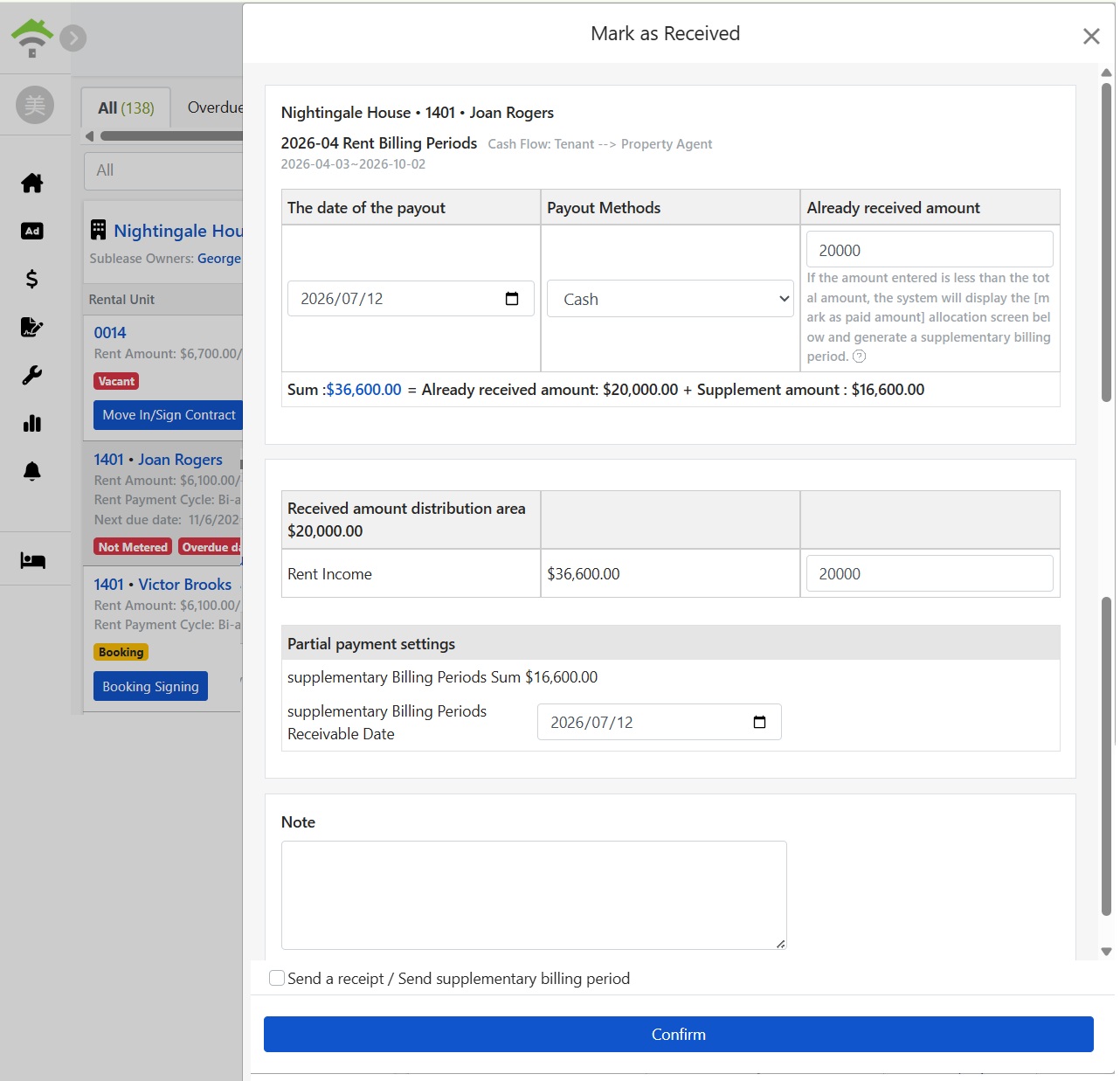
Partial Payment: Allocation of Received Amount and Auto-generated Billing Cycle
Please Note: For example, if the receivable amount is 36,600, and the tenant pays 20,000: after entering 20000, the system shows the allocation for the received 20,000 and automatically creates a billing cycle for the remaining 16,600. The balance is tracked; you don't need to create a new bill manually.
Meter Reading: Enter readings, amount auto-calculated

Before completing the meter reading, charges based on meter readings are marked as not read. Click 'Meter Reading' in the More menu, enter the current reading, and the system calculates usage and amount based on the previous reading and unit price (e.g., previous reading 1000, unit price 5). After saving, the amount is included in the billing period, and a payment notification is sent. You can also adjust the unit cost if there is a seasonal rate or tiered pricing.
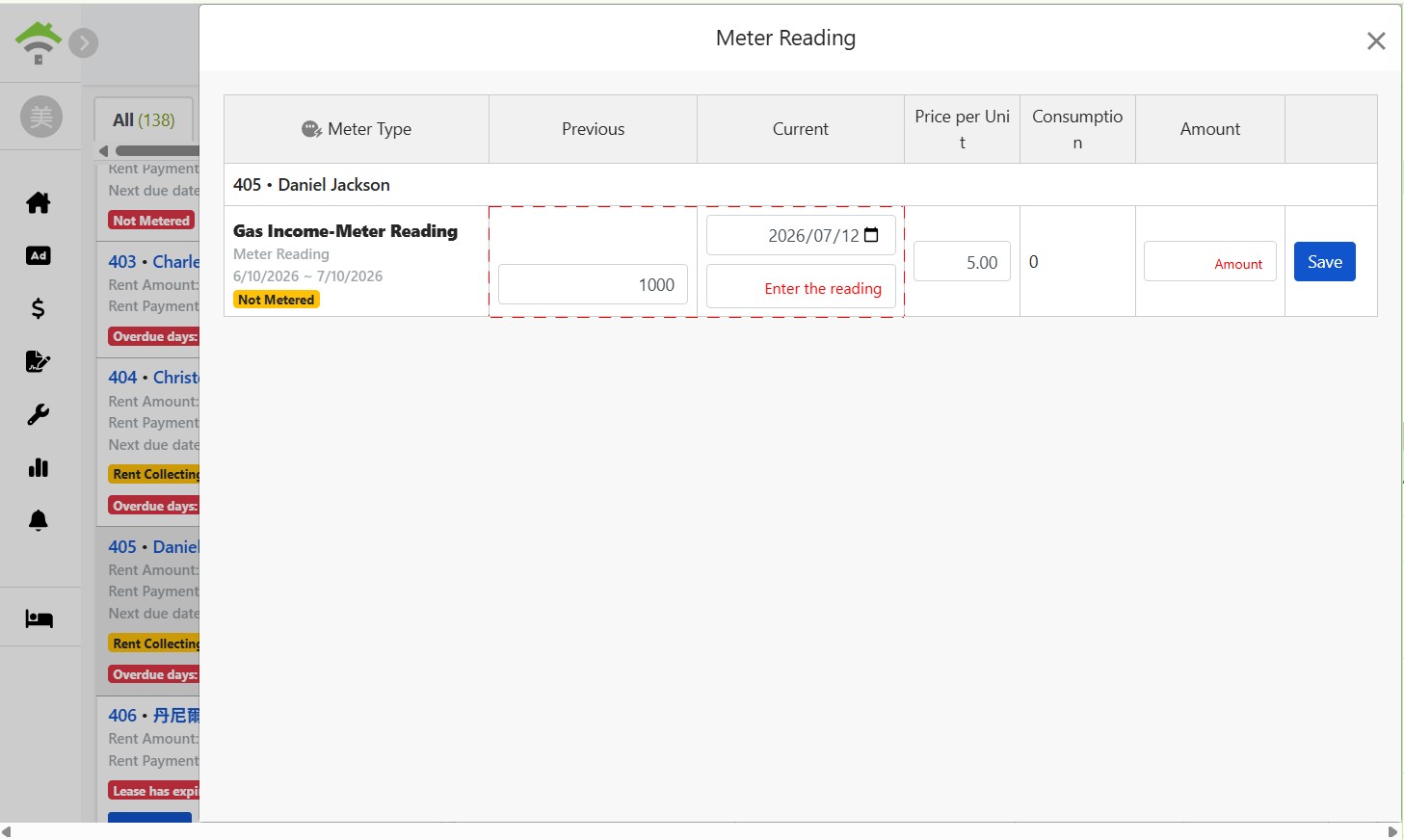
Meter Reading Window: Enter current reading, system auto-calculates amount based on previous reading and unit price
Reconciled: Clear view of historical payments

Bills with completed reconciliations are on the Reconciled tab, displaying billing periods, details, payment dates, and amounts, marked as Paid. For records of amounts received in a month or tenant payment dates, visit this tab for complete history.
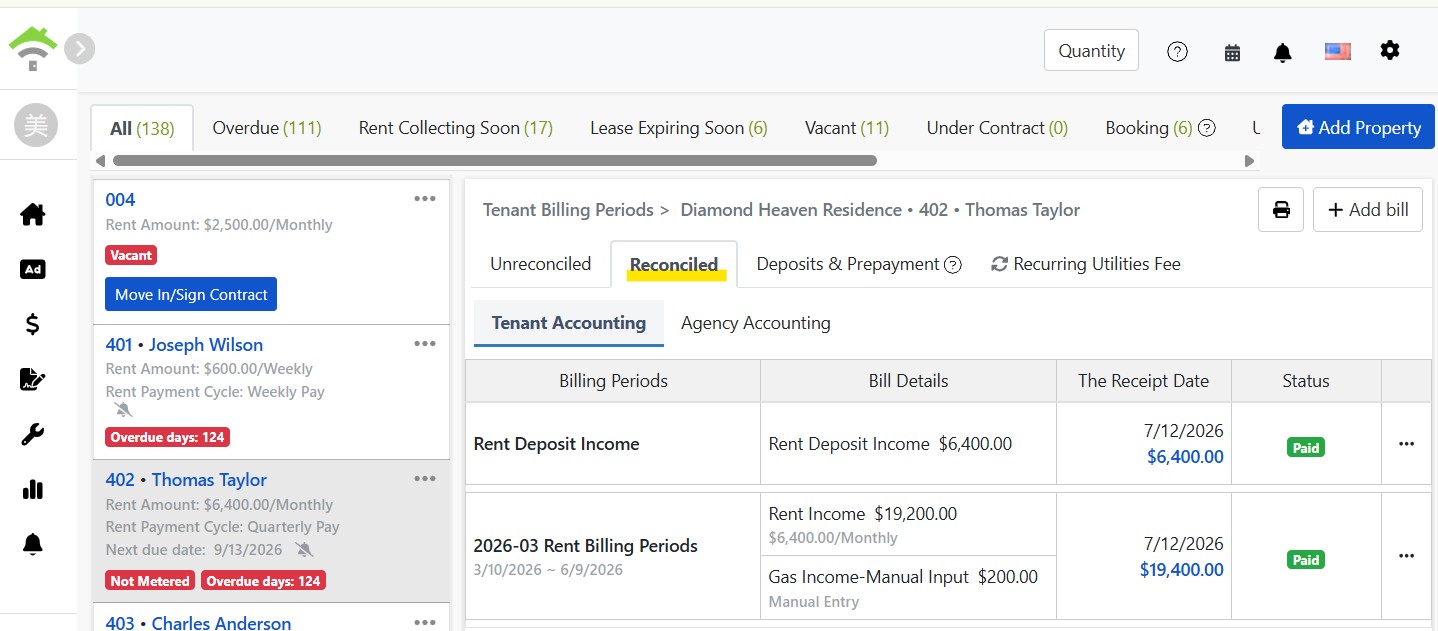
Reconciled Tab: Paid Bills and Payment Dates
Deposits and Prepayments: Track tenant credits, view balance anytime

The Deposit section shows deposit records for this lease and the current balance, with the deposit holder (e.g., landlord trust account) indicated. Reconciling the refundable amount takes place during lease termination.

The Prepayment section logs tenant pre-deposits (e.g., prepaid utilities), which offset utility charges over billing periods. Remaining amounts are cleared upon lease termination. Click 'Add Bill' to create a prepayment record.
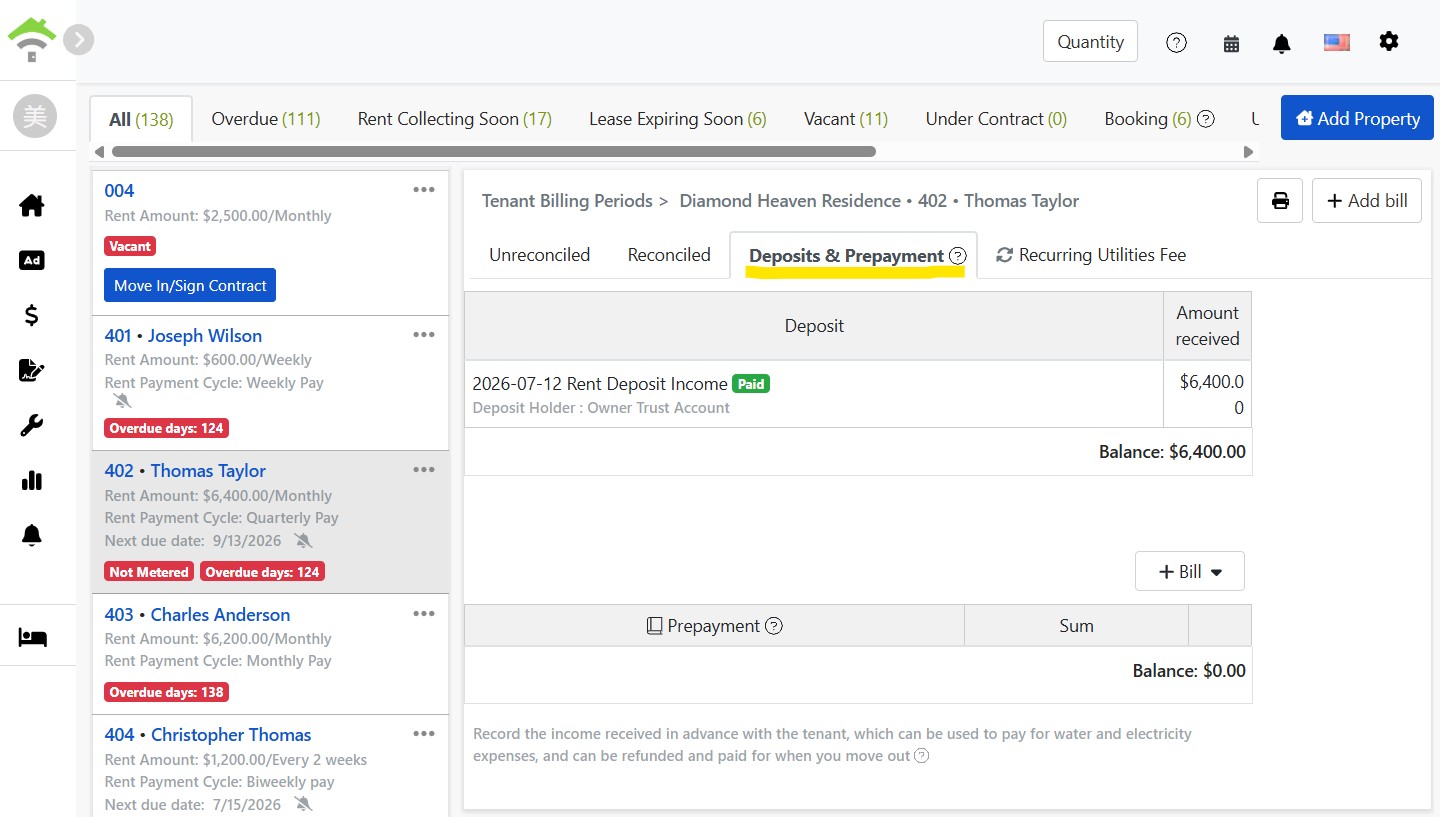
Deposits & Prepayments Tab: Deposit Records, Custodian & Balance
Recurring Charges: What this lease collects each period

Recurring Charges Tab lists all recurring billing groups set for this lease: Name, Term, Frequency, Charge Details & Amount. Those billed with rent are specially marked. To adjust an amount or add a charge (e.g., start internet fee), click Edit or Add Recurring Charge here, and future billing periods will follow the new setup.
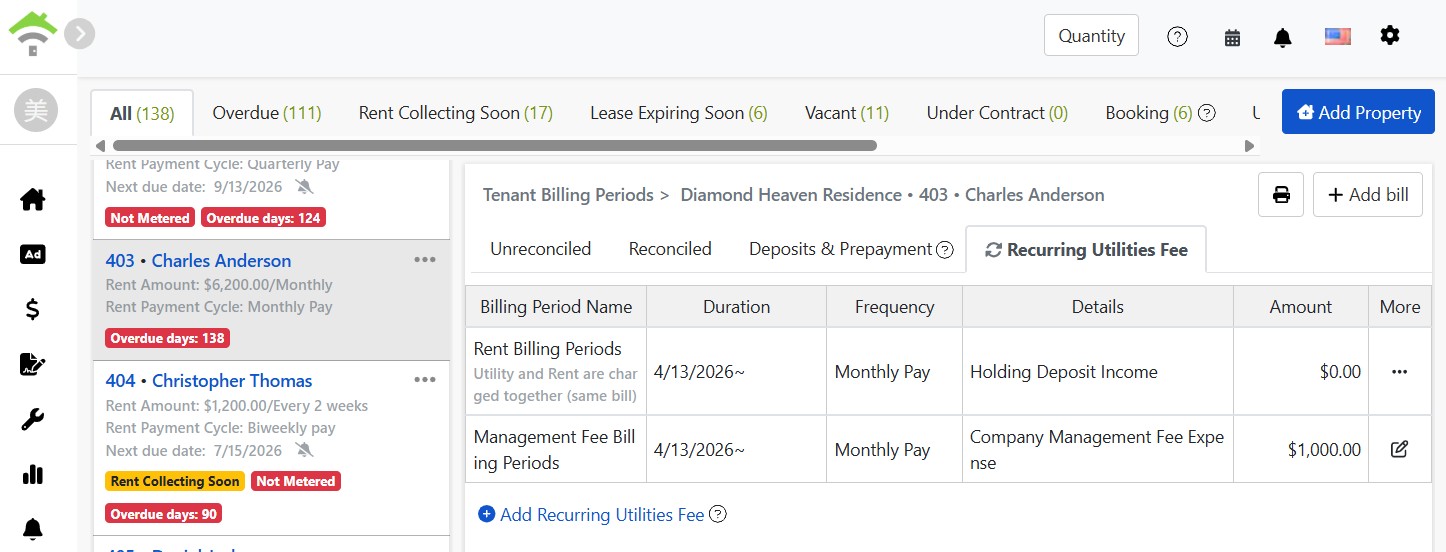
Recurring Charges Tab: Frequency, Details & Amount for each billing group
Other Functions in Menu
  • Waive: Use when agreeing to waive a charge with a tenant; it is no longer marked as due.
  • Defer Rent: Adjust the due date for the period when agreeing with a tenant to defer payment, to avoid being marked as overdue.
  • Payment Reminder: Manually resend the payment reminder for this invoice to the tenant without waiting for the system schedule.
  • Add/Edit: Adjust the content of this bill, or use the 'Add Bill' in the top right to create a temporary charge (e.g., repair cost-sharing).

FAQ

What to do if a tenant only pays part of the rent?

Mark as paid, entering the amount received. The system will open a distribution screen to allocate the payment, automatically creating a balance bill with a due date. Option to send the balance bill to the tenant. No need for manual adjustments; no balance overlooked.

Where do bills go after being marked as paid?

Moved to the Reconciled tab, retaining cycle, details, payment date, and amount. The Unreconciled tab only shows unpaid bills, serving as a daily to-do: clear it, and rental collection is complete.

Will invoices be sent to tenants for unmetered bills?

No. Metered bills are not notified until meter reading completion and amount confirmation to avoid sending incomplete bills; the system auto-sends upon completion. If labeled as unmetered, complete the reading first.

Will a tenant be marked overdue if they request a few extra days to pay?

Use 'Postpone Rent Collection' in More Menu to adjust the due date. Overdue days are calculated from the new due date, ensuring correct records.

✅ Open the Unreconciled tab, write off payments received today one by one. Clear it—rent collection made easy!