📄 Interface Environment Overview: Understand the main screen in five minutes, knowing where to handle everything. 📄 How to use Property Overview in RentPackage for a quick grasp of the full building status. 📄 Add Managed Property: Complete property setup, owner details, account opening, and online signing in one go. 📄 Tenant Move-in & Lease Signing: Set rental period, deposit, utilities, and billing cycle in one go. 📄 Tenant Ledger Actions: Payment Reconciliation, Partial Payments, Meter Reading, and Deposits. All routine rent collection in one place. 📄 Owner transfer feature guide 📄 Custom rental notifications: rent reminders, lease expiration, sent to the right person at the right time 📄 How to Quickly Estimate Next Month and Year’s Rental Income with Forecast Receipts in RentPackage 📄 Compliance assistance and responsibility statement 📄 Contract templates overview 📄 Sublandlord feature guide 📄 Partial payment feature guide 📄 Advance Receipts feature guide 📄 Rent billing periods feature guide 📄 Start billing feature guide 📄 Recurring billing periods feature guide 📄 Booking feature overview 📄 E-contract setup guide 📄 Management fee setup guide for property management companies 📄 Why are deposits and advance receipts liability accounts in accounting? 📄 RentPackage General Edition overview 📄 Commission split setup guide 📄 why do all landlords and agents need tenant management automation software? 📄 How to handle exchange rates for Euro-denominated rent? 📄 US Tax Filing - Schedule E Instructions 📄 UK Tax Filing - SA105 Instructions 📄 How to activate Stripe online rent collection in RentPackage 📄 How to use Calendar to schedule tenant notifications: Power outage example 📄 How to set the agency logo to display your brand on Email notifications and contract PDFs 📄 What is Rent Insurance? Compensation for unpaid rent; policy managed with the lease 📄 Anlage V Germany Rental Income Tax Report User Guide 📄 T776 Canada Rental Income Tax Report User Guide 📄 PIT-28 Polish Rental Income Tax Report User Guide 📄 How to Generate an Australian Rental Schedule in RentPackage, Auto-Match Income and Expenses to ATO Categories 📄 How to Use the Romanian Rental Income Tax Report (Declarația Unică 212) in RentPackage 📄 How to generate Hungarian SZJA rental income report data in RentPackage and compile eSZJA entry numbers with one click. 📄 Profit and Loss Statement: Auto-calculates income per property, per owner 📄 Balance Sheet: How much of the bank balance is tenant's? View deposits and prepayments at a glance. 📄 Cash Flow Statement: How much did actual cash increase during the rent period? 📄 How to generate a General Ledger in RentPackage, automatically summarizing rent and property accounts 📄 Enter manual journal entries: repairs, insurance, depreciation. Record transactions outside of the billing period. 📄 Custom rental notifications: rent reminders, lease expiration, sent to the right person at the right time 📄 Why can property management software dramatically save time and cost?

Profit and Loss Statement: Auto-calculates income per property, per owner

Quick Links

What can the Profit and Loss Statement do for you?

The Profit and Loss Statement summarizes all income and expenses within a period to calculate net profit. Income from rent, utilities, fees, cleaning, etc., is automatically categorized and totaled from daily entries – no need for manual spreadsheets.

Find out how much an owner earned in the first half, whether a property profited or lost this quarter, or see full-year finances before tax by setting conditions and clicking a button.

How to Use

Step 1: Set report parameters

Access the report page from the feature list (click 'Reports' in the left menu, then select a report), and set the following conditions:
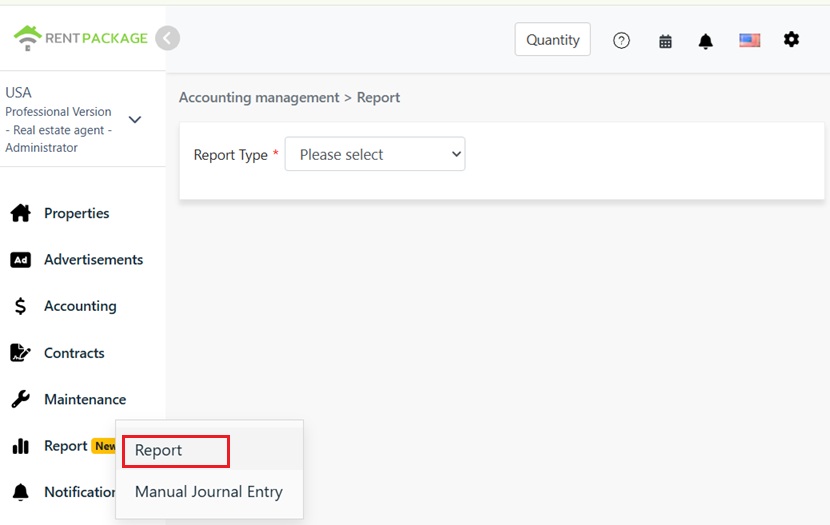
Report entry in the left menu under Reports
  • Report Type: Select Income Statement.
  • Choose Property/Owner/Company: Decide the scope of the report: focus on a single property, all properties under an owner, or the entire company's finances.
  • Report Period: Freely choose start and end dates; not limited to full year or month. View a specific lease period, quarter, or custom range.
  • Accounting Basis: Select Cash or Accrual basis; differences described in the next section.
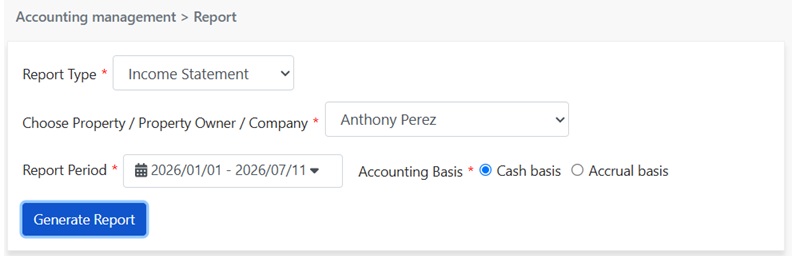
Set Income Statement conditions: Report Type, Scope, Period, Accounting Basis
How to choose between Cash and Accrual basis?

The same rent can appear in different periods on reports, depending on the accounting method used:

  • Cash Basis: Based on the actual receipt date. The money's actual entry or exit date determines the period it is reported in. Choose Cash Basis to view actual cash flow.
  • Accrual Basis: Based on the due date of receivables. Transactions are recorded in the period corresponding to the invoice date, irrespective of the cash flow. Choose Accrual Basis to view true performance over periods.
Please Note: Example: A tenant's June rent has a due date of June 1st but is paid on July 10th. In Accrual Basis reports, it is counted in June, while in Cash Basis reports, it is counted in July. Follow your country’s tax laws and accountant's advice to choose the method for tax purposes.
Step 2: Generate Report

Click to generate a report. The system will create a profit and loss statement divided into three sections:

  • Income: All income items and amounts for the period, such as rent income, utility fee income, service fee income, cleaning fee income, totaled as Total Income.
  • Expenses: All expense items and amounts for the period, totaled as Total Expenses. If there are no expense records for the period, it will display 'No records for this period.'
  • Net Income This Period: Total income minus total expenses gives the profit or loss for this period.
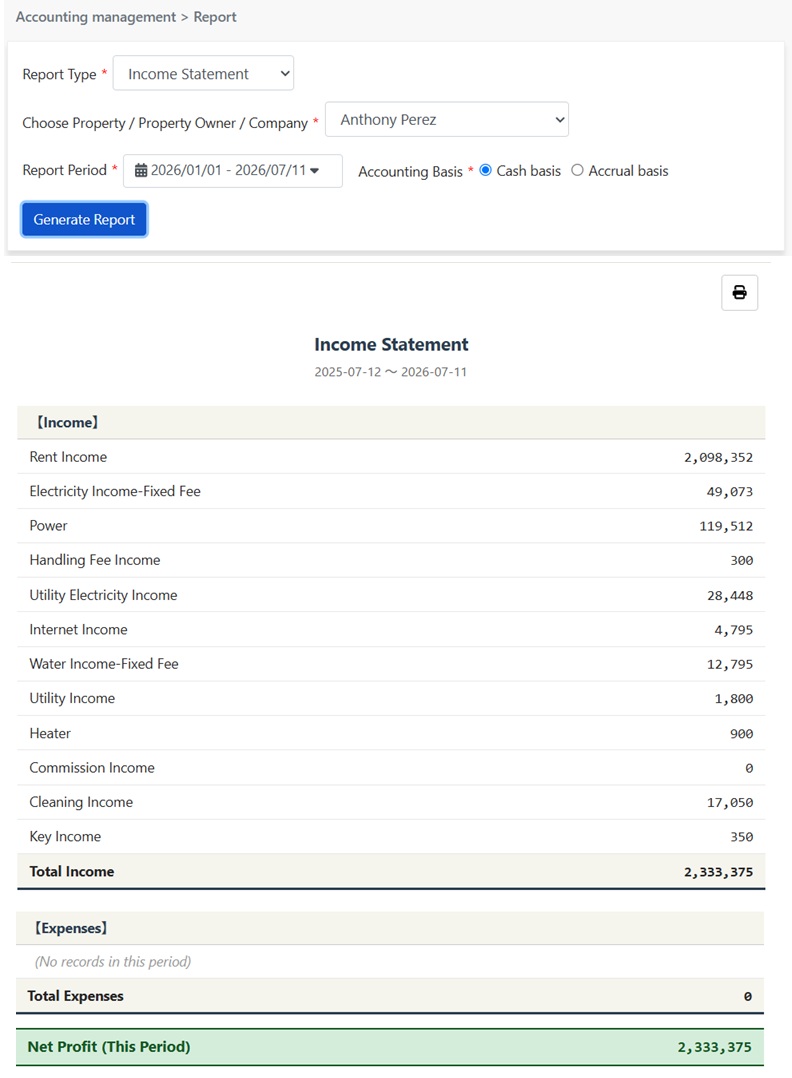
Generated Profit and Loss Statement: Income, Expenses, Net Income This Period

Click the print icon at the top right of the report to print directly or save as PDF for accountants or owners.

Where do the report figures come from?

The Profit and Loss Statement requires no extra data entry; amounts are derived from two types of records you usually input into the system:

  • Tenant Billing Cycle: Each charge in the lease billing cycle such as rent, utilities, and miscellaneous fees is automatically categorized into corresponding income or expense lines.
  • Manual Journal Entry: Income and expenses outside the billing cycle (e.g., repair costs, insurance, depreciation) are recorded via manual journal entry and automatically included in reports.

In other words, keep regular entries to have an up-to-date Profit and Loss Statement without needing end-of-period adjustments.

FAQ

Why do cash and accrual report amounts differ?

This is normal. The two bases attribute the same transaction to different periods: cash basis considers the actual transaction date, while accrual basis considers the billing period the transactions belong to. If payments span different periods (e.g., late rent, prepaid amounts), the amounts in individual reports will differ, but the totals over time will match.

Can I view reports for a specific owner or property?

Yes. The filter dropdown allows you to select a single property, owner, or company. For property managers reporting to owners, simply select the respective owner to generate the reports.

What is the difference between an income statement and a balance sheet?

They differ in time perspective. An income statement shows operational results over a period, like a film (e.g., income and expenses from January 1 to June 30). A balance sheet is a financial snapshot at a specific point, like a photo (e.g., assets and liabilities on June 30). To see if you were profitable over six months, check the income statement; to see how much tenant money you hold or asset structure, check the balance sheet.

Why aren't deposits and prepaid electricity in the income statement?

Because these belong to tenants, not your revenue. Deposits are returned at lease end; prepaid electricity is held to offset future bills, bypassing monthly calculations. Any remaining balance is refunded upon move-out. Thus, initially, these are liabilities on the balance sheet, not the income statement. Only when offset against actual expenses do they appear as income for that period's income statement.

✅ Generate your first income statement now and instantly see your earnings for the period!