📄 Interface Environment Overview: Understand the main screen in five minutes, knowing where to handle everything. 📄 How to Use the Property Overview in RentPackage to Quickly Grasp the Status of the Entire Building 📄 Add Managed Property: Complete property setup, owner details, account opening, and online signing in one go. 📄 Tenant Move-in & Lease Signing: Set rental period, deposit, utilities, and billing cycle in one go. 📄 Tenant Ledger Actions: Payment Reconciliation, Partial Payments, Meter Reading, and Deposits. All routine rent collection in one place. 📄 Owner transfer feature guide 📄 Custom rental notifications: rent reminders, lease expiration, sent to the right person at the right time 📄 How to Quickly Estimate Next Month and Year’s Rental Income with Forecast Receipts in RentPackage 📄 Compliance assistance and responsibility statement 📄 Contract templates overview 📄 Sublandlord feature guide 📄 Partial payment feature guide 📄 Advance Receipts feature guide 📄 Rent billing periods feature guide 📄 Start billing feature guide 📄 Recurring billing periods feature guide 📄 Booking feature overview 📄 E-contract setup guide 📄 Management fee setup guide for property management companies 📄 Why are deposits and advance receipts liability accounts in accounting? 📄 RentPackage General Edition overview 📄 Commission split setup guide 📄 why do all landlords and agents need tenant management automation software? 📄 How to handle exchange rates for Euro-denominated rent? 📄 US Tax Filing - Schedule E Instructions 📄 UK Tax Filing - SA105 Instructions 📄 How to Enable Stripe Online Rent Payments in RentPackage 📄 How to use Calendar to schedule tenant notifications: Power outage example 📄 How to set the agency logo to display your brand on Email notifications and contract PDFs 📄 What is Rent Insurance? Compensation for unpaid rent; policy managed with the lease 📄 How to Use the German Rental Income Tax Statement (Anlage V) in RentPackage 📄 T776 Canada Rental Income Tax Report User Guide 📄 PIT-28 Polish Rental Income Tax Report User Guide 📄 How to Generate an Australian Rental Schedule in RentPackage, Auto-Match Income and Expenses to ATO Categories 📄 How to Use the Romanian Rental Income Tax Report (Declarația Unică 212) in RentPackage 📄 How to generate Hungarian SZJA rental income report data in RentPackage and compile eSZJA entry numbers with one click. 📄 Profit and Loss Statement: Auto-calculates income per property, per owner 📄 Balance Sheet: How much of the bank balance is tenant's? View deposits and prepayments at a glance. 📄 Cash Flow Statement: How much did actual cash increase during the rent period? 📄 How to generate a General Ledger in RentPackage, automatically summarizing rent and property accounts 📄 Enter manual journal entries: repairs, insurance, depreciation. Record transactions outside of the billing period. 📄 Custom rental notifications: rent reminders, lease expiration, sent to the right person at the right time 📄 Why can property management software dramatically save time and cost?

Interface Environment Overview: Understand the main screen in five minutes, knowing where to handle everything.

Quick Links

Seven areas of the main screen

The main screen upon login is divided into six areas, corresponding with the diagram: 1 Status bar at the top, 2 Listings and room list on the left, 3 Workspace in the center, 4 Function menu on the left side, 5 Toolbar at the top right, 6 Account and branch switch at the top left. Remember one rule: the status bar tells you what to do today, the left frame helps find the location, and the workspace is where you execute tasks.
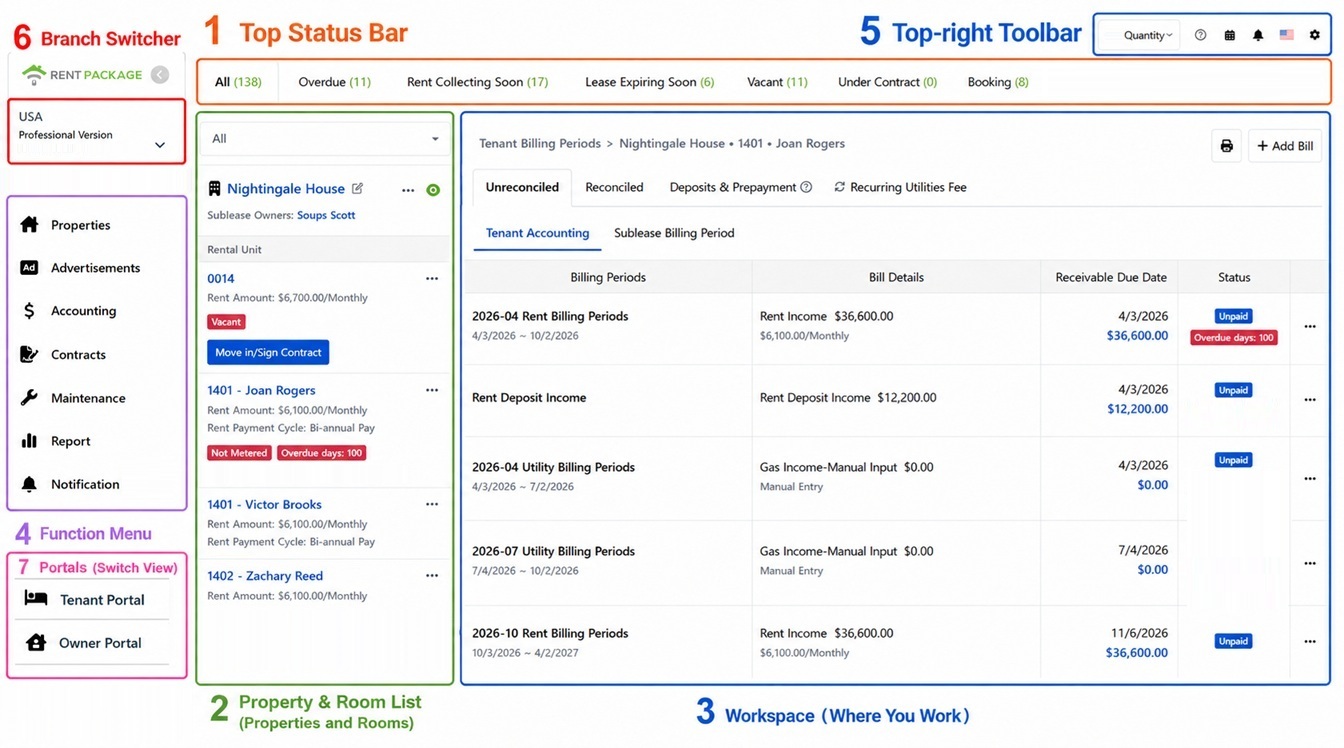
Main screen overview, six areas numbered: 1 Status bar, 2 Listings list, 3 Workspace, 4 Function menu, 5 Top right toolbar, 6 Account and branch switch.
1. Status Bar: Today's Tasks at a Glance

The tabs at the top are your dashboard: All, Overdue, Rent Due Soon, Lease Expiring, Vacant, In Contract, Reserved, Under Repair, Not Metered. Numbers indicate real-time stats. These tabs also filter: click one to show rooms in that status only.

Start each day by checking these numbers: overdue items to collect, leases expiring requiring renewal talks, vacant rooms to list. The system calculates it for you.

2. Left Panel: Property & Room List Overview

The left panel has two levels: property cards (showing property names and owners), with units below. Each room shows rent, billing cycle, next rent date, and status tags (vacant, in contract, overdue days, not metered) at a glance; also move-in/contract buttons if vacant.

Click a room to load its details in the workspace on the right, the most used path. The top dropdown enables further filtering.

3. Central Workspace: Main Area for Operations

The central workspace changes with the selected item: rooms load tenant billing (unreconciled, reconciled, deposits & prepayments, recurring fees, etc.), repair functions show tickets, reports show reports. Each has detailed guides; remember: find in the left panel, act in the workspace.

The left sidebar is the gateway to modules: Property Management (daily tasks), Advertising (listings), Finance (reports & manual entries), Contracts (tenant/owner agreements & templates), Maintenance, Reports, Notifications, and portals for tenants/owners. Click a module to switch the workspace.

5. Top Right Toolbar: Settings & Extras

Top right, left to right: buy credits, help (open guide), calendar, notification bell (system alerts), language switch, and the gear icon. The gear opens settings: member info, organization info (upload company logo/stamp), notification settings, staff management, billing & purchases.

6. Account & Branch Switching: Seamlessly switch between multiple products or branches.

If you've purchased multiple products or manage multiple branches, click the account block at the top left, which shows your current company, version, and role, to expand the account list and switch to another branch with one click. Each branch's properties, transactions, and members are separate, ensuring no data confusion upon switching.
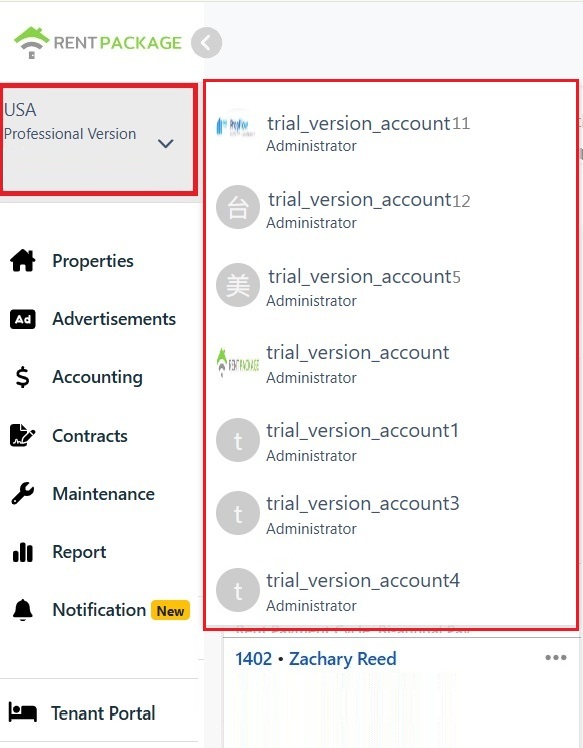
Top-left account block expanded branch switch list.
7. Switch Tenant/Owner Portal

The bottom of the left menu provides access to the Tenant and Owner portals. If you are both an administrator and a tenant (renting housing) or an owner (entrusting property management), click the corresponding portal to switch directly to that identity's page to view your bills, contracts, and notifications without logging out or using a different account.

Switch back to the management interface from the same location.

Connect the seven areas: A typical flow

Take a common daily collection as an example and walk through: Upon login, the status bar shows overdue payments. Click the overdue tab, and the left panel filters rooms with overdue payments. Select a room, load its tenant billing in the workspace, where overdue invoices are marked with red overdue days. Post payment receipt, clear the invoice, reducing the overdue count in the status bar. Understanding this flow helps you apply the same logic elsewhere: identify issues via the status bar, locate via the left panel, resolve in the workspace.

FAQ

Will my data from multiple branches get mixed up?

No. Each branch operates as a separate account with its own properties, transactions, members, and permissions switched via the account block. Only the selected branch's data is visible after switching.

What are the numbers in the status bar? What happens when I click them?

Numbers provide real-time status stats, like overdue 111 indicating 111 rooms with overdue payments. Clicking a tab filters the left panel list to show rooms of that status; clicking 'All' restores the full list.

Why doesn't my screen exactly match the screenshots?

Menu items vary based on your purchased version and the role chosen upon object creation. For example, a DIY landlord won't use the owner portal. However, area locations and operation logic remain consistent, and the outlined workflow applies to all versions.

✅ Take a quick tour now, and you'll be familiar with the system in five minutes!