📄 Interface Environment Overview: Understand the main screen in five minutes, knowing where to handle everything. 📄 How to Use the Property Overview in RentPackage to Quickly Grasp the Status of the Entire Building 📄 Add Managed Property: Complete property setup, owner details, account opening, and online signing in one go. 📄 Tenant Move-in & Lease Signing: Set rental period, deposit, utilities, and billing cycle in one go. 📄 Tenant Ledger Actions: Payment Reconciliation, Partial Payments, Meter Reading, and Deposits. All routine rent collection in one place. 📄 Owner transfer feature guide 📄 Custom rental notifications: rent reminders, lease expiration, sent to the right person at the right time 📄 How to Quickly Estimate Next Month and Year’s Rental Income with Forecast Receipts in RentPackage 📄 Compliance assistance and responsibility statement 📄 Contract templates overview 📄 Sublandlord feature guide 📄 Partial payment feature guide 📄 Advance Receipts feature guide 📄 Rent billing periods feature guide 📄 Start billing feature guide 📄 Recurring billing periods feature guide 📄 Booking feature overview 📄 E-contract setup guide 📄 Management fee setup guide for property management companies 📄 Why are deposits and advance receipts liability accounts in accounting? 📄 RentPackage General Edition overview 📄 Commission split setup guide 📄 why do all landlords and agents need tenant management automation software? 📄 How to handle exchange rates for Euro-denominated rent? 📄 US Tax Filing - Schedule E Instructions 📄 UK Tax Filing - SA105 Instructions 📄 How to Enable Stripe Online Rent Payments in RentPackage 📄 How to use Calendar to schedule tenant notifications: Power outage example 📄 How to set the agency logo to display your brand on Email notifications and contract PDFs 📄 What is Rent Insurance? Compensation for unpaid rent; policy managed with the lease 📄 How to Use the German Rental Income Tax Statement (Anlage V) in RentPackage 📄 T776 Canada Rental Income Tax Report User Guide 📄 PIT-28 Polish Rental Income Tax Report User Guide 📄 How to Generate an Australian Rental Schedule in RentPackage, Auto-Match Income and Expenses to ATO Categories 📄 How to Use the Romanian Rental Income Tax Report (Declarația Unică 212) in RentPackage 📄 How to generate Hungarian SZJA rental income report data in RentPackage and compile eSZJA entry numbers with one click. 📄 Profit and Loss Statement: Auto-calculates income per property, per owner 📄 Balance Sheet: How much of the bank balance is tenant's? View deposits and prepayments at a glance. 📄 Cash Flow Statement: How much did actual cash increase during the rent period? 📄 How to generate a General Ledger in RentPackage, automatically summarizing rent and property accounts 📄 Enter manual journal entries: repairs, insurance, depreciation. Record transactions outside of the billing period. 📄 Custom rental notifications: rent reminders, lease expiration, sent to the right person at the right time 📄 Why can property management software dramatically save time and cost?

USA Tax Filing - Schedule E Tax Report User Guide from RentPackage

Quick Navigation

What is Schedule E?

Schedule E is an IRS tax form used to report rental income and expenses. It is filed as part of your individual income tax return (Form 1040). If you own rental properties in the United States, you need to complete this form each year to report your rental income and related expenses.

RentPackage provides a Schedule E report feature that automatically summarizes your rental income and expenses, making tax preparation simple and efficient.

How to Use

Step 1: Select Report Type and Properties
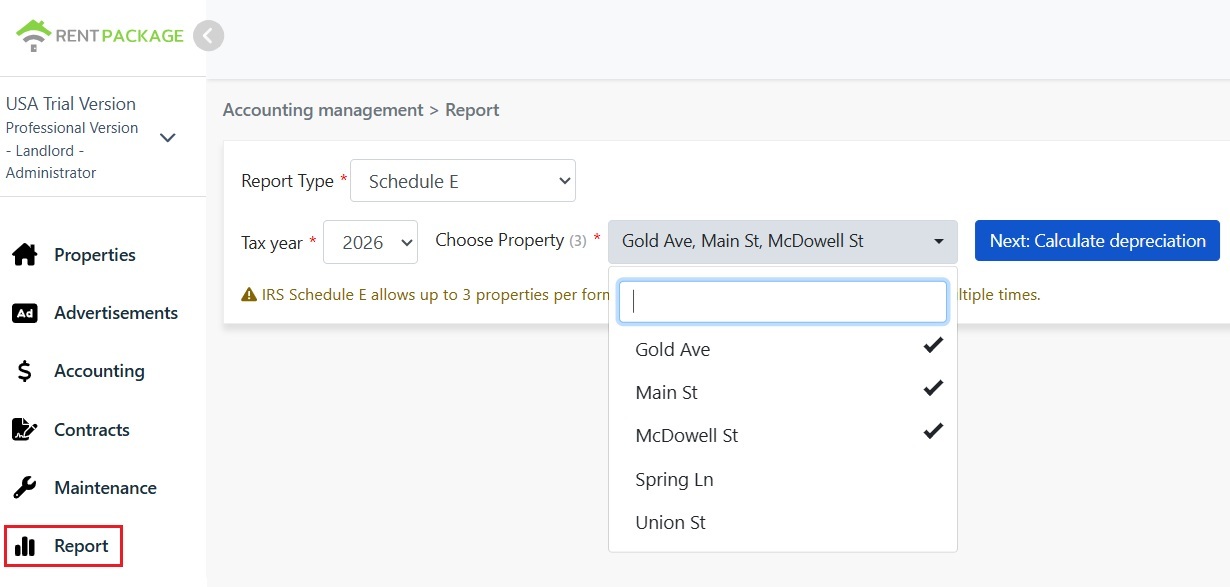
  • Access the Report: Go to function list → Reports → Select "Schedule E" as the report type
  • Select Tax Year: Choose from the past ten years
  • Select Properties (Maximum 3): Per IRS requirements, each report can include up to 3 properties
  • Click "Next: Calculate Depreciation": The system will display the depreciation settings
Select Schedule E as the report type
⚠️ Note: Per IRS Schedule E form limitations, each report can only include up to 3 properties. If you have more than 3 properties, please generate multiple reports.
Step 2: Input Depreciation Amounts

The system will display depreciation information for your selected properties:

Scenario A: Depreciation Already Recorded in Journal

If depreciation has already been recorded for a property in "Journal Entries," the system will automatically display the amount with a 🔒 lock icon. This field is read-only and cannot be modified. To make changes, go to "Accounting → Journal Entries" to edit the original entry.

Scenario B: No Depreciation Record

If no depreciation record exists for a property, the system will display an editable input field. You can directly enter the depreciation amount provided by your accountant.
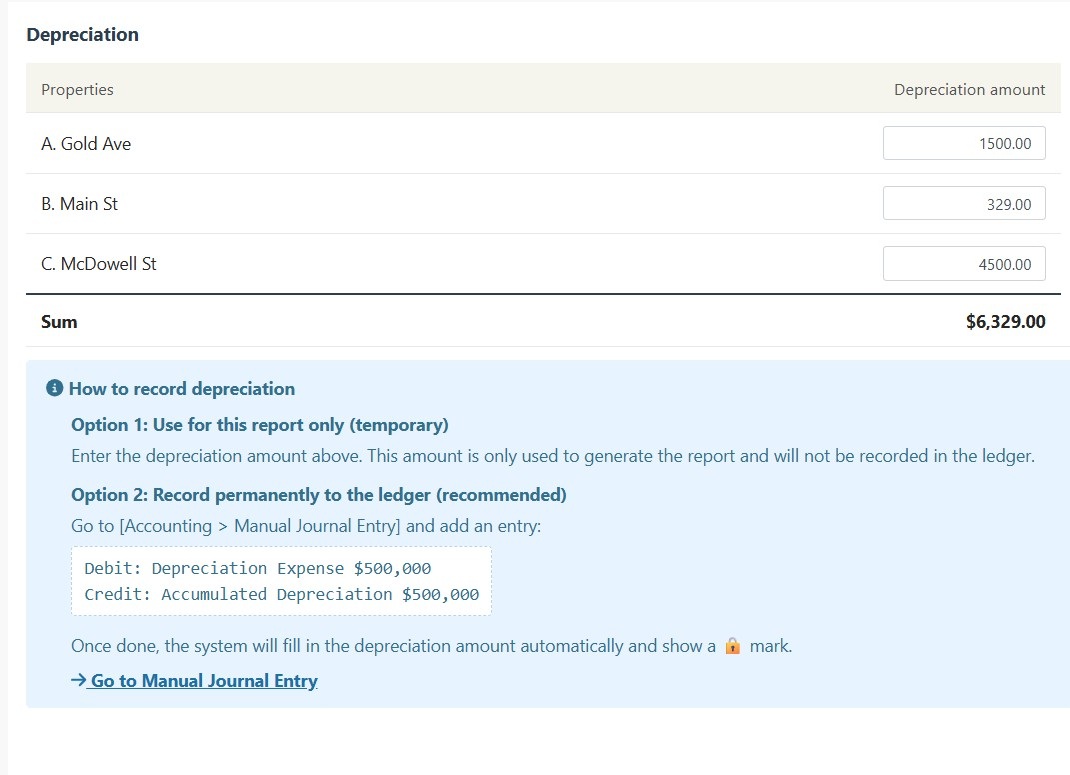
Input Depreciation Amounts of Schedule E
💡 Tip: Depreciation amounts entered here are only used for this report and will not be recorded in your books. For permanent records, please use the Journal Entries feature.
Step 3: Generate Report
  • After confirming all information is correct, click "Generate Schedule E"
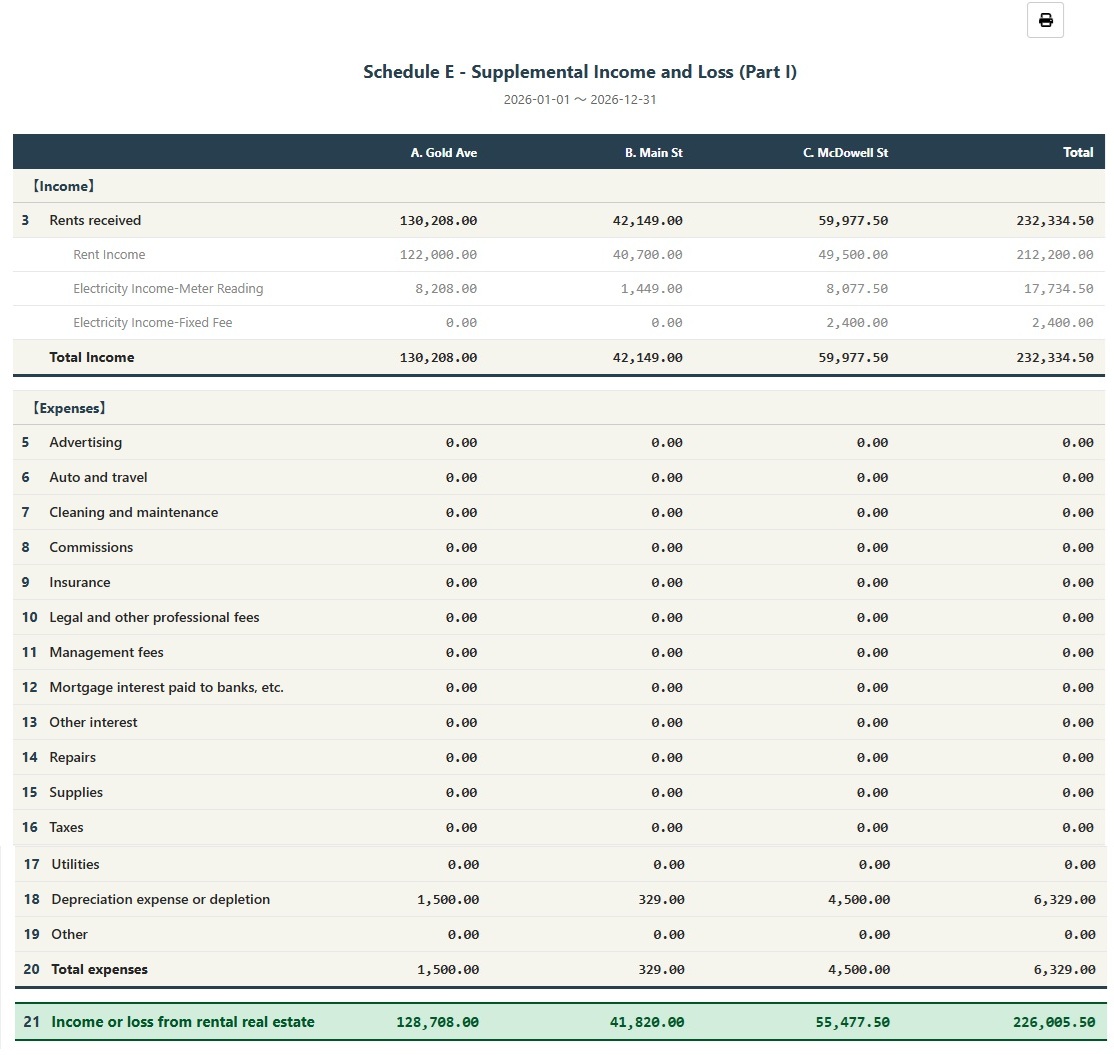
  • The system will generate a Schedule E report showing rental income (Line 3), itemized expenses (Lines 5-19), depreciation (Line 18), and net income or loss (Line 21) for each property
  • You can print the report or export it as a PDF for your tax preparation records
Generate Schedule E Report

How to Permanently Record Depreciation?

If you want depreciation amounts to be permanently recorded in your books, follow these steps:

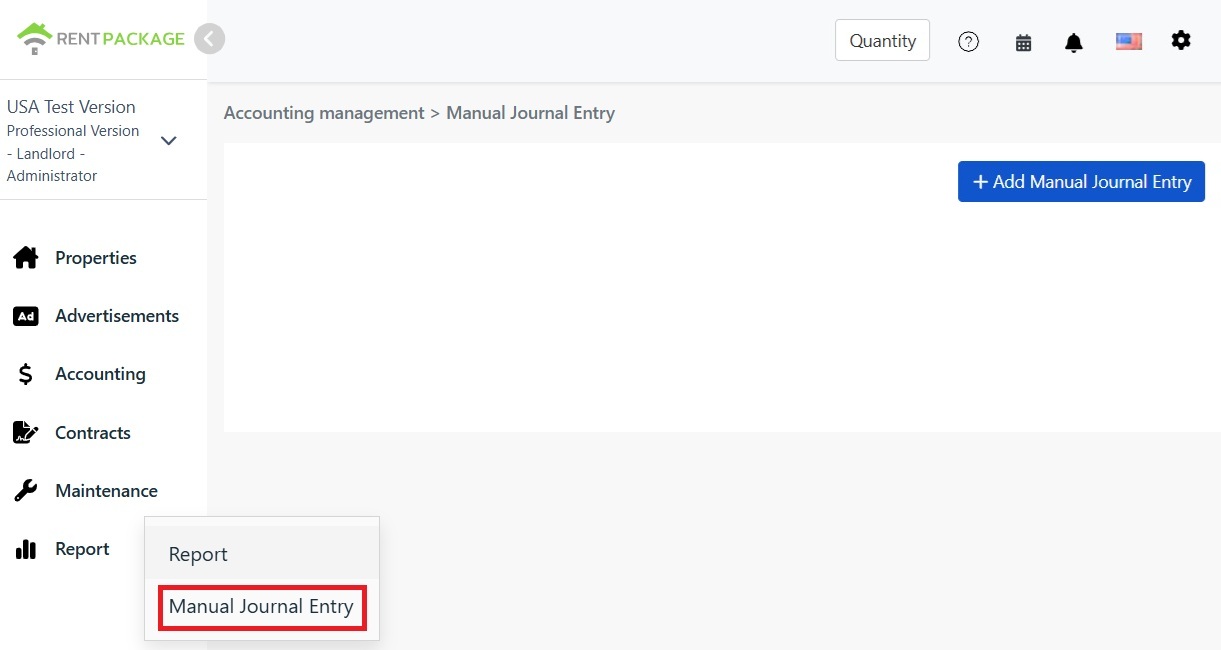
  • Go to "Report → Manual Journal Entry"
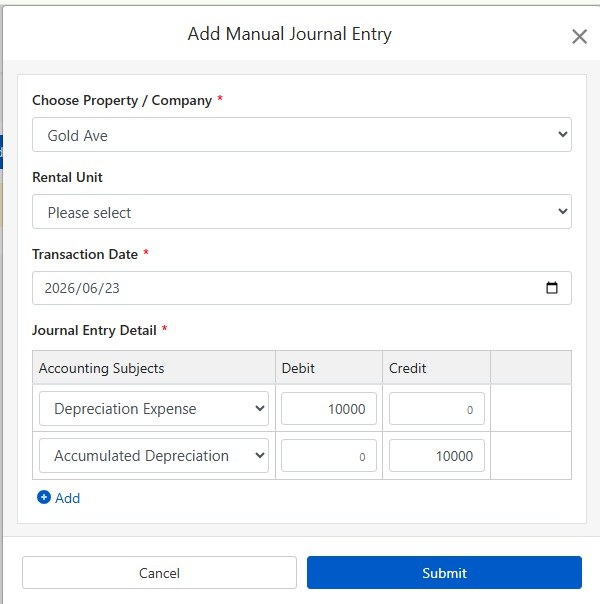
  • Click "+ Add Manual Journal Entry"
  • Select the corresponding property
  • Enter the following journal entry:
Go to Report, select the Manual Journal Entry
Account Debit Credit
Depreciation Expense $10,000
Accumulated Depreciation $10,000
Add Manual Journal Entry

Click "Submit" to save the entry. Once completed, the next time you generate a Schedule E report, the system will automatically populate this depreciation amount and display the 🔒 lock icon.

How to Calculate Depreciation?

Residential rental properties in the U.S. are depreciated over 27.5 years using the straight-line method.

Formula:

Annual Depreciation = (Purchase Price - Land Value) ÷ 27.5

Example:

  • Purchase Price: $300,000
  • Land Value: $50,000 (land cannot be depreciated)
  • Depreciable Amount: $300,000 - $50,000 = $250,000
  • Annual Depreciation: $250,000 ÷ 27.5 = $9,091

Land value can typically be found on your property tax statement or appraisal report. If you have questions, please consult your accountant.

Modify Filter Settings

If you need to change properties or tax year after generating a report, click the "Modify Filter Settings" button at the top of the report to return to the settings page.

Frequently Asked Questions

Why can I only select 3 properties?

This is an IRS Schedule E form limitation. Each form only has columns A, B, and C, allowing a maximum of 3 properties. If you have more properties, please generate multiple reports.

The depreciation field shows a lock icon and I can't edit it. What should I do?

The lock icon indicates that the amount comes from a journal entry. To modify it, go to "Accounting → Journal Entries" and edit the original depreciation entry.

Will the depreciation I enter on the report page be recorded in my books?

No. Depreciation amounts entered on the report page are only used for generating that specific report. For permanent records, please use the Journal Entries feature.

How are expenses categorized on the report?

The system automatically categorizes expenses based on the Schedule E classification you set in your Chart of Accounts. Please ensure your accounts are correctly mapped to the appropriate Schedule E categories.

Can I use this report directly for tax filing?

This report is for reference purposes, summarizing the income and expenses recorded in RentPackage. When filing your taxes, please transfer the data to the official IRS form or provide it to your accountant. We recommend consulting a tax professional before submission.

Schedule E Expense Category Reference

IRS Line Category Description
Line 3 Rents Received Total rental income received
Line 4 Royalties Received Royalty income
Line 5 Advertising Advertising and marketing expenses
Line 6 Auto and Travel Vehicle and travel expenses
Line 7 Cleaning and Maintenance Cleaning and maintenance costs
Line 8 Commissions Agent or broker commissions
Line 9 Insurance Property insurance premiums
Line 10 Legal and Professional Fees Attorney, accountant, and professional services
Line 11 Management Fees Property management fees
Line 12 Mortgage Interest Interest paid to banks on mortgages
Line 13 Other Interest Other interest expenses
Line 14 Repairs Repair and maintenance costs
Line 15 Supplies Supplies and materials
Line 16 Taxes Property taxes and other taxes
Line 17 Utilities Water, electricity, gas, etc.
Line 18 Depreciation Depreciation expense
Line 19 Other Other deductible expenses
✅ Start using the Schedule E report feature today and make your rental property tax preparation easier!