
How to Generate an Australian Rental Schedule in RentPackage, Auto-Match Income and Expenses to ATO Categories
In Australia, rental income must be reported according to ATO income and expense categories, which involves re-categorizing and summarizing a year's records during tax season. With RentPackage, you collect rent and manage accounts as usual; at tax time, select the year and click a button. The system automatically compiles the year's income and expenses into a Rental Schedule in ATO format—only figures requiring professional judgment, like depreciation and loan costs, need manual input; everything else is automated.
Quick Links
1. What is a Rental Schedule?
The Rental Schedule is a standard attachment for declaring rental property income in Australia, detailing all rental income and expenses for the fiscal year, calculating net rental profit (or loss). One schedule per property, submitted with personal tax return.
"Rental Schedule" is actually an old term: historically, the ATO had a paper form (NAT 5225, code RS), replaced by the electronic filing specification [ RNTLPRPTY ] (Rental property schedule) from July 1, 2020. The industry still commonly refers to it as Rental Schedule, which is not incorrect, but it is no longer the official term.
With the shift to the electronic specification, the ATO only stipulated "what fields must be reported" and no longer specifies form layouts, allowing each tax software to design its own layout—this is why the screens you see in Xero Tax, MYOB, HandiTax look different. RentPackage organizes reports according to the income and expense items required for reporting, allowing you or your accountant to fill them in during tax filing.
RentPackage compiles selected fiscal year accounts based on a [ cash basis ] (recognized on payment date), automatically categorizing them into ATO filing categories according to your predefined account mapping.
2. Key Points on Australian Rental Tax Filing
Before generating reports, understand a few Australian tax rules that affect figures:
- Financial Year: Australia's fiscal year runs from July 1 to June 30 of the following year, differing from the calendar year used in Taiwan and the US.
- One Property, One Schedule: Each rental property is reported with its own Rental Schedule, so the system generates a report for one property at a time.
- Declare by Ownership Share: For jointly owned properties, income and expenses are apportioned according to legal ownership shares: Joint Tenants (common among spouses) always split equally; Tenants in Common declare according to their respective shares (e.g., 70%/30%). This report calculates on 100% ownership; adjust for your share before filing.
- Repairs vs. Improvements: Repairs (restoration) can be fully expensed in the year; capital improvements (upgrades, extensions) are capital expenditures and must be depreciated over time, not fully deductible in the year incurred.
- Two Types of Depreciation: Division 43 (Capital Works) depreciates building structure costs, usually at 2.5% per year over 40 years. Division 40 (Plant & Equipment) depreciates movable assets like air conditioning, carpets, and water heaters based on effective life. Quantity Surveyors typically provide a depreciation schedule; simply follow it annually.
- Deduct loan costs over five years: Loan establishment, valuation, and registration fees cannot be fully deducted in the year paid but must be amortized over 5 years (or the loan term if shorter). For example, a $2,000 loan establishment fee paid this year can only deduct $400 this year.
- Travel expense restriction: From July 1, 2017, individual landlords can no longer deduct travel and accommodation costs related to managing rental properties.
3. Preliminary Setup: Account Mapping to Filing Categories
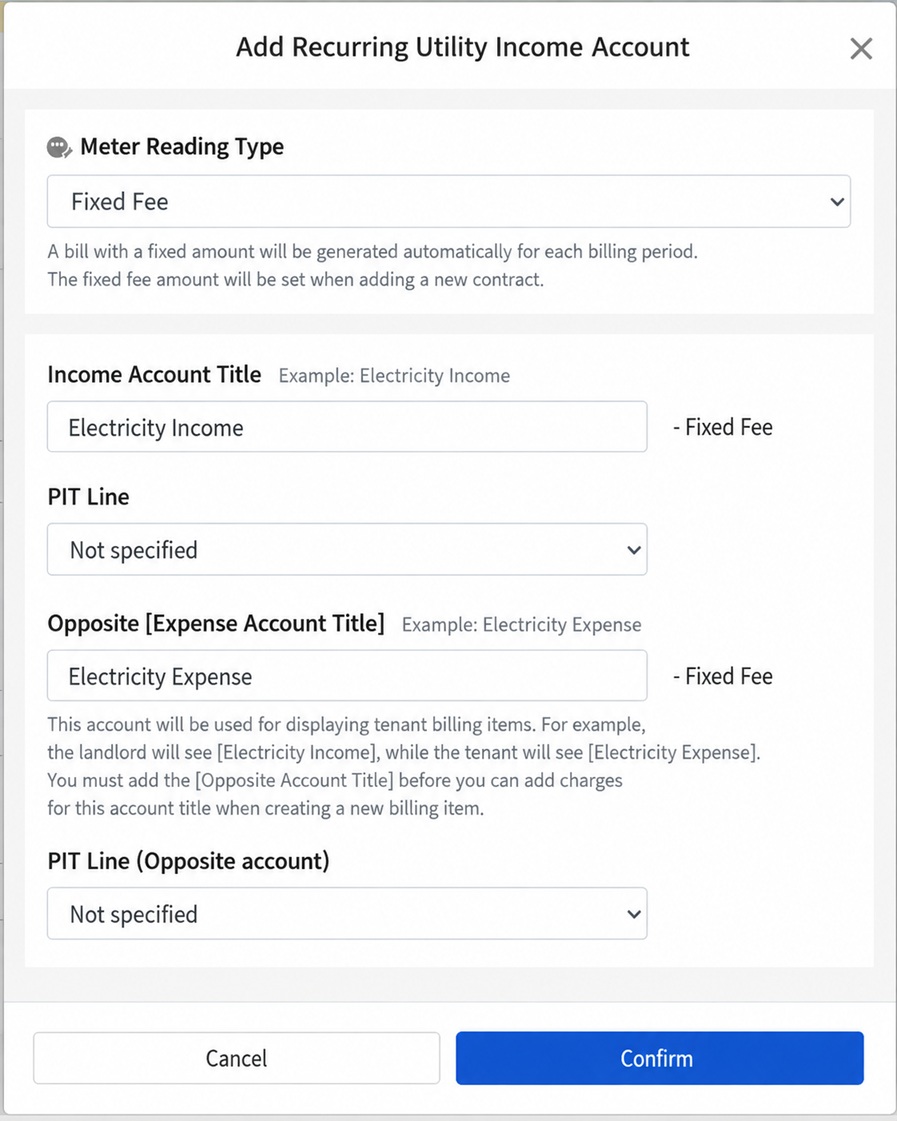
Australia's filing categories lack numeric codes, so RentPackage provides a [ Rental schedule ] dropdown in Chart of Accounts to assign filing categories to each account. When adding or editing an account (e.g., utility income), both income and corresponding expense accounts can be categorized; select "Not specified" to exclude from report summary.
4. Generate Report
This feature is for the [ Advanced ] plan and requires [ View/Print Reports ] permissions.
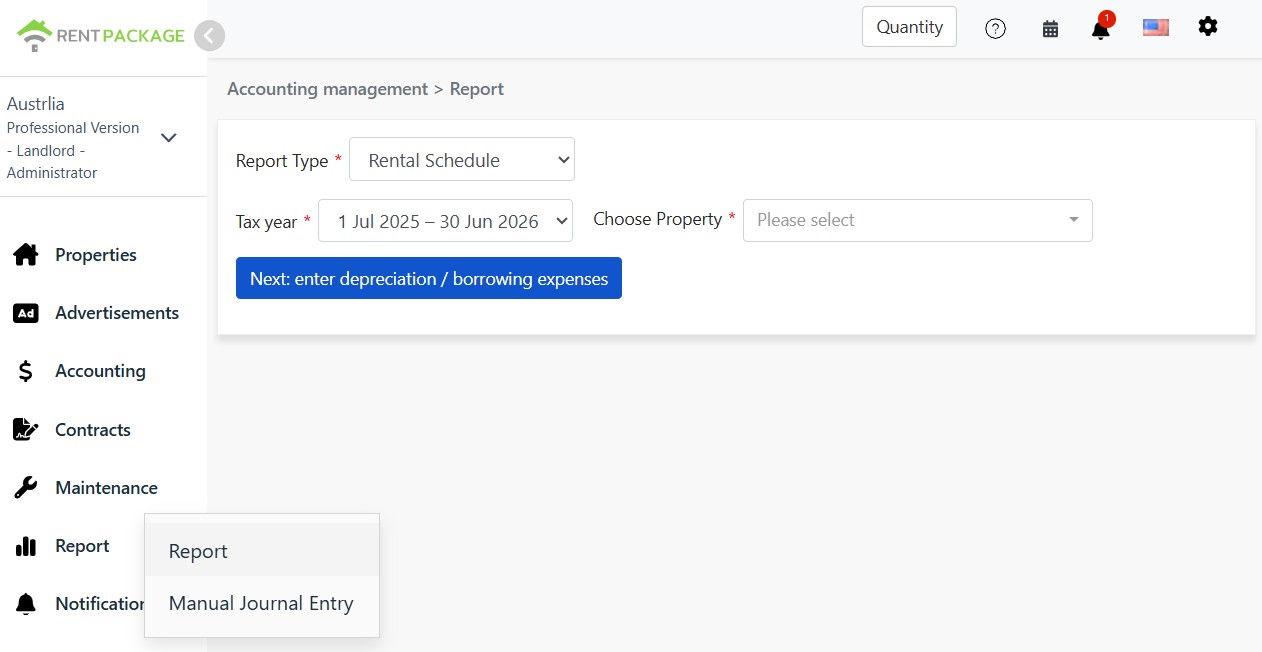
Go to the left menu and select [ Reports ] → [ Reports ], choose [ Rental Schedule ], select the taxation year (e.g., 1 Jul 2025 – 30 Jun 2026) and property (one at a time), then click [ Next: Enter Depreciation/Loan Costs ].
5. Enter Depreciation and Loan Costs
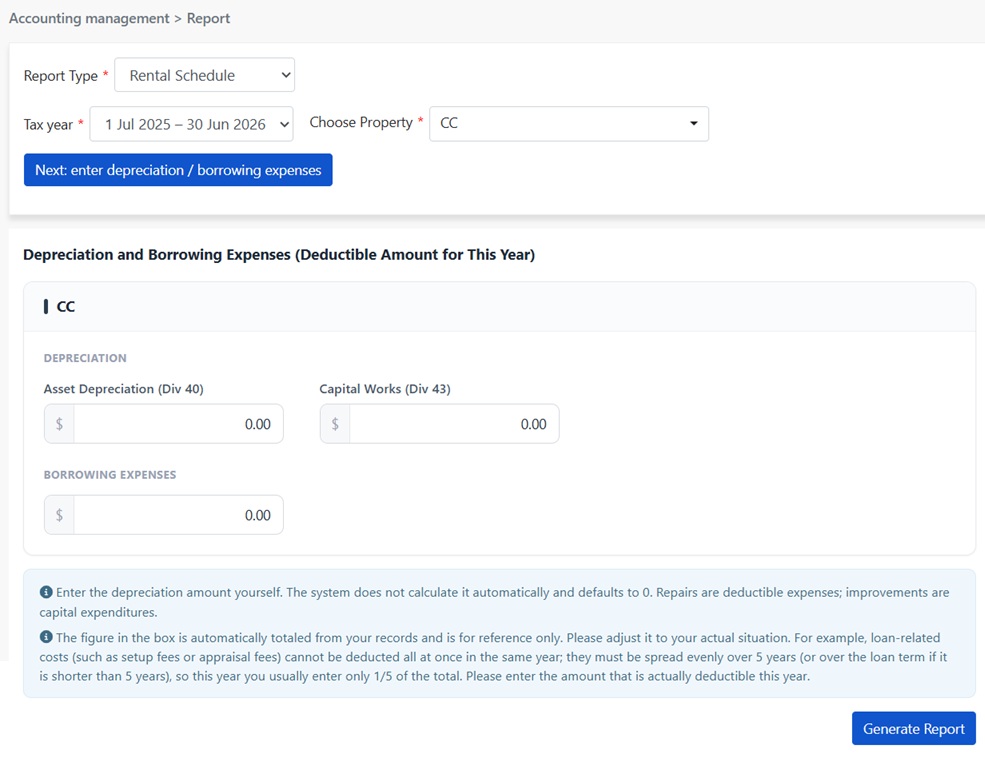
Depreciation and borrowing costs fall under items where 'book expense ≠ deductible amount this year.' Enter the actual deductible amount for the year:
- Asset Depreciation (Div 40): Enter the depreciation deduction for movable assets this year, based on your depreciation schedule or accountant's calculations. Default is 0.
- Capital Works (Div 43): Enter the deduction for building structure for the year. For example, $300,000 construction cost at 2.5%, fully rented for the year equals $7,500. Default is 0.
- Borrowing Expenses: The system auto-sums items categorized as 'borrowing expenses' into the input field for [ reference ] and can be expanded to view account details. Adjust the amount to reflect the actual deductible amount for this year—for example, if $2,000 in loan setup fees on the books are amortized over 5 years, usually enter $400 this year.
6. How to Read This Report
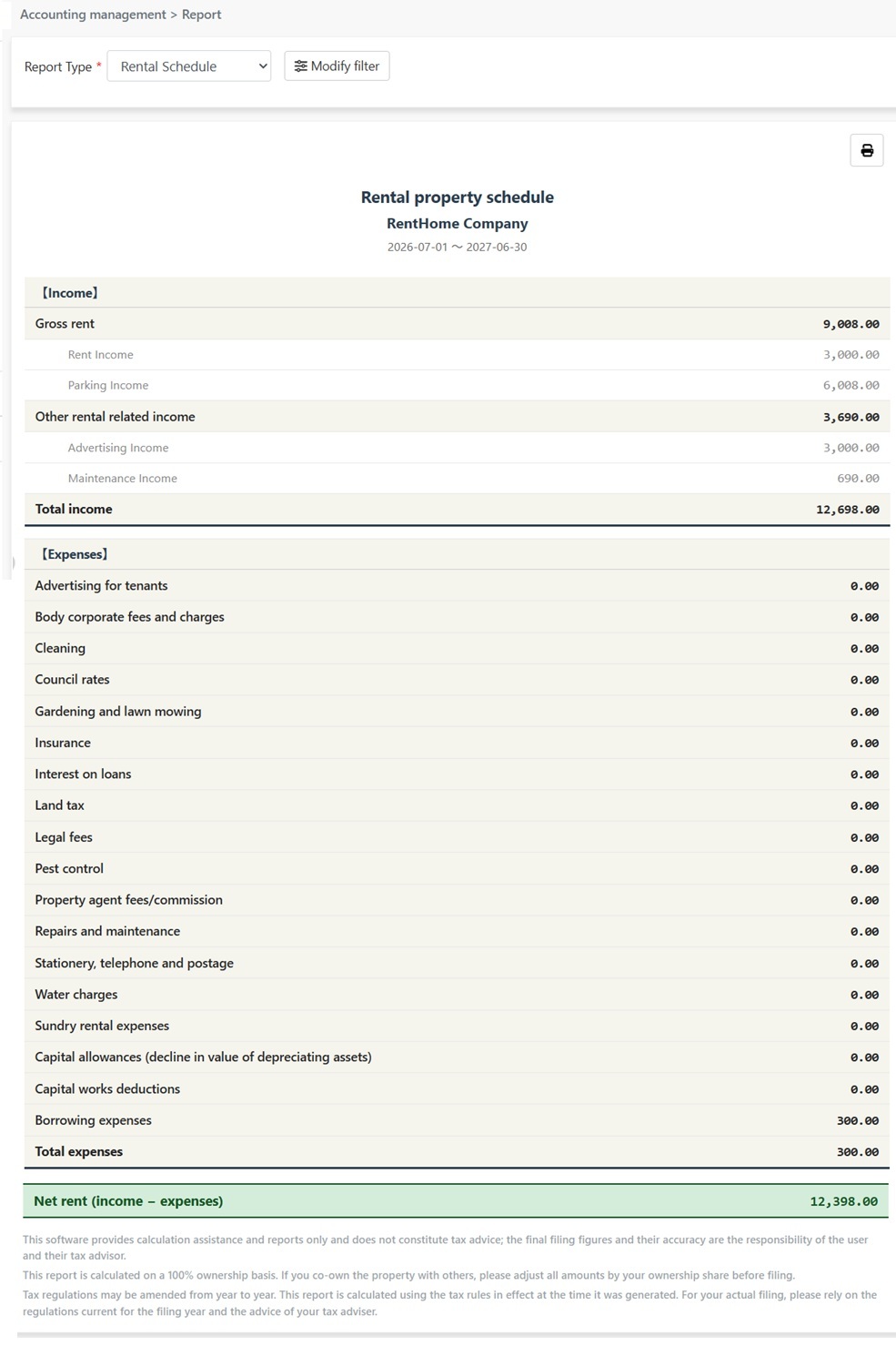
After clicking [ Generate Report ], the report is displayed in ATO submission format:
- Income: 'Gross rent' lists rental income, 'Other rental related income' lists other related income. Both can be expanded to view detailed account compositions (e.g., rental income, parking income, advertising income), summed as Total income.
- Expenses: List expenses by ATO categories, such as Advertising for tenants, Body corporate fees, Council rates, Insurance, Interest on loans, Repairs and maintenance; detailed for applicable categories, zero for non-occurring ones. Depreciation and borrowing costs from the previous step will be applied to 'Capital allowances' (Div 40), 'Capital works deductions' (Div 43), and 'Borrowing expenses'.
- Net Rent: At the bottom of the report is Net rent (income minus expenses), which is the net rental income for filing; if negative, it indicates a rental loss.
7. Important Notes
- This report is cash-based: Income and expenses are recorded by the date of cash receipt, in line with common Australian individual landlord reporting.
- Calculated as 100% ownership: Co-owners should proportionally adjust report amounts as per legal sharing ratios before filing.
- This software provides calculation assistance and reports only: It does not constitute tax advice; final reporting figures and their accuracy are the responsibility of the user and their tax advisor. Tax laws may change yearly; actual filing should follow current guidelines for the reporting year.
8. FAQs
Why input depreciation manually? Can’t the system calculate it automatically?
The correct depreciation figures in Australia depend on construction costs, start date, the useful life of each asset, and the amortization method chosen. This information typically comes from a depreciation schedule provided by a quantity surveyor and is not found in regular accounting records. Enter the amount for the current year according to the schedule to ensure accurate reporting.
Can I use the amount pre-filled by the system in the borrowing costs field?
Direct use is not recommended. The system populates it with the annual total categorized as borrowing costs. However, tax regulations require that such costs be amortized over 5 years, so typically only one-fifth can be entered. Expand the details to verify and adjust to the deductible amount for the current year.
How do I report a property owned jointly or by multiple parties?
First, confirm the ownership type: Joint Tenants are divided equally (50% each for two people); Tenants in Common are split according to the registered shares. Multiply the amounts in this report by your percentage to determine your personal reportable figures.
How to differentiate between repair costs and improvement expenses?
The criteria are 'restore to original condition' versus 'upgrade or add value'. Fixing leaks or replacing broken parts are repairs and can be fully deducted in the year incurred under Repairs and Maintenance. Upgrades, new builds, or adding extensions are capital improvements and must be depreciated over time, not expensed in the year incurred. Consult your tax advisor if unsure.