
Booking feature overview: the best tool to secure rental intent and avoid double-booking!
Booking feature contents
Why should brokerages and self-renting landlords use the booking feature?
In practice, when a brokerage handles leasing and the landlord can’t show the unit personally, situations like these occur:
- After a showing, the tenant wants to rent but can’t sign immediately
- The tenant pays a holding deposit to reserve the right to rent
- The landlord and tenant schedule a later time to sign
With booking you can:
- Record the holding deposit and tenant details
- Automatically tag the listing as “Booked”
✅ Booking protects the deposit record, priority to rent, and prevents double-booking.
How do I set up a booking?
Go to:
- [Listing Management]>[Managed properties]
- [Ad Management]>[Company Ad Management]>[Leasing Ads]
Click the [...] menu at top right → choose [Add booking]
Enter the following:
- Tenant name, rent, rent cycle, security deposit, lease term
- Booking deposit income: Amount received
- Signing date: The system will create a calendar event and email reminders to users and the tenant
How do I cancel a booking?
Cancel a booking in cases such as:
- Tenant backs out (e.g., reassigned by employer)
- Landlord backs out (e.g., doesn’t want a certain tenant type)
Go to [Contract Management] > [Managed or Leasing tab] > [Booking tab] to cancel the booking. You’ll see:
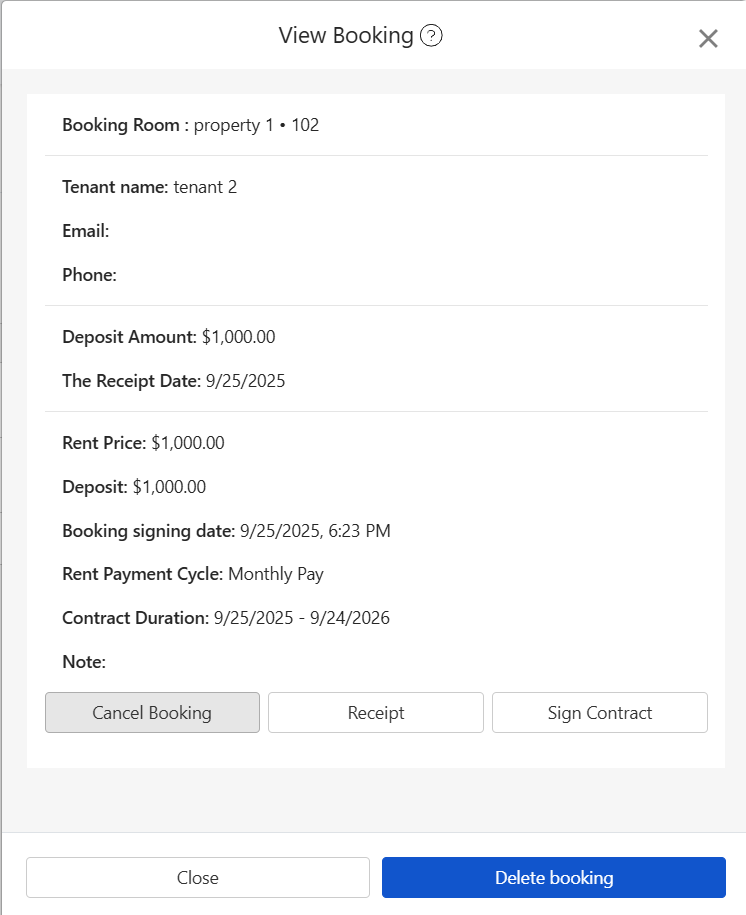
Options:
- Refund all or part of the holding deposit (creates a refund invoice)
- Pay agency fee (creates an expense bill)
✅ The system records the cancellation date and the refund/expense dates, and posts amounts clearly.
How do I convert a booking to a formal lease?
When the tenant agrees to sign, go to [Contract Management] > [Managed or Leasing tab] > [Booking tab] to sign
The system will auto-fill the booking data:
- Tenant name
- Rent, security deposit, rent cycle
- Move-in date
The prepaid “holding deposit income” will be automatically offset against the first billing period, as shown:
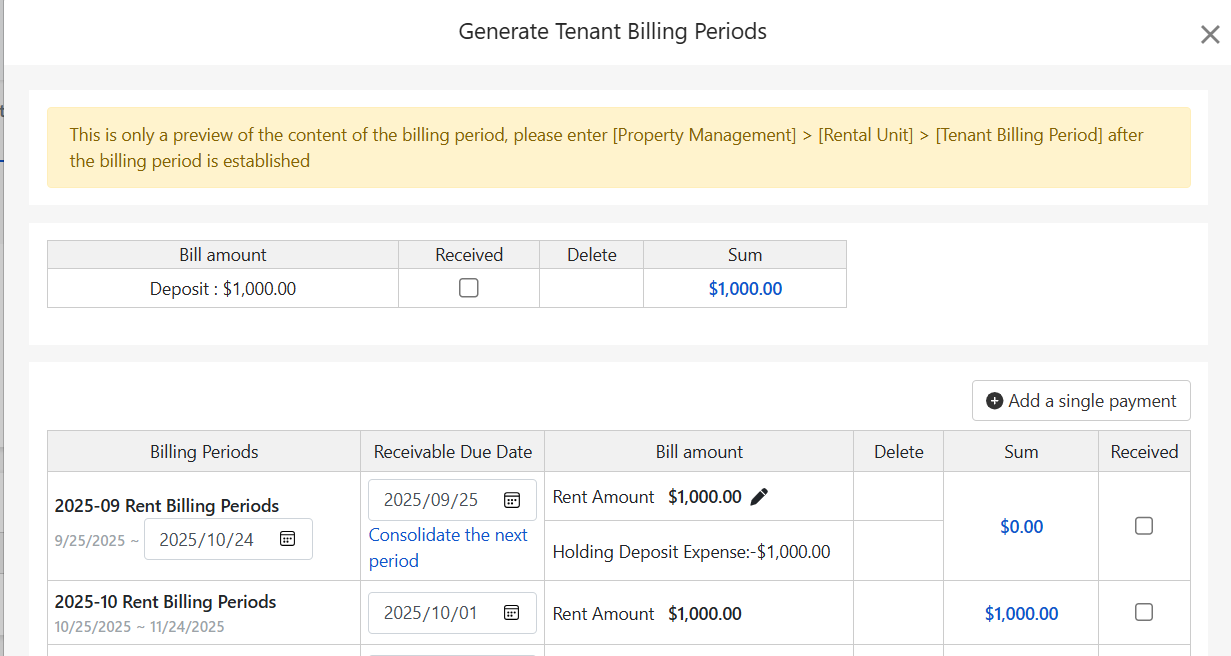
✅ The holding deposit will appear as a negative line item against the first month’s rent for easy review and reconciliation.