📄 Interface Environment Overview: Understand the main screen in five minutes, knowing where to handle everything. 📄 How to Use the Property Overview in RentPackage to Quickly Grasp the Status of the Entire Building 📄 Add Managed Property: Complete property setup, owner details, account opening, and online signing in one go. 📄 Tenant Move-in & Lease Signing: Set rental period, deposit, utilities, and billing cycle in one go. 📄 Tenant Ledger Actions: Payment Reconciliation, Partial Payments, Meter Reading, and Deposits. All routine rent collection in one place. 📄 Owner transfer feature guide 📄 Custom rental notifications: rent reminders, lease expiration, sent to the right person at the right time 📄 How to Quickly Estimate Next Month and Year’s Rental Income with Forecast Receipts in RentPackage 📄 Compliance assistance and responsibility statement 📄 Contract templates overview 📄 Sublandlord feature guide 📄 Partial payment feature guide 📄 Advance Receipts feature guide 📄 Rent billing periods feature guide 📄 Start billing feature guide 📄 Recurring billing periods feature guide 📄 Booking feature overview 📄 E-contract setup guide 📄 Management fee setup guide for property management companies 📄 Why are deposits and advance receipts liability accounts in accounting? 📄 RentPackage General Edition overview 📄 Commission split setup guide 📄 why do all landlords and agents need tenant management automation software? 📄 How to handle exchange rates for Euro-denominated rent? 📄 US Tax Filing - Schedule E Instructions 📄 UK Tax Filing - SA105 Instructions 📄 How to Enable Stripe Online Rent Payments in RentPackage 📄 How to use Calendar to schedule tenant notifications: Power outage example 📄 How to set the agency logo to display your brand on Email notifications and contract PDFs 📄 What is Rent Insurance? Compensation for unpaid rent; policy managed with the lease 📄 How to Use the German Rental Income Tax Statement (Anlage V) in RentPackage 📄 T776 Canada Rental Income Tax Report User Guide 📄 PIT-28 Polish Rental Income Tax Report User Guide 📄 How to Generate an Australian Rental Schedule in RentPackage, Auto-Match Income and Expenses to ATO Categories 📄 How to Use the Romanian Rental Income Tax Report (Declarația Unică 212) in RentPackage 📄 How to generate Hungarian SZJA rental income report data in RentPackage and compile eSZJA entry numbers with one click. 📄 Profit and Loss Statement: Auto-calculates income per property, per owner 📄 Balance Sheet: How much of the bank balance is tenant's? View deposits and prepayments at a glance. 📄 Cash Flow Statement: How much did actual cash increase during the rent period? 📄 How to generate a General Ledger in RentPackage, automatically summarizing rent and property accounts 📄 Enter manual journal entries: repairs, insurance, depreciation. Record transactions outside of the billing period. 📄 Custom rental notifications: rent reminders, lease expiration, sent to the right person at the right time 📄 Why can property management software dramatically save time and cost?

How to Enable Stripe Online Rent Payments in RentPackage


Quick Links


1. What is Stripe Online Rent Payment?

Once Stripe Online Rent Payment is activated, tenants can pay rent online. Payments automatically mark as received post-settlement, eliminating manual reconciliation. For supported countries and regions, refer to:https://stripe.com/global


2. Link Stripe Payment Account

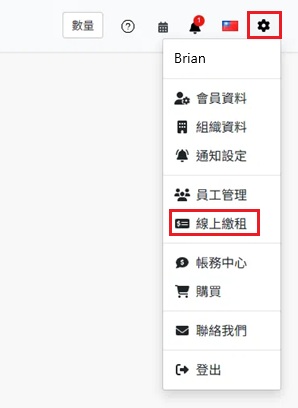
Click the [ Settings ] gear icon at the top right and select [ Online Rent ].

Select Online Rent from the top-right settings menu

In the Stripe payments section, click [ Enable Your Stripe Account ].

Online Rent Payment Setup, click to activate your Stripe account

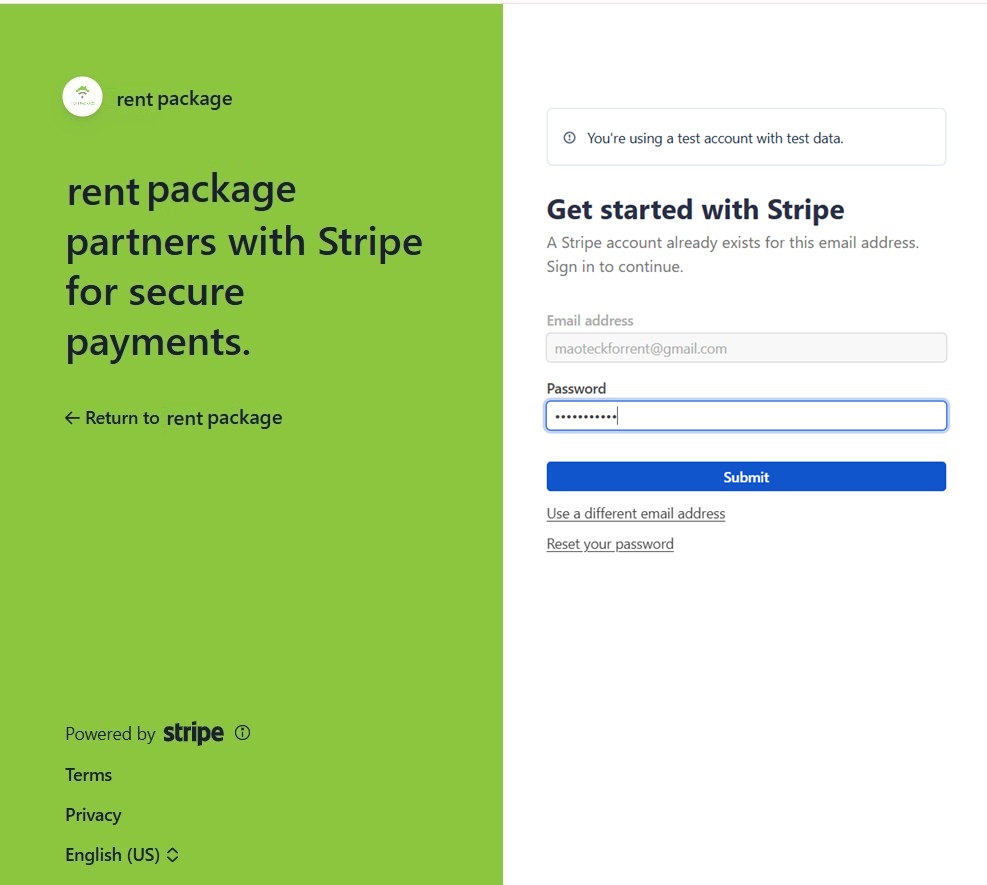
You'll be redirected to the Stripe page. Log in to your existing Stripe account or follow the instructions to register and activate your Stripe account.

Redirect to the Stripe page to log in or register your account and activate it.

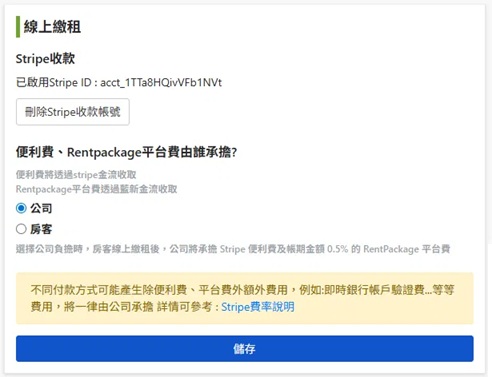
After completion, return to the system. Your activated Stripe ID will be displayed, indicating successful binding. To unbind later, click [ Delete your Stripe account ].


3. Choose Who Pays Fees

Using online rent payment incurs two fees:

  • Payment processing fee: Charged by Stripe at their rates.
  • RentPackage platform fee: [ 0.5% ] of the invoice amount, charged via NewebPay.

After binding, choose who will bear these two fees on the same page and click [ Save ]:

  • Company bears the cost: Once the tenant completes the online payment, the system immediately charges the company for the Stripe processing fee and the RentPackage platform fee of 0.5% of the invoice amount.
  • Tenant Charges: Tenants pay transaction and platform fees with rent. Only [ ACH bank transfer ] is available (credit cards not supported).
Reminder: Some payment methods may incur additional costs besides transaction and platform fees (e.g., instant bank account verification). These costs are covered by the company. For detailed rates, see Stripe Pricing Guide


4. Tenant Payment Screen: Company-Paid vs Tenant-Paid Fees

Depending on payer settings, amounts displayed to tenants in the payment window differ. Below explains both settings and what tenants see.

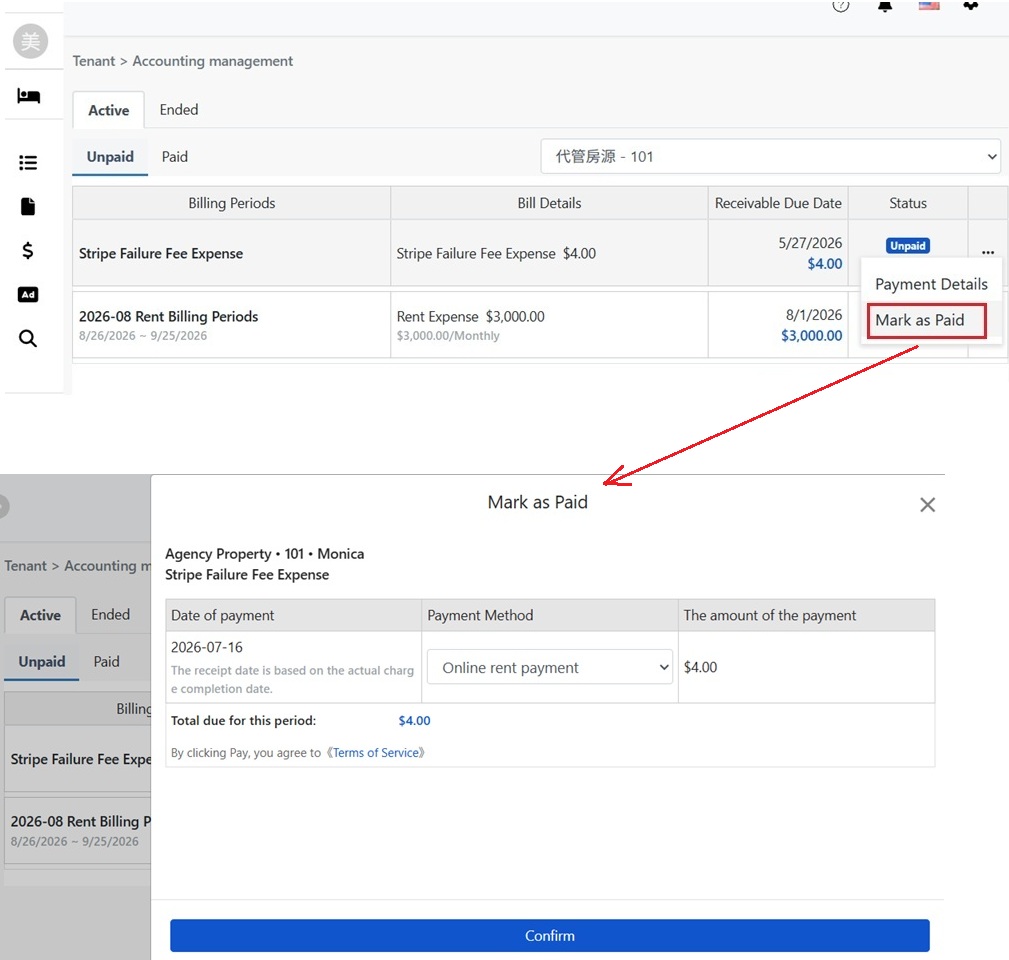
Set to Company Pays:

Online Rent Payment Setup - Company Pays Fees

When tenants pay, only the bill amount is shown. They pay this amount. For example, bill $4.00, tenant pays $4.00. Fees are billed to the company after payment:

With company paying, the tenant payment window shows only the bill amount.

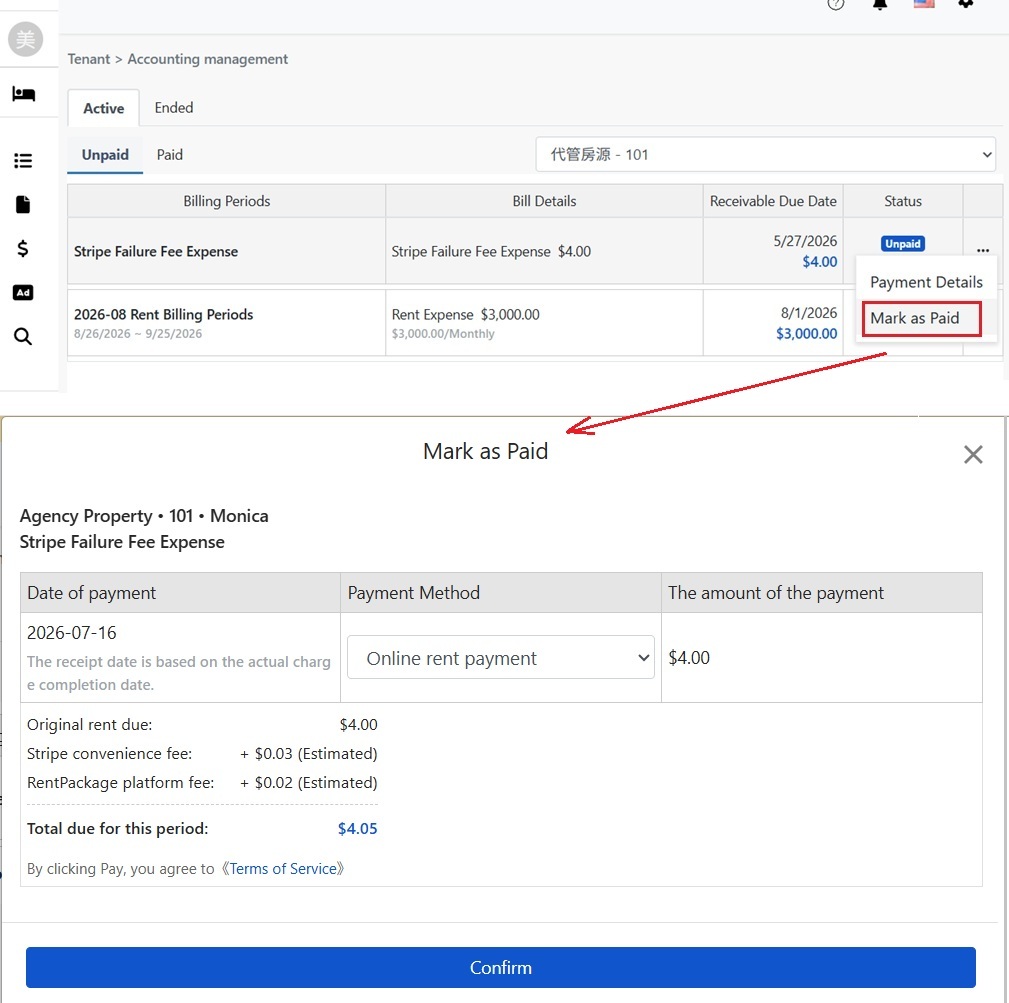
Set to Tenant Pays:

Online Rent Payment Setup - Tenant Pays Fees

When tenants pay, the window lists original amount due, estimated Stripe transaction fee, and estimated RentPackage platform fee, adding up to total amount due. For example, bill $4.00 plus fees $0.03 and $0.02, tenant pays $4.05:

When tenant bears cost, the payment window itemizes rent, estimated fees, and platform fees.
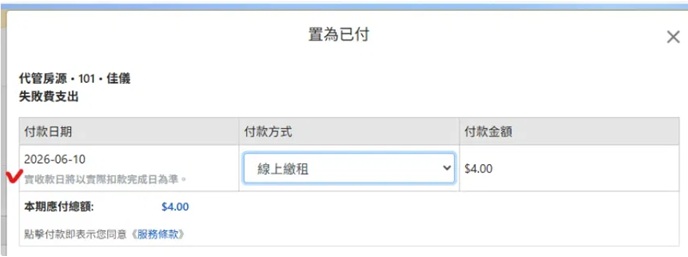
Reminder: Fees and platform charges are shown as estimates before payment; final amounts are confirmed upon completion. The payment receipt date is based on the [ actual completion date ], not the tenant's payment date.


5. Payment Notifications & Settlements

Once the tenant completes online payment and processing is done, the payment status auto-updates to received, and the company gets an [ Online Payment Marked as Received ] notification, including:

  • Billing period ID and tenant name.: Corresponding payment and tenant details.
  • Net Amount Received: Actual credited amount after transaction fees, e.g., $3,295.00 ($3,300.00 − fee $5.00).
  • Platform Fee: Platform fee of 0.5% on the payment, with currency conversion, e.g., approx. $16.50 (deducted as TWD 521 in NTD).
  • Payment Date: Date on which the payment was processed.
  • Stripe Transaction ID: Used to verify this transaction in the Stripe dashboard.
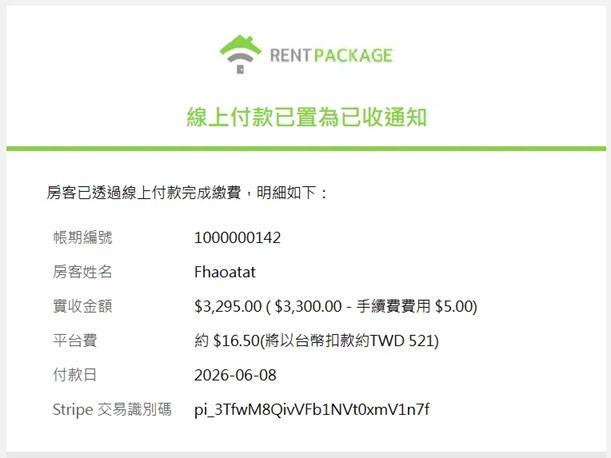
Online payment marked as received notice, including invoice number, received amount, platform fee, payment date, and Stripe transaction ID.

6. Enable/Disable Online Rent for Individual Tenants

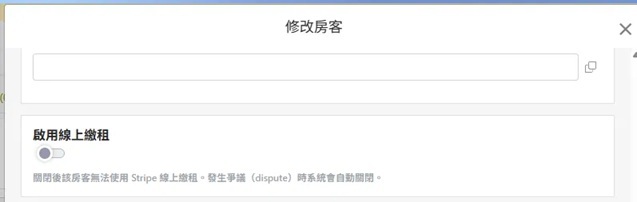
Online rent payment can be toggled per tenant: Open the [ Edit Tenant ] window and switch the [ Enable Online Rent Payment ] toggle. Once off, that tenant can’t use Stripe for rent payments, others remain unaffected.

Enable online rent payment toggle in the Edit Tenant window.

7. Dispute Management

If a tenant disputes a payment with the bank, the system will [ automatically disable ] their online rent payment feature to prevent new online payments during the dispute.

Once the dispute is resolved, the company can manually re-enable the tenant’s online rent payment via the Edit Tenant window, as described in the previous section.


8. Tenant Views Fees & Downloads Receipts

If the platform fee is tenant-borne, tenants can view each platform fee they paid: Go to [ Settings ] → [ Billing Center ] → [ Rent Platform Fees ] tab. The [ Tenant-Borne ] section lists each fee record by company, including invoice title, rent amount, property, and payment status.
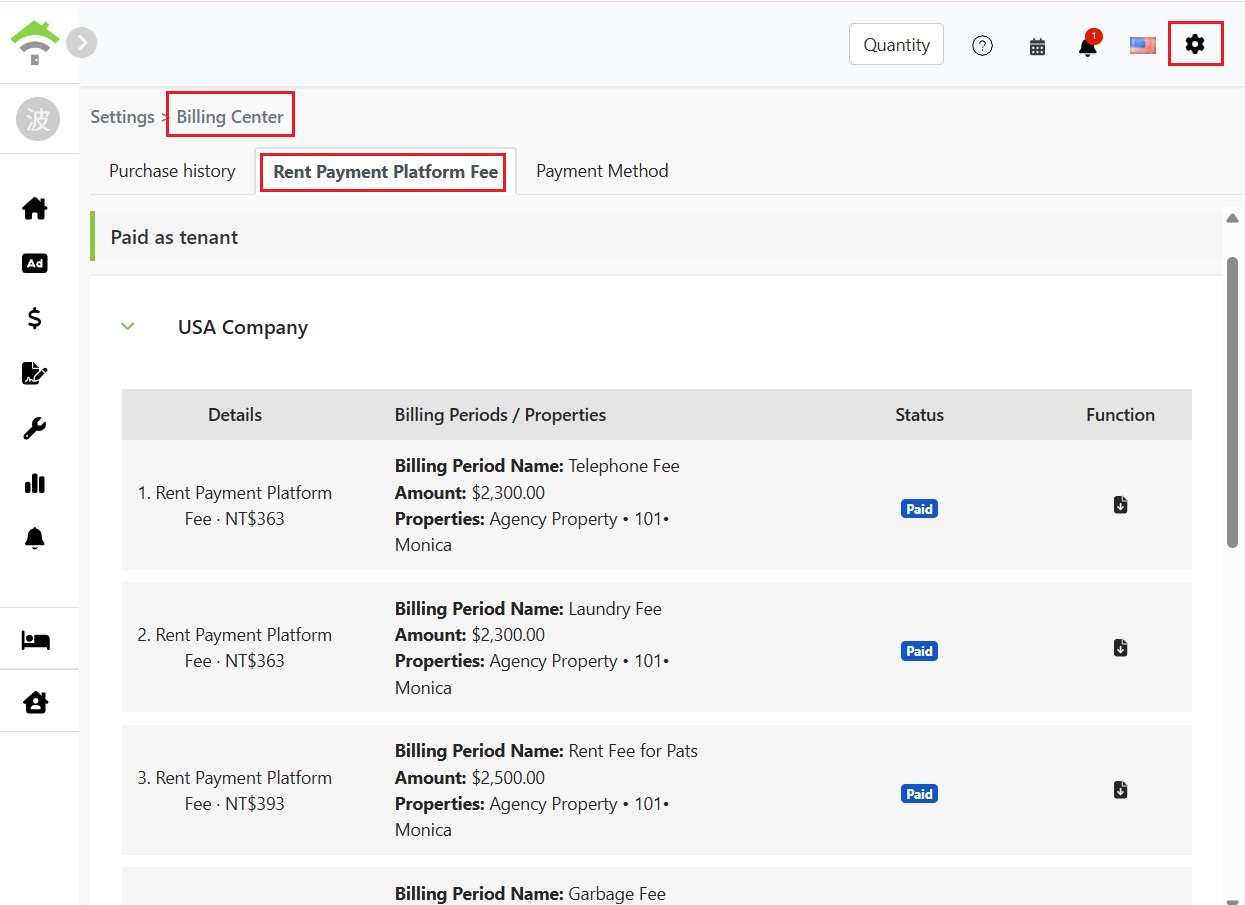
In Settings, open the Billing Center and the Rent Platform Fees tab. The Tenant-Borne section lists each platform fee record.

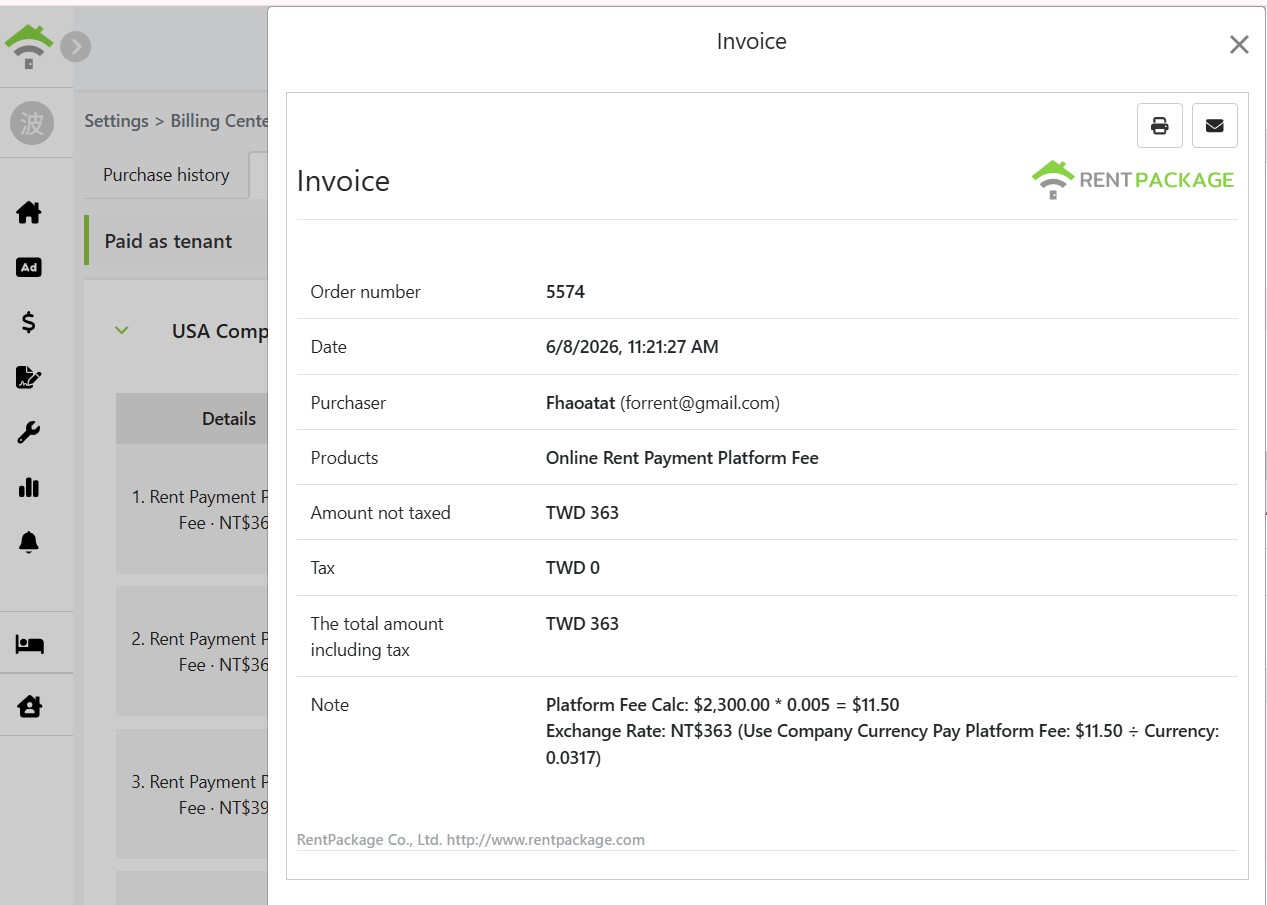
Click the download icon on the right of the record to open the [ receipt ] for that platform fee, which includes order ID, purchaser, platform fee amount, calculation method, and currency conversion explanation (e.g., $2,300.00 × 0.5% = $11.50, converted to NT$363), and can be printed or emailed.

Platform fee receipt, including order ID, purchaser, amount, and platform fee calculation method.
✅ Activate Stripe online rent collection now. Tenants can pay rent online, and the system automatically reconciles—no more waiting for transfer screenshots!