
RentPackage Leasing-Only Management: Find Tenants for Landlords and Handle Listings, Bookings, Signing and Commissions in One Place
Contents
- Why manage leasing-only deals in RentPackage
- 1. Owner signing: the landlord asks you to find a tenant
- 2. Manage the ad: edit, change the person in charge, close and reopen
- 3. Booking: the tenant wants to hold the room first
- 4. Tenant signing: booking details carry over
- 5. Commission split: one commission, everyone's share
- 6. Commission reconciliation: see at a glance what has come in
- FAQ
Leasing-only work means finding a tenant for the landlord, getting the contracts signed and collecting your commission. Ads that go on and off, who has booked, whether contracts are signed, whether the commission has come in, how agent bonuses are split: with notebooks and Excel, something always gets missed. This article shows how to manage a leasing-only ad in RentPackage, from owner signing, bookings, tenant signing and commission splits to commission reconciliation at the end.
Why manage leasing-only deals in RentPackage
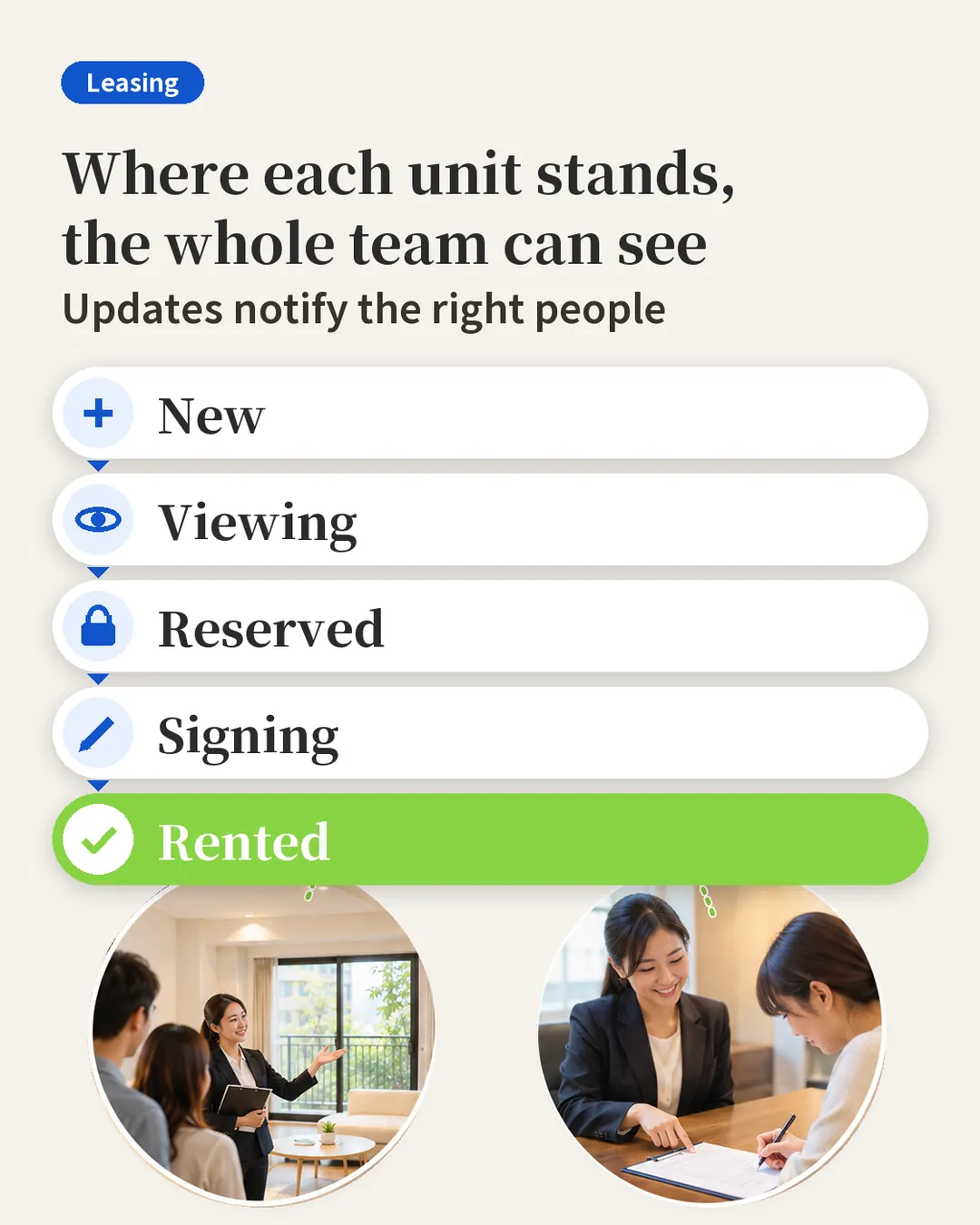
- Everything happens inside one ad
Leasing-only ads are on the [Leasing-Only] tab under [Advertisements] > [Company Advertising]. The [More Actions] menu on the right of each ad is where you sign contracts, add bookings and split commissions, so you never have to hunt for a feature. - Data carries over, no retyping
The address, rent and deposit flow from the ad into the owner contract. The tenant details entered at booking flow into the tenant contract when it is signed. - No double letting
Once a property is booked or a contract is being signed, the system will not let the ad be reopened. - No need to track commissions and bonuses yourself
After you set up a commission split, the system creates billing periods for the landlord commission, the tenant commission and employee bonuses. When the money arrives, just mark it as received.
1. Owner signing: the landlord asks you to find a tenant
When a landlord asks you to let their property, open the ad's [More Actions] and choose [The owner signs the contract]. The property address and name, rent and deposit are already filled in from the ad. When setting the mandate period, click [3 Months] and the end date is filled in for you.
There are two ways to sign. Choose [Owner signs via link] and the system creates a signing link you can send to the owner by LINE or email, so they can sign on their phone. If the owner is with you, choose [Owners sign now] to sign on the spot and take a verification photo.
2. Manage the ad: edit, change the person in charge, close and reopen
In [More Actions], choose [Edit Advertisement] to change the rent, deposit, photos, title and description. There are templates for the title you can apply directly. To hand the ad to someone else, choose [Edit Ad Manager]. While the property is vacant, the system opens the ad automatically, and you can also copy the ad link to share it.
Once the deal is done, click [Close Advertisement]. The system asks whether you also want to add a contract or a commission split and takes you straight to the next step. To find a new tenant later, go to [Closed] and click [Open Advertisement].
3. Booking: the tenant wants to hold the room first
Click [Add booking] and enter the tenant's name, phone number and deposit amount. A leasing-only booking only records the deposit amount and does not create a billing period.
The rent, deposit and contract start and end dates are filled into the contract automatically at signing. The system also adds the signing date to the calendar and emails you and the tenant a reminder the day before. Once saved, the ad is marked as booked.
4. Tenant signing: booking details carry over
When the tenant is ready to rent, click [Tenant Sign Contract]. The tenant details, lease term, rent and deposit from the booking are already in the contract. Choose a contract template, preview it, then click [Set the contract method].
The agent, the landlord and the tenant can each sign by email, by link or in person. Click [Save contract] and the system sends a signing link to each of them.
5. Commission split: one commission, everyone's share
After the deal, click [Set Commission Bonus] and choose [Add a new commission split]. Enter the commission charged to the landlord and to the tenant, or click [1 Month] or [0.5 Month] to calculate the amount automatically.
Then set the bonuses for the listing agent and the sales agent. Enter either the amount or the percentage, and the other is calculated for you. Click [Confirm] and the system creates billing periods for the landlord commission, the tenant commission and employee bonuses.

6. Commission reconciliation: see at a glance what has come in
Go to [Leasing Only] under [Accounting] > [Agency Accounting]. [Unreconciled] shows commissions not yet received. Once you mark one as received, it moves to [Reconciled]. The [Commission bonuses] tab shows each agent's bonuses.
FAQ
Does a leasing-only booking create a billing period?
No. A leasing-only booking only records the deposit amount. When the tenant signs, the rent, deposit and contract dates are filled into the contract automatically.
Can the ad be reopened for a property that is already booked?
No. Once a property is booked or a contract is being signed, the system will not let the ad be reopened, so the same property is never let twice.
Summary
Keep doing it the current way and next month you will still be flipping through notebooks and checking Excel, one ad at a time, to see who booked and whether the commission came in. In RentPackage, every step of a leasing-only deal, from listing and booking to signing and commission reconciliation, happens inside the same ad, so the same team can take on more deals.
Pick one leasing-only ad you are currently marketing and do an owner signing from [More Actions] to see how the data fills in automatically.
Try RentPackage for freeRelated articles
- RentPackage Booking for Landlords and Agents: Take a Holding Deposit to Reserve the Unit and Avoid Double-Letting:The tenant pays a deposit to hold the property, and the details carry over to the contract at signing.
- RentPackage Commission Split: Calculate Commissions, Tax, and Agent Bonuses in One Place After Every Rental Deal:How to work out commissions, tax and employee bonuses in one go.
- RentPackage E-Contracts: Landlords and Agents Sign Leases and Owner Appointment Agreements Online, No Meetings Needed:Sign by email, by link or in person, with a PDF generated automatically once everyone has signed.