
RentPackage Schedule E para sa mga landlord sa US: awtomatikong naihahanay sa bawat linya ng form ang kita at gastos sa paupahan
Nilalaman
Bakit gamitin ang RentPackage para sa Schedule E
Bago ang bawat pag-file ng buwis, hinahanap ng mga landlord ang isang taon ng talaan ng upa at mga gastos gaya ng pagkukumpuni, insurance, at management fee, saka isa-isang inilalagay sa mga linya ng Schedule E. Kapag marami ang property, madaling may makaligtaan o mapunta sa maling linya, at kailangan pang i-reconcile muli bago ibigay sa accountant.
- Ang araw-araw na pagtatala mismo ang nagiging ulat
Ang upang natanggap sa mga billing period at ang mga gastos na idinagdag mo ay inuuri ayon sa linya ng Schedule E ng bawat account. Piliin ang taon ng buwis at ang mga property para gumawa ng ulat, nang hindi na naghahanda ng hiwalay na spreadsheet. - Bawat property sa sariling column
Ipinapakita ng ulat sa column A, B, at C ng Schedule E ang kita sa upa, bawat gastos, depreciation, at netong kita o lugi ng bawat property, at puwede itong i-print agad para sa accountant. - Itala ang depreciation nang isang beses, kusang maisasama pagkatapos
Kapag naitala mo ang depreciation bilang manu-manong journal entry, awtomatiko itong isasama ng system na may tandang 🔒 sa susunod na paggawa ng ulat. Puwede mo ring ilagay ang halagang ibinigay ng accountant para sa ulat na ito lamang.
Ano ang Schedule E?
Ang Schedule E ay isang porma ng buwis mula sa Internal Revenue Service (IRS) sa U.S. na ginagamit para iulat ang kita at gastos sa rentahan. Ito ay isang bahagi ng Personal na Porma ng Buwis (Form 1040). Kung may pag-aaring paupahan ka sa U.S., kailangan mong kompletuhin ang porma na ito taun-taon upang iulat ang kita sa rentahan at kaugnay na gastos.
Paano Gamitin
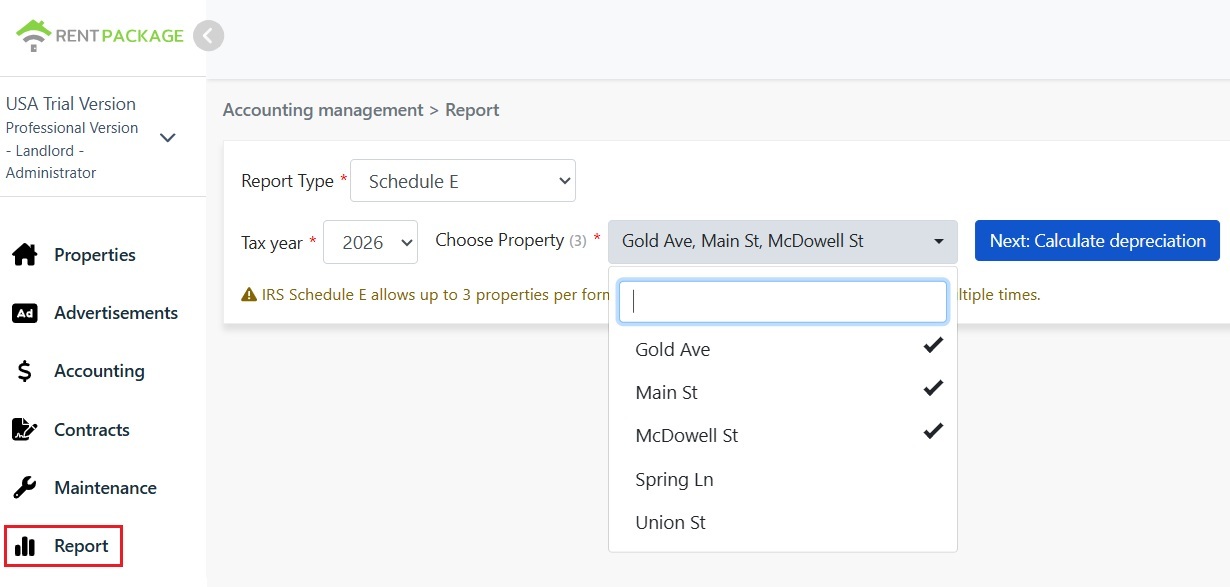
Hakbang 1: Piliin ang taon ng buwis at mga property
- Buksan ang ulat: I-click ang "Ulat" sa kaliwang menu → "Ulat sa Buwis"
- Taon ng Buwis: Maaaring pumili ng taon sa nakalipas na sampung taon
- Piliin ang Property: Ayon sa IRS, hanggang 3 ari-arian ang maaaring isama sa bawat ulat
- I-click ang "Susunod: Kalkulahin ang Depreciation": Ipakikita ng system ang screen ng mga setting ng depreciation
Hakbang 2: Kalkulahin ang depreciation
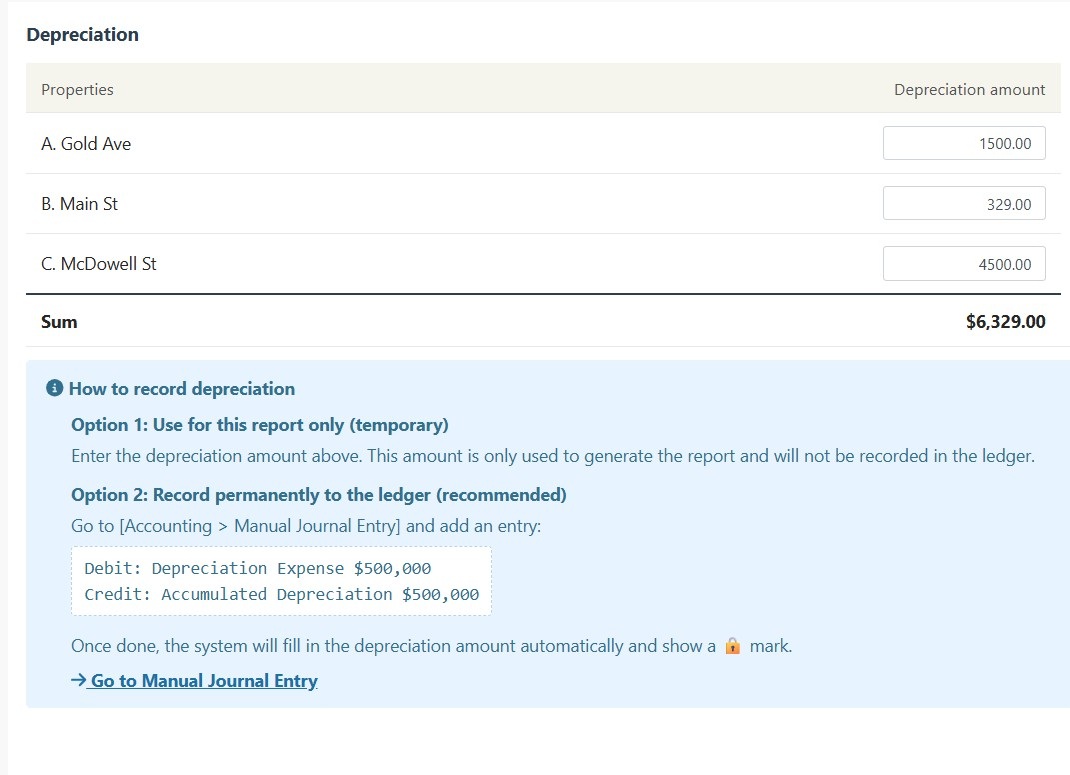
Ipakikita ng system ang impormasyon ng depreciation ng mga napiling property:
Sitwasyon A: Nai-record na ang pagbagsak halaga sa entry
Kung ang pagbagsak halaga ng item ay nai-record na sa 'Manual Entries', awtomatikong ipapakita ng sistema ang halaga at isang 🔒 icon ng lock. Ang patlang na ito ay read-only at hindi maaaring baguhin. Upang baguhin, pumunta sa 'Ulat → Manu-manong Journal Entry' upang i-edit ang orihinal na entry.
Sitwasyon B: Walang tala ng pagbagsak na halaga
Kung walang tala ng pagbagsak halaga ang item, magpapakita ang system ng isang ma-e-edit na input field. Maaari mong direktang ilagay ang pagbagsak halaga mula sa iyong accountant.
Hakbang 3: Gumawa ng ulat
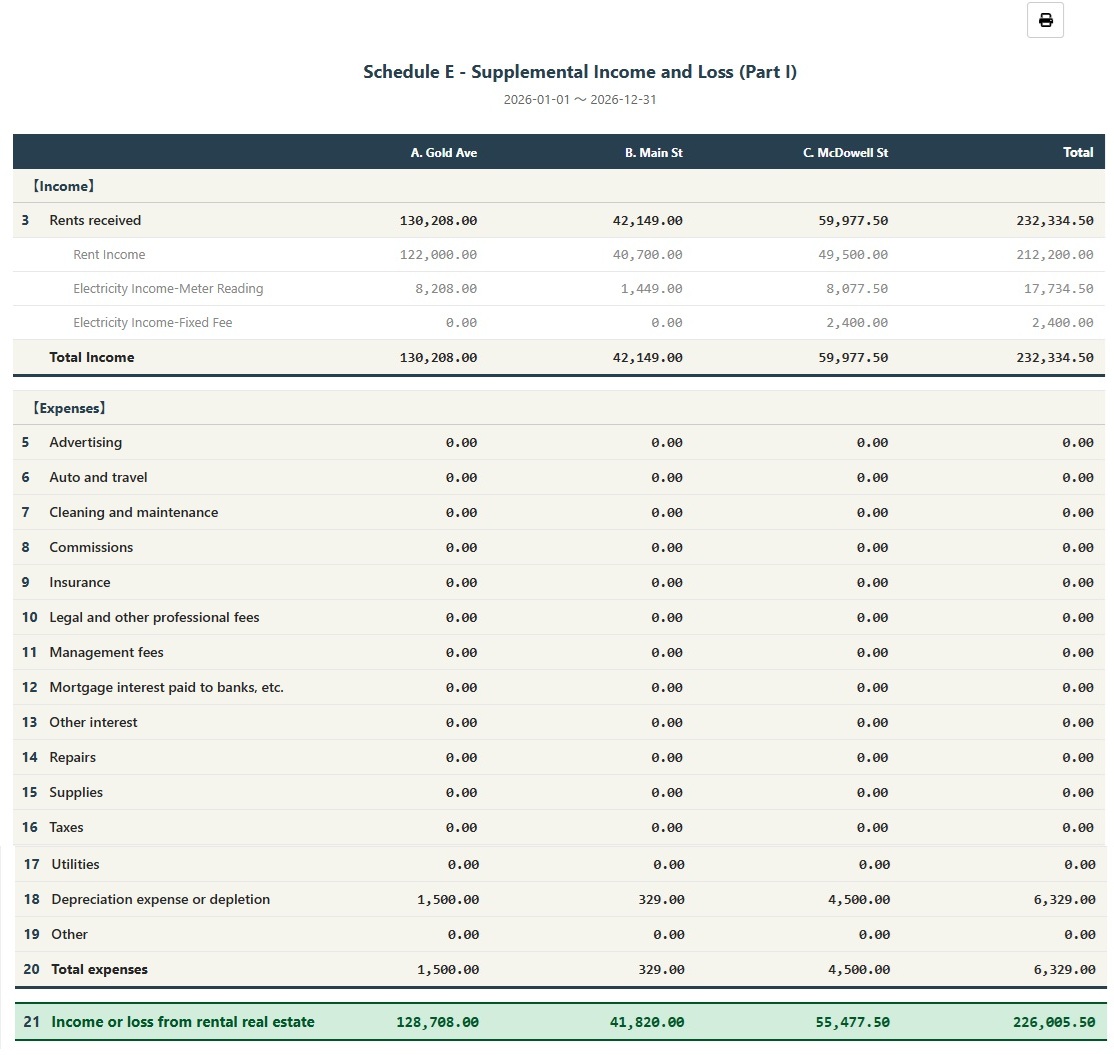
- Matapos tiyakin ang lahat ng impormasyon ay tama, pindutin ang 'Gumawa ng Ulat'
- Ang system ay bubuo ng Schedule E report, na nagpapakita ng renta ng bawat item (Line 3), bawat gastos (Lines 5-19), pagbagsak halaga (Line 18) at netong kita o pagkalugi (Line 21)
- Maaari mong i-print ang ulat o i-export bilang PDF para sa paghahanda ng buwis
Paano Irekord ang Depreciation nang Permanente?
Kung nais mong permanenteng i-record ang pagbagsak halaga sa accounting, sundin ang mga hakbang na ito:
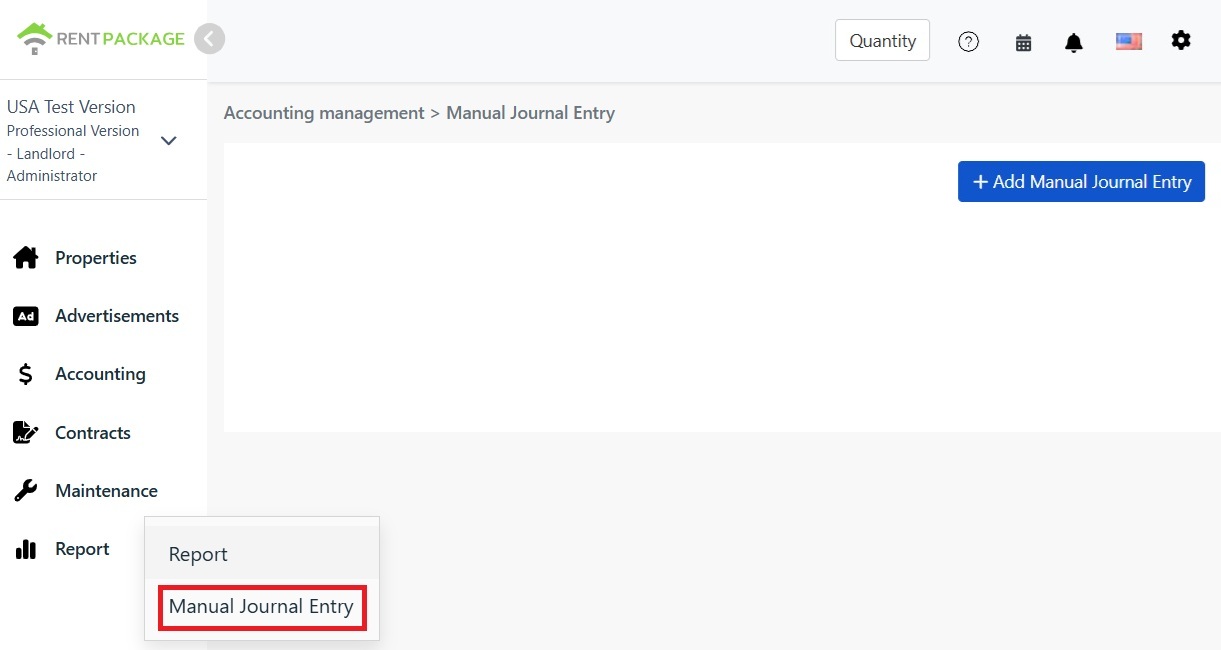
- Pumunta sa 'Ulat → Manu-manong Journal Entry'
- I-click ang '+ Magdagdag ng Manu-manong Journal Entry'
- Pumili ng kaukulang ari-arian
- Ilagay ang mga sumusunod na pagpasok:
| Account | Debit | Credit |
|---|---|---|
| Gastos sa Depreciation | $10,000 | |
| Accumulated Depreciation | $10,000 |
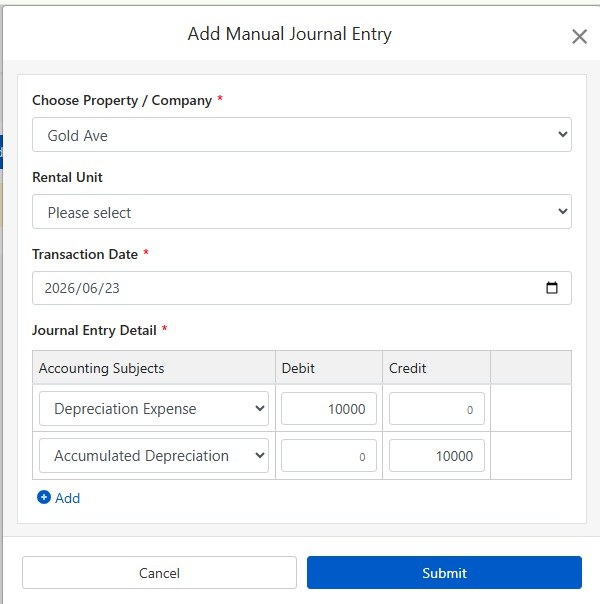
I-click ang 'Ipasa' para i-save ang pagpasok. Kapag tapos na, sa susunod na pagbuo ng Ulat na Schedule E, awtomatikong idaragdag ng sistema ang halagang ito ng depreciation at ipapakita ang 🔒 na icon ng naka-lock.
Paano Kalkulahin ang Depreciation?
Gumagamit ang mga residential rental property sa U.S. ng straight-line method para sa depreciation ng 27.5 taon.
Pormula:
Halimbawa:
- Presyo ng Pagbili: $300,000
- Halaga ng Lupa: $50,000 (hindi nadepresyet ang lupa)
- Halagang Nadepresyet: $300,000 - $50,000 = $250,000
- Taunang Depreciation: $250,000 ÷ 27.5 = $9,091
Karaniwang makikita ang halaga ng lupa sa ulat ng buwis sa ari-arian o sa ulat ng pagtataya. Kung may pag-aalinlangan, kumonsulta sa iyong accountant.
Baguhin ang Mga Kondisyon sa Pagsala
Kung kailangan baguhin ang ari-arian o taon ng buwis pagkatapos makabuo ng ulat, pindutin ang 'Baguhin ang Mga Filter' na buton sa itaas ng ulat para bumalik sa page ng settings.
Schedule E: Talaan ng Kategorya ng Mga Gastos
| IRS Line Number | Kategorya | Paglalarawan |
|---|---|---|
| Line 3 | Rents Received | Kabuuang natanggap na kita mula sa upa |
| Line 4 | Royalties Received | Kita mula sa royalty |
| Line 5 | Advertising | Gastos sa Pag-aanunsyo at Marketing |
| Line 6 | Auto and Travel | Gastos sa Sasakyan at Paglalakbay |
| Line 7 | Cleaning and Maintenance | Gastos sa Paglilinis at Pagpapanatili |
| Line 8 | Commissions | Komisyon ng Ahente o Broker |
| Line 9 | Insurance | Gastos sa Seguro ng Ari-arian |
| Line 10 | Legal and Professional Fees | Gastos sa Abugado, Accountant at Serbisyong Propesyonal |
| Line 11 | Management Fees | Gastos sa Pamamahala ng Ari-arian |
| Line 12 | Mortgage Interest | Interes sa Mortgage sa Bangko |
| Line 13 | Other Interest | Ibang Gastos sa Interes |
| Line 14 | Repairs | Gastos sa Pagkukumpuni at Pag-aayos |
| Line 15 | Supplies | Mga Konsumable at Materyales |
| Line 16 | Taxes | Amilyar at Ibang Buwis |
| Line 17 | Utilities | Mga singil sa utility gaya ng tubig, kuryente, at gas |
| Line 18 | Depreciation | Gastos sa Depreciation |
| Line 19 | Other | Iba pang maibabawas na gastusin |
Mga Madalas Itanong
Bakit hanggang 3 ari-arian lang ang puwedeng piliin?
Ito ay limitasyon ng IRS Schedule E form. Tatlo lang ang kolum (A, B, C) kada form, na makatatanggap ng hanggang 3 ari-arian. Kung may higit pang ari-arian, gumawa ng mga hiwalay na ulat.
Ano ang gagawin kung naka-lock ang icon sa field ng depreciation at hindi ma-edit?
Ang lock icon ay nangangahulugang ang halaga ay galing sa journal entry. Para baguhin, pumunta sa 'Ulat → Manu-manong Journal Entry' at i-edit ang orihinal na depreciation entry.
Mare-record ba sa accounting ang depreciation na ipinasok sa report page?
Hindi. Ang depreciation na ipinasok sa report page ay para lamang sa paggawa ng ulat. Para sa permanenteng record, gamitin ang manual entry feature.
Paano isinasalansan ang mga gastusin sa ulat?
Awtomatikong ikakategorize ng system ang gastusin ayon sa Schedule E classification na itinakda mo sa ug account. Tiyaking nakamapa nang tama ang iyong accounts sa tamang Schedule E classification.
Maaari bang direktang gamitin ang ulat na ito sa pagbabayad ng buwis?
Ang ulat na ito ay para lamang sa sanggunian, na ikinakategorya ang kita at gastusin na nakatala sa RentPackage. Sa pagbabayad ng buwis, ilipat ang datos sa opisyal na form ng IRS o ibigay ito sa iyong accountant. Inirerekomenda ang konsultasyon sa eksperto sa buwis bago magsumite.
Buod
Kung mananatili ka sa kasalukuyang paraan, bago ang susunod na pag-file ay hahanapin mo na naman ang isang taon ng resibo at talaan ng upa at ilalagay nang linya-linya sa Schedule E. Kapag nasa RentPackage na ang iyong mga talaan at nakatugma na ang mga account sa mga linya ng Schedule E, bawat taon ay pipiliin mo na lang ang taon ng buwis at mga property para gumawa ng ulat para sa accountant.
Magsimula sa isang property sa US: piliin ang taon ng buwis ngayong taon, gumawa ng Schedule E nang isang beses, at tingnan kung saang mga linya napupunta ang iyong kita at gastos.
Subukan ang RentPackage nang libreMga kaugnay na artikulo
- RentPackage Manu-manong Journal Entry: pagkukumpuni, insurance, depreciation; maitatala rin ang kita at gastos sa labas ng billing period ng nangungupahan:Itala bilang journal entry ang depreciation, buwis sa ari-arian, at iba pang item na wala sa billing period, at isasama rin ito ng Schedule E.
- RentPackage Income Statement: Kita at gastos sa upa ng bawat property at bawat may-ari, awtomatikong kinukuwenta kung magkano ang tubo:Makita anumang oras kung magkano ang kinikita ng bawat property at bawat may-ari, nang hindi hinihintay ang pag-file ng buwis.
- Paano bumuo ng General Ledger sa RentPackage na awtomatikong nagbubuod ng upa at mga transaksyon ng property:Saan galing ang halaga sa isang linya ng Schedule E? Sa General Ledger, makikita ang bawat entry ng bawat account.