
تقرير Schedule E من RentPackage لملاك العقارات في الولايات المتحدة: توزيع دخل الإيجار ومصروفاته تلقائيًا على كل سطر في النموذج
محتويات المقال
لماذا تُعدّ Schedule E باستخدام RentPackage
قبل كل موسم ضريبي، يبحث الملاك عن سجلات الإيجار لعام كامل والمصروفات مثل الإصلاحات والتأمين ورسوم الإدارة، ثم يوزعونها واحدة تلو الأخرى على أسطر Schedule E. ومع تعدد العقارات يسهل نسيان بند أو وضعه في السطر الخطأ، ولا بد من المطابقة مرة أخرى قبل تسليمها للمحاسب.
- محاسبتك اليومية تتحول مباشرة إلى تقرير
تُصنَّف الإيجارات المحصلة في فترات الفوترة والمصروفات التي تضيفها حسب سطر Schedule E لكل بند. اختر السنة الضريبية والعقارات لإنشاء التقرير، دون إعداد جدول Excel منفصل. - كل عقار في عمود مستقل
يعرض التقرير في الأعمدة A وB وC من Schedule E دخل الإيجار وكل مصروف والإهلاك وصافي الدخل أو الخسارة لكل عقار، ويمكن طباعته مباشرة لتسليمه للمحاسب. - سجّل الإهلاك مرة واحدة ثم يُدرَج تلقائيًا
بعد تسجيل الإهلاك كقيد يومية يدوي، يدرجه النظام تلقائيًا مع علامة 🔒 في المرة التالية التي تنشئ فيها التقرير. ويمكنك أيضًا إدخال المبلغ الذي يقدمه المحاسب لهذا التقرير فقط.
ما هو Schedule E؟
Schedule E هو نموذج ضريبي من وكالة الإيرادات الأمريكية (IRS) للإبلاغ عن دخل ونفقات الإيجار. وهو أحد الجداول التكميلية لاستمارة الإقرار الضريبي الفردي (Form 1040). إذا كنت تملك عقارًا للإيجار في الولايات المتحدة، فإنك تحتاج إلى ملء هذا النموذج سنويًا للإبلاغ عن دخل الإيجار والنفقات ذات الصلة.
كيفية الاستخدام
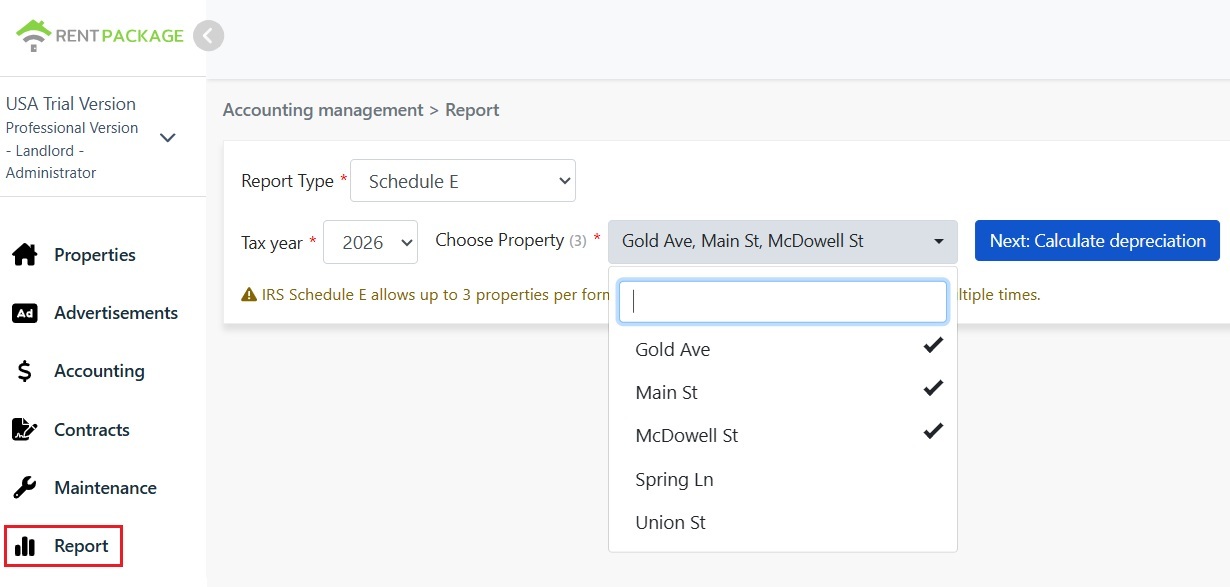
الخطوة 1: اختر السنة الضريبية والعقارات
- فتح التقرير: انقر فوق "تقرير" في القائمة الجانبية → "تقرير ضريبي"
- السنة الضريبية: يمكن اختيار سنة في العقد الماضي
- اختر العقار: حسب قواعد IRS، يمكن أن يحتوي كل تقرير على ما يصل إلى 3 عقارات فقط
- انقر على "التالي: حساب الإهلاك": سيعرض النظام شاشة إعدادات الإهلاك
الخطوة 2: احسب الإهلاك
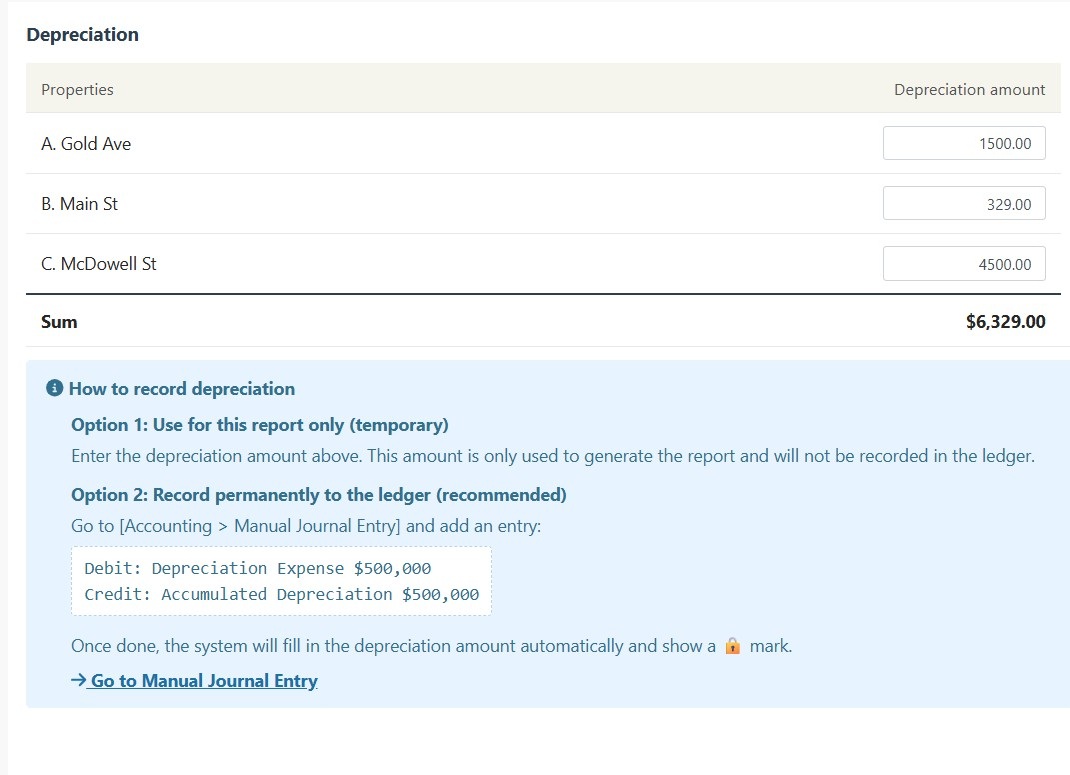
سيعرض النظام معلومات الإهلاك للعقارات المختارة:
الحالة A: تم تسجيل الإهلاك في القيد
إذا تم تسجيل إهلاك الأصل في "قيد يومية يدوي"، سيعرض النظام المبلغ تلقائيًا مع رمز 🔒. هذا الحقل للقراءة فقط ولا يمكن تعديله. لتغييرات، يرجى الذهاب إلى "تقرير → قيد يومية يدوي" لتعديل القيد الأصلي.
الحالة B: لا يوجد سجل إهلاك
إذا لم يكن للأصل سجل إهلاك بعد، سيعرض النظام حقل إدخال قابل للتعديل. يمكنك إدخال مبلغ الإهلاك المقدم من المحاسب مباشرة.
الخطوة 3: أنشئ التقرير
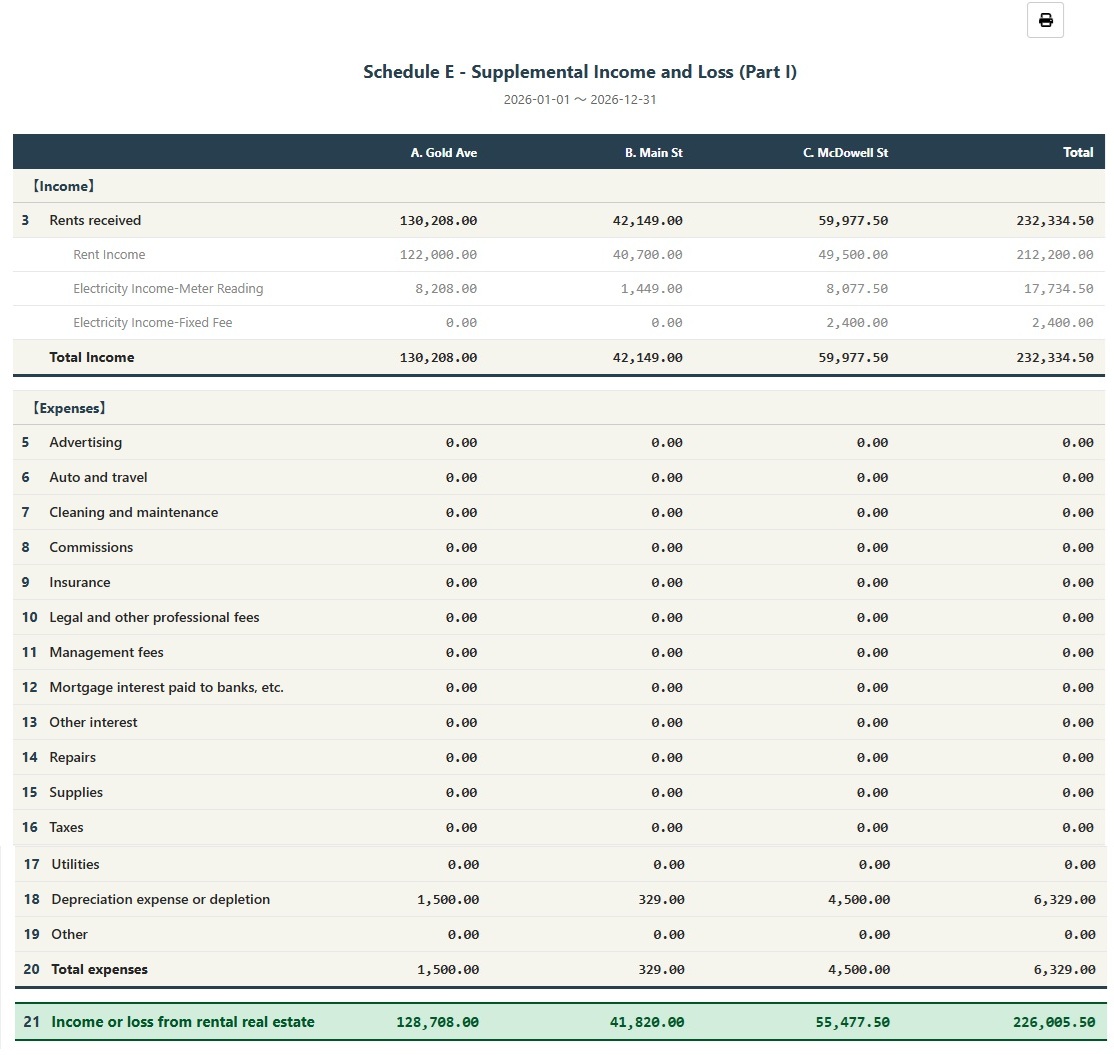
- بعد التأكد من صحة جميع المعلومات، انقر "إنشاء التقرير"
- سيقوم النظام بإنشاء تقرير Schedule E، يعرض دخل الإيجار لكل أصل (السطر 3)، النفقات التفصيلية (الأسطر 5-19)، الإهلاك (السطر 18) وصافي الربح أو الخسارة (السطر 21)
- يمكنك طباعة التقرير أو تصديره كملف PDF كمرجع لإعداد الضرائب
كيف تسجل الإهلاك بشكل دائم؟
إذا كنت ترغب في تسجيل مبلغ الإهلاك بشكل دائم في الحسابات، اتبع الخطوات التالية:
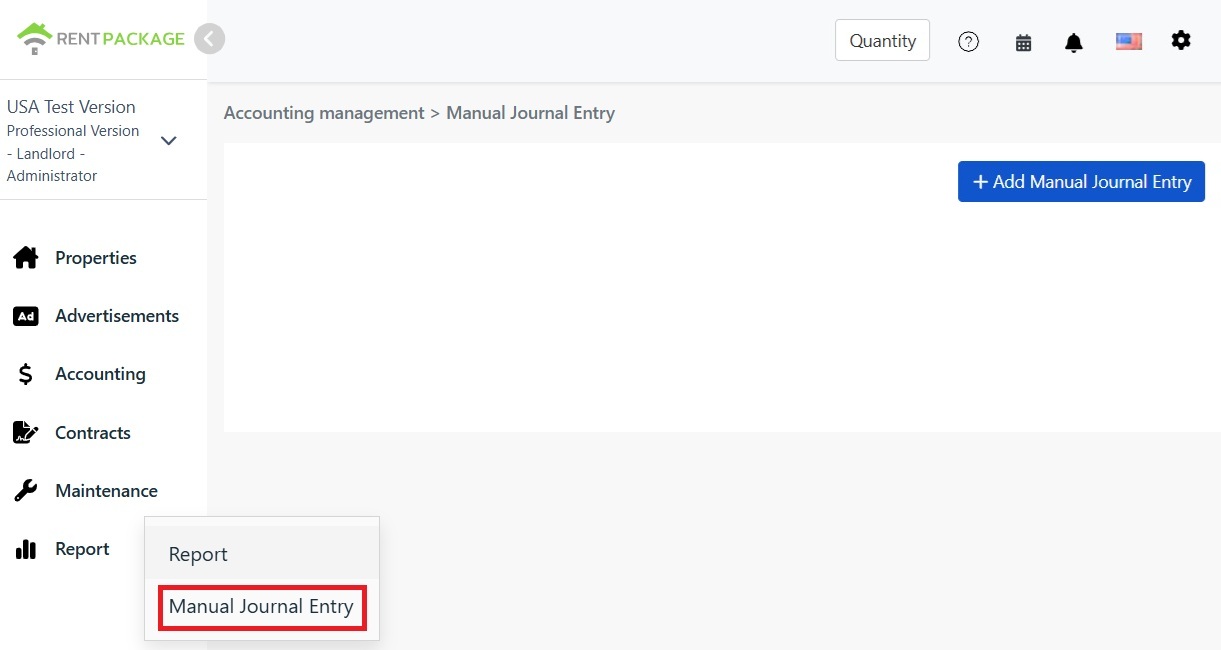
- انتقل إلى "تقرير → قيد يومية يدوي"
- انقر على "+ إضافة قيد يومية يدوي"
- اختر الكائن المطابق
- ادخل القيد التالي:
| الحساب | المدين | الدائن |
|---|---|---|
| مصروف الاهتلاك | $10,000 | |
| الإهلاك المتراكم | $10,000 |
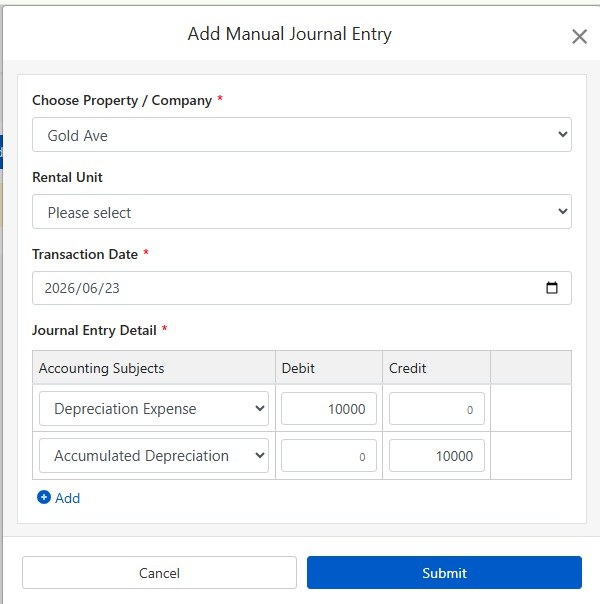
انقر على "إرسال" لحفظ القيد. عند الانتهاء، في المرة القادمة لتوليد تقرير Schedule E، سيقوم النظام بإدراج مبلغ الإهلاك تلقائيًا وسيظهر رمز 🔒 مغلق.
كيف تحسب الإهلاك؟
يتم استخدام طريقة القسط الثابت لعقارات الإيجار السكنية في الولايات المتحدة، مع إهلاك لمدة 27.5 سنة.
الصيغة:
مثال:
- سعر الشراء: $300,000
- قيمة الأرض: $50,000 (الأرض غير قابلة للاستهلاك)
- المبلغ القابل للاستهلاك: $300,000 - $50,000 = $250,000
- الإهلاك السنوي: $250,000 ÷ 27.5 = $9,091
يمكن العثور على قيمة الأرض عادةً في فاتورة ضريبة المنزل أو تقرير التقييم. إذا كان لديك استفسار، استشر محاسبك.
تعديل معايير الفلترة
إذا كنت بحاجة لتغيير العقار أو السنة الضريبية بعد إنشاء التقرير، انقر فوق زر "تعديل الفلاتر" أعلى التقرير للعودة إلى صفحة الإعدادات.
جدول مقارنة فئات نفقات Schedule E
| رقم السطر IRS | التصنيف | الوصف |
|---|---|---|
| Line 3 | Rents Received | إجمالي إيرادات الإيجار المحصل |
| Line 4 | Royalties Received | إيرادات الإتاوات |
| Line 5 | Advertising | نفقات الإعلان والتسويق |
| Line 6 | Auto and Travel | نفقات المركبات والسفر |
| Line 7 | Cleaning and Maintenance | نفقات التنظيف والصيانة |
| Line 8 | Commissions | عمولة الوسيط أو الوكيل |
| Line 9 | Insurance | تكاليف تأمين العقار |
| Line 10 | Legal and Professional Fees | أتعاب المحاماة، المحاسبة والخدمات المهنية |
| Line 11 | Management Fees | رسوم إدارة الممتلكات |
| Line 12 | Mortgage Interest | فائدة قرض العقار المدفوعة للبنك |
| Line 13 | Other Interest | تكاليف الفوائد الأخرى |
| Line 14 | Repairs | نفقات الإصلاح و الصيانة |
| Line 15 | Supplies | المستلزمات والمواد |
| Line 16 | Taxes | ضرائب الممتلكات والرسوم الأخرى |
| Line 17 | Utilities | فواتير الخدمات العامة مثل المياه والكهرباء والغاز |
| Line 18 | Depreciation | مصروفات الإهلاك |
| Line 19 | Other | مصروفات أخرى قابلة للخصم |
الأسئلة الشائعة
لماذا يمكنني اختيار 3 عقارات فقط؟
هذا هو قيد نموذج IRS Schedule E. يحتوي كل نموذج على ثلاث خانات فقط A، B، C، ويمكن أن يستوعب حتى 3 عقارات. إذا كان لديك المزيد من العقارات، فقم بإنشاء تقارير متعددة بشكل منفصل.
ماذا أفعل إذا كانت خانة الإهلاك تحتوي على رمز قفل ولا يمكنني التعديل؟
الأيقونة المقفلة تشير إلى أن المبلغ مأخوذ من سجل قيد. للتعديل، يرجى الذهاب إلى "تقرير ← قيد يومية يدوي" لتحرير قيد الإهلاك الأصلي.
هل يتم تسجيل الإهلاك المدخل من صفحة التقارير في الحسابات؟
لا. الإهلاك المدخل من صفحة التقارير يُستخدم فقط لإنشاء ذلك التقرير. للتسجيل الدائم، يرجى استخدام وظيفة قيد اليومية اليدوي.
كيف يتم تصنيف المصاريف في التقرير؟
النظام سيقوم تلقائيًا بتصنيف المصاريف بناءً على تصنيفات Schedule E التي قمت بإعدادها في البنود المحاسبية. يرجى التأكد من مطابقة بنودك المحاسبية للتصنيفات الصحيحة في Schedule E.
هل يمكن استخدام هذا التقرير مباشرةً للإقرار الضريبي؟
هذا التقرير هو للمرجعية فقط ويجمع الإيرادات والمصروفات المسجلة في RentPackage. للإقرار الضريبي، يرجى نقل البيانات إلى النماذج الرسمية لـ IRS أو تقديمها لمحاسبك. ننصح بالتشاور مع متخصص ضرائب قبل التقديم.
الخلاصة
إذا استمررت بالطريقة الحالية، فستبحث مجددًا قبل الموسم الضريبي القادم عن إيصالات وسجلات إيجار عام كامل وتوزعها سطرًا سطرًا على Schedule E. أما بعد تسجيل معاملاتك في RentPackage وربط البنود المحاسبية بأسطر Schedule E، فيكفي كل عام اختيار السنة الضريبية والعقارات لإنشاء التقرير للمحاسب.
ابدأ بعقار واحد في الولايات المتحدة: اختر السنة الضريبية الحالية، وأنشئ Schedule E مرة واحدة، وانظر في أي الأسطر يقع دخلك ومصروفاتك.
جرّب RentPackage مجانًامقالات ذات صلة
- RentPackage قيد يومية يدوي: الإصلاح والتأمين والإهلاك؛ يمكن أيضًا قيد الإيرادات والمصروفات خارج فترات فوترة المستأجر:سجّل الإهلاك وضريبة العقار والبنود الأخرى خارج فترات الفوترة كقيود يومية، وسيدرجها Schedule E أيضًا.
- RentPackage قائمة الدخل: إيرادات ومصروفات الإيجار لكل عقار ولكل مالك، مع حساب الربح تلقائيًا:اعرف في أي وقت كم يربح كل عقار وكل مالك، دون انتظار موسم الضرائب.
- كيفية إنشاء دفتر الأستاذ العام في RentPackage، وجمع الإيجار وحسابات العقار تلقائيًا:تريد معرفة مصدر مبلغ في أحد أسطر Schedule E؟ اطّلع على تفاصيل كل بند محاسبي قيدًا قيدًا في دفتر الأستاذ العام.