
RentPackage Schedule E för hyresvärdar i USA: hyresintäkter och uthyrningskostnader fördelas automatiskt på blankettens rader
Innehåll
Varför använda RentPackage för Schedule E
Inför varje deklaration letar hyresvärdar fram ett helt års hyresunderlag och utgifter som reparationer, försäkring och förvaltningsavgifter och fördelar dem en i taget på raderna i Schedule E. Med flera fastigheter är det lätt att missa något eller hamna på fel rad, och allt måste stämmas av igen innan det lämnas till revisorn.
- Den löpande bokföringen blir rapporten
Hyror som tagits emot via faktureringsperioder och utgifter du lägger till fördelas efter Schedule E-raden på varje konto. Välj beskattningsår och fastigheter för att generera rapporten, utan något separat kalkylark. - Varje fastighet i en egen kolumn
Rapporten visar i kolumn A, B och C i Schedule E hyresintäkter, varje kostnad, avskrivning och nettoresultat eller förlust för varje fastighet, redo att skriva ut till revisorn. - Bokför avskrivningen en gång, sedan tas den med automatiskt
När du bokför avskrivningen som manuell verifikation tar systemet med den automatiskt med en 🔒-markering nästa gång du genererar rapporten. Du kan också ange beloppet från din revisor enbart för den här rapporten.
Vad är Schedule E?
Schedule E är ett skatteformulär från den amerikanska skattemyndigheten (IRS) som används för att rapportera hyresintäkter och kostnader. Det är en bilaga till den individuella inkomstdeklarationen (Form 1040). Om du äger hyresfastigheter i USA måste du fylla i detta formulär varje år för att deklarera hyresintäkter och relaterade kostnader.
Så här använder du det
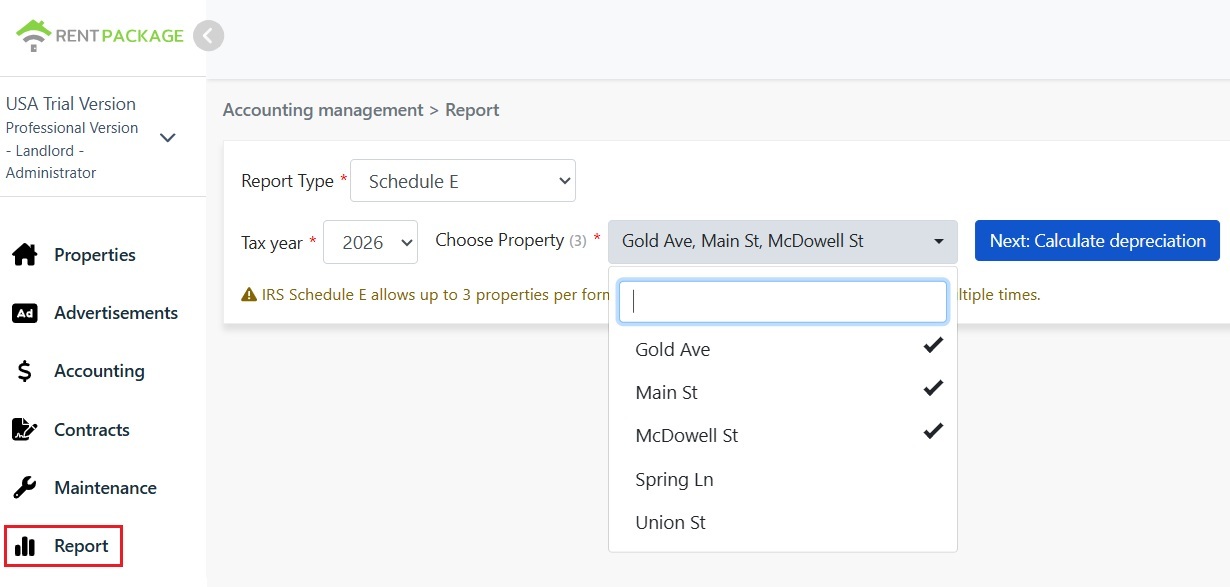
Steg 1: Välj beskattningsår och fastigheter
- Öppna rapport: Klicka på 'Rapport' i menyn till vänster → 'Skatterapport'.
- Beskattningsår: Du kan välja år inom de senaste tio åren
- Välj fastighet: Enligt IRS-regler kan varje rapport innehålla högst 3 objekt
- Klicka på 'Nästa: Beräkna avskrivning': Systemet visar avskrivningsinställningarna
Steg 2: Beräkna avskrivning
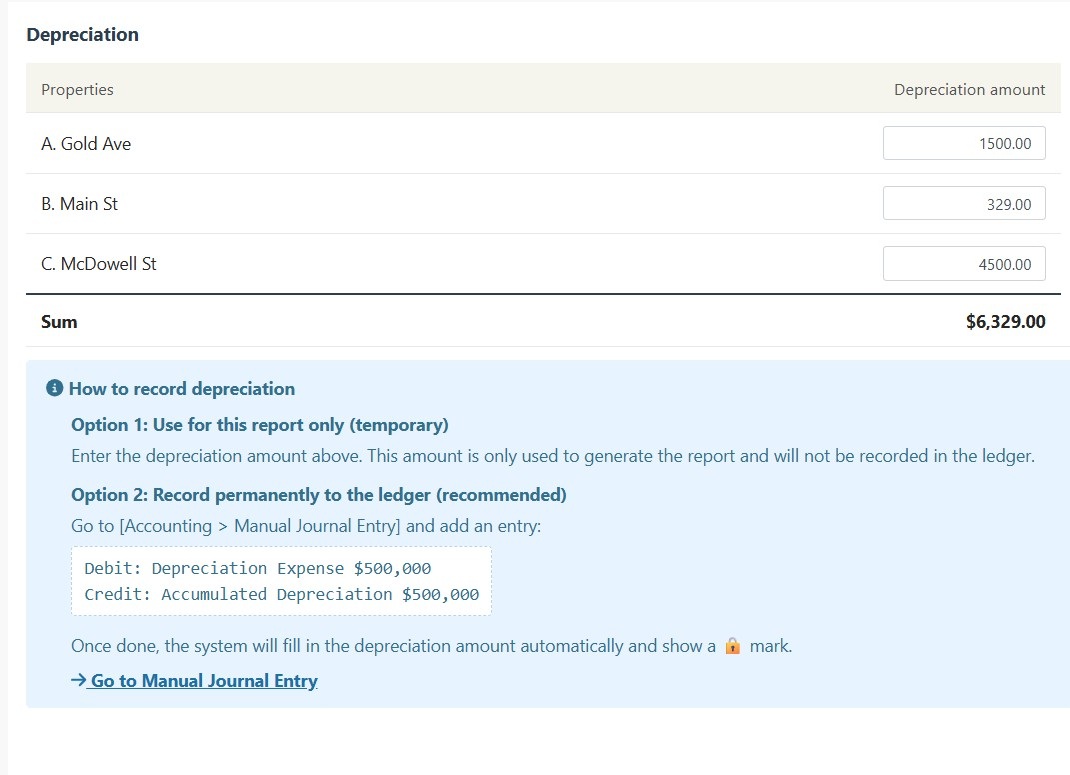
Systemet visar avskrivningsinformationen för de valda objekten:
Scenario A: Avskrivning redan registrerad i transaktion
Om objektets avskrivning redan har registrerats i 'Manuell transaktion', kommer systemet automatiskt att visa beloppet och en 🔒 låsikon. Detta fält är skrivskyddat och kan inte ändras. För ändringar, gå till 'Rapport → Manuell verifikation' för att redigera den ursprungliga transaktionen.
Scenario B: Ingen avskrivning registrerad
Om ingen avskrivning har registrerats för objektet, kommer systemet att visa en redigerbar inmatningsfält. Du kan direkt ange avskrivningsbeloppet från din revisor.
Steg 3: Generera rapporten
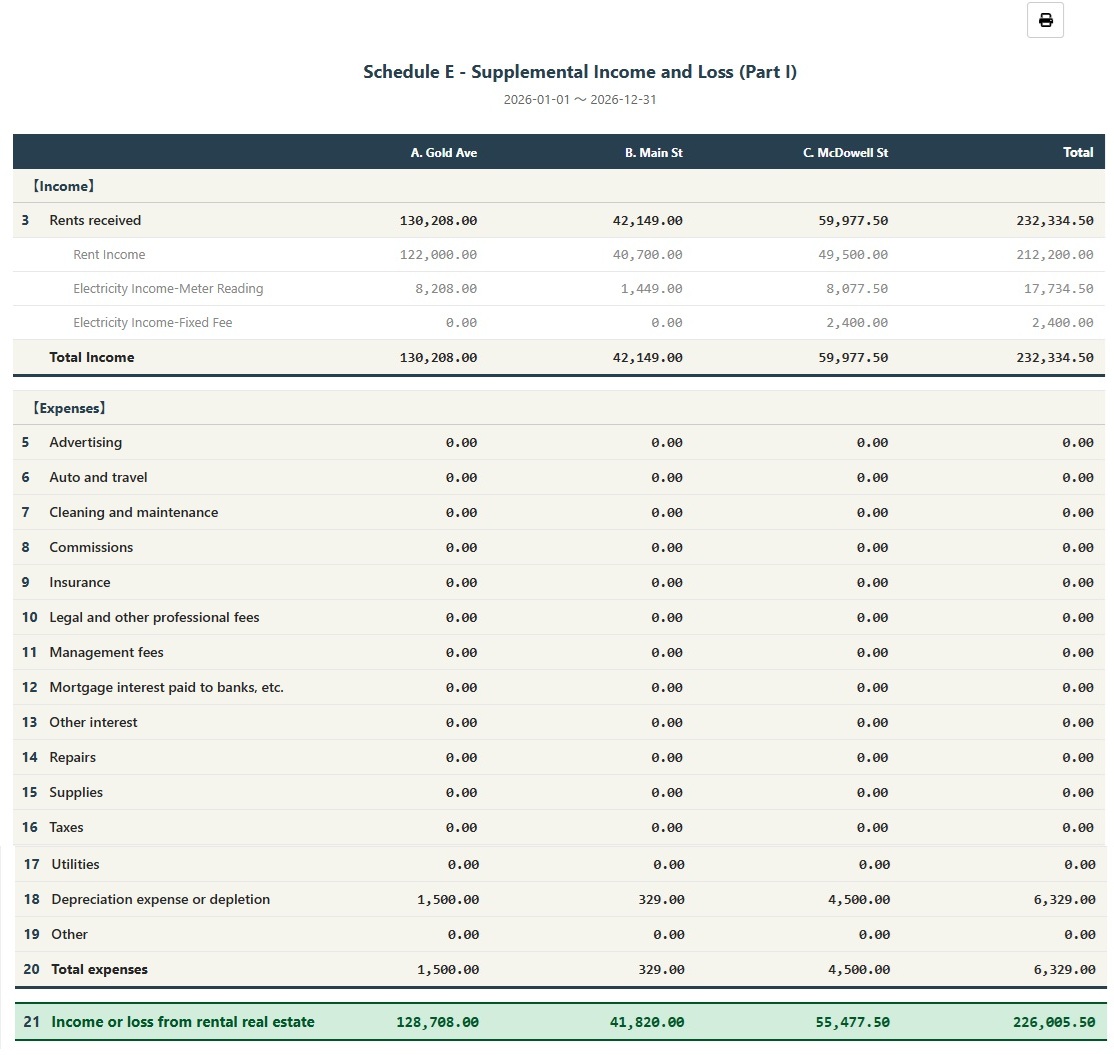
- Kontrollera att all information är korrekt och klicka på 'Generera rapport'
- Systemet kommer att generera en Schedule E-rapport med objektens hyresintäkter (Linje 3), specifika kostnader (Linjer 5-19), avskrivning (Linje 18) och nettoresultat eller förlust (Linje 21)
- Du kan skriva ut rapporten eller exportera till PDF som referens för skatteförberedelse
Hur permanenta avskrivningar registreras?
Om du vill att avskrivningsbeloppet permanent registreras i bokföringen, följ dessa steg:
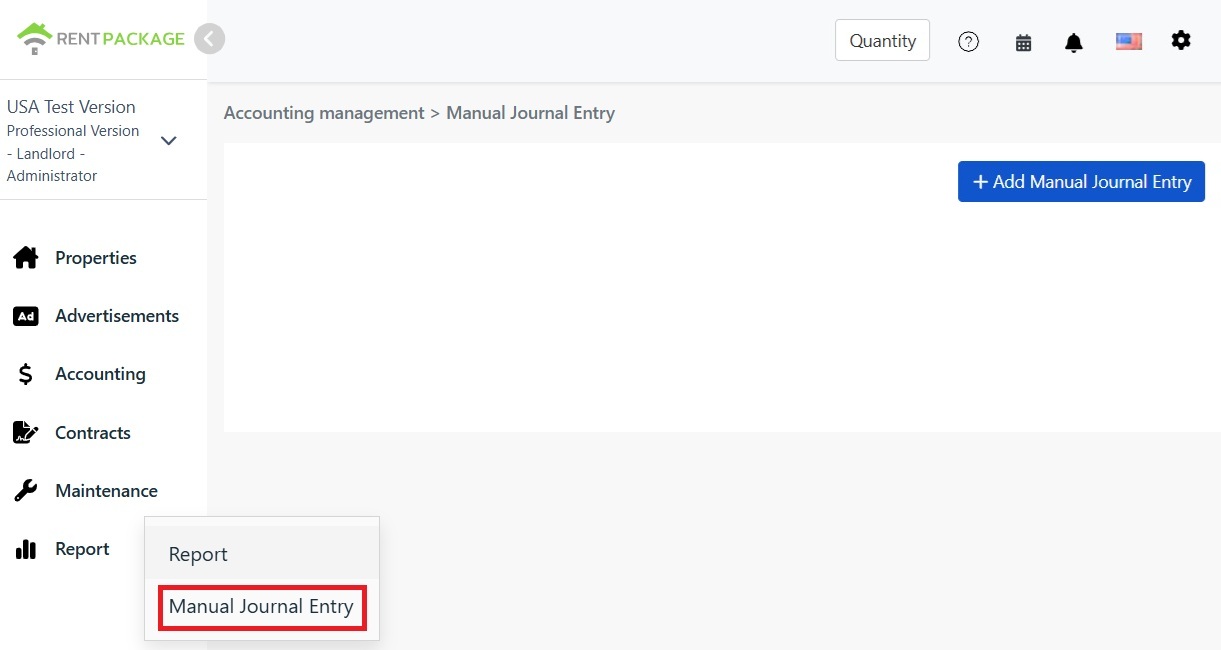
- Gå till 'Rapport → Manuell verifikation'
- Klicka på "+ Lägg till manuell verifikation"
- Välj motsvarande objekt
- Ange följande verifikation:
| Konto | Debet | Kredit |
|---|---|---|
| Avskrivningskostnader | $10,000 | |
| Ackumulerade avskrivningar | $10,000 |
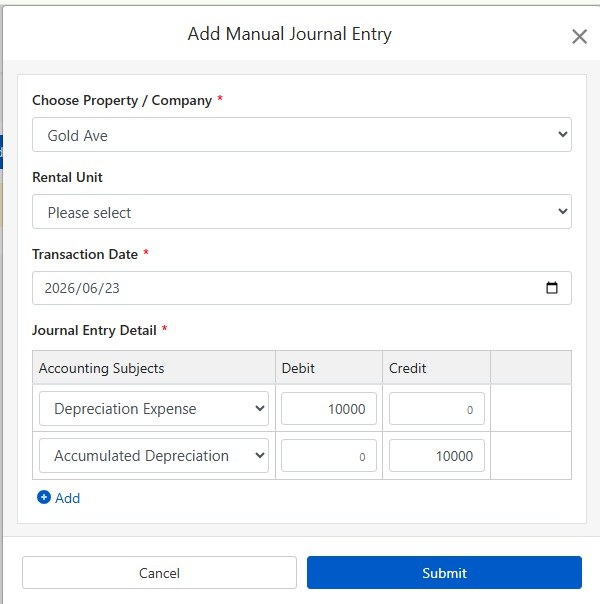
Klicka på "Skicka in" för att spara verifikationen. Efter det, vid generering av nästa Schedule E rapport, kommer systemet automatiskt inkludera detta avskrivningsbelopp och visa en 🔒 låsikon.
Hur beräknar man avskrivningar?
Amerikanska bostadsfastigheter använder linjär avskrivning över 27,5 år.
Formel:
Exempel:
- Inköpspris: $300,000
- Markvärde: $50,000 (Mark kan inte avskrivas)
- Avskrivbart Belopp: $300,000 - $50,000 = $250,000
- Årlig Avskrivning: $250,000 ÷ 27,5 = $9,091
Markvärdet kan ofta hittas på fastighetsskattesedeln eller i värderingsrapporten. Rådgör med din revisor vid frågor.
Ändra filterinställningar
Om du behöver ändra objektet eller skatteåret efter att ha genererat rapporten, klicka på "Ändra filter"-knappen högst upp i rapporten för att återgå till inställningssidan.
Kostnadskategorier för Schedule E
| IRS Artikelnr | Kategori | Beskrivning |
|---|---|---|
| Line 3 | Rents Received | Totala mottagna hyresintäkter |
| Line 4 | Royalties Received | Räntemyndighetsintäkter |
| Line 5 | Advertising | Reklam- och marknadsföringskostnader |
| Line 6 | Auto and Travel | Fordon och reseutgifter |
| Line 7 | Cleaning and Maintenance | Städning och underhållskostnader |
| Line 8 | Commissions | Mäklararvode |
| Line 9 | Insurance | Fastighetsförsäkring |
| Line 10 | Legal and Professional Fees | Advokat-, bokförings- och professionella tjänster |
| Line 11 | Management Fees | Fastighetsförvaltningsavgift |
| Line 12 | Mortgage Interest | Räntekostnader för lån till bank |
| Line 13 | Other Interest | Övriga räntekostnader |
| Line 14 | Repairs | Reparations- och underhållskostnader |
| Line 15 | Supplies | Förbrukningsvaror och material |
| Line 16 | Taxes | Fastighetsskatt och andra avgifter |
| Line 17 | Utilities | Kostnader för el och vatten, gas m.m. |
| Line 18 | Depreciation | Avskrivningskostnader |
| Line 19 | Other | Andra avdragsgilla kostnader |
Vanliga frågor
Varför kan jag bara välja 3 objekt?
Detta är en begränsning i IRS Schedule E-formuläret. Varje formulär har endast kolumnerna A, B och C, som rymmer upp till 3 objekt. Om du har fler objekt, skapa flera rapporter.
Vad ska jag göra om avskrivningsfältet visar en låsikon och inte kan redigeras?
Det låsta ikonen indikerar att beloppet kommer från en transaktionspost. För att ändra, gå till 'Rapport → Manuell verifikation' och redigera den ursprungliga avskrivningsposten.
Registreras avskrivningen som anges på rapportsidan i bokföringen?
Nej. Avskrivningsbeloppen som anges på rapportsidan används endast för att skapa den rapporten. För permanenta poster, använd funktionen för manuella transaktioner.
Hur kategoriseras kostnader i rapporten?
Systemet kategoriserar automatiskt kostnader baserat på dina inställningar i kontoplanen enligt Schedule E. Säkerställ att dina konton korrekt matchar tillhörande Schedule E-kategorier.
Kan denna rapport användas direkt för skattedeklaration?
Denna rapport är endast för referens och sammanställer intäkter och kostnader som registrerats i RentPackage. För skattedeklaration, överför uppgifterna till officiella IRS-formulär eller ge dem till din revisor. Det är lämpligt att rådgöra med en skatteexpert före inlämning.
Sammanfattning
Fortsätter du som nu måste du inför nästa deklaration återigen leta fram ett års kvitton och hyresunderlag och fördela dem rad för rad i Schedule E. När bokföringen finns i RentPackage och kontona är kopplade till Schedule E-rader väljer du varje år bara beskattningsår och fastigheter och genererar rapporten till revisorn.
Börja med en fastighet i USA: välj årets beskattningsår, generera Schedule E en gång och se på vilka rader intäkterna och kostnaderna hamnar.
Prova RentPackage gratisRelaterade artiklar
- RentPackage Manuell verifikation: reparationer, försäkringar, avskrivningar – även intäkter och kostnader utanför hyresgästens faktureringsperioder kan bokföras:Bokför avskrivning, fastighetsskatt och andra poster utanför faktureringsperioder som verifikationer, så tas de också med i Schedule E.
- RentPackage Resultaträkning: hyresintäkter och kostnader per fastighet och fastighetsägare – vinsten beräknas automatiskt:Se när som helst hur mycket varje fastighet och varje ägare tjänar, utan att vänta till deklarationen.
- Hur man genererar en huvudbok i RentPackage som automatiskt sammanställer hyres- och fastighetskonton:Var kommer ett belopp på en Schedule E-rad ifrån? I huvudboken ser du varje kontos transaktioner en och en.