
Как да използвате американския данъчен отчет за доходи от наем (Schedule E) в RentPackage
Бързи връзки на тази страница
1. Какво е Schedule E?
Schedule E е данъчен формуляр от IRS, използван за деклариране на доходи и разходи от наем. Той е част от индивидуалната данъчна декларация (Form 1040). Ако притежавате отдаден под наем имот в САЩ, трябва да попълвате този формуляр всяка година, за да декларирате доходите от наем и свързаните разходи.
RentPackage предлага функция за Schedule E отчети, която автоматично обобщава доходи и разходи от наеми за по-лесна и ефективна данъчна подготовка.
2. Как да използвате
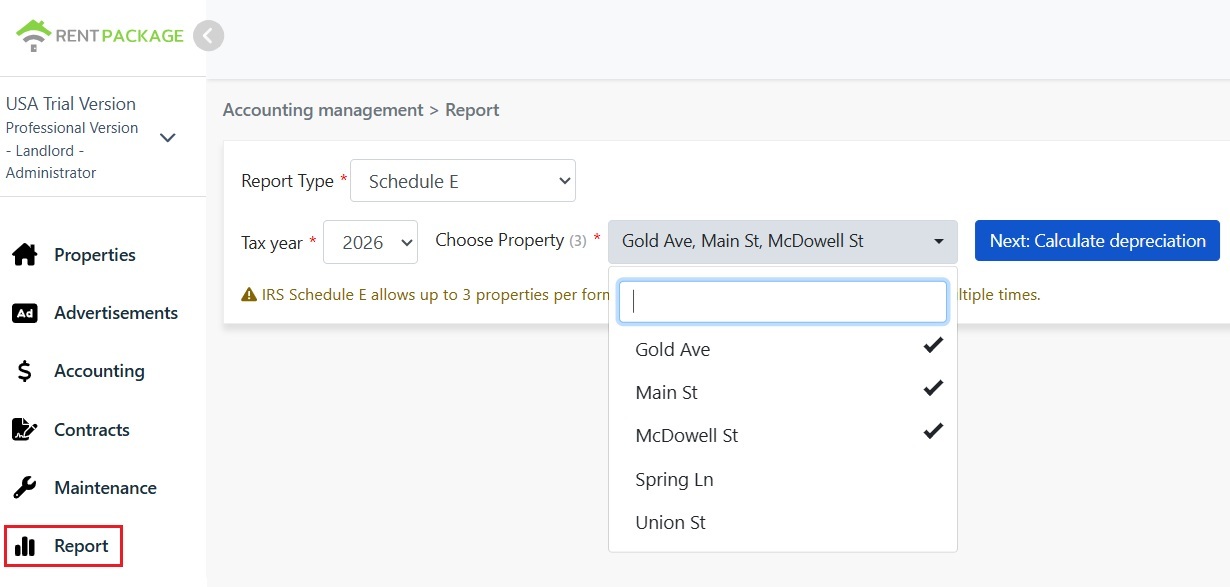
- Отворете отчета: Кликнете „Отчети“ в менюто отляво → изберете „Schedule E“ от падащото меню тип отчети
- Изберете данъчна година: Възможност за избор на години от последните десет години
- Изберете имоти (до 3): Според изискванията на IRS, всеки отчет може да включва до 3 имота
- Кликнете „Следваща стъпка: Изчисли амортизация“: Системата ще покаже настройките за амортизация
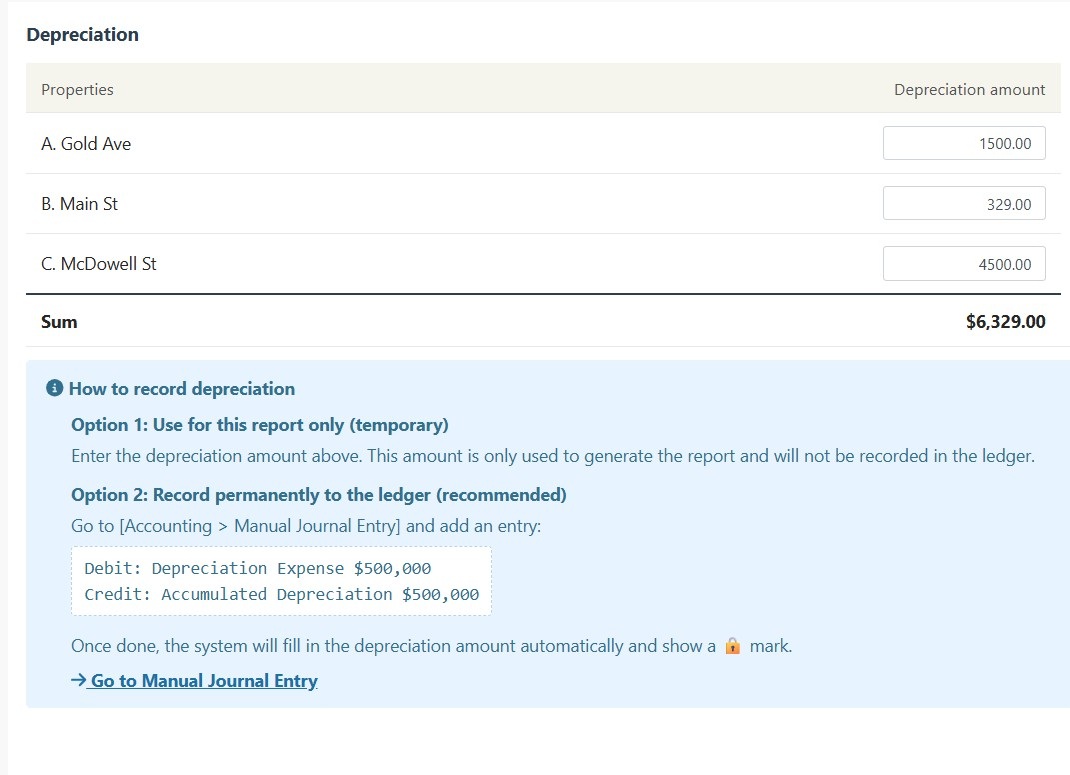
Системата ще покаже информация за амортизация за избраните имоти:
Сценарий A: Амортизацията вече е записана в записа
Ако амортизацията на обекта е записана в "Ръчни записи", системата автоматично ще покаже сумата и ще добави иконка 🔒 заключване. Това поле е само за четене и не може да се редактира. За промени, моля, отидете на "Управление на финанси → Ръчни записи", за да редактирате оригиналния запис.
Сценарий B: Няма запис на амортизация
Ако няма запис на амортизация за обекта, системата ще покаже поле за вход, което може да се редактира. Може да въведете амортизационната сума, предоставена от счетоводителя.
- След като потвърдите, че цялата информация е коректна, натиснете "Генериране на Schedule E"
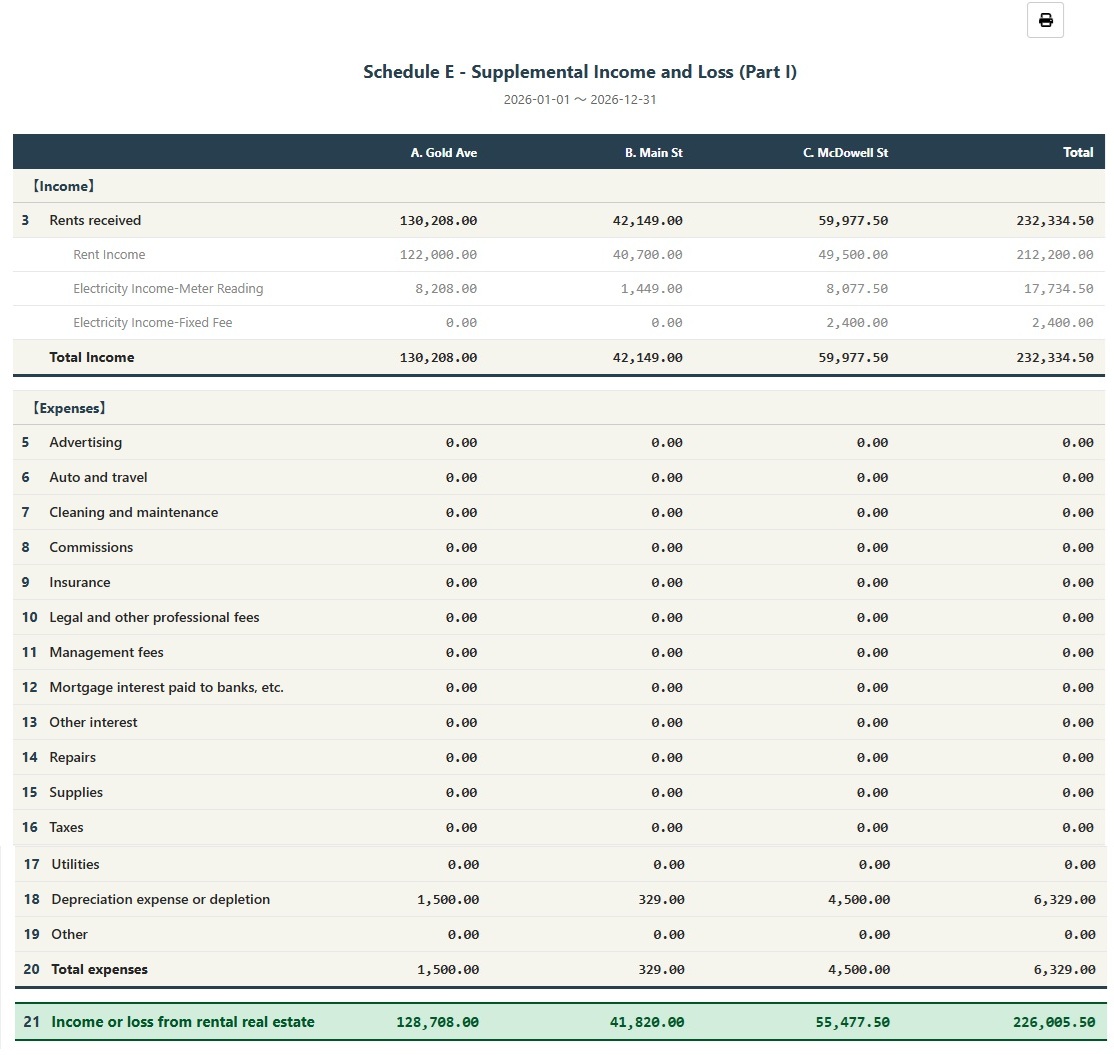
- Системата ще генерира отчет Schedule E, показващ наемните доходи на всеки обект (Line 3), индивидуалните разходи (Lines 5-19), амортизацията (Line 18) и нетната печалба или загуба (Line 21)
- Можете да отпечатате отчета или да го експортирате като PDF за справка при подготовка на данъци
3. Как да документирате амортизацията постоянно?
За да запишете амортизационната сума в сметките си постоянно, следвайте тези стъпки:
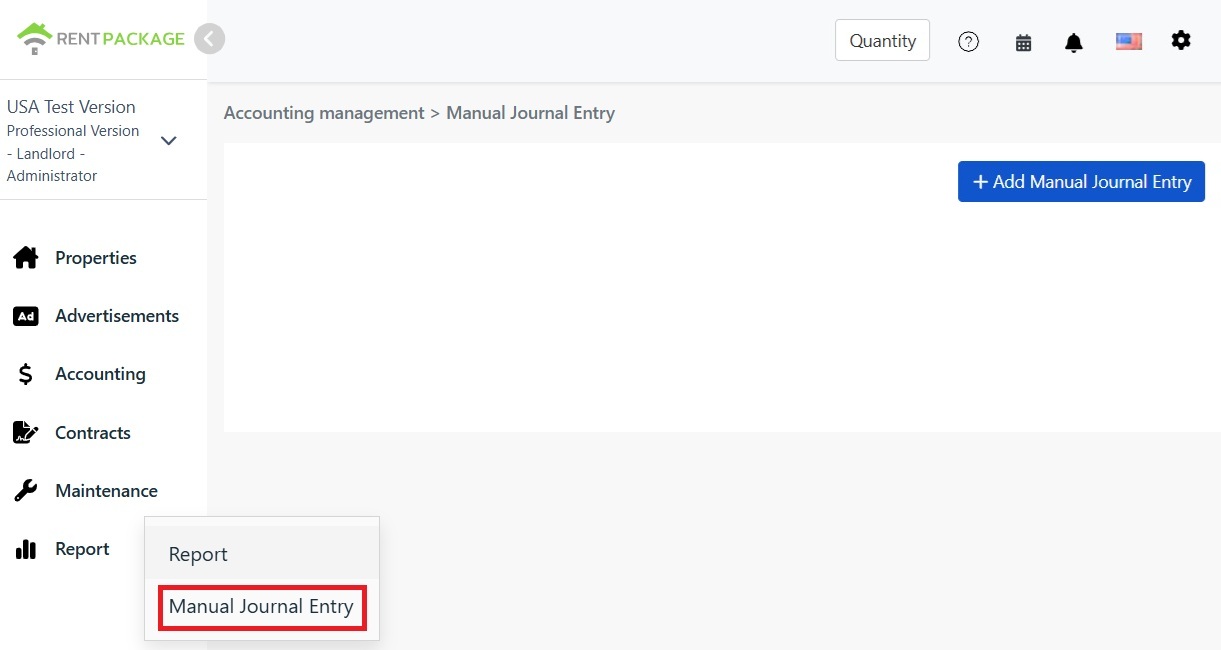
- Отидете на "Отчети → Ръчни записи"
- Кликнете „+ Добавяне на ръчна транзакция“
- Изберете съответния обект
- Въведете следната транзакция:
| Сметка | Дебит | Кредит |
|---|---|---|
| Разходи за амортизация | $10,000 | |
| Натрупана амортизация | $10,000 |
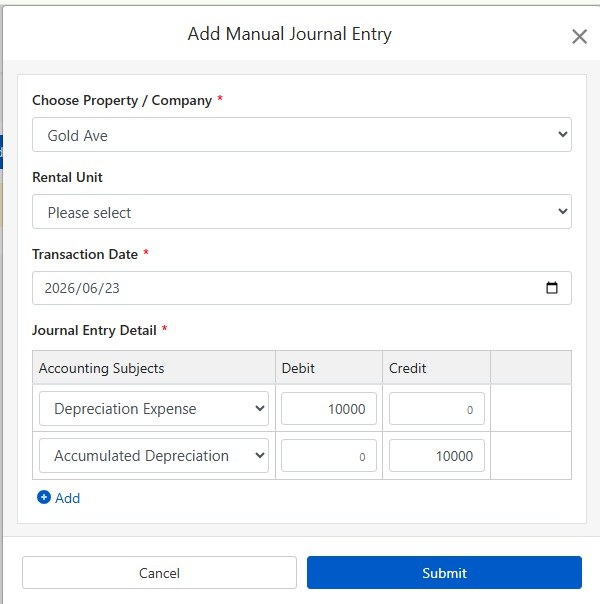
Щракнете „Изпрати“, за да запазите транзакцията. След това, при следващото създаване на отчет Schedule E, системата автоматично ще попълни тази сума за амортизация и ще покаже иконата 🔒.
4. Как да изчислите амортизацията?
В САЩ амортизацията на жилищни имоти под наем се извършва по права линия за 27.5 години.
Формула:
Пример:
- Цена на покупка: $300,000
- Стойност на земя: $50,000 (земята не се амортизира)
- Амортизируема сума: $300,000 - $50,000 = $250,000
- Годишна амортизация: $250,000 ÷ 27.5 = $9,091
Стойността на земята обикновено може да се намери в данъчната оценка или оценителския доклад. Ако имате въпроси, консултирайте се с вашия счетоводител.
5. Промяна на филтрите
Ако трябва да промените обекта или данъчната година след генериране на отчет, натиснете бутона „Промяна на филтрите“ над отчета, за да се върнете към страницата за настройки.
6. Често задавани въпроси
Защо мога да избера само 3 обекта?
Това е ограничение на IRS Schedule E формата. Всяка форма има само колони A, B и C, които съдържат до 3 обекта. Ако имате повече обекти, генерирайте няколко отчета.
Какво да правя, ако полето за амортизация показва икона за заключване и не може да се редактира?
Иконата за заключване означава, че сумата е от запис в дневника. За промяна отидете на „Управление на счетоводството → Ръчни записи“ и редактирайте оригиналния запис за амортизация.
Ще бъдат ли регистрирани амортизациите, въведени на страницата на отчета, в сметките?
Не. Амортизациите, въведени на страницата на отчета, се използват само за генериране на този отчет. За постоянно записване използвайте функцията за ръчно записване.
Как са категоризирани разходите в отчета?
Системата автоматично категоризира разходите въз основа на посочената от вас класификация Schedule E в счетоводните сметки. Уверете се, че вашите сметки са правилно съпоставени със съответната класификация Schedule E.
Може ли този отчет да се използва директно за данъчно деклариране?
Този отчет е само за справка и обобщава приходите и разходите, записани в RentPackage. Когато декларирате данъци, прехвърлете данните на официалния формуляр на IRS или ги предоставете на вашия счетоводител. Препоръчително е да се консултирате със специалист по данъци преди подаване.
7. Таблица за категоризация на разходите по Schedule E
| Номер по IRS | Класификация | Описание |
|---|---|---|
| Line 3 | Rents Received | Общ приход от събрани наеми |
| Line 4 | Royalties Received | Приходи от роялти |
| Line 5 | Advertising | Разходи за реклама и маркетинг |
| Line 6 | Auto and Travel | Разходи за превоз и пътуване |
| Line 7 | Cleaning and Maintenance | Разходи за почистване и поддръжка |
| Line 8 | Commissions | Комисиони за посредници или агенти |
| Line 9 | Insurance | Разходи за застраховка на имот |
| Line 10 | Legal and Professional Fees | Такси за адвокат, счетоводител и професионални услуги |
| Line 11 | Management Fees | Такси за управление на имот |
| Line 12 | Mortgage Interest | Лихви по ипотека, платени на банка |
| Line 13 | Other Interest | Други лихвени разходи |
| Line 14 | Repairs | Разходи за ремонти и поддръжка |
| Line 15 | Supplies | Консумативи и материали |
| Line 16 | Taxes | Имуществени и други данъци |
| Line 17 | Utilities | Разходи за комунални услуги |
| Line 18 | Depreciation | Амортизационни разходи |
| Line 19 | Other | Други приспадаеми разходи |