
RentPackage Schedule E voor verhuurders in de VS: huurinkomsten en verhuurkosten automatisch per regel ingedeeld
Inhoud
Waarom Schedule E met RentPackage maken
Voor elke belastingaangifte zoeken verhuurders een jaar aan huuroverzichten en uitgaven zoals reparaties, verzekeringen en beheerkosten bij elkaar en delen ze één voor één in over de regels van Schedule E. Met meer objecten wordt al snel iets vergeten of op de verkeerde regel gezet, en vóór het naar de accountant gaat, moet alles nog eens worden gecontroleerd.
- Uw dagelijkse boekhouding wordt het rapport
Huur die via factureringsperiodes is ontvangen en uitgaven die u toevoegt, worden ingedeeld volgens de Schedule E-regel van elke grootboekrekening. Kies het belastingjaar en de objecten om het rapport te genereren, zonder apart spreadsheet. - Elk object in een eigen kolom
Het rapport toont in de kolommen A, B en C van Schedule E per object de huurinkomsten, elke kostenpost, de afschrijving en het nettoresultaat of verlies, direct af te drukken voor uw accountant. - Afschrijving één keer boeken, daarna automatisch overgenomen
Als u de afschrijving als handmatige journaalpost boekt, neemt het systeem die de volgende keer dat u het rapport genereert automatisch over met een 🔒-teken. U kunt ook alleen voor dit rapport het bedrag van uw accountant invullen.
Wat is Schedule E?
Schedule E is een belastingformulier van de Amerikaanse belastingdienst (IRS) voor het rapporteren van huurinkomsten en -uitgaven. Het is een bijlage bij het individuele belastingaangifteformulier (Formulier 1040). Als u in de VS onroerend goed verhuurt, dient u dit formulier jaarlijks in te vullen om huurinkomsten en gerelateerde kosten te rapporteren.
Hoe te gebruiken
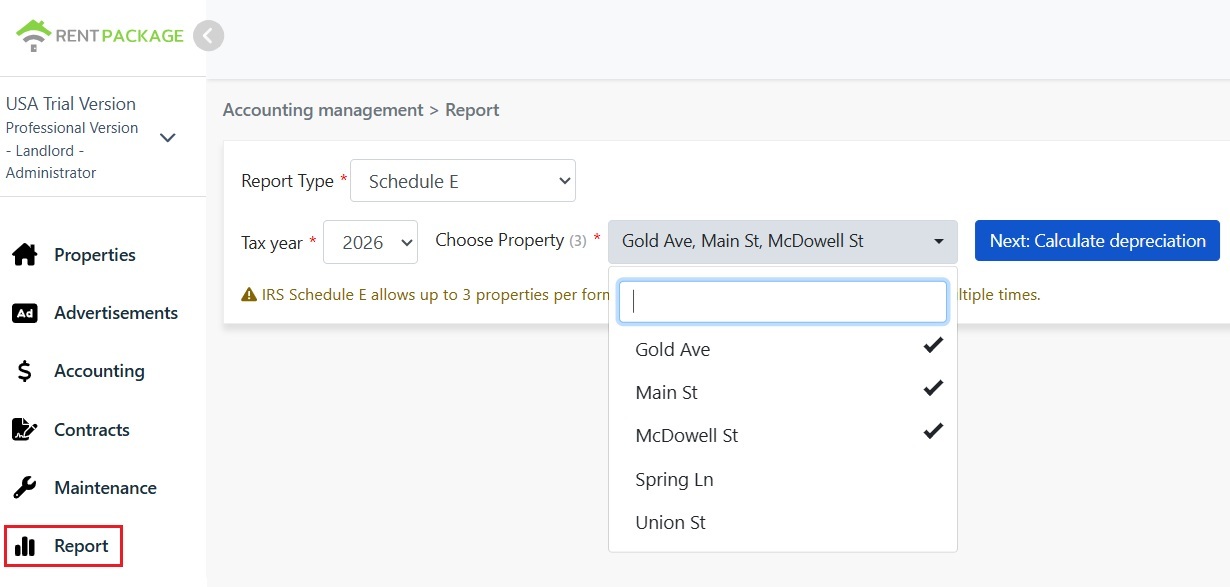
Stap 1: kies het belastingjaar en de objecten
- Open rapport: Klik in het linkermenu op 'Rapport' → 'Belastingrapport'
- Belastingjaar: U kunt een jaar kiezen binnen de afgelopen tien jaar
- Object selecteren: Volgens IRS-regulatie mogen er maximaal 3 objecten per rapport zijn
- Klik op 'Volgende: Afschrijving berekenen': Het systeem zal het afschrijvingsinstellingen scherm tonen
Stap 2: bereken de afschrijving
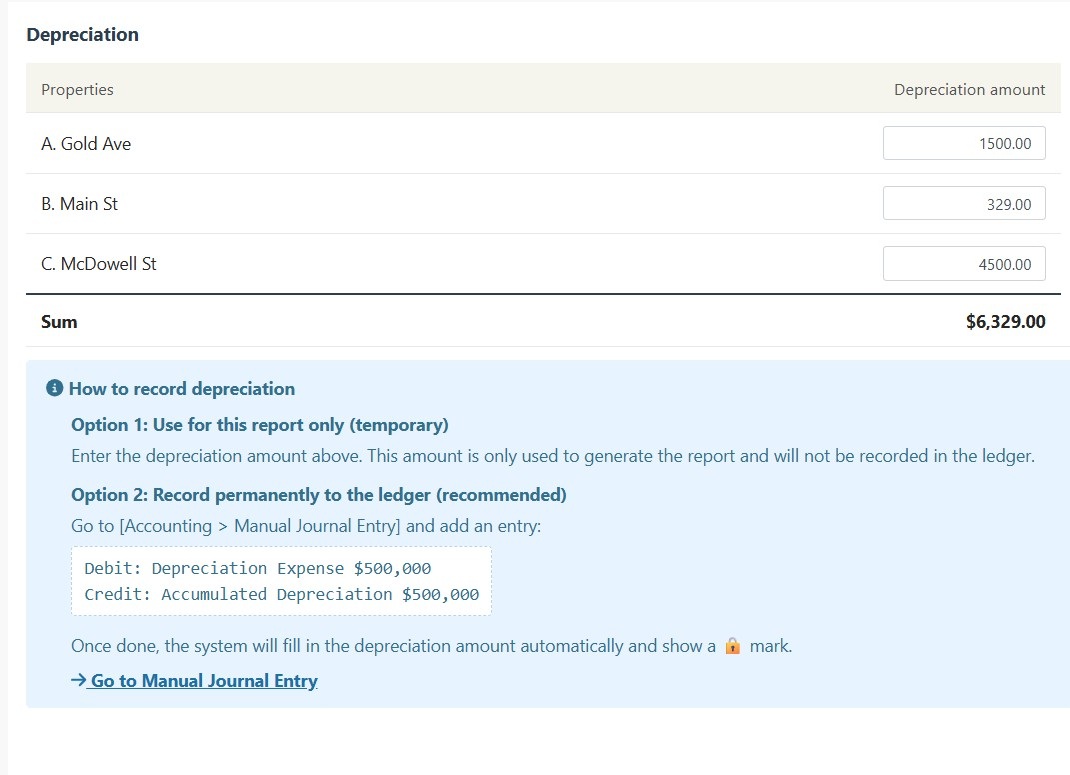
Het systeem toont afschrijvingsinformatie van de geselecteerde objecten:
Scenario A: Afschrijving is al geboekt in journaalpost
Als de afschrijving van het object al is vastgelegd in een 'handmatige journaalpost', zal het systeem automatisch het bedrag weergeven met een 🔒 slotpictogram. Dit veld is alleen-lezen en kan niet worden gewijzigd. Om wijzigingen aan te brengen, ga naar 'Rapport → Handmatige journaalpost' om de originele post aan te passen.
Scenario B: Geen afschrijvingsrecord
Als er geen afschrijvingsrecord voor het object is, biedt het systeem een bewerkbaar invoerveld. U kunt direct het door uw accountant verstrekte afschrijvingsbedrag invoeren.
Stap 3: genereer het rapport
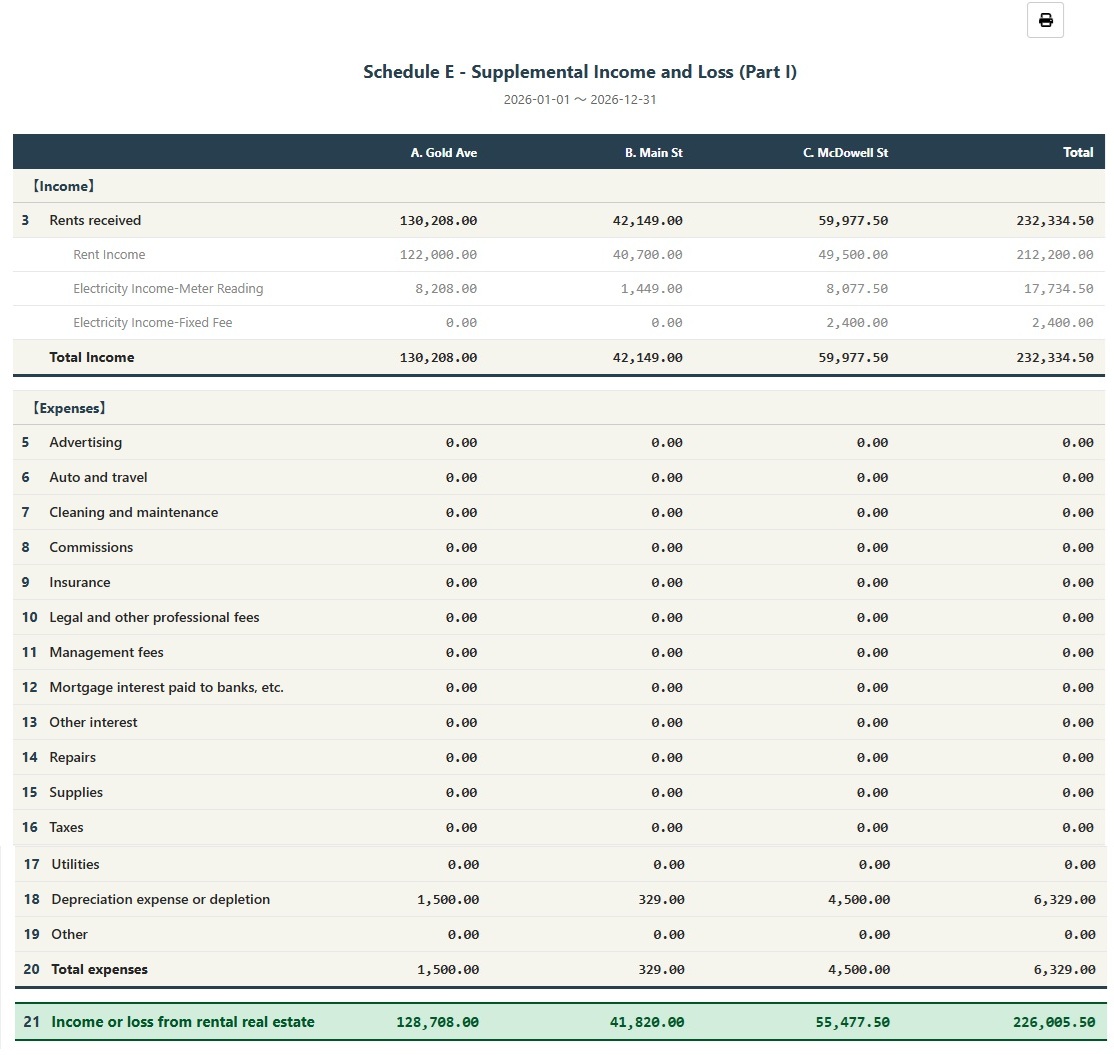
- Bevestig dat alle informatie correct is, klik op 'Rapport genereren'
- Het systeem genereert het Schedule E-rapport, dat huurinkomsten (Line 3), afzonderlijke kosten (Lines 5-19), afschrijving (Line 18) en netto-inkomen of verlies (Line 21) voor elk object weergeeft.
- U kunt het rapport afdrukken of exporteren als PDF als referentie voor belastingvoorbereiding.
Hoe afschrijvingen permanent registreren?
Als u wilt dat het afschrijvingsbedrag permanent in het financiële systeem wordt vastgelegd, volg dan deze stappen:
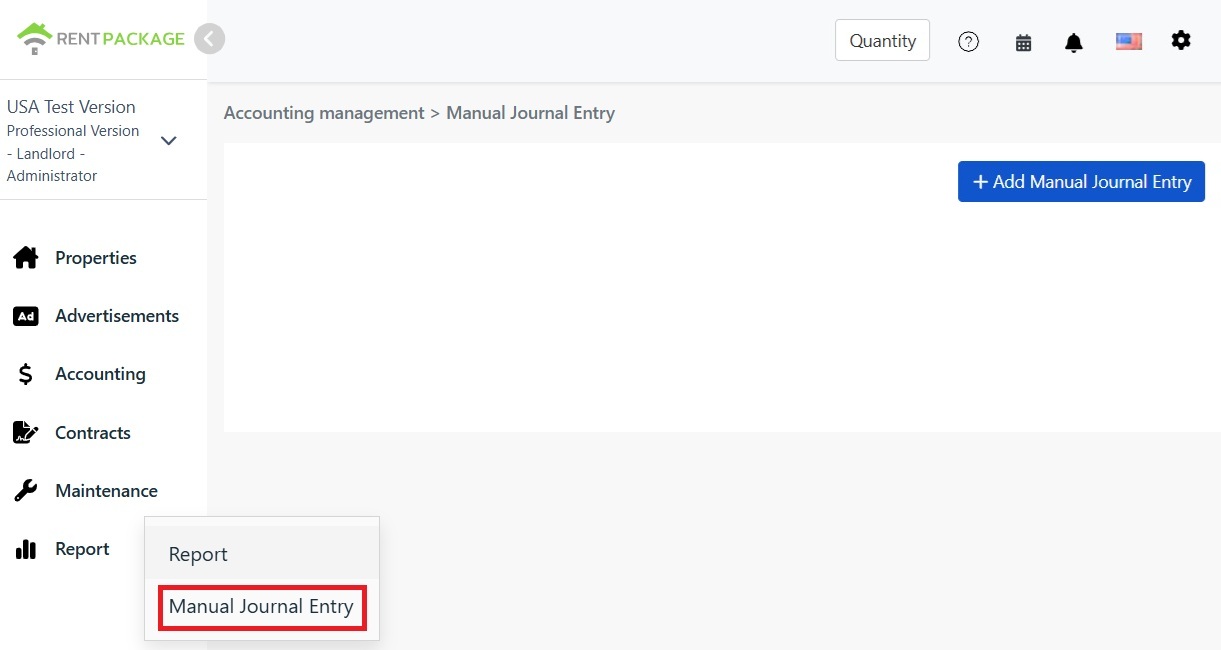
- Ga naar 'Rapport → Handmatige journaalpost'
- Klik op '+ Handmatige journaalpost toevoegen'
- Selecteer het bijbehorende object
- Voer de volgende boeking in:
| Rekening | Debet | Credit |
|---|---|---|
| Afschrijvingskosten | $10,000 | |
| Geaccumuleerde afschrijving | $10,000 |
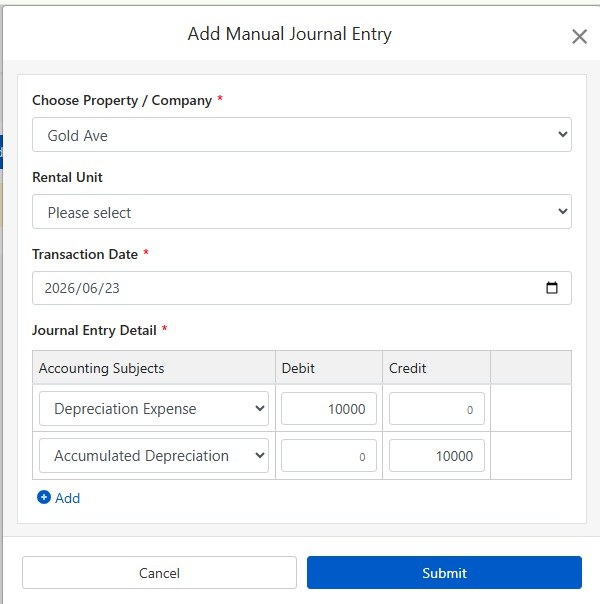
Klik op 'Indienen' om de boeking op te slaan. Na voltooiing zal bij de volgende aanmaak van het Schedule E-rapport, het afschrijvingsbedrag automatisch worden ingevuld en vergrendeld worden weergegeven met een 🔒-pictogram.
Hoe afschrijvingen berekenen?
Amerikaanse residentiële verhuurde eigendommen maken gebruik van de lineaire methode, afschrijvend over 27,5 jaar.
Formule:
Voorbeeld:
- Aankoopprijs: €300.000
- Grondwaarde: €50.000 (grond is niet afschrijfbaar)
- Afschrijfbaar bedrag: €300.000 - €50.000 = €250.000
- Jaarlijkse afschrijving: €250.000 ÷ 27,5 = €9.091
Grondwaarde is meestal te vinden op de onroerendezaakbelastingaanslag of taxatierapport. Raadpleeg bij twijfel uw accountant.
Filtercriteria aanpassen
Als u het object of het belastingjaar wilt wijzigen nadat het rapport is gegenereerd, klik dan op de knop 'Wijzig filtercriteria' bovenaan het rapport om terug te keren naar de instellingenpagina.
Verwijzingstabel voor kostenclassificaties in Schedule E
| IRS-regelnummer | Categorie | Beschrijving |
|---|---|---|
| Line 3 | Rents Received | Totale ontvangen huurinkomsten |
| Line 4 | Royalties Received | Royaltiesinkomsten |
| Line 5 | Advertising | Advertentie- en marketingkosten |
| Line 6 | Auto and Travel | Voertuig- en reiskosten |
| Line 7 | Cleaning and Maintenance | Schoonmaak- en onderhoudskosten |
| Line 8 | Commissions | Makelaars- of agentcommissie |
| Line 9 | Insurance | Vastgoedverzekeringskosten |
| Line 10 | Legal and Professional Fees | Kosten voor juridisch, boekhoud- en professionele diensten |
| Line 11 | Management Fees | Vastgoedbeheerkosten |
| Line 12 | Mortgage Interest | Hypotheekrente aan bank betaald |
| Line 13 | Other Interest | Overige rentekosten |
| Line 14 | Repairs | Reparatie- en onderhoudskosten |
| Line 15 | Supplies | Verbruiksartikelen en materialen |
| Line 16 | Taxes | Onroerendgoedbelasting en overige belastingen |
| Line 17 | Utilities | Nutsvoorzieningen zoals water, elektriciteit en gas |
| Line 18 | Depreciation | Afschrijvingskosten |
| Line 19 | Other | Andere aftrekbare kosten |
Veelgestelde vragen
Waarom kan ik maar 3 objecten selecteren?
Dit is een beperking van het IRS Schedule E-formulier. Elk formulier bevat alleen de kolommen A, B en C, wat maximaal 3 objecten toestaat. Heeft u meer objecten, genereer dan meerdere rapporten.
Het afschrijvingsveld toont een vergrendelingspictogram en kan niet worden bewerkt. Wat moet ik doen?
Het vergrendelingspictogram geeft aan dat het bedrag afkomstig is van een journaalpost. Om wijzigingen aan te brengen, ga naar 'Rapport → Handmatige journaalpost' om de oorspronkelijke afschrijvingspost te bewerken.
Wordt de afschrijving die op de rapportpagina is ingevoerd, vastgelegd in de administratie?
Nee. De op de rapportpagina ingevoerde afschrijvingsbedragen worden alleen gebruikt voor het genereren van het rapport. Voor permanente registratie, gebruik de functie voor handmatige boekingen.
Hoe worden kosten in het rapport ingedeeld?
Het systeem classificeert kosten automatisch op basis van de Schedule E-categorieën die u in uw rekeningschema heeft ingesteld. Zorg ervoor dat uw rekeningen correct zijn toegewezen aan de juiste Schedule E-categorie.
Kan dit rapport direct worden gebruikt voor belastingaangifte?
Dit rapport is alleen voor referentie en vat de in RentPackage vastgelegde inkomsten en uitgaven samen. Vul bij het indienen van belastingen de gegevens in op de officiële IRS-formulieren of geef ze aan uw accountant. Raadpleeg een belastingprofessional voordat u indient.
Samenvatting
Blijft u werken zoals nu, dan zoekt u bij de volgende aangifte weer een jaar aan bonnen en huuroverzichten bij elkaar om ze regel voor regel in Schedule E in te delen. Zodra uw boekhouding in RentPackage staat en uw rekeningen aan Schedule E-regels zijn gekoppeld, kiest u elk jaar alleen het belastingjaar en de objecten en genereert u het rapport voor uw accountant.
Begin met één object in de VS: kies het huidige belastingjaar, genereer Schedule E één keer en bekijk op welke regels uw inkomsten en kosten terechtkomen.
Probeer RentPackage gratisGerelateerde artikelen
- RentPackage Handmatige journaalpost: reparaties, verzekering en afschrijving – boek ook inkomsten en uitgaven buiten de huurdersfactureringsperiode:Boek afschrijving, onroerendgoedbelasting en andere posten buiten factureringsperiodes als journaalpost, en Schedule E neemt ze mee.
- RentPackage Winst-en-verliesrekening: huurinkomsten en kosten per object en per eigenaar, met automatisch berekende winst:Zie op elk moment hoeveel elk object en elke eigenaar verdient, zonder op de aangifte te wachten.
- Hoe een grootboek te genereren in RentPackage, automatisch opbrengsten en uitgaven samenvatten:Waar komt een bedrag op een Schedule E-regel vandaan? In het grootboek ziet u per rekening elke boeking afzonderlijk.