
RentPackage Schedule E ASV izīrētājiem: īres ienākumi un īres izdevumi automātiski sadalīti pa veidlapas rindām
Saturs
Kāpēc veidot Schedule E ar RentPackage
Pirms katras deklarācijas izīrētāji meklē visa gada īres ierakstus un izdevumus, piemēram, remontu, apdrošināšanu un pārvaldīšanas maksas, un pa vienam sadala tos Schedule E rindās. Ja īpašumu ir vairāki, viegli kaut ko aizmirst vai ierakstīt nepareizā rindā, un pirms nodošanas grāmatvedim viss vēlreiz jāsaskaņo.
- Ikdienas grāmatvedība kļūst par pārskatu
Norēķinu periodos saņemtā īre un pievienotie izdevumi tiek klasificēti pēc katra konta Schedule E rindas. Izvēlieties taksācijas gadu un īpašumus, un pārskats tiks ģenerēts bez atsevišķas izklājlapas. - Katrs īpašums savā kolonnā
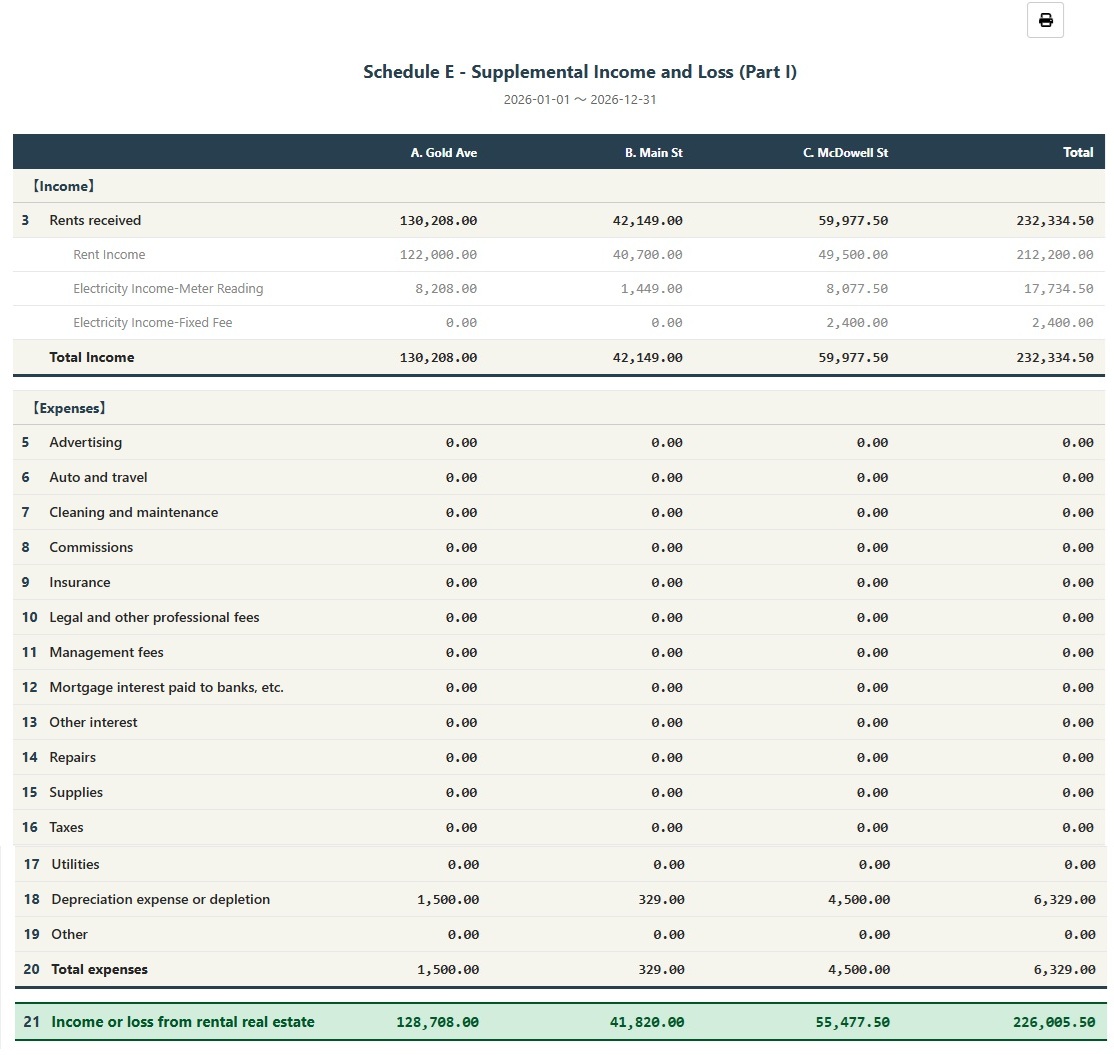
Pārskatā Schedule E kolonnās A, B un C redzami katra īpašuma īres ienākumi, katrs izdevums, nolietojums un neto ienākumi vai zaudējumi; to var uzreiz izdrukāt grāmatvedim. - Reģistrējiet nolietojumu vienreiz, vēlāk tas tiek iekļauts automātiski
Kad nolietojumu reģistrējat kā manuālu grāmatojumu, sistēma nākamreiz, ģenerējot pārskatu, to iekļauj automātiski ar 🔒 zīmi. Varat arī tikai šim pārskatam ievadīt grāmatveža norādīto summu.
Kas ir Schedule E?
Schedule E ir Amerikas Savienoto Valstu Iekšzemes ieņēmumu dienesta (IRS) nodokļu veidlapa, kas izmantota īres ienākumu un izdevumu deklarēšanai. Tā ir viena no individuālās nodokļu deklarācijas (Form 1040) pielikumiem. Ja jums pieder izīrējams īpašums ASV, jums katru gadu jāaizpilda šī veidlapa, lai deklarētu īres ienākumus un saistītos izdevumus.
Kā izmantot
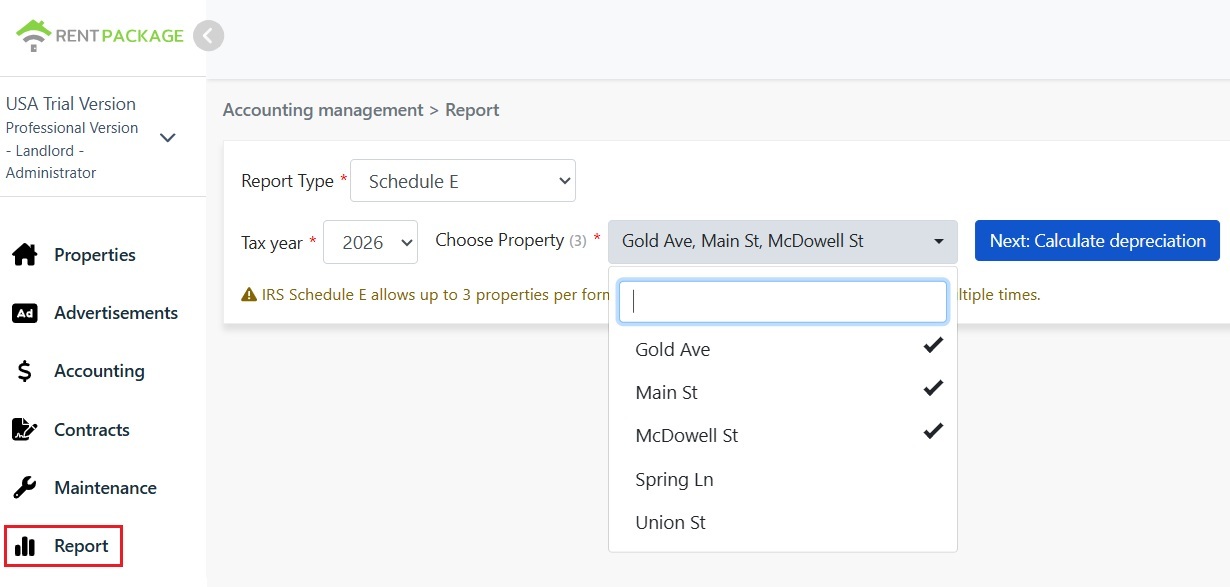
1. solis: izvēlieties taksācijas gadu un īpašumus
- Atvērt pārskatu: Noklikšķiniet uz "Pārskats" kreisajā izvēlnē → "Nodokļu pārskats"
- Taksācijas gads: Var izvēlēties pēdējo desmit gadu periodu
- Izvēlēties īpašumu: Saskaņā ar IRS prasībām, katrā pārskatā var iekļaut ne vairāk kā 3 īpašumus
- Noklikšķiniet "Nākamais: aprēķināt nolietojumu": Sistēma parādīs nolietojuma iestatījumu ekrānu
2. solis: aprēķiniet nolietojumu
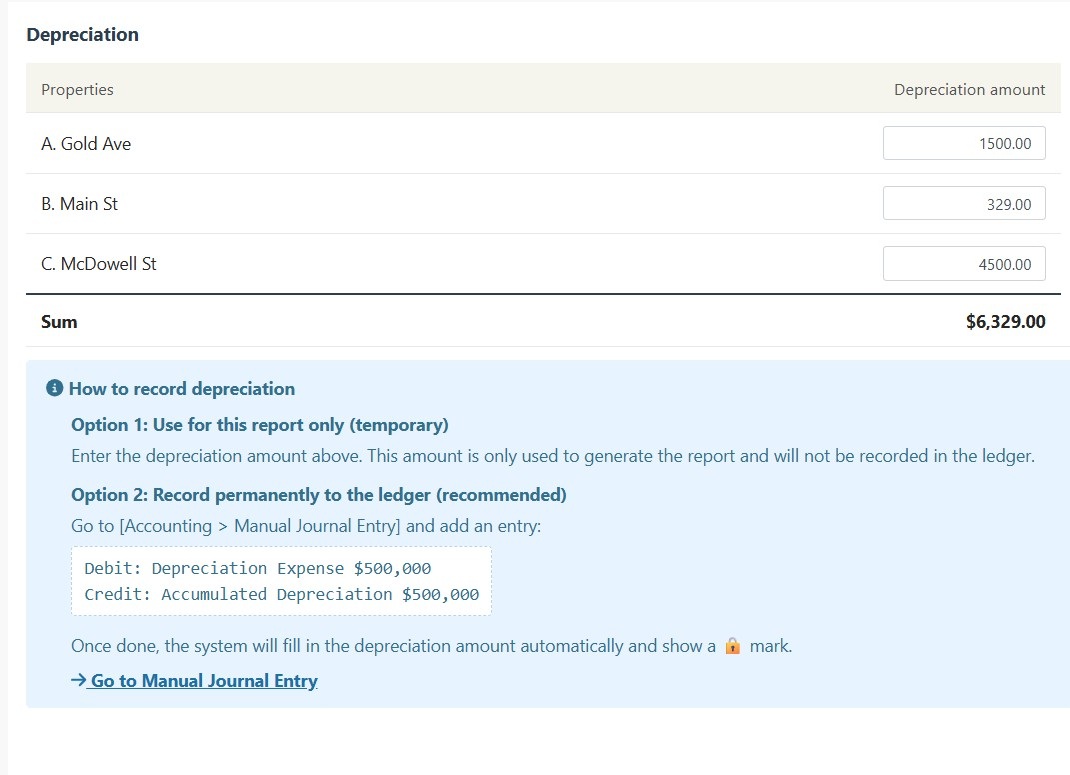
Sistēma parādīs izvēlēto īpašumu nolietojuma informāciju:
Scenārijs A: Nolietojums jau ir reģistrēts ierakstā
Ja īpašuma nolietojums jau ir reģistrēts "Manuālajos ierakstos", sistēma automātiski parādīs summu ar 🔒 bloķēšanas ikonu. Šis lauks ir tikai lasāms un to nevar rediģēt. Lai veiktu izmaiņas, dodieties uz "Pārskats → Manuāls grāmatojums", lai rediģētu sākotnējo ierakstu.
Scenārijs B: Nolietojuma ieraksta nav
Ja īpašumam nav nolietojuma ieraksta, sistēma parādīs rediģējamu ievades lauku. Jūs varat ievadīt grāmatveža norādīto nolietojuma summu.
3. solis: ģenerējiet pārskatu
- Pēc tam, kad esat pārliecinājies par visa informācijas pareizību, noklikšķiniet uz "Ģenerēt pārskatu"
- Sistēma izveidos Schedule E pārskatu, parādot katra īpašuma īres ienākumus (Līnija 3), izdevumus (Līnijas 5-19), nolietojumu (Līnija 18) un tīros ienākumus vai zaudējumus (Līnija 21)
- Jūs varat izdrukāt pārskatu vai eksportēt to kā PDF dokumentu nodokļu sagatavošanas vajadzībām
Kā pastāvīgi reģistrēt nolietojumu?
Ja vēlaties, lai nolietojuma summa pastāvīgi tiktu ierakstīta finanšu uzskaitē, lūdzu, veiciet šādas darbības:
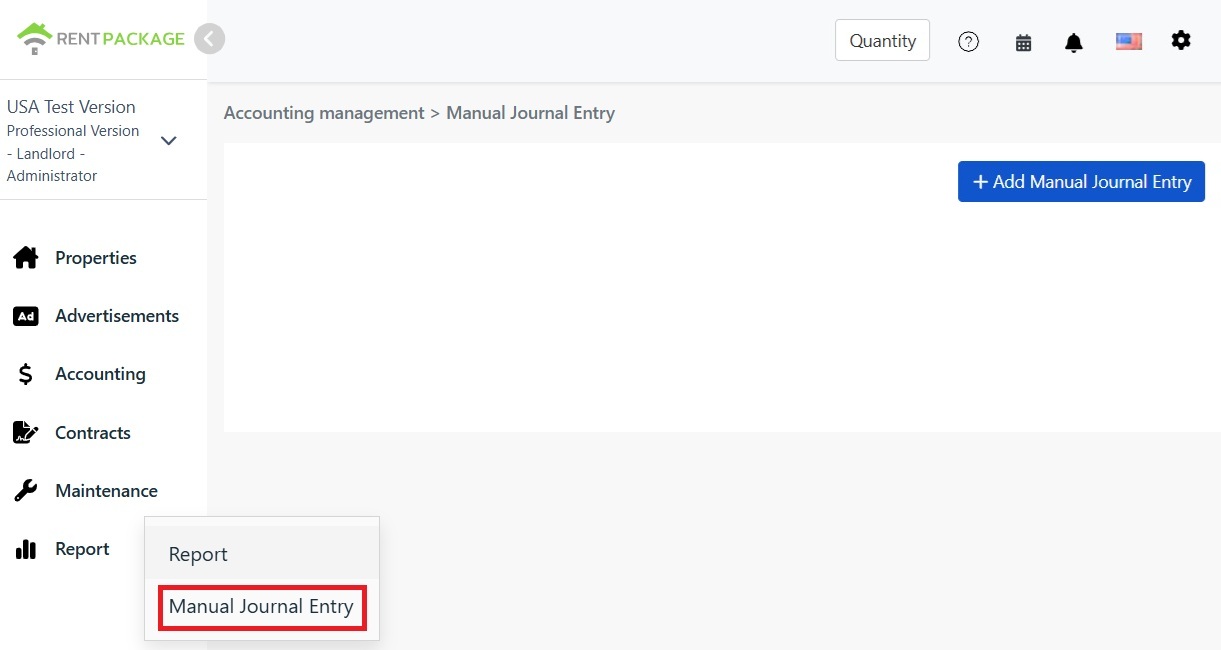
- Dodieties uz "Pārskats → Manuāls grāmatojums"
- Noklikšķiniet uz "+ Pievienot manuālu grāmatojumu"
- Izvēlieties atbilstošo objektu
- Ievadiet sekojošo ierakstu:
| Konts | Debets | Kredīts |
|---|---|---|
| Nolietojuma izmaksas | $10,000 | |
| Uzkrātais nolietojums | $10,000 |
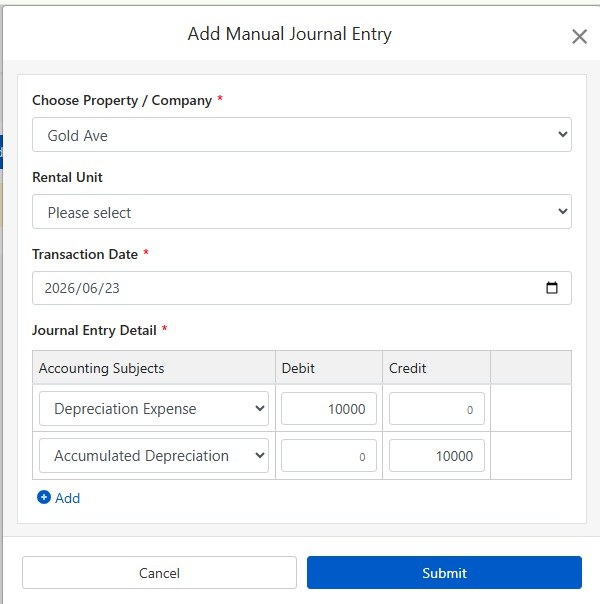
Noklikšķiniet uz "Iesniegt", lai saglabātu ierakstu. Pēc tam, kad nākamo reizi tiks ģenerēts Schedule E pārskats, sistēma automātiski izmantos šo nolietojuma summu un parādīs 🔒 bloķēšanas ikonu.
Kā aprēķināt nolietojumu?
ASV dzīvojamām īres īpašībām tiek izmantots lineārais nolietojums 27,5 gadu garumā.
Formula:
Piemērs:
- Iegādes cena: $300,000
- Zemes vērtība: $50,000 (zeme nevar tikt nolietota)
- Nolietojamā summa: $300,000 - $50,000 = $250,000
- Gada nolietojums: $250,000 ÷ 27.5 = $9,091
Zemes vērtību parasti var atrast īpašuma nodokļu rēķinā vai novērtēšanas ziņojumā. Ja rodas jautājumi, konsultējieties ar savu grāmatvedi.
Mainiet filtra nosacījumus
Ja nepieciešams mainīt īpašumu vai nodokļu gadu pēc ziņojuma ģenerēšanas, noklikšķiniet uz pogas 'Rediģēt filtru', lai atgrieztos iestatījumu lapā.
Schedule E izdevumu klasifikācijas tabula
| IRS nodaļas numurs | Klasifikācija | Apraksts |
|---|---|---|
| Line 3 | Rents Received | Saņemtā īres ienākumu kopējā summa |
| Line 4 | Royalties Received | Honorāru ienākumi |
| Line 5 | Advertising | Sludinājumu un mārketinga izdevumi |
| Line 6 | Auto and Travel | Transporta un ceļojumu izdevumi |
| Line 7 | Cleaning and Maintenance | Tīrīšanas un uzturēšanas izmaksas |
| Line 8 | Commissions | Starpniecības vai aģenta komisijas |
| Line 9 | Insurance | Īpašuma apdrošināšanas maksa |
| Line 10 | Legal and Professional Fees | Juridisko, grāmatvedības un profesionālo pakalpojumu izdevumi |
| Line 11 | Management Fees | Īpašuma pārvaldīšanas izmaksas |
| Line 12 | Mortgage Interest | Maksājumi par hipotēkas procentiem bankai |
| Line 13 | Other Interest | Citi procentu izdevumi |
| Line 14 | Repairs | Remonta un apkopes izdevumi |
| Line 15 | Supplies | Piederumi un materiāli |
| Line 16 | Taxes | Nekustamā īpašuma nodokļi un citi nodokļi |
| Line 17 | Utilities | Komunālo pakalpojumu izmaksas, piemēram, elektrība, ūdens, gāze |
| Line 18 | Depreciation | Nolietojuma izdevumi |
| Line 19 | Other | Citi atskaitāmie izdevumi |
Biežāk uzdotie jautājumi
Kāpēc var izvēlēties tikai 3 īpašumus?
Tā ir IRS Schedule E formas prasība. Katrā formā ir tikai A, B, C slejas, kas ļauj norādīt līdz 3 īpašumiem. Ja jums ir vairāk īpašumu, lūdzu, izveidojiet vairākus ziņojumus.
Nolietojuma lauks rāda bloķēšanas ikonu un nav rediģējams, ko darīt?
Slēdzenes ikona norāda, ka summa nāk no grāmatojuma. Lai rediģētu, pārejiet uz 'Pārskats → Manuāls grāmatojums' un rediģējiet sākotnējo nolietojuma grāmatojumu.
Vai nolietojums, kas ievadīts pārskatu lapā, tiek reģistrēts grāmatvedībā?
Nē. Pārskatu lapā ievadītā nolietojuma summa tiek izmantota tikai šī pārskata ģenerēšanai. Lai ierakstītu pastāvīgi, izmantojiet manuālo ierakstu funkciju.
Kā tiek klasificēti izdevumi pārskatā?
Sistēma automātiski klasificēs izdevumus saskaņā ar jūsu Grāmatvedības kontos iestatīto Schedule E klasifikāciju. Lūdzu, pārliecinieties, ka jūsu konti ir pareizi saistīti ar attiecīgajām Schedule E klasifikācijām.
Vai šo pārskatu var izmantot tieši nodokļu deklarēšanai?
Šis pārskats ir tikai atsaucei un apvieno RentPackage ierakstītos ieņēmumus un izdevumus. Nodokļu deklarēšanai, lūgums pārvietot datus uz IRS oficiālajām formām vai nodot tos savam grāmatvedim. Ieteicams konsultēties ar nodokļu speciālistu pirms iesniegšanas.
Kopsavilkums
Turpinot kā līdz šim, pirms nākamās deklarācijas atkal būs jāmeklē gada čeki un īres ieraksti un rindu pa rindai jāsadala Schedule E. Kad grāmatvedība ir RentPackage un konti ir piesaistīti Schedule E rindām, katru gadu jāizvēlas tikai taksācijas gads un īpašumi, un pārskats grāmatvedim ir gatavs.
Sāciet ar vienu ASV īpašumu: izvēlieties šī gada taksācijas gadu, vienreiz ģenerējiet Schedule E un paskatieties, kurās rindās nonāk jūsu ienākumi un izdevumi.
Izmēģiniet RentPackage bez maksasSaistītie raksti
- RentPackage Manuāls grāmatojums: remonts, apdrošināšana, nolietojums – grāmatojiet arī ieņēmumus un izdevumus ārpus īrnieka norēķinu periodiem:Reģistrējiet nolietojumu, nekustamā īpašuma nodokli un citas pozīcijas ārpus norēķinu periodiem kā grāmatojumus, un Schedule E tās arī iekļaus.
- RentPackage Peļņas un zaudējumu aprēķins: katra īpašuma un katra īpašnieka īres ieņēmumi un izdevumi, peļņu sistēma aprēķina automātiski:Jebkurā brīdī redziet, cik nopelna katrs īpašums un katrs īpašnieks, negaidot deklarāciju.
- Kā RentPackage sistēmā izveidot virsgrāmatu, kas automātiski apkopo īres un īpašumu uzskaiti:No kurienes nāk Schedule E rindas summa? Virsgrāmatā redzami katra konta grāmatojumi pa vienam.