
דוח Schedule E של RentPackage לבעלי דירות בארה״ב: הכנסות והוצאות השכירות מסודרות אוטומטית בכל שורה בטופס
תוכן העניינים
למה להכין את Schedule E ב-RentPackage
לפני כל עונת מס, בעלי דירות מחפשים את רישומי שכר הדירה של שנה שלמה והוצאות כמו תיקונים, ביטוח ודמי ניהול, ומחלקים אותם אחד אחד לשורות של Schedule E. כשיש כמה נכסים קל לפספס פריט או לשים אותו בשורה הלא נכונה, ולפני המסירה לרואה החשבון צריך להתאים הכול שוב.
- הרישום השוטף הופך ישירות לדוח
שכר הדירה שהתקבל בתקופות החיוב וההוצאות שהוספתם מסווגים לפי שורת Schedule E של כל חשבון. בחרו שנת מס ונכסים כדי להפיק את הדוח, בלי להכין גיליון Excel נפרד. - כל נכס בעמודה משלו
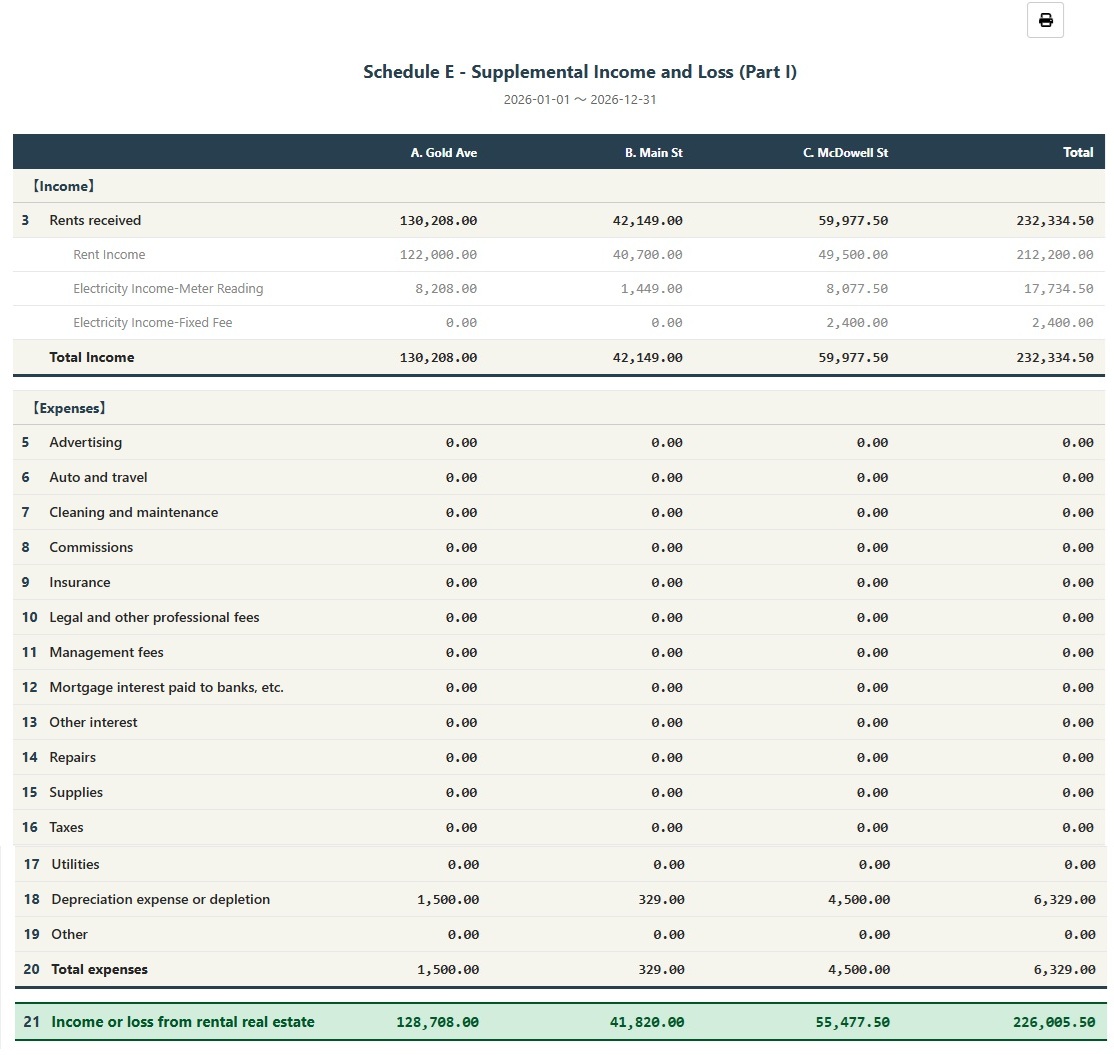
הדוח מציג בעמודות A, B ו-C של Schedule E את הכנסות השכירות, כל הוצאה, הפחת וההכנסה נטו או ההפסד של כל נכס, ואפשר להדפיס אותו מיד לרואה החשבון. - רושמים פחת פעם אחת, והוא נכלל אוטומטית
לאחר שרושמים את הפחת כרשומת יומן ידנית, המערכת כוללת אותו אוטומטית עם סימן 🔒 בפעם הבאה שמפיקים את הדוח. אפשר גם להזין את הסכום מרואה החשבון לדוח הזה בלבד.
מהו Schedule E?
Schedule E הוא טופס מס שמשמש את מס הכנסה האמריקאי (IRS) לדיווח על הכנסות והוצאות שכר דירה. זהו אחד מהטפסים הנלווים לדוח מס הכנסה ליחידים (טופס 1040). אם ברשותכם נכס להשכרה בארה"ב, עליכם למלא טופס זה מדי שנה כדי לדווח על הכנסות שכר דירה וההוצאות הנלוות.
כיצד להשתמש
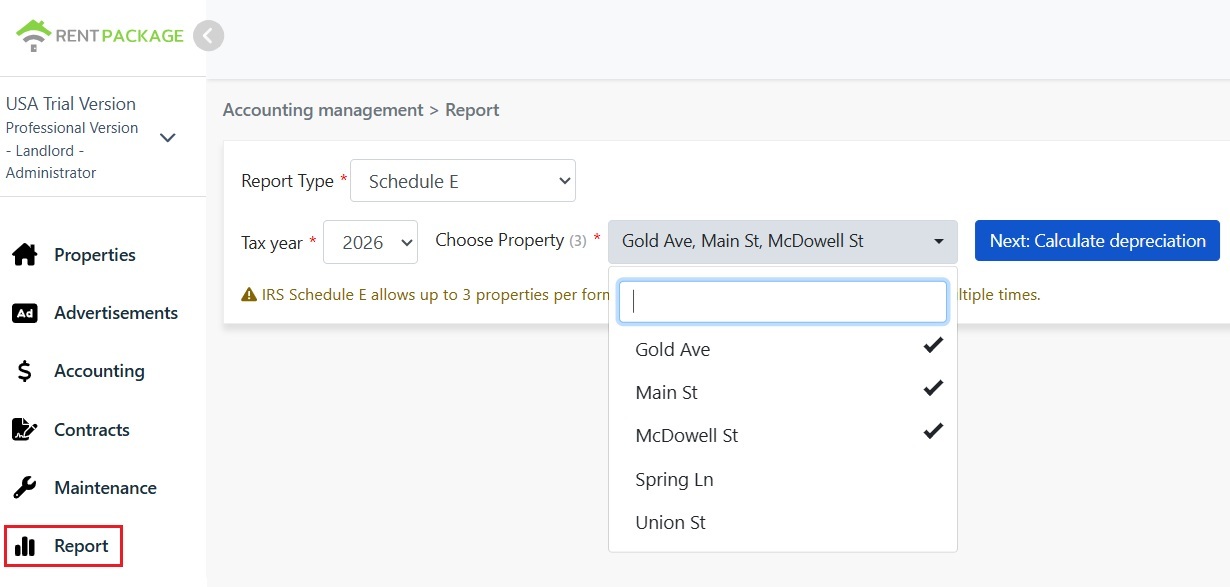
שלב 1: בחירת שנת מס ונכסים
- פתיחת דוח: לחצו על "דוח" בתפריט הצדדי → "דוח מס"
- שנת מס: ניתן לבחור שנה בעשר השנים האחרונות
- בחר נכס: בהתאם לתקנות IRS, כל דוח יכול לכלול עד 3 נכסים
- לחצו "הבא: חישוב פחת": המערכת תציג את מסך הגדרות הפחת
שלב 2: חישוב פחת
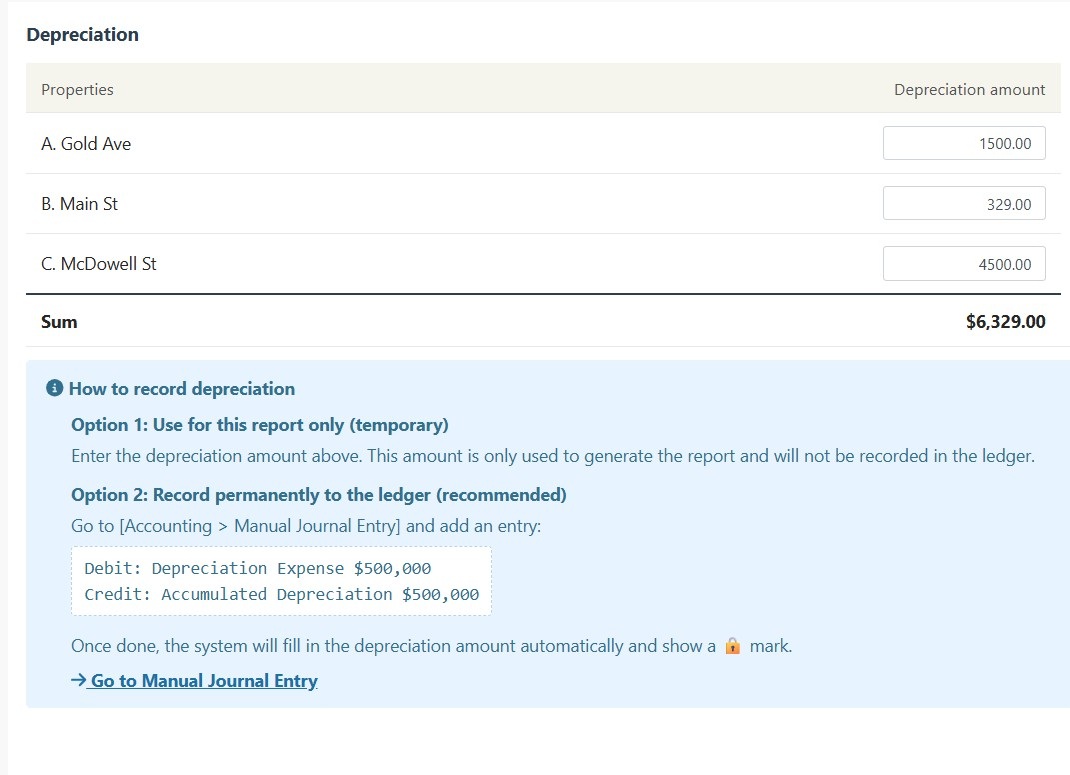
המערכת תציג את נתוני הפחת לנכסים הנבחרים:
תנאי A: הפחת נרשם בתנועות
אם לפחת יש רישום ב'תנועות ידניות', המערכת תציג את הסכום עם סמל 🔒 נעילה. שדה זה לקריאה בלבד ואינו ניתן לעריכה. לשינויים, עבור אל 'דוח → רשומת יומן ידנית' בכדי לערוך את התנועה המקורית.
תנאי B: אין רישום לפחת
אם אין פחת רשום, המערכת תציג שדה קלט לעריכה. ניתן להזין את סכום הפחת שסופק על ידי רואה החשבון.
שלב 3: הפקת הדוח
- לאחר אימות שכל המידע נכון, יש ללחוץ על 'צור דוח'
- המערכת תיצור דוח Schedule E המציג הכנסות שכר דירה לכל נכס (שורה 3), הוצאות לפי סעיף (שורות 5-19), פחת (שורה 18), והכנסה או הפסד נטו (שורה 21)
- ניתן להדפיס את הדוח או לייצאו כ-PDF לשימוש כהכנה לדיווח מס
כיצד לרשום פחת בצורה קבועה?
אם ברצונכם לרשום את סכום הפחת בספרים באופן קבוע, בצעו את השלבים הבאים:
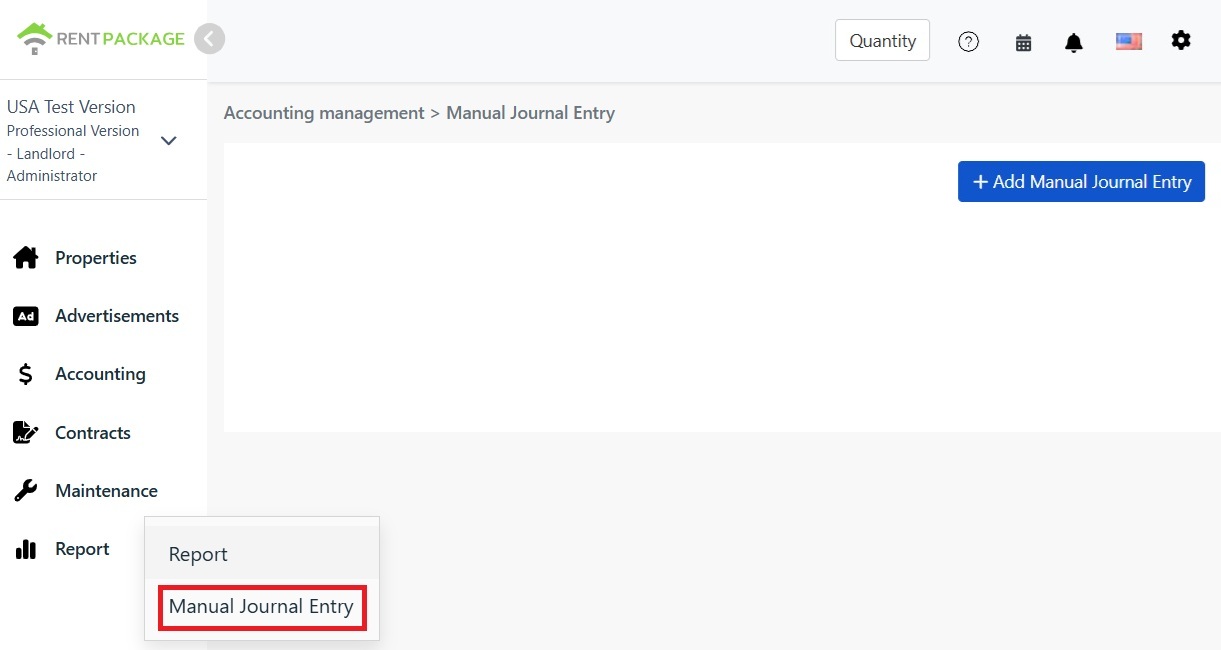
- עבור אל 'דוח → רשומת יומן ידנית'
- לחץ על "+ הוסף רשומת יומן ידנית"
- בחר את הנכס המתאים
- הזן את הרשומות הבאות:
| חשבון | חובה | זכות |
|---|---|---|
| הוצאות פחת | $10,000 | |
| פחת מצטבר | $10,000 |
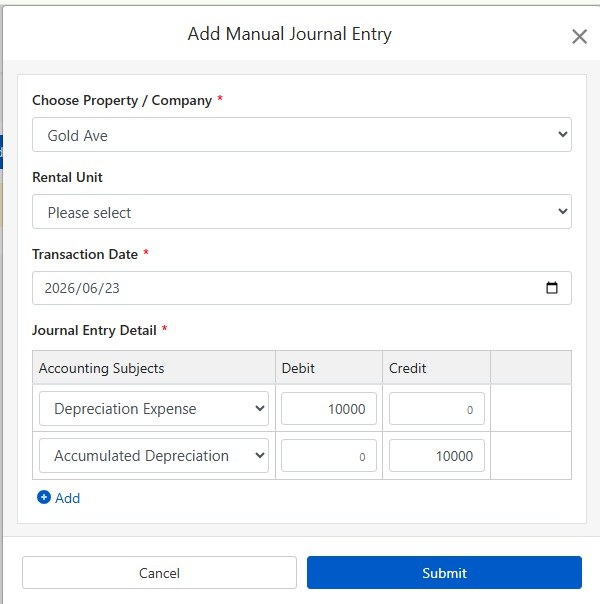
לחץ על "שלח" כדי לשמור את הרשומה. לאחר השלמת הפעולה, בפעם הבאה שהדו"ח Schedule E ייווצר, המערכת תוסיף אוטומטית את סכום הפחת ותציג סמל 🔒 נעול.
כיצד לחשב פחת?
נכסי השכרה למגורים בארה"ב משתמשים בשיטת הקו הישר, עם פחת של 27.5 שנים.
נוסחה:
דוגמה:
- מחיר רכישה: $300,000
- ערך הקרקע: $50,000 (קרקע אינה ניתנת לפחת)
- סכום לפחת: $300,000 - $50,000 = $250,000
- פחת שנתי: $250,000 ÷ 27.5 = $9,091
ערך הקרקע בדרך כלל נמצא בחשבון הארנונה או בדוח שמאות. במקרה של ספק, פנה לרואה החשבון שלך.
ערוך את מסנני החיפוש
במידה וצריך לשנות את הנכס או שנת המס לאחר יצירת הדוח, לחץ על כפתור 'שנה מסננים' בראש הדוח כדי לחזור לדף ההגדרות.
טבלת התאמה לסיווג הוצאות ב-Schedule E
| מספר סידורי של IRS | סיווג | תיאור |
|---|---|---|
| Line 3 | Rents Received | סך כל הכנסות השכירות שנגבו |
| Line 4 | Royalties Received | הכנסות תמלוגים |
| Line 5 | Advertising | הוצאות פרסום ושיווק |
| Line 6 | Auto and Travel | הוצאות רכב ונסיעות |
| Line 7 | Cleaning and Maintenance | הוצאות ניקיון ותחזוקה |
| Line 8 | Commissions | עמלות סוכן או מתווך |
| Line 9 | Insurance | עלות ביטוח נכס |
| Line 10 | Legal and Professional Fees | הוצאות עורכי דין, רואי חשבון ושירותים מקצועיים |
| Line 11 | Management Fees | דמי ניהול נכס |
| Line 12 | Mortgage Interest | ריבית משכנתא לבנק |
| Line 13 | Other Interest | הוצאות ריבית אחרות |
| Line 14 | Repairs | הוצאות תיקונים ותחזוקה |
| Line 15 | Supplies | ציוד וחומרים מתכלים |
| Line 16 | Taxes | מס רכוש ומסים אחרים |
| Line 17 | Utilities | חשבונות מים, חשמל וגז |
| Line 18 | Depreciation | הוצאות פחת |
| Line 19 | Other | הוצאות ניכוי אחרות |
שאלות נפוצות
למה אפשר לבחור רק 3 נכסים?
זו הגבלה של טופס IRS Schedule E. כל טופס מכיל רק עמודות A, B ו-C ומאפשר עד 3 נכסים. אם יש לך יותר נכסים, צור דוחות נוספים בנפרד.
שדה הפחת מציג סמל נעילה ואינו ניתן לעריכה, מה לעשות?
סמל הנעילה מציין שהסכום מגיע מרישום יומן. לשינויים, עבור ל'דוח → רשומת יומן ידנית' כדי לערוך את רישום הפחת המקורי.
האם הפחת שנכנס בעמוד הדו"ח יירשם לחשבונות?
לא. סכום הפחת שנכנס בעמוד הדו"ח משמש רק להפקת הדו"ח הזה. לרישום קבוע, השתמש בפונקציית רישום ידני.
איך מסווגות הוצאות בדו"ח?
המערכת תסווג הוצאות אוטומטית לפי סיווג Schedule E שהגדרת בחשבונאות. וודא שהחשבונות שלך מתאימים נכון לסיווג Schedule E.
האם הדו"ח הזה ניתן לשימוש ישיר לדיווח מס?
הדו"ח הזה לעיון בלבד, מרכז הכנסות והוצאות שנרשמו ב-RentPackage. לדיווח מס, העתק ל-IRS טפסים רשמיים או ספק לרואה החשבון שלך. מומלץ לייעץ עם מומחה מס לפני הגשה.
לסיכום
אם תמשיכו כמו היום, לפני עונת המס הבאה תחפשו שוב קבלות ורישומי שכר דירה של שנה שלמה ותחלקו אותם שורה אחר שורה ב-Schedule E. כשהרישום מתנהל ב-RentPackage והחשבונות משויכים לשורות Schedule E, בכל שנה בוחרים רק שנת מס ונכסים ומפיקים את הדוח לרואה החשבון.
התחילו בנכס אחד בארה״ב: בחרו את שנת המס הנוכחית, הפיקו Schedule E פעם אחת ובדקו לאילו שורות נכנסות ההכנסות וההוצאות שלכם.
נסו את RentPackage בחינםמאמרים קשורים
- RentPackage רשומת יומן ידנית: תיקונים, ביטוח, פחת – גם הכנסות והוצאות מחוץ לתקופות החיוב של הדייר נרשמות בספרים:רשמו פחת, מס רכוש ופריטים אחרים מחוץ לתקופות החיוב כרשומות יומן, ו-Schedule E יכלול גם אותם.
- RentPackage דוח רווח והפסד: הכנסות והוצאות שכירות לכל נכס ובעלים, עם חישוב אוטומטי של הרווחים:ראו בכל רגע כמה מרוויח כל נכס וכל בעלים, בלי לחכות לעונת המס.
- כיצד ליצור ספר ראשי ב-RentPackage, סיכום אוטומטי של דמי שכירות וחשבונות נכסים:רוצים לדעת מאיפה הגיע סכום בשורה של Schedule E? בפנקס החשבונות הכללי רואים את הרישומים של כל חשבון אחד אחד.