
RentPackage에서 미국 임대 소득 세금 보고서(Schedule E) 사용 방법
빠른 링크
1. Schedule E란 무엇인가?
Schedule E는 미국 국세청(IRS)이 임대 소득과 비용을 신고하기 위해 사용하는 세금 양식입니다. 이는 개인 소득세 신고서(Form 1040)의 첨부 서류입니다. 미국에서 임대 부동산을 소유하고 있다면, 매년 이 양식을 작성하여 임대 소득과 관련 비용을 신고해야 합니다.
RentPackage는 Schedule E 보고서 기능을 제공하여, 임대 수입과 비용을 자동으로 총계산하여 세금 준비를 더 쉽고 효율적으로 만듭니다.
2. 사용 방법
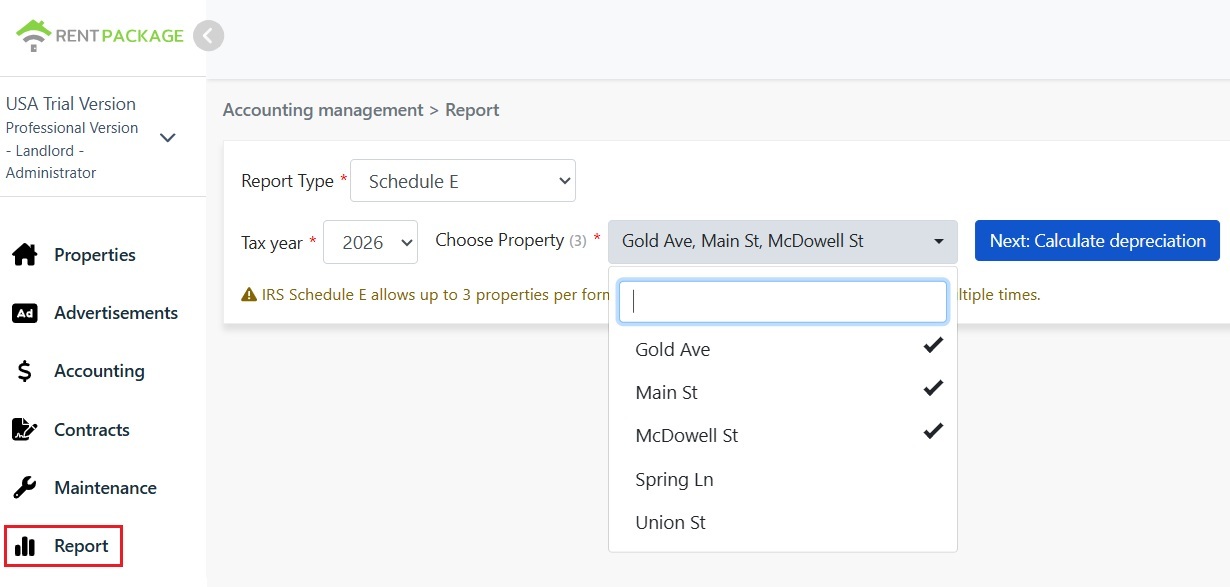
- 보고서 열기: 왼쪽 메뉴에서 '보고서' 선택 → 보고서 유형 드롭다운에서 'Schedule E' 선택
- 세금 연도 선택: 과거 10년 내의 연도 선택 가능
- 자산 선택(최대 3개): IRS 규정에 따라 보고서당 최대 3개의 자산만 포함 가능
- '다음 단계: 감가상각 계산' 클릭: 시스템이 감가상각 설정 화면을 표시합니다.
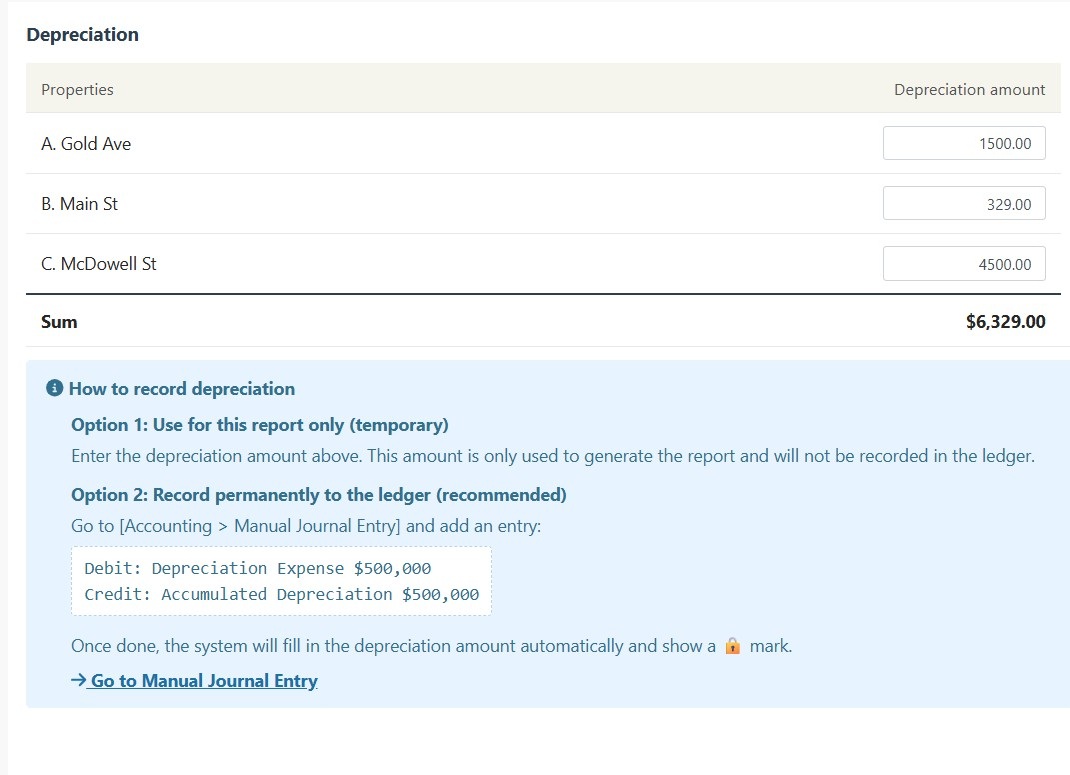
선택한 자산의 감가상각 정보를 시스템이 표시합니다.
상황 A: 감가상각이 분개에 기록됨
해당 자산의 감가상각이 '수동 분개'에 이미 기록된 경우, 시스템은 금액을 자동으로 표시하고 🔒 잠금 아이콘을 추가합니다. 이 필드는 읽기 전용이며 수정할 수 없습니다. 변경하려면 '회계 관리 → 수동 분개'로 이동하여 원래 분개를 편집하세요.
상황 B: 감가상각 기록 없음
해당 자산에 감가상각 기록이 없으면 시스템은 편집 가능한 입력 필드를 표시합니다. 회계사가 제공한 감가상각 금액을 직접 입력할 수 있습니다.
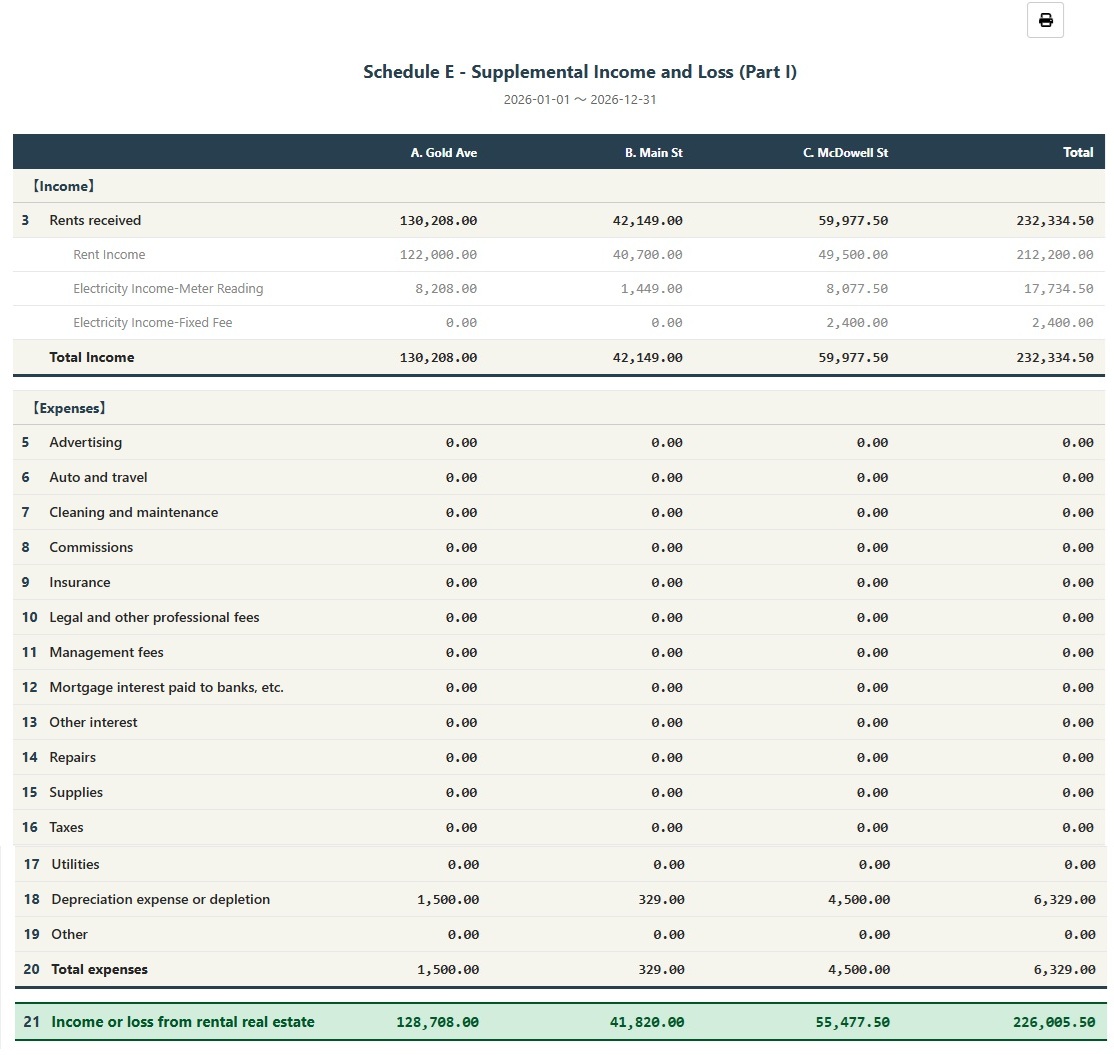
- 모든 정보가 정확한지 확인한 후 'Schedule E 생성'을 클릭하세요.
- 시스템은 Schedule E 보고서를 생성하여 각 자산의 임대 수입(Line 3), 각 항목별 비용(Lines 5-19), 감가상각(Line 18) 및 순이익 또는 손실(Line 21)을 표시합니다.
- 보고서를 인쇄하거나 PDF로 내보내어 세금 신고 준비를 위한 참고 자료로 사용할 수 있습니다.
3. 감가상각을 영구 기록하는 방법?
감가상각 금액을 회계에 영구적으로 기록하려면 다음 단계를 따르세요:
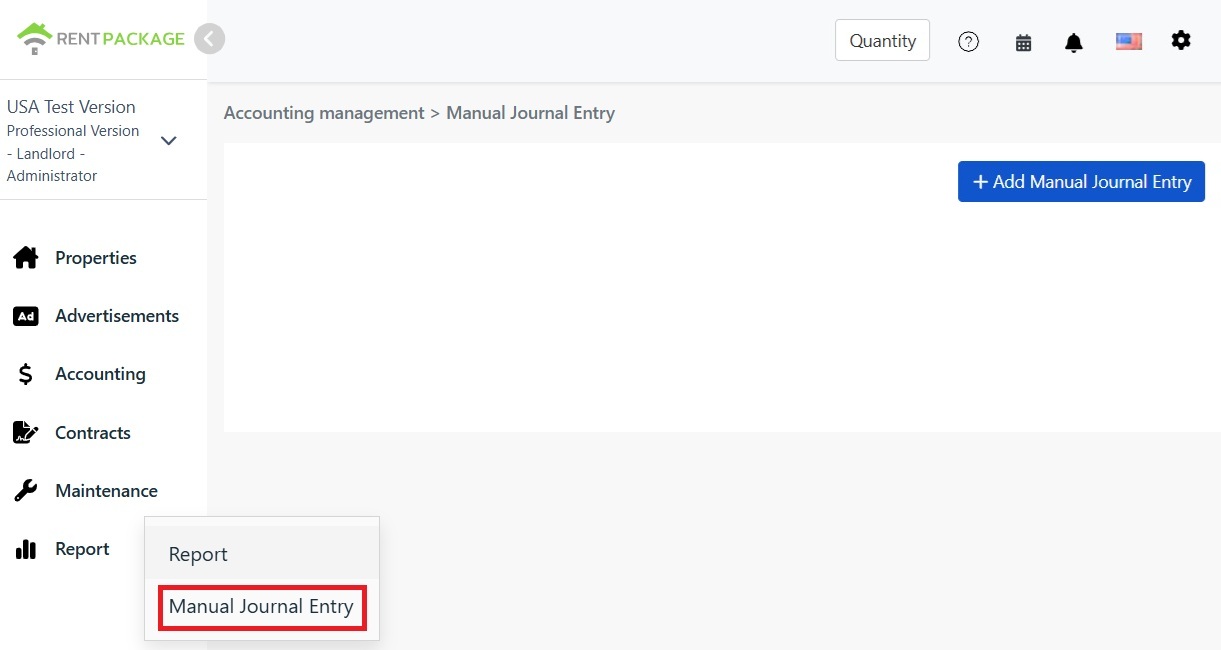
- 보고서 → 수동 분개로 이동
- "+ 수동 분개 추가" 클릭
- 해당 객체 선택
- 다음 분개 입력:
| 계정 | 차변 | 대변 |
|---|---|---|
| 감가상각비 | $10,000 | |
| 누계 감가상각 | $10,000 |
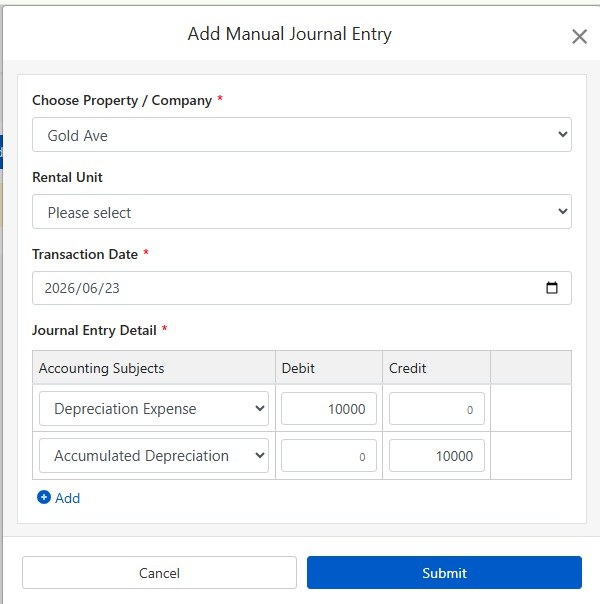
"제출"을 클릭하여 분개를 저장합니다. 완료 후, 시스템은 다음 Schedule E 보고서 생성 시 이 감가상각 금액을 자동 반영하고 🔒 잠금 아이콘을 표시합니다.
4. 감가상각 계산 방법?
미국 주택 임대 자산은 27.5년간 직선법으로 감가상각됩니다.
공식:
예시:
- 구매 가격: $300,000
- 토지 가치: $50,000(토지는 감가상각 불가)
- 감가상각 가능 금액: $300,000 - $50,000 = $250,000
- 연간 감가상각: $250,000 ÷ 27.5 = $9,091
토지 가치는 보통 주택세 고지서나 평가 보고서에서 확인할 수 있습니다. 문의 사항이 있으면 회계사에게 상담하십시오.
5. 필터 조건 수정
보고서 생성 후 자산이나 세무 연도를 변경해야 한다면, 보고서 상단의 '필터 수정' 버튼을 클릭하여 설정 페이지로 돌아가십시오.
6. 자주 묻는 질문
왜 최대 3개의 자산만 선택할 수 있나요?
이는 IRS Schedule E 양식의 제한 사항입니다. 각 양식에는 A, B, C 세 개의 열만 있으며, 최대 3개의 자산만 포함할 수 있습니다. 더 많은 자산이 있는 경우 여러 개의 보고서를 개별적으로 생성하십시오.
감가상각 필드에 자물쇠 아이콘이 표시되어 편집이 불가할 때 어떻게 해야 하나요?
잠금 아이콘은 금액이 전표 기록에서 온 것을 의미합니다. 수정하려면 '회계 관리 → 수기 전표'에서 원래의 감가상각 전표를 편집하세요.
보고서 페이지에 입력한 감가상각이 회계에 기록되나요?
아니요. 보고서 페이지에 입력한 감가상각 금액은 해당 보고서를 생성하는 데만 사용됩니다. 영구적으로 기록하려면 수기 전표 기능을 사용하세요.
보고서 내 비용은 어떻게 분류되나요?
시스템은 설정한 Schedule E 분류에 따라 비용을 자동으로 분류합니다. 계정이 올바르게 대응되는지 확인하세요.
이 보고서를 세금 신고에 직접 사용할 수 있나요?
이 보고서는 RentPackage에 기록된 수입 및 지출을 요약한 참고용 자료입니다. 세금 신고 시 IRS 공식 양식에 데이터를 입력하거나 회계사에게 제공하세요. 제출 전 세무 전문가와 상담하시기를 권장합니다.
7. Schedule E 비용 분류표
| IRS 코드 | 카테고리 | 설명 |
|---|---|---|
| Line 3 | Rents Received | 수취한 임대 수입 총액 |
| Line 4 | Royalties Received | 로열티 수입 |
| Line 5 | Advertising | 광고 및 마케팅 비용 |
| Line 6 | Auto and Travel | 차량 및 출장 비용 |
| Line 7 | Cleaning and Maintenance | 청소 및 유지 보수 비용 |
| Line 8 | Commissions | 중개 수수료 |
| Line 9 | Insurance | 부동산 보험료 |
| Line 10 | Legal and Professional Fees | 법률, 회계 및 전문 서비스 비용 |
| Line 11 | Management Fees | 부동산 관리비 |
| Line 12 | Mortgage Interest | 은행 대출 이자 |
| Line 13 | Other Interest | 기타 이자 비용 |
| Line 14 | Repairs | 수리 및 유지 보수 비용 |
| Line 15 | Supplies | 소모품 및 자재 |
| Line 16 | Taxes | 재산세 및 기타 세금 |
| Line 17 | Utilities | 전기, 화재, 수도 등 공공요금 |
| Line 18 | Depreciation | 감가상각 비용 |
| Line 19 | Other | 기타 공제 가능 비용 |