
RentPackage Schedule E untuk pemilik sewa di AS: pendapatan dan biaya sewa otomatis dikelompokkan ke setiap baris formulir
Daftar Isi
Mengapa membuat Schedule E dengan RentPackage
Setiap menjelang pelaporan pajak, pemilik sewa mencari catatan sewa setahun penuh dan pengeluaran seperti perbaikan, asuransi, dan biaya pengelolaan, lalu membaginya satu per satu ke baris-baris Schedule E. Jika propertinya banyak, mudah ada yang terlewat atau masuk ke baris yang salah, dan semuanya harus dicocokkan lagi sebelum diserahkan ke akuntan.
- Pembukuan harian langsung menjadi laporan
Sewa yang diterima pada periode tagihan dan pengeluaran yang Anda tambahkan dikelompokkan sesuai baris Schedule E pada setiap akun. Pilih tahun pajak dan properti untuk membuat laporan, tanpa perlu menyiapkan spreadsheet terpisah. - Setiap properti di kolomnya sendiri
Laporan menampilkan pendapatan sewa, setiap biaya, penyusutan, serta laba atau rugi bersih setiap properti di kolom A, B, dan C Schedule E, dan bisa langsung dicetak untuk akuntan. - Catat penyusutan sekali, selanjutnya otomatis masuk
Setelah penyusutan dicatat sebagai jurnal entri manual, sistem otomatis memasukkannya dengan tanda 🔒 saat Anda membuat laporan berikutnya. Anda juga bisa memasukkan jumlah dari akuntan hanya untuk laporan ini.
Apa itu Schedule E?
Schedule E adalah formulir pajak yang digunakan oleh IRS AS untuk melaporkan pendapatan sewa dan biaya. Ini adalah salah satu lampiran dari pengembalian pajak penghasilan individu (Formulir 1040). Jika Anda memiliki properti persewaan di AS, Anda perlu mengisi formulir ini setiap tahun untuk melaporkan pendapatan sewa dan biaya terkait.
Cara Menggunakan
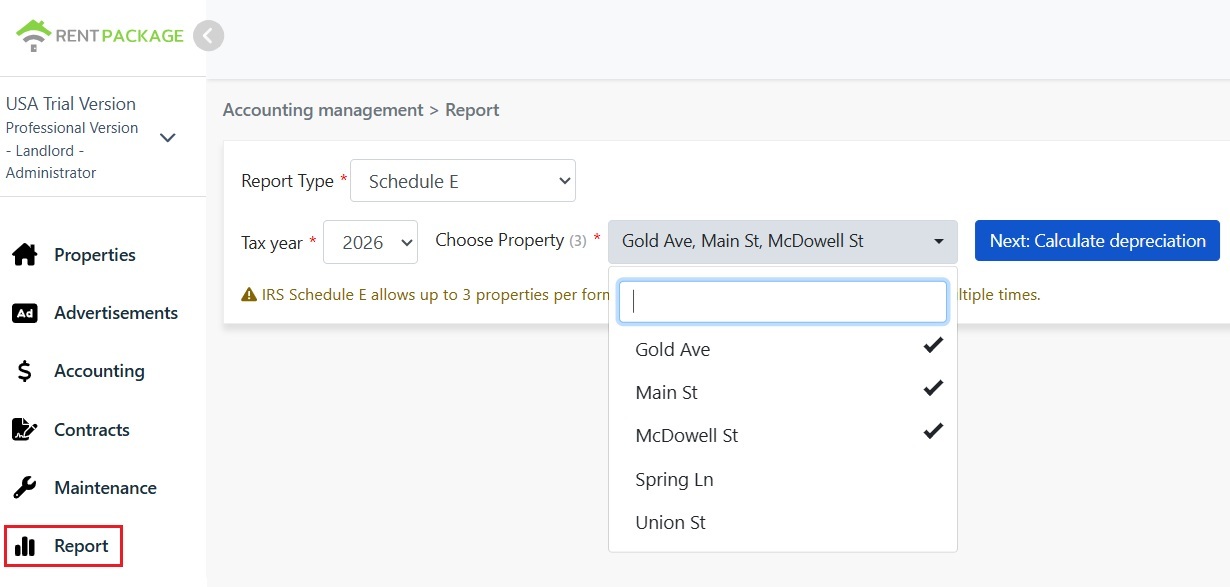
Langkah 1: Pilih tahun pajak dan properti
- Buka laporan: Klik 'Laporan' di menu sebelah kiri → 'Laporan Pajak'
- Tahun pajak: Dapat memilih tahun dalam 10 tahun terakhir
- Pilih Properti: Setiap laporan dapat mencakup maksimal 3 properti sesuai aturan IRS
- Klik 'Berikutnya: Hitung Penyusutan': Sistem akan menampilkan layar pengaturan penyusutan
Langkah 2: Hitung penyusutan
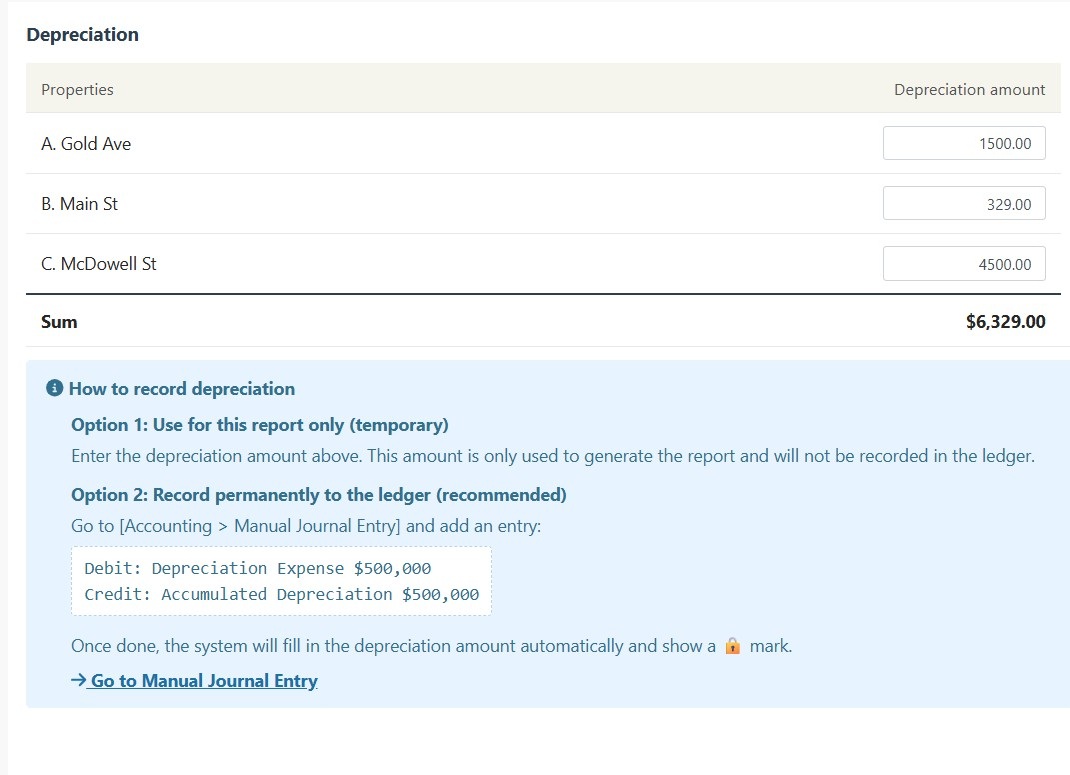
Sistem akan menampilkan informasi penyusutan untuk properti yang dipilih:
Skenario A: Penyusutan telah dicatat dalam jurnal
Jika penyusutan untuk properti ini telah dicatat dalam "Jurnal Manual", sistem akan menampilkan jumlahnya secara otomatis dan menunjukkan ikon 🔒 terkunci. Kolom ini hanya baca dan tidak dapat dimodifikasi. Untuk mengubah, silakan edit entri asli di "Laporan → Jurnal entri manual".
Skenario B: Belum ada catatan penyusutan
Jika belum ada catatan penyusutan untuk properti ini, sistem akan menampilkan kolom input yang bisa diedit. Anda dapat memasukkan jumlah penyusutan yang diberikan oleh akuntan.
Langkah 3: Buat laporan
- Setelah memastikan semua informasi benar, klik "Buat laporan"
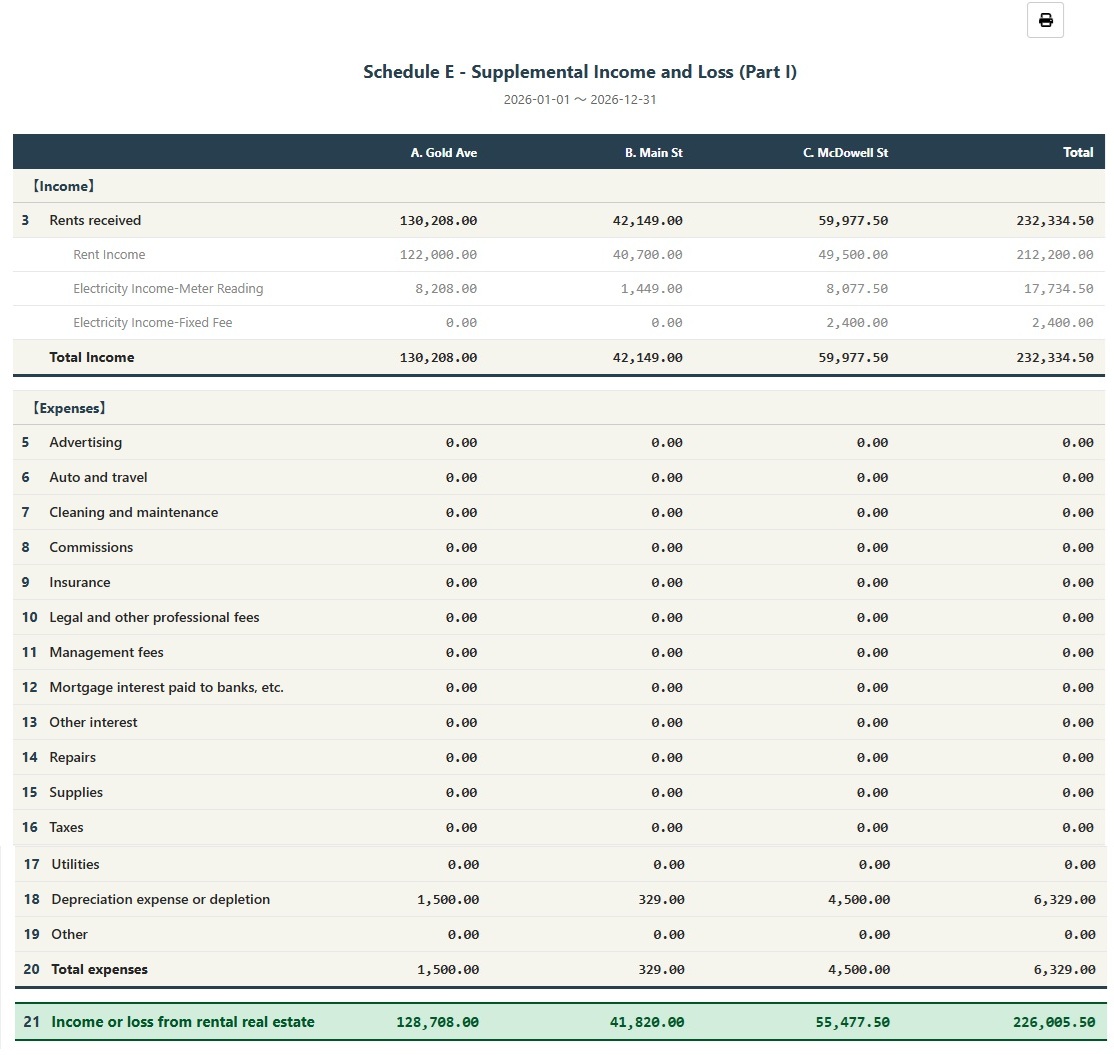
- Sistem akan membuat laporan Schedule E, menampilkan pendapatan sewa per properti (Baris 3), biaya-biaya terperinci (Baris 5-19), penyusutan (Baris 18), dan laba atau rugi bersih (Baris 21)
- Anda dapat mencetak laporan atau mengekspornya sebagai PDF untuk referensi persiapan pajak
Bagaimana mencatat penyusutan secara permanen?
Jika Anda ingin mencatat penyusutan secara permanen di akuntansi, ikuti langkah berikut:
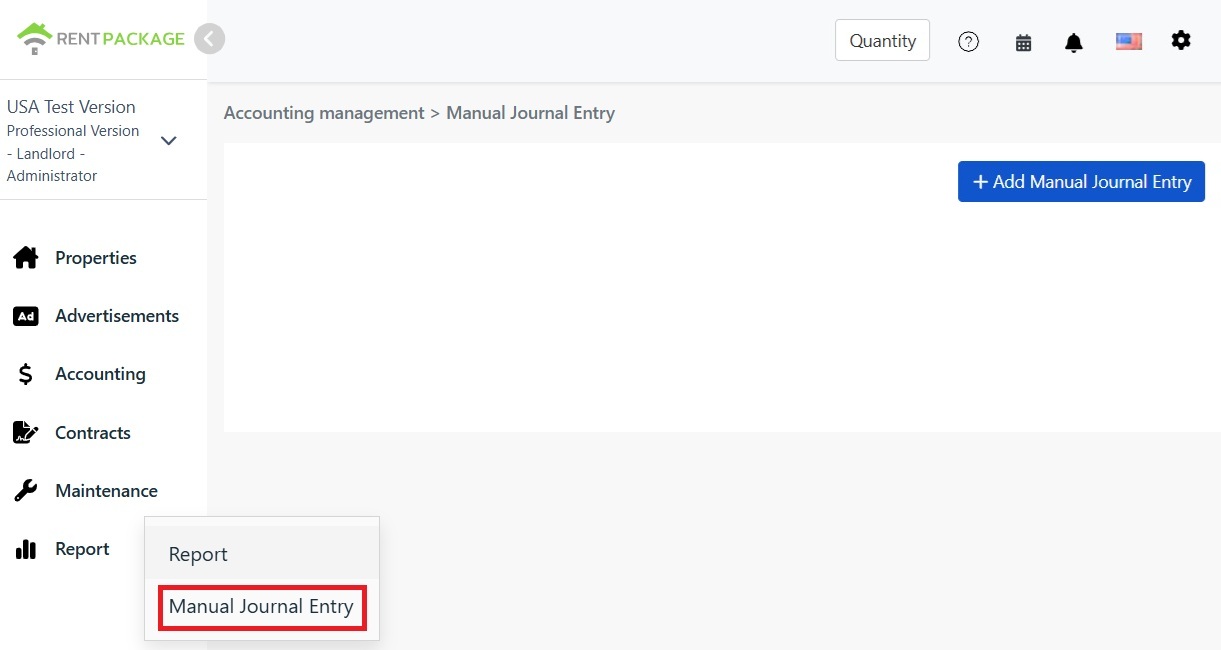
- Pergi ke "Laporan → Jurnal entri manual"
- Klik '+ Tambah jurnal entri manual'
- Pilih properti yang sesuai
- Masukkan jurnal berikut:
| Akun | Debit | Kredit |
|---|---|---|
| Biaya Penyusutan | $10,000 | |
| Akumulasi Penyusutan | $10,000 |
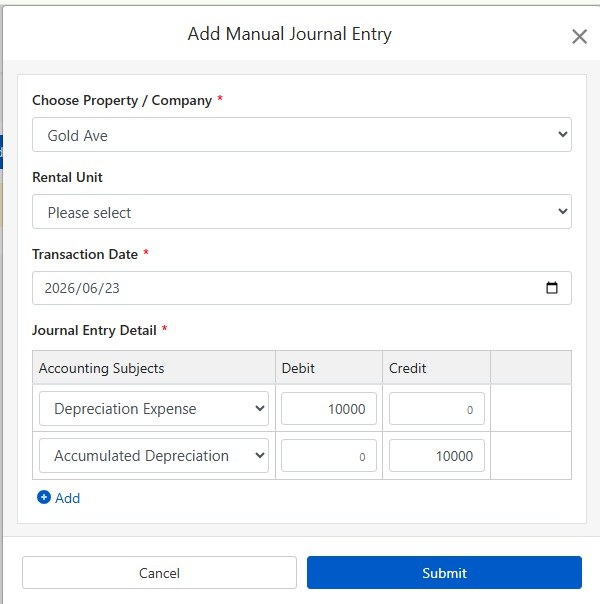
Klik 'Kirim' untuk menyimpan jurnal. Setelah selesai, saat berikutnya membuat laporan Schedule E, sistem akan otomatis memasukkan jumlah penyusutan ini dan menampilkan ikon 🔒 dikunci.
Bagaimana menghitung penyusutan?
Properti sewa residensial di AS menggunakan metode garis lurus, dengan penyusutan selama 27,5 tahun.
Rumus:
Contoh:
- Harga Pembelian: $300,000
- Nilai Tanah: $50,000 (Tanah tidak dapat disusutkan)
- Jumlah yang Dapat Disusutkan: $300,000 - $50,000 = $250,000
- Penyusutan Tahunan: $250,000 ÷ 27,5 = $9,091
Nilai tanah biasanya dapat ditemukan di tagihan pajak properti atau laporan penilaian. Jika ragu, konsultasikan dengan akuntan Anda.
Mengubah kriteria filter
Jika perlu mengubah properti atau tahun pajak setelah menghasilkan laporan, klik tombol "Ubah Filter" di atas laporan untuk kembali ke halaman pengaturan.
Tabel perbandingan kategori biaya Schedule E
| Nomor IRS | Klasifikasi | Deskripsi |
|---|---|---|
| Line 3 | Rents Received | Total pendapatan sewa yang dikumpulkan |
| Line 4 | Royalties Received | Pendapatan royalti |
| Line 5 | Advertising | Biaya Iklan dan Pemasaran |
| Line 6 | Auto and Travel | Biaya Kendaraan dan Perjalanan |
| Line 7 | Cleaning and Maintenance | Biaya Kebersihan dan Pemeliharaan |
| Line 8 | Commissions | Komisi Agen atau Broker |
| Line 9 | Insurance | Biaya Asuransi Properti |
| Line 10 | Legal and Professional Fees | Biaya Layanan Hukum, Akuntansi, dan Profesional |
| Line 11 | Management Fees | Biaya Pengelolaan Properti |
| Line 12 | Mortgage Interest | Bunga Hipotek Dibayar ke Bank |
| Line 13 | Other Interest | Biaya Bunga Lainnya |
| Line 14 | Repairs | Biaya Perbaikan dan Pemeliharaan |
| Line 15 | Supplies | Perlengkapan dan Bahan |
| Line 16 | Taxes | Pajak Properti dan Pajak Lainnya |
| Line 17 | Utilities | Biaya utilitas seperti listrik, air, gas, dll. |
| Line 18 | Depreciation | Biaya penyusutan |
| Line 19 | Other | Biaya lain yang dapat dikurangkan |
FAQ
Mengapa hanya bisa memilih 3 properti?
Ini adalah batasan pada formulir IRS Schedule E. Setiap formulir hanya memiliki kolom A, B, dan C yang dapat memuat maksimal 3 properti. Jika Anda memiliki lebih banyak properti, silakan buat laporan terpisah.
Kolom penyusutan menampilkan ikon kunci dan tidak dapat diedit, apa yang harus dilakukan?
Ikon kunci berarti jumlah berasal dari entri jurnal. Untuk mengubahnya, silakan edit jurnal penyusutan asli di 'Laporan → Jurnal entri manual'.
Apakah penyusutan yang dimasukkan pada halaman laporan akan tercatat di pembukuan?
Tidak. Jumlah penyusutan yang dimasukkan pada halaman laporan hanya digunakan untuk menghasilkan laporan tersebut. Untuk pencatatan permanen, gunakan fitur Jurnal Manual.
Bagaimana biaya dikategorikan dalam laporan?
Sistem secara otomatis mengkategorikan biaya berdasarkan klasifikasi Schedule E yang Anda atur di akun. Pastikan akun Anda dihubungkan dengan benar ke klasifikasi Schedule E yang sesuai.
Apakah laporan ini dapat langsung digunakan untuk pelaporan pajak?
Laporan ini hanya untuk referensi, merangkum pendapatan dan biaya yang tercatat di RentPackage. Untuk pelaporan pajak, silakan transfer data ke formulir resmi IRS atau berikan kepada akuntan Anda. Disarankan untuk berkonsultasi dengan profesional pajak sebelum mengajukan.
Ringkasan
Jika tetap seperti sekarang, menjelang pelaporan berikutnya Anda harus kembali mencari kuitansi dan catatan sewa setahun lalu membaginya baris demi baris ke Schedule E. Setelah pembukuan ada di RentPackage dan akun-akun sudah dipetakan ke baris Schedule E, setiap tahun cukup pilih tahun pajak dan properti untuk membuat laporan bagi akuntan.
Mulailah dengan satu properti di AS: pilih tahun pajak tahun ini, buat Schedule E sekali, dan lihat pendapatan serta biaya Anda masuk ke baris mana saja.
Coba RentPackage gratisArtikel terkait
- RentPackage Jurnal entri manual: perbaikan, asuransi, penyusutan — pemasukan dan pengeluaran di luar periode tagihan penyewa juga bisa dicatat:Catat penyusutan, pajak properti, dan pos lain di luar periode tagihan sebagai jurnal, dan Schedule E juga akan memasukkannya.
- RentPackage Laporan Laba Rugi: pendapatan dan pengeluaran sewa per properti dan per pemilik, laba dihitung otomatis:Lihat kapan saja berapa keuntungan setiap properti dan setiap pemilik, tanpa menunggu musim pajak.
- Cara membuat Buku Besar Umum di RentPackage yang otomatis merangkum sewa dan pembukuan properti:Ingin tahu dari mana jumlah di suatu baris Schedule E? Lihat rincian setiap akun satu per satu di buku besar umum.