📄 操作介面概覽:五分鐘了解主介面,掌握各項操作位置 📄 如何在 RentPackage 使用房源總覽快速掌握整棟樓宇狀態 📄 新增代管物業:從建立物件、業主、開帳到線上簽約,一次完成 📄 房客搬入與簽約:租期、押金、水電雜費一次設定,帳期自動產生 📄 房客帳期操作:收款核銷、部分付款、抄表及押金,日常收租都在這一頁 📄 業主結轉功能說明 📄 出租自訂通知:繳租提醒、租約到期,系統在適當時間發送給正確的人 📄 如何在 RentPackage 用預估收款快速預估下個月與全年的租金收入 📄 合規協助與責任說明 📄 合約範本功能說明 📄 二房東功能說明 📄 部份付款功能說明 📄 預收帳款功能說明 📄 租金帳期功能說明 📄 開帳功能說明 📄 週期性帳期功能說明 📄 預定功能介紹 📄 電子合約設定教學 📄 代管公司的管理費設定教學 📄 為什麼押金和預收帳款在會計上屬於負債科目? 📄 RentPackage 通用版介紹 📄 佣金拆分設定教學 📄 為什麼每個房東與房仲都需要一套租戶管理自動化軟體? 📄 租金以歐元定價時,如何正確處理匯率? 📄 美國報稅申報 - Schedule E 報表說明 📄 英國報稅申報 - SA105 報表說明 📄 如何在 RentPackage 開通 Stripe 線上收租 📄 如何使用行事曆排程通知房客:以停電通知為例 📄 如何設定仲介公司LOGO,使Email通知與合約PDF展現您的品牌 📄 什麼是租金保險?補償租金損失,保單隨租約管理 📄 如何在 RentPackage 使用德國租金所得稅報表(Anlage V) 📄 T776 加拿大出租所得稅報告使用者指南 📄 PIT-28 波蘭出租所得稅報告使用指南 📄 如何在 RentPackage 生成澳洲租賃報稅表(Rental Schedule),收支自動對應 ATO 申報分類 📄 如何在 RentPackage 使用羅馬尼亞租金所得稅報表(Declarația Unică 212) 📄 如何在 RentPackage 產生匈牙利 SZJA 出租所得申報數據,一鍵整理 eSZJA 填報數字 📄 損益表:每間物件、每位業主的租金收支,自動算出賺多少 📄 資產負債表:看出多少銀行餘額實為房客的?押金與預收款一目了然 📄 現金流量表:收租這段期間,帳上的現金實際多了多少? 📄 如何在 RentPackage 產生總分類帳,自動彙總租金與物業帳務 📄 手動輸入分錄:修繕、保險、折舊,非帳期內的收支也可入帳 📄 出租自訂通知:繳租提醒、租約到期,系統在適當時間發送給正確的人 📄 為什麼物業管理軟體可以大幅節省時間與成本?

USA Tax Filing - Schedule E Tax Report User Guide from RentPackage

Quick Navigation

What is Schedule E?

Schedule E is an IRS tax form used to report rental income and expenses. It is filed as part of your individual income tax return (Form 1040). If you own rental properties in the United States, you need to complete this form each year to report your rental income and related expenses.

RentPackage provides a Schedule E report feature that automatically summarizes your rental income and expenses, making tax preparation simple and efficient.

How to Use

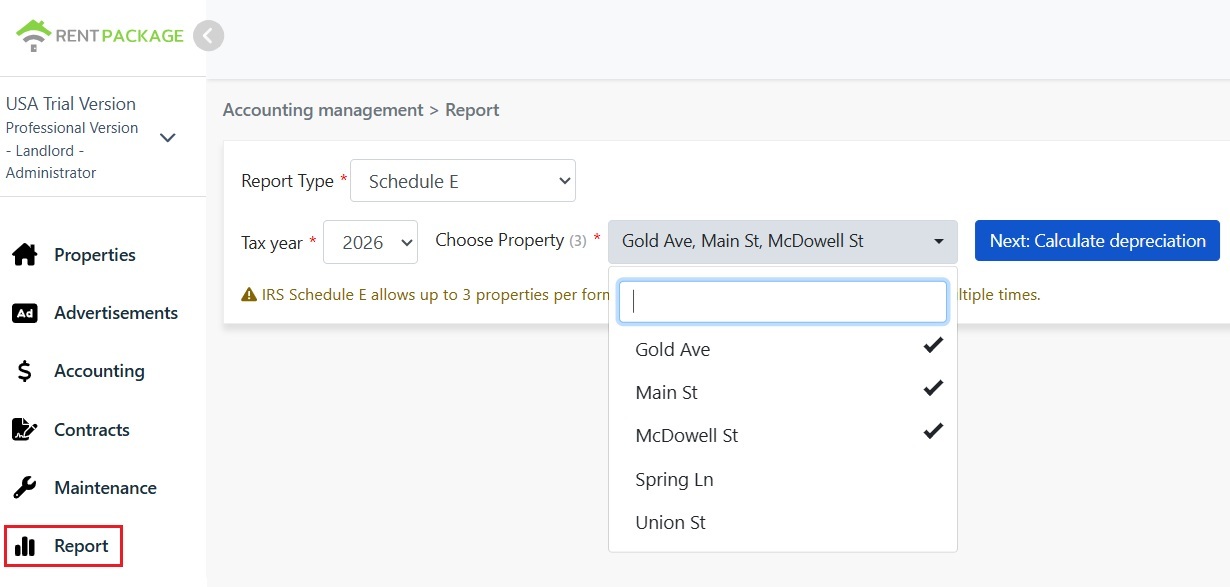
Step 1: Select Report Type and Properties
  • Access the Report: Go to function list → Reports → Select "Schedule E" as the report type
  • Select Tax Year: Choose from the past ten years
  • Select Properties (Maximum 3): Per IRS requirements, each report can include up to 3 properties
  • Click "Next: Calculate Depreciation": The system will display the depreciation settings
Select Schedule E as the report type
⚠️ Note: Per IRS Schedule E form limitations, each report can only include up to 3 properties. If you have more than 3 properties, please generate multiple reports.
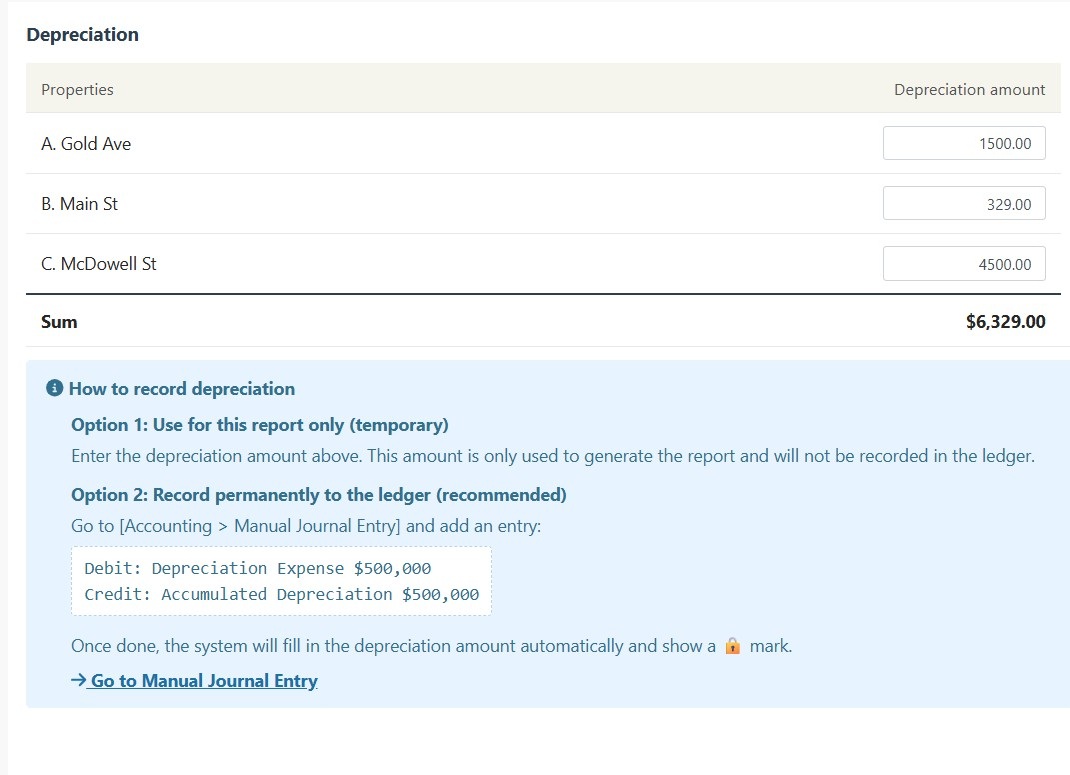
Step 2: Input Depreciation Amounts

The system will display depreciation information for your selected properties:

Scenario A: Depreciation Already Recorded in Journal

If depreciation has already been recorded for a property in "Journal Entries," the system will automatically display the amount with a 🔒 lock icon. This field is read-only and cannot be modified. To make changes, go to "Accounting → Journal Entries" to edit the original entry.

Scenario B: No Depreciation Record

If no depreciation record exists for a property, the system will display an editable input field. You can directly enter the depreciation amount provided by your accountant.

Input Depreciation Amounts of Schedule E
💡 Tip: Depreciation amounts entered here are only used for this report and will not be recorded in your books. For permanent records, please use the Journal Entries feature.
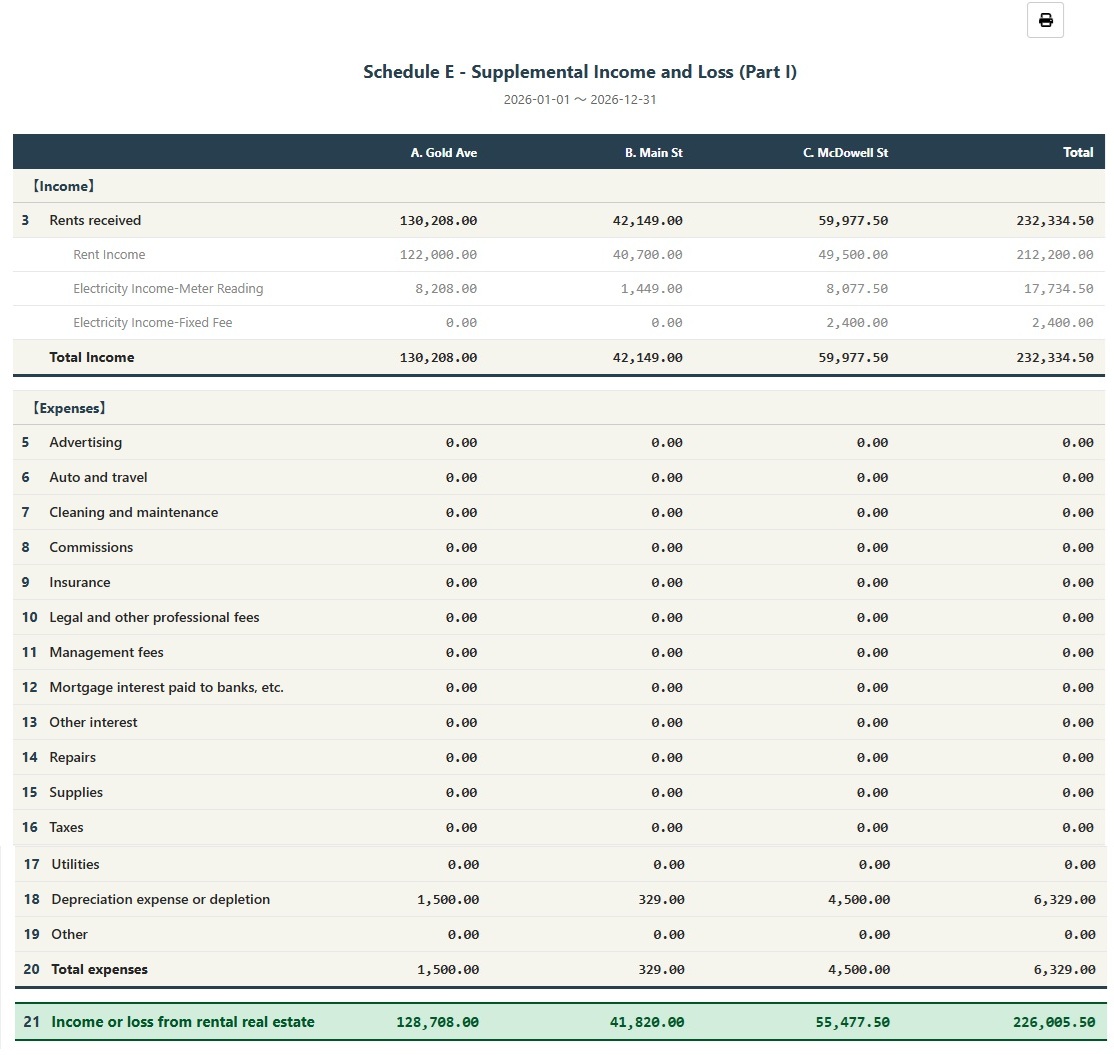
Step 3: Generate Report
  • After confirming all information is correct, click "Generate Schedule E"
  • The system will generate a Schedule E report showing rental income (Line 3), itemized expenses (Lines 5-19), depreciation (Line 18), and net income or loss (Line 21) for each property
  • You can print the report or export it as a PDF for your tax preparation records
Generate Schedule E Report

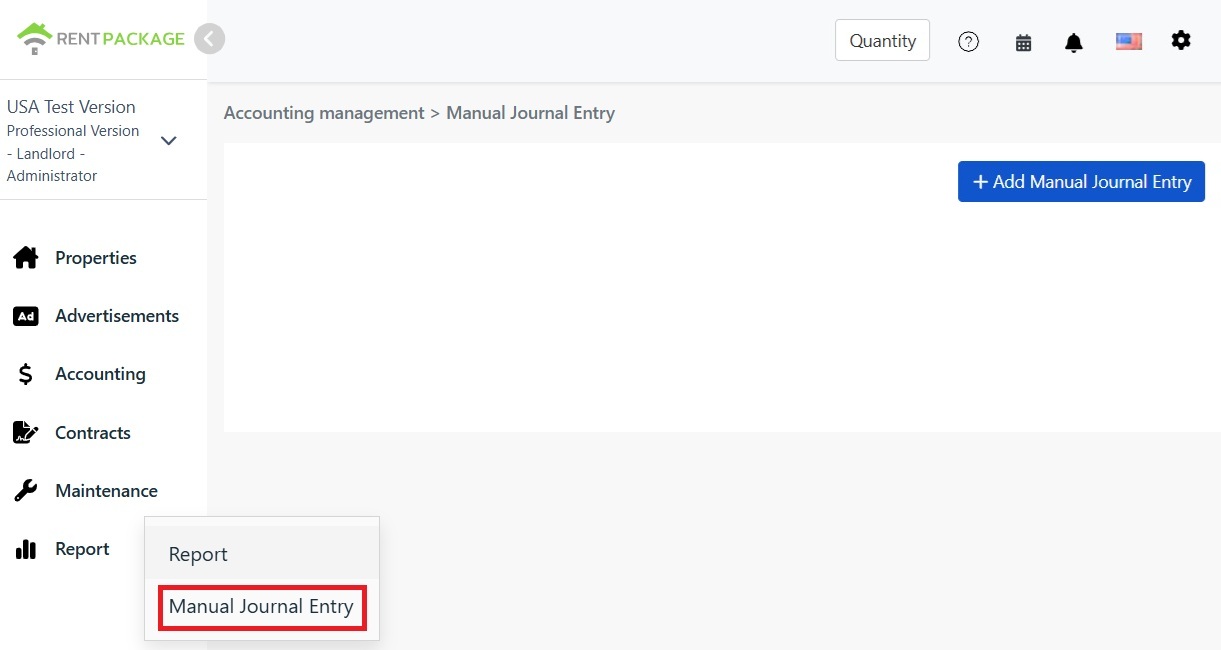
How to Permanently Record Depreciation?

If you want depreciation amounts to be permanently recorded in your books, follow these steps:

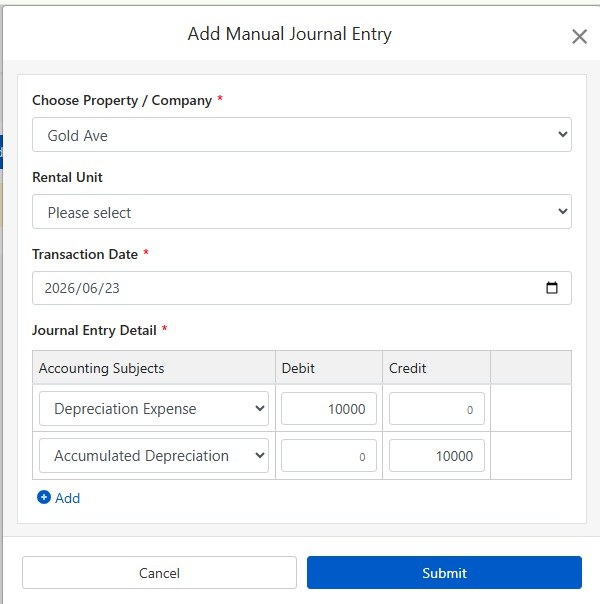
  • Go to "Report → Manual Journal Entry"
  • Click "+ Add Manual Journal Entry"
  • Select the corresponding property
  • Enter the following journal entry:
Go to Report, select the Manual Journal Entry
Account Debit Credit
Depreciation Expense $10,000
Accumulated Depreciation $10,000
Add Manual Journal Entry

Click "Submit" to save the entry. Once completed, the next time you generate a Schedule E report, the system will automatically populate this depreciation amount and display the 🔒 lock icon.

How to Calculate Depreciation?

Residential rental properties in the U.S. are depreciated over 27.5 years using the straight-line method.

Formula:

Annual Depreciation = (Purchase Price - Land Value) ÷ 27.5

Example:

  • Purchase Price: $300,000
  • Land Value: $50,000 (land cannot be depreciated)
  • Depreciable Amount: $300,000 - $50,000 = $250,000
  • Annual Depreciation: $250,000 ÷ 27.5 = $9,091

Land value can typically be found on your property tax statement or appraisal report. If you have questions, please consult your accountant.

Modify Filter Settings

If you need to change properties or tax year after generating a report, click the "Modify Filter Settings" button at the top of the report to return to the settings page.

Frequently Asked Questions

Why can I only select 3 properties?

This is an IRS Schedule E form limitation. Each form only has columns A, B, and C, allowing a maximum of 3 properties. If you have more properties, please generate multiple reports.

The depreciation field shows a lock icon and I can't edit it. What should I do?

The lock icon indicates that the amount comes from a journal entry. To modify it, go to "Accounting → Journal Entries" and edit the original depreciation entry.

Will the depreciation I enter on the report page be recorded in my books?

No. Depreciation amounts entered on the report page are only used for generating that specific report. For permanent records, please use the Journal Entries feature.

How are expenses categorized on the report?

The system automatically categorizes expenses based on the Schedule E classification you set in your Chart of Accounts. Please ensure your accounts are correctly mapped to the appropriate Schedule E categories.

Can I use this report directly for tax filing?

This report is for reference purposes, summarizing the income and expenses recorded in RentPackage. When filing your taxes, please transfer the data to the official IRS form or provide it to your accountant. We recommend consulting a tax professional before submission.

Schedule E Expense Category Reference

IRS Line Category Description
Line 3 Rents Received Total rental income received
Line 4 Royalties Received Royalty income
Line 5 Advertising Advertising and marketing expenses
Line 6 Auto and Travel Vehicle and travel expenses
Line 7 Cleaning and Maintenance Cleaning and maintenance costs
Line 8 Commissions Agent or broker commissions
Line 9 Insurance Property insurance premiums
Line 10 Legal and Professional Fees Attorney, accountant, and professional services
Line 11 Management Fees Property management fees
Line 12 Mortgage Interest Interest paid to banks on mortgages
Line 13 Other Interest Other interest expenses
Line 14 Repairs Repair and maintenance costs
Line 15 Supplies Supplies and materials
Line 16 Taxes Property taxes and other taxes
Line 17 Utilities Water, electricity, gas, etc.
Line 18 Depreciation Depreciation expense
Line 19 Other Other deductible expenses
✅ Start using the Schedule E report feature today and make your rental property tax preparation easier!