
AQSHdagi uy egalari uchun RentPackage Schedule E: ijara daromadlari va xarajatlari shaklning har bir qatoriga avtomatik taqsimlanadi
Mundarija
Nega Schedule E ni RentPackage bilan tayyorlash kerak
Har yili soliq topshirishdan oldin uy egalari butun yillik ijara yozuvlari hamda taʼmirlash, sugʻurta, boshqaruv haqi kabi xarajatlarni qidirib topadi va ularni bittalab Schedule E qatorlariga taqsimlaydi. Mulklar koʻp boʻlsa, biror narsani unutish yoki notoʻgʻri qatorga yozish oson, buxgalterga berishdan oldin esa hammasini yana solishtirish kerak boʻladi.
- Kundalik hisob-kitob toʻgʻridan-toʻgʻri hisobotga aylanadi
Hisob davrlarida olingan ijara toʻlovlari va siz qoʻshgan xarajatlar har bir hisobvaraqning Schedule E qatoriga koʻra tasniflanadi. Soliq yili va mulklarni tanlasangiz, hisobot yaratiladi, alohida Excel jadvali tayyorlash shart emas. - Har bir mulk alohida ustunda
Hisobot Schedule E ning A, B va C ustunlarida har bir mulkning ijara daromadi, har bir xarajati, eskirishi va sof daromadi yoki zararini koʻrsatadi, uni darhol chop etib buxgalterga berish mumkin. - Eskirishni bir marta kiriting, keyin avtomatik qoʻshiladi
Eskirishni qoʻlda jurnal yozuvi sifatida kiritganingizdan soʻng, keyingi safar hisobot yaratilganda tizim uni avtomatik qoʻshadi va 🔒 belgisini koʻrsatadi. Buxgalter bergan summani faqat shu hisobot uchun ham kiritishingiz mumkin.
Schedule E nima?
Schedule E AQSH Ichki daromad xizmati (IRS) tomonidan ijara daromadi va xarajatlarini deklaratsiya qilish uchun qoʻllaniladigan soliq shaklidir. U jismoniy shaxslarning daromad soligʻi deklaratsiyasi (Form 1040) ilovalaridan biri hisoblanadi. Agar AQSHda ijaraga beriladigan mulkingiz boʻlsa, har yili ushbu shaklni toʻldirib, ijara daromadi va tegishli xarajatlar haqida hisobot topshirishingiz kerak.
Qanday foydalaniladi
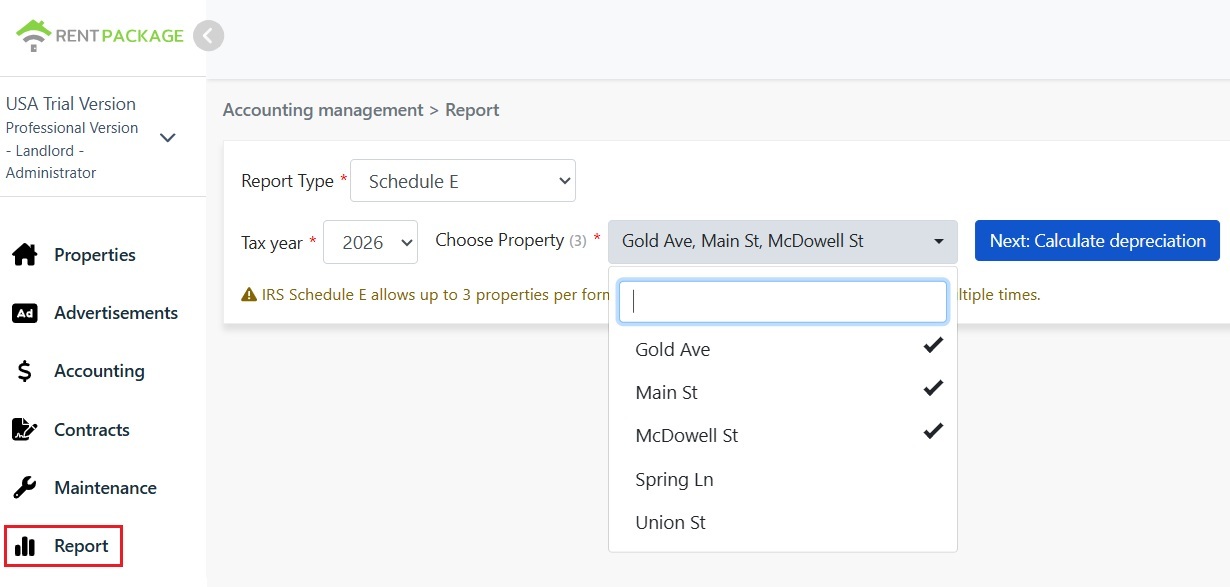
1-qadam: Soliq yili va mulklarni tanlang
- Hisobotni ochish: Chap menyuda 'Hisobot'ni bosing → 'Soliq hisoboti'
- Soliq yili: So'nggi o'n yildagi yillarni tanlash mumkin
- Mulkni tanlash: IRS qoidalariga ko'ra, har bir hisobotda eng ko'pi 3 ta obyekt bo'lishi mumkin
- Keyingi: Eskirishni hisoblashni bosing: Tizim eskirish sozlamalari ekranini ko'rsatadi
2-qadam: Eskirishni hisoblang
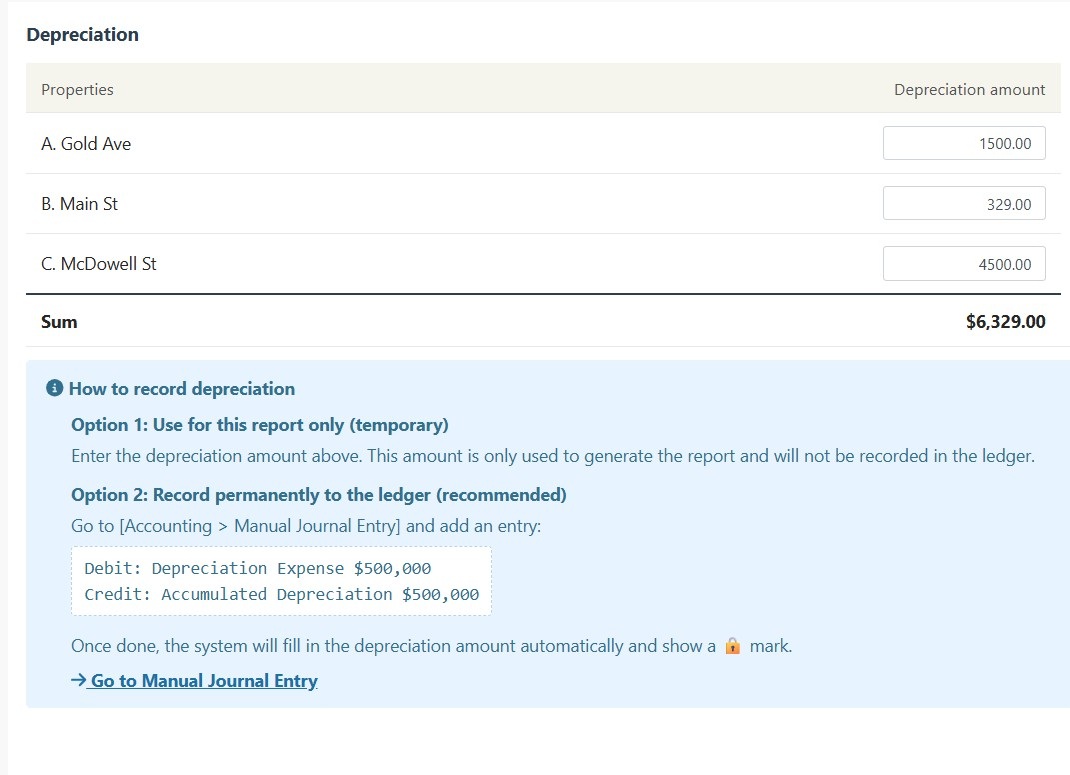
Tizim tanlangan obyektlarning eskirish ma'lumotlarini ko‘rsatadi:
Vaziyat A: Eskirish kirimda qayd etilgan
Agar mulkning eskirishi "Qo'l yozuvlari"da qayd etilgan bo'lsa, tizim avtomatik ravishda miqdorni ko'rsatib, 🔒 qulflangan belgini qo'shadi. Bu maydon faqat o'qiladigan va o'zgartirilmaydi. O'zgartirish uchun "Hisobot → Qoʻlda jurnal yozuvi"ga o'ting va asl yozuvni tahrirlang.
Vaziyat B: Eskirish qayd etilmagan
Agar mulkda eskirish qayd etilmagan bo'lsa, tizim tahrirlanadigan kiritish maydonini ko'rsatadi. Hisobchi tomonidan taqdim etilgan eskirish miqdorini bevosita kiriting.
3-qadam: Hisobot yarating
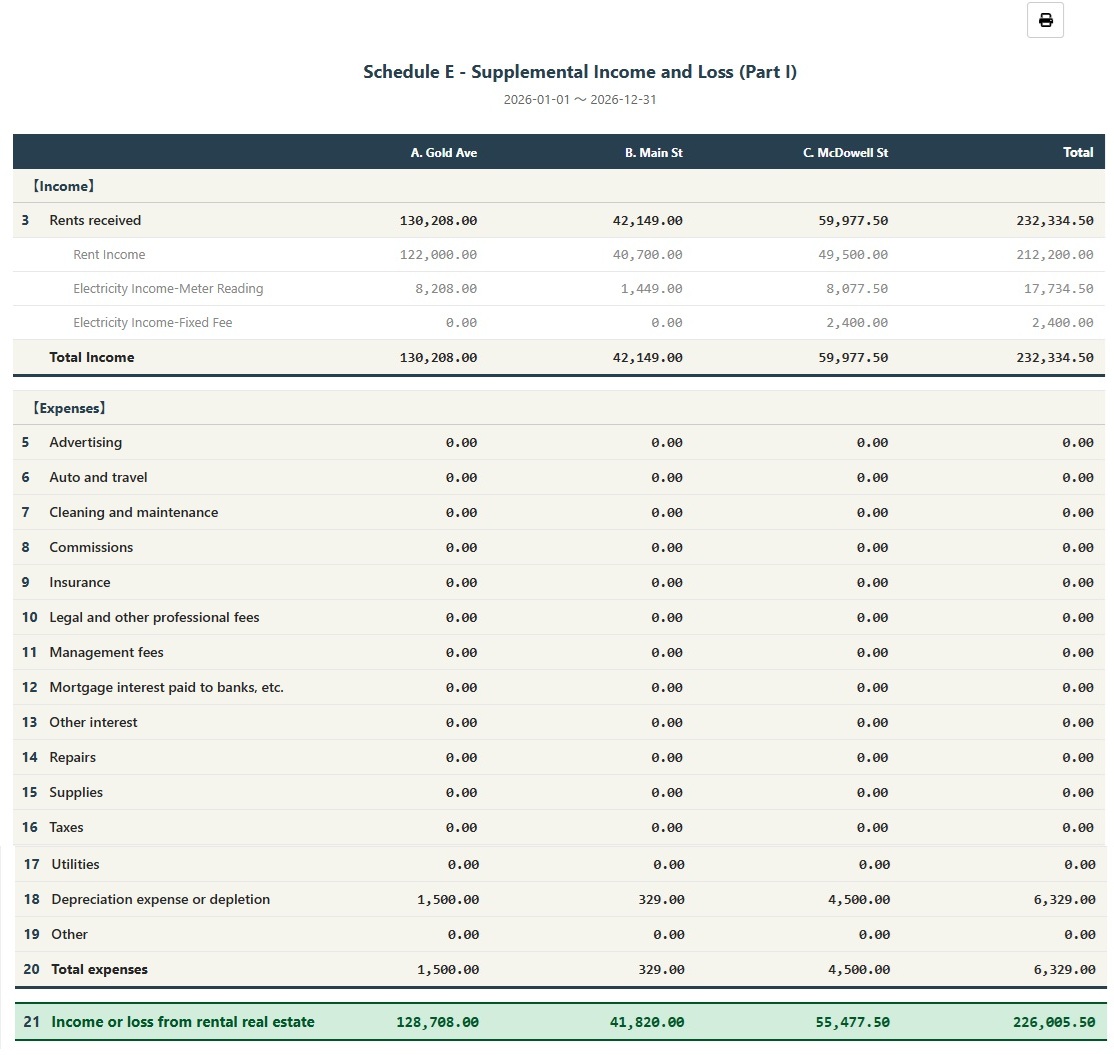
- Barcha ma'lumotlarning to'g'ri ekanligiga ishonch hosil qilganizdan so'ng, "Hisobot yaratish"ni tanlang
- Tizim Schedule E hisobotini yaratadi, unda har bir mulkning ijara daromadi (Line 3), ayrim xarajatlar (Lines 5-19), eskirish (Line 18) va sof daromad yoki zarar (Line 21) ko'rsatiladi.
- Hisobotni chop etishingiz yoki soliq qayta ishlash uchun PDF-ga eksport qilishingiz mumkin
Eskirishni doimiy qayd etish qanday amalga oshiriladi?
Agar siz eskirish miqdorini hisobga doimiy yozuv sifatida kirgizmoqchi bo'lsangiz, quyidagi qadamlarni bajaring:
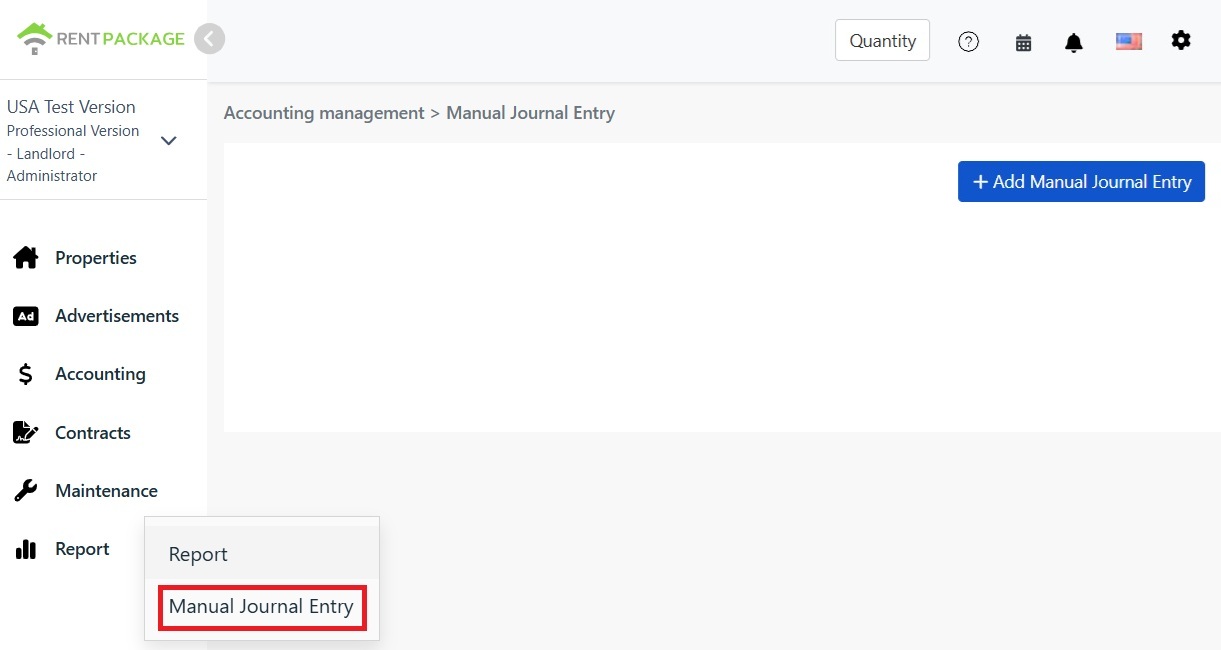
- "Hisobot → Qoʻlda jurnal yozuvi" bo'limiga o'ting
- "+ Qoʻlda yozuv qoʻshish" tugmasini bosing.
- Mos keluvchi obyektni tanlang.
- Quyidagi yozuvni kiriting:
| Hisob | Debet | Kredit |
|---|---|---|
| Eskirish xarajatlari | $10,000 | |
| Jamlangan eskirish | $10,000 |
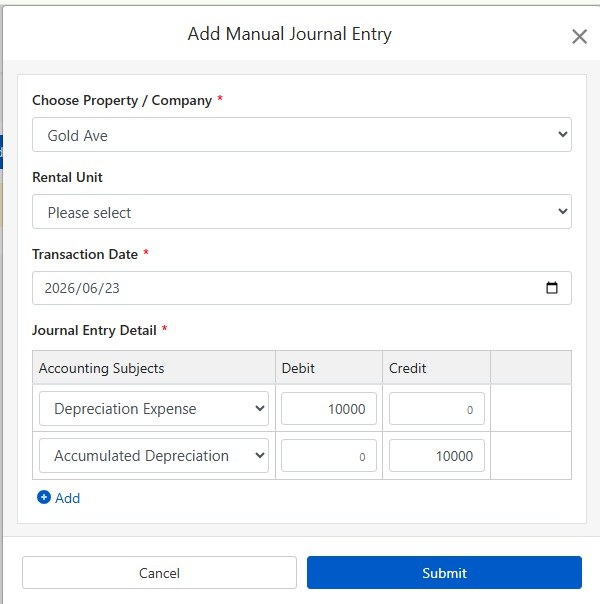
Yozuvni saqlash uchun "Yuborish" tugmasini bosing. Tugallangandan so'ng, navbatdagi Schedule E hisobotni yaratganda, tizim ushbu eskirish summasini avtomatik ravishda qo'shib, 🔒 qulf belgisini ko'rsatadi.
Eskirish qanday hisoblanadi?
AQShda turar-joy ijarasi mulklari to'g'ri chiziqli metod bilan 27,5 yil davomida eskirish hisoblanadi.
Formula:
Misol:
- Sotib olish narxi: $300,000
- Yer qiymati: $50,000 (Yerga eskirish hisoblanmaydi)
- Eskirish hisoblanadigan summa: $300,000 - $50,000 = $250,000
- Yillik eskirish: $250,000 ÷ 27.5 = $9,091
Yer qiymatini odatda mulk soligʻi hujjatida yoki baholash hisobotida topish mumkin. Savollaringiz bo'lsa, hisobchingiz bilan maslahatlashing.
Saralash shartlarini oʻzgartirish
Agar hisobot yaratgandan so'ng obyekt yoki soliq yilini o'zgartirish kerak bo'lsa, yuqoridagi 'Saralash shartlarini oʻzgartirish' tugmasini bosib, sozlamalar sahifasiga qayting.
Schedule E xarajat toifalari jadvali
| IRS liniya raqami | Tasniflash | Tavsif |
|---|---|---|
| Line 3 | Rents Received | Yig'ilgan ijara daromadlari umumiy miqdori |
| Line 4 | Royalties Received | Ruxsatnoma daromadi |
| Line 5 | Advertising | Reklama va marketing xarajatlari |
| Line 6 | Auto and Travel | Transport va xizmat safari xarajatlari |
| Line 7 | Cleaning and Maintenance | Tozalash va texnik xizmat ko'rsatish xarajatlari |
| Line 8 | Commissions | Vositachi yoki agent komissiyasi |
| Line 9 | Insurance | Mol-mulk sug'urta xarajatlari |
| Line 10 | Legal and Professional Fees | Advokat, buxgalter va professional xizmatlar xarajatlari |
| Line 11 | Management Fees | Mulk boshqaruvi xarajatlari |
| Line 12 | Mortgage Interest | Bankka to'lanadigan ipoteka foizlari |
| Line 13 | Other Interest | Boshqa foiz xarajatlari |
| Line 14 | Repairs | Ta'mirlash va texnik xizmat ko'rsatish xarajatlari |
| Line 15 | Supplies | Sarflanuvchi materiallar va xomashyo |
| Line 16 | Taxes | Uy-joy solig'i va boshqa soliqlar |
| Line 17 | Utilities | Suv, gaz va elektr kabi kommunal xizmatlar narxi |
| Line 18 | Depreciation | Eskirish xarajatlari |
| Line 19 | Other | Boshqa chegirib olinadigan xarajatlar |
Koʻp beriladigan savollar
Nega faqat 3 ta obyektni tanlash mumkin?
Bu IRS Schedule E formasi cheklovidir. Har bir forma faqat A, B, C ustunlaridan iborat bo'lib, maksimum 3 ta obyektni sig'dira oladi. Agar ko'proq obyektlaringiz bo'lsa, alohida hisobotlar yarating.
Eskirish maydoni qulflangan belgisini ko'rsatmoqda va tahrirlab bo'lmaydi, nima qilish kerak?
Qulflash belgisi miqdor jurnal yozuvlaridan kelib chiqqanligini bildiradi. Tahrirlash uchun 'Hisobot → Qoʻlda jurnal yozuvi' ga o'ting.
Hisobot sahifasida kiritilgan eskirish hisob-kitobda yoziladimi?
Yo'q. Hisobot sahifasidagi kiritilgan eskirish miqdori faqat shu hisobotni yaratish uchun ishlatiladi. Doimiy yozuv uchun qo'lda jurnal yozuvlari funksiyasidan foydalaning.
Hisobotdagi xarajatlar qanday tasniflanadi?
Tizim xarajatlarni Schedule E tasnifi bo'yicha avtomatik tasniflaydi, bu sizning hisobvaraqlaringizda belgilanganiga asoslanadi. Maqsadli Schedule E tasnifiga to'g'ri kiritilganligiga ishonch hosil qiling.
Ushbu hisobot soliq to'lovlari uchun bevosita ishlatilishi mumkinmi?
Bu hisobot faqat RentPackage da yozilgan daromad va xarajatlarning umumiy ko'rinishi uchun. Soliq to'lash uchun IRS rasmiy shakllariga o'tkazmasini yoki buxgalteringizga topshirishni unutmang. Topshirishdan oldin soliq bo'yicha mutaxassisga maslahat qilish tavsiya etiladi.
Xulosa
Hozirgidek davom etsangiz, keyingi soliq topshirishdan oldin yana bir yillik kvitansiyalar va ijara yozuvlarini qidirib, ularni qatorma-qator Schedule E ga taqsimlashingiz kerak boʻladi. Hisob-kitob RentPackage da yuritilsa va hisobvaraqlar Schedule E qatorlariga moslab qoʻyilsa, har yili faqat soliq yili va mulklarni tanlab, buxgalter uchun hisobot yaratasiz.
AQSHdagi bitta mulkdan boshlang: joriy soliq yilini tanlang, Schedule E ni bir marta yarating va daromad hamda xarajatlaringiz qaysi qatorlarga tushishini koʻring.
RentPackageʼni bepul sinab koʻringTegishli maqolalar
- RentPackage Qoʻlda jurnal yozuvi: taʼmirlash, sugʻurta, eskirish — ijarachi hisob davridan tashqari daromad va xarajatlarni ham hisobga kiritish mumkin:Eskirish, mulk soligʻi va hisob davrlaridan tashqaridagi boshqa summalarni jurnal yozuvi sifatida kiriting, Schedule E ularni ham hisobga oladi.
- RentPackage Moliyaviy natijalar toʻgʻrisidagi hisobot: har bir mulk va har bir mulkdor boʻyicha ijara daromadi va xarajatlari, qancha foyda koʻrilgani avtomatik hisoblanadi:Har bir mulk va har bir egasi qancha daromad qilayotganini soliq mavsumini kutmasdan istalgan vaqtda koʻring.
- RentPackageʼda Bosh kitobni qanday yaratish va ijara hamda obyekt hisoblarini avtomatik jamlash mumkin:Schedule E dagi biror qator summasi qayerdan kelganini bilmoqchimisiz? Bosh kitobda har bir hisobvaraq yozuvlarini birma-bir koʻrishingiz mumkin.